Last updated: November 1, 2026
An IPTV app keeps crashing most often on the exact devices people love using for streaming: budget Firestick models and Android boxes with limited RAM and storage. We’ve torn this problem apart across dozens of support tickets, and the pattern is consistent, low storage, a bloated cache, an oversized playlist, or an outdated app build. This guide covers all nine fixes we actually use, in the order that resolves crashing fastest.
On this page
- Why IPTV App Keeps Crashing on Firestick and Android Devices
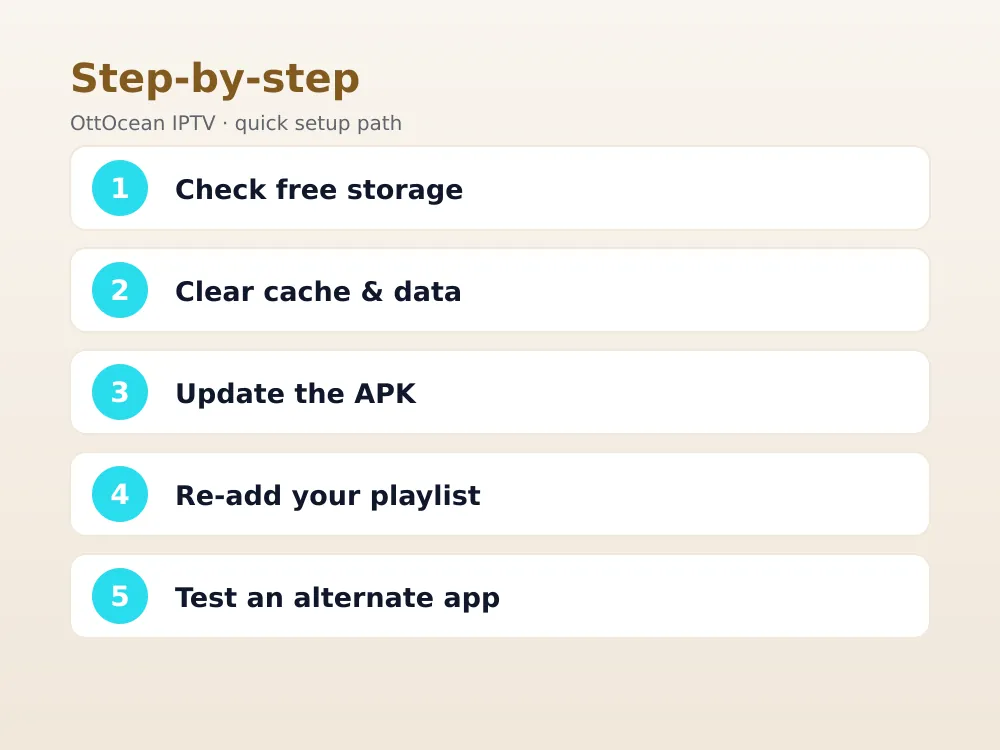
- Check for Low Storage Space First
- Clear App Cache and Data
- Update to the Latest APK Version
- Is Your Playlist File Too Large or Corrupted?
- Trim Down EPG Data Size
- Close Background Apps Eating RAM
- Check for Device Overheating
- Fix IPTV App Keeps Crashing With a Factory Reset
- Key Takeaways
- FAQ: IPTV App Keeps Crashing
- Get a Stable Streaming Setup

Why IPTV App Keeps Crashing on Firestick and Android Devices
Firestick and budget Android TV boxes ship with modest RAM, often 1 to 2 GB, and a fixed amount of internal storage that fills up faster than people expect once you’ve installed a handful of streaming apps alongside their cached thumbnails, EPG data, and playlist files. When available memory runs low, Android’s own system starts force-closing background processes to free resources, and your IPTV app is frequently the first one killed since it’s actively using the most memory of anything running.
This is why crashing tends to get worse over time on the same device rather than appearing suddenly. A fresh Firestick runs any IPTV app smoothly; the same device six months later, loaded with several apps, months of accumulated cache, and a growing channel list, starts crashing under exactly the same daily use. The fix usually isn’t a different app; it’s reclaiming the resources the device has quietly lost over time.
It’s worth separating a full crash, where the app closes entirely and drops you back to the home screen, from a freeze that eventually recovers on its own. A true crash is what this guide focuses on, since it’s almost always resource-related, while intermittent freezing that resolves itself is more often a network issue covered in our separate buffering guide. Knowing which one you’re actually seeing saves time troubleshooting the wrong cause.
Check for Low Storage Space First
Before touching any app settings, check your device’s available storage. On Fire TV, go to Settings > My Fire TV > About > Storage to see used versus available space; on Android TV it’s typically Settings > Device Preferences > Storage. If you’re below roughly 1 GB free on an 8 GB device, that’s tight enough to cause crashing across multiple apps, not just your IPTV player.
The fastest way to reclaim space is uninstalling apps you don’t actually use, since even dormant apps hold onto cached data indefinitely until removed. Photos, downloaded files, and screen recordings synced to the device also eat into the same storage pool on some devices, so check for those before assuming your apps alone are the problem.
We generally recommend keeping at least 1.5 to 2 GB free on any device used heavily for IPTV, since the app needs headroom not just for its own operation but for temporary files it creates while loading channel lists, thumbnails, and EPG data each session. A device that’s chronically near-full will keep triggering low-storage crashes no matter how many times you clear cache in between.
- Uninstall unused apps rather than just clearing their cache, since dormant apps still occupy install space.
- Check for a microSD card slot on your device if storage is chronically tight; many Android boxes support expandable storage.
- Avoid installing more than three or four heavy streaming apps on an 8 GB Firestick if crashing is a recurring issue.
Clear App Cache and Data
A bloated cache is one of the most common reasons an IPTV app keeps crashing even on a device with otherwise reasonable free storage. Go to Settings > Applications > Manage Installed Applications on Fire TV, or Settings > Apps > See all apps on Android TV, select your IPTV player, and clear the cache first. This removes temporary files without touching your saved playlists or login details.
If clearing cache alone doesn’t stop the crashing, Clear Data is the more aggressive next step, wiping the app back to a fresh install state including saved playlists and favorites. Keep your Xtream Codes or M3U login details handy before doing this, since you’ll need to re-enter them once the app relaunches with nothing configured.
A useful habit on any device where an IPTV app keeps crashing repeatedly is clearing cache on a schedule, roughly once a month for heavy daily use, rather than waiting until crashing starts. Cache buildup is gradual and invisible until it crosses a threshold that triggers instability, so a small amount of routine maintenance prevents the more disruptive full-data wipe later.
Update to the Latest APK Version
Outdated app builds accumulate crash-causing bugs that later versions specifically patch, particularly around memory management on lower-end hardware. If you sideloaded your player through Downloader rather than an app store, it’s easy to end up running a version that’s a year or more behind without any obvious warning that an update exists.
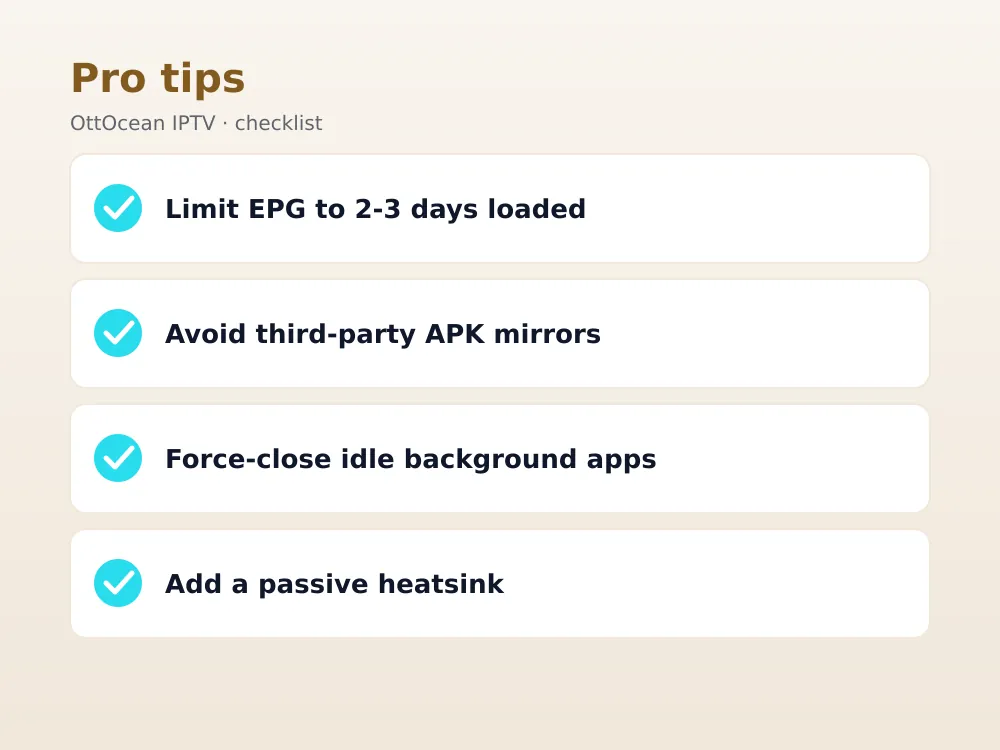
Check the app’s official website or its official support channel for the current version number, compare it against what’s installed under the app’s About or Settings screen, and download the latest APK directly from the developer if you’re behind. Avoid third-party APK mirror sites, which sometimes bundle modified or outdated builds that reintroduce the exact bugs you’re trying to fix.
App store versions on Google Play or the Amazon Appstore update automatically by default, which is worth enabling if your device supports it, since it removes this entire category of crashing from the list of things you need to think about. Sideloaded installs are the main exception, and if you went that route specifically for a feature only available outside the app store, set a monthly reminder to check for updates manually instead.
Is Your Playlist File Too Large or Corrupted?
A playlist with tens of thousands of channels and VOD entries, common with some all-in-one IPTV panels, can genuinely overwhelm a budget device’s limited RAM while the app tries to parse and index it on load. This shows up as a crash specifically during app startup or right after adding a new playlist, rather than randomly during normal use.
A corrupted playlist file, one with malformed entries or an incomplete download that got cut off partway through, produces a similar crash pattern. Try removing the playlist and re-adding it fresh from the original URL, ensuring the full file downloads completely before the app attempts to parse it, particularly on a slower connection where a large M3U file can take a noticeable moment to fully transfer.
If your provider offers a way to split a massive combined playlist into smaller category-specific lists, such as separate entries for sports, movies, and international channels, loading only the categories you actually use reduces the parsing load considerably. This is a reasonable workaround on genuinely low-RAM devices where even a freshly re-added, uncorrupted playlist still leaves the IPTV app keeps crashing pattern unresolved during the initial load.
Trim Down EPG Data Size
EPG guide data adds another memory load on top of the playlist itself, particularly if your provider’s feed includes several days of programme data across tens of thousands of channels. On lower-RAM devices, a combination of a large playlist and a heavy EPG feed loading simultaneously at app startup is a common trigger for crashes that happen specifically during the first ten to twenty seconds after opening the app.
If your player offers a setting to limit how many days of EPG data it loads at once, reducing it from a default of seven days down to two or three can meaningfully ease the load on startup. Some apps also let you disable EPG loading entirely as a diagnostic test, which confirms whether guide data specifically is contributing to the crash.
Combining a trimmed EPG window with a leaner playlist, rather than fixing only one of the two, tends to produce the most noticeable improvement on genuinely constrained hardware like an original Fire TV Stick or an entry-level Android box with 1 GB of RAM. Neither change affects the channels or guide accuracy you see day to day; they only limit how much the app tries to hold in memory simultaneously at startup.
Close Background Apps Eating RAM
Android TV and Fire OS both run background processes for other installed apps even while you’re not actively using them, and several memory-hungry apps running simultaneously compete directly with your IPTV player for the same limited RAM pool. Go to your device’s running apps or recent apps screen and force-close anything you’re not currently using before launching your IPTV app.
Apps that sync content in the background, like cloud photo backups or other streaming services checking for new episodes, are common silent RAM consumers on a device that otherwise looks idle. Uninstalling anything you rarely use, rather than just force-closing it each session, is a more permanent fix than manually closing apps every time you want to watch something.
Some devices include a built-in memory or performance monitor buried in developer settings, which shows exactly how much RAM is free at any given moment and which apps are consuming the most. If your device exposes this, checking it right before a crash-prone session tells you fairly quickly whether background apps are actually the bottleneck or whether the cause lies elsewhere, like the playlist size discussed earlier.
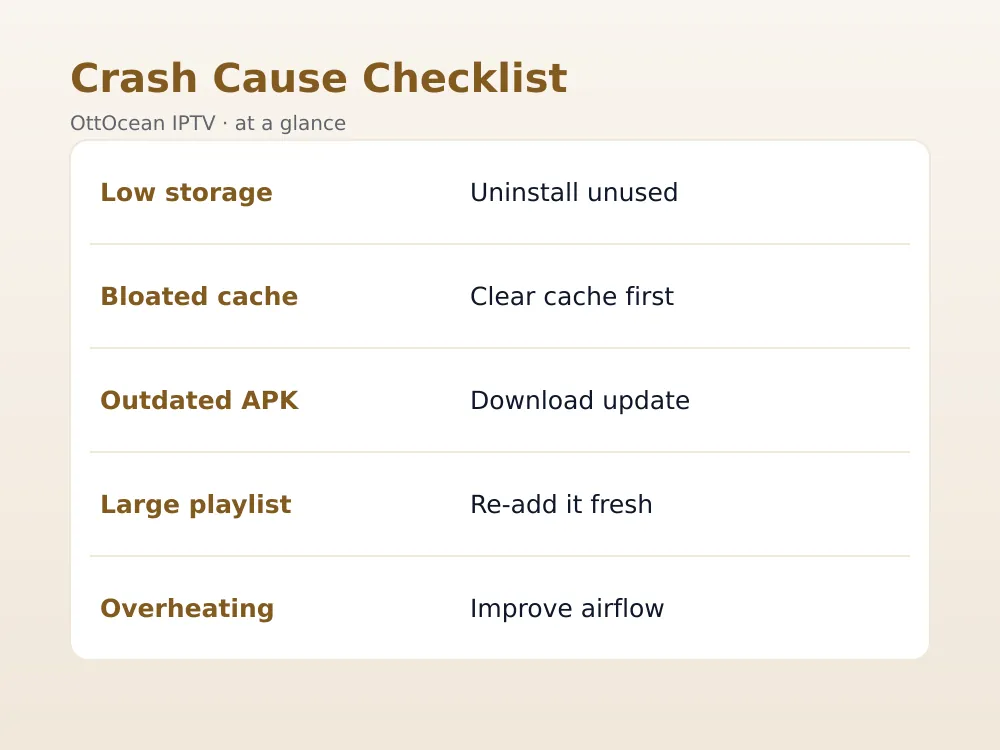
| Cause | How it shows up | Fix |
|---|---|---|
| Low storage | Crashes across multiple apps | Uninstall unused apps |
| Bloated cache | Gradual crashing over months | Clear cache, then data if needed |
| Outdated APK | Crashes after a provider update | Download latest version |
| Large/corrupted playlist | Crashes on startup or load | Re-add playlist fresh |
| Device overheating | Crashes during long sessions | Improve airflow, add ventilation |
Check for Device Overheating
A streaming device tucked into a closed media cabinet or pressed flat against the back of a warm TV can run hot enough to trigger thermal throttling or an outright crash, particularly during extended viewing sessions like a long sports broadcast or a binge-watching session that keeps the processor working continuously for hours.
Feel the device after it’s been running for a while; if it’s noticeably hot to the touch, improve its airflow by moving it to open air, using a short HDMI extender to pull it away from the TV’s heat, or adding a small passive heatsink, which are inexpensive and widely available for Firestick-shaped devices specifically.
Fix IPTV App Keeps Crashing With a Factory Reset
If you’ve worked through storage, cache, updates, and playlist size and the IPTV app keeps crashing regardless, a factory reset clears every accumulated system-level issue at once, effectively giving you a brand-new device software-wise. It’s a last resort because it wipes everything, not just the problem app, so back up anything important and be ready to reinstall your full app lineup from scratch.
Before resetting, it’s worth trying a completely different player app with the same login details, since a factory reset takes considerably longer than testing an alternate app like IPTV Smarters Pro instead of TiviMate, or vice versa. If the alternate app runs perfectly stable with the identical playlist, that tells you the crashing was app-specific rather than a device-wide resource problem, saving you from an unnecessary factory reset.
After a factory reset, resist the urge to immediately reinstall every app you had before. Start with just your IPTV player, confirm it runs stable on its own for a few days, and add other apps back gradually. This makes it far easier to identify which specific app was contributing to the original resource pressure if crashing eventually returns.
Key Takeaways
- IPTV app keeps crashing most often due to low storage, cache buildup, or an oversized playlist on budget hardware.
- Check available storage before anything else; under 1 GB free causes crashing across multiple apps, not just IPTV players.
- Clear cache before clearing data, since data wipes remove saved playlists and login details.
- An outdated APK build is an easy thing to overlook if you sideloaded the app outside an app store.
- A playlist with tens of thousands of entries can overwhelm budget-device RAM during app startup specifically.
- Device overheating during long viewing sessions produces crashes that mimic a software problem.
- Test an alternate player app with the same login before resorting to a full factory reset.
FAQ: IPTV App Keeps Crashing
Why does my IPTV app crash right when it opens?
A crash on launch is usually tied to parsing an oversized or corrupted playlist file, or an overloaded EPG feed loading alongside it, both of which strain a budget device’s RAM the moment the app starts. Try removing and re-adding your playlist fresh, and reduce how many days of EPG data your player loads if that setting is available.
Does low storage really cause an app to crash?
Yes. Once free storage drops below roughly 1 GB on an 8 GB device, Android’s own memory management starts force-closing background and even active processes to free resources, and IPTV apps are frequent targets since they use more memory than most apps. Uninstalling unused apps is usually the fastest fix.
Should I clear cache or clear data first?
Always try clearing cache first, since it removes only temporary files and leaves your saved playlists, favorites, and login details intact. Clear data is the more aggressive option that wipes everything back to a fresh install, so save it for when cache clearing alone doesn’t resolve the crashing.
Can a bad playlist file cause an IPTV app to keep crashing?
Yes, particularly a very large playlist or one that downloaded incompletely, leaving malformed entries the app can’t parse correctly. Delete the playlist entirely and re-add it fresh from the original URL, confirming the full file transfers before the app tries to load it, especially over a slower connection.
Will a factory reset fix an IPTV app that keeps crashing?
Often, yes, since it clears every accumulated system-level issue at once, but it’s a last resort because it wipes the entire device, not just the problem app. Try a different player app with the same login details first; if that runs stably, the crashing was app-specific and a factory reset isn’t necessary.
Why does my IPTV app only crash during long viewing sessions?
This points to device overheating rather than a storage or cache issue, since extended playback keeps the processor working continuously and heat builds up inside a poorly ventilated case. Improve airflow around the device, move it away from a warm TV back panel, or add a small passive heatsink built for streaming sticks.
Get a Stable Streaming Setup
A well-optimized device matters, but a leaner playlist and a properly delivered Xtream Codes login also reduce the load your app has to handle on startup. OttOcean IPTV provides clean Xtream Codes and M3U access across 25,000+ live channels with EPG, formatted to load efficiently even on budget Firestick and Android TV hardware. See our best IPTV for Firestick guide for device-specific app recommendations, and our general IPTV troubleshooting guide for related issues.
If your IPTV app keeps crashing no matter which device-side fix you try, testing a fresh playlist from a different provider isolates whether an oversized or malformed feed is the real cause. Start a 5-day free trial, no credit card required, and see whether your player runs stable with our channel list loaded. Ready to switch? Compare plans on our IPTV subscription page starting at $9.99 a month. For general guidance on Android app memory management, see the Android developer documentation on memory management.