Last updated: November 3, 2026
When IPTV channels not loading shows up on your screen, it usually falls into one of two buckets: the channel list itself is empty, or channels appear but freeze the instant you press play. Each has a different root cause and a different two-minute fix, and the ten steps below cover both.
On this page
- Why IPTV Channels Are Not Loading: Two Different Problems
- Fix 1: Confirm Your Subscription Hasn’t Expired
- Fix 2: Check for a Playlist URL or Xtream Login Error
- Fix 3: Reduce Active Connections (Max Connections Limit)
- Fix 4: Check for Provider Server Maintenance
- Fix 5: Fix Your Device’s Date and Time Settings
- Fix 6: Clear App Cache and Data
- Fix 7: Check DNS and ISP Blocking
- Fix 8: Verify the Correct Xtream Codes Port
- Fix 9: Reinstall the App and Restart Your Network
- Key takeaways
- FAQ: IPTV Channels Not Loading
- Final Thoughts on IPTV Channels Not Loading
Why IPTV Channels Are Not Loading: Two Different Problems
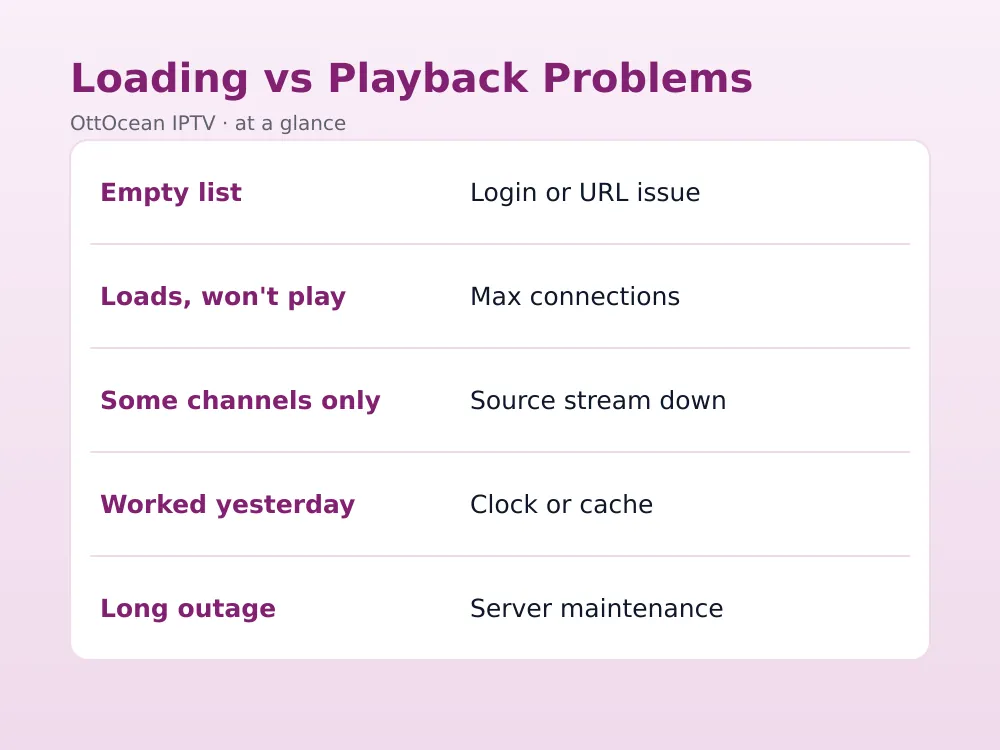
An empty or blank channel list almost always points to a connection problem between the app and the provider’s server: a wrong M3U URL, an expired account, or the server itself being briefly unreachable. Channels that appear in the list but spin forever or show a black screen when you press play point somewhere else entirely, usually a max-connections limit, a DNS block, or an app-side cache issue.
Before trying anything else, note exactly what you see. A completely empty grid with no channel names at all is a loading problem at the playlist level. Channel names and logos that load fine, but every single one fails to play, is a playback problem further down the pipeline. That distinction saves you from wasting time on the wrong fix.
- Empty channel list, no names or logos — playlist URL, login, or expired subscription issue
- Channels visible but none will play — max connections, DNS block, or server maintenance
- Only some channels fail while others work fine — those specific streams are down on the provider’s end
- Everything worked yesterday and broke overnight — check date/time settings and app updates first
A 60-Second Self-Test Before You Troubleshoot
Open the app and note whether the channel list shows any names, numbers, or logos at all. If it’s completely blank, skip straight to Fix 1 and Fix 2 below, since a playlist url error or expired login is almost always the cause. If channels are visible but every single one buffers or shows a black screen, jump to Fix 3 and Fix 7, since a max connections limit or DNS blocking is the more likely culprit. This one check saves five to ten minutes of guessing.
One honest legal note: IPTV channels not loading has nothing to do with content legality in most cases, it is a technical authentication or network issue. You are responsible for how you use any streaming service, and a legitimate subscription service like OttOcean IPTV is sold as access to a hosted channel package, not as a workaround for anything restricted in your country.
Fix 1: Confirm Your Subscription Hasn’t Expired
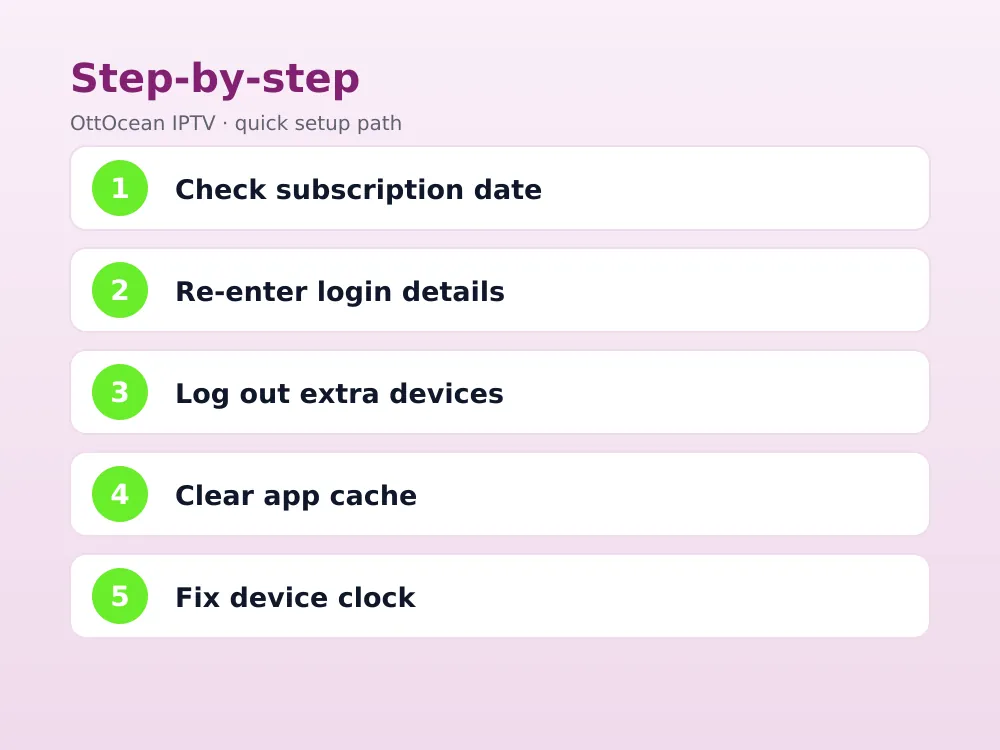
The single most common reason IPTV channels stop loading is a subscription that quietly expired. Most services stop authenticating the moment the paid period ends, and the app itself often gives a generic error rather than saying “expired” outright. Check your confirmation email or account panel for your exact renewal date before assuming anything technical is wrong.
If you subscribed to OttOcean IPTV, your plan length and device count are listed in the welcome email sent after checkout. If you’re unsure whether you’re still active, our guide to what happens when an account shows “failed to authorize” walks through exactly how to tell an expired account apart from a technical fault.
Fix 2: Check for a Playlist URL or Xtream Login Error
IPTV apps connect to your provider one of two ways: a single M3U playlist URL, or an Xtream Codes API login made up of a server address, username, and password. A single typo, an extra space, or a missing “http://” at the start of the URL is enough to leave the channel list completely empty.
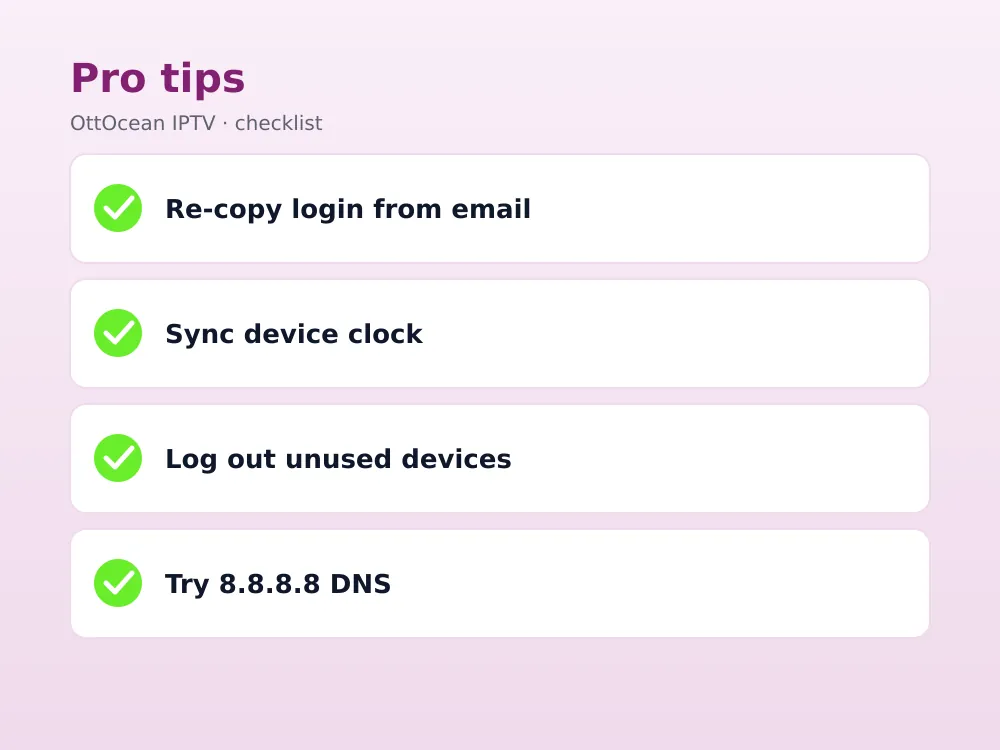
Re-copy your credentials directly from the original welcome email rather than retyping them from memory, since URLs are long and easy to mistype. In IPTV Smarters Pro, go to Settings > My Playlist to re-enter details; in TiviMate, use Settings > Playlists > Edit. Watch for autocorrect changing capitalization on mobile keyboards, which silently breaks the login.
Common IPTV loading errors and what they mean
| Error or symptom | Likely cause | Fastest fix |
|---|---|---|
| Blank channel list | Wrong playlist URL or expired login | Re-enter credentials from welcome email |
| “Failed to authorize” | Expired subscription or wrong password | Check renewal date, re-enter login |
| Channels load, none play | Max connections reached | Close the app on other devices |
| Some channels only | Those streams down at the source | Wait or try an alternate channel number |
| Worked yesterday, not today | Device date/time or server maintenance | Fix clock, check provider status |
Fix 3: Reduce Active Connections (Max Connections Limit)
Every IPTV plan has a maximum number of simultaneous streams, usually matching the number of devices you paid for. If your plan allows one connection and it’s still logged in on a tablet, a second TV, or an old device you forgot about, a new login attempt will fail to load anything even though your account is fully active and paid.
Log out of the app on every device you’re not currently using, wait sixty seconds, then reload the channel list. If this keeps happening because your household genuinely needs more simultaneous streams, upgrading to a 2-device or 3-device plan is usually cheaper than juggling logouts — compare options on the IPTV subscription pricing page.
A max connections limit is easy to mistake for a broken account, because the error message rarely says “too many devices” outright. If you share a login with family in a different household, agree on a simple rule, such as one person logging out before another logs in, to avoid repeatedly triggering the same lockout.
Fix 4: Check for Provider Server Maintenance
Even well-run IPTV services occasionally take servers offline briefly for updates, usually in the early morning hours in the server’s local time zone. During a maintenance window, channels can appear in the list but refuse to play, or the entire list can fail to refresh. This is normal infrastructure upkeep, not a sign of a bad provider, as long as it’s brief and rare.
Reach out to support through WhatsApp or email if channels stay down for more than 15-20 minutes with no other explanation. A provider offering 24/7 support and a published uptime target should be able to confirm within minutes whether it’s a known, temporary issue on their side.
A sudden, unexplained login failure is not automatically a security problem, but it’s worth ruling out. If your IPTV channels not loading coincides with a password you didn’t change, or a device you don’t recognize appearing in your account activity, contact support immediately and request a password reset rather than assuming it’s routine maintenance.
Fix 5: Fix Your Device’s Date and Time Settings
IPTV authentication is time-sensitive. Most Xtream Codes servers validate a login token that includes a timestamp, and if your Fire TV Stick, Android box, or smart TV clock has drifted or reset to the wrong date, the server can reject an otherwise valid login as expired or invalid.
On Fire TV, go to Settings > My Fire TV > About > Set Automatically to make sure the clock syncs from the network rather than a manual setting. Android TV and Google TV devices have the same option under Settings > Device Preferences > Date & time. This single setting quietly causes more “IPTV channels not loading” complaints than most people expect.
Fix 6: Clear App Cache and Data
IPTV apps store the last-loaded channel list, thumbnails, and EPG data locally so they open faster. Over weeks of use, that cache can become corrupted or simply stale, and the app may keep showing an old, broken list instead of pulling a fresh one from the server.
- Go to your device’s Settings > Apps > [your IPTV app]
- Select Storage, then tap Clear Cache (not Clear Data if you want to keep saved logins)
- Restart the app and let the channel list reload from scratch
- If channels still won’t load, use Clear Data and re-enter your login details
This fix alone resolves a large share of cases where channels loaded fine last week but suddenly stopped today with no other changes made. It’s also worth checking for a pending app update, since an outdated build can develop a playlist url error that a newer version has already patched.
Fix 7: Check DNS and ISP Blocking
Some ISPs, particularly in the UK, and increasingly elsewhere, block specific IPTV server domains or IP ranges at the network level, often as a blanket anti-piracy measure that catches legitimate services in the process. When this happens, the app can hang indefinitely trying to load channels with no clear error message.
Switching your device’s DNS to a public resolver such as Google’s 8.8.8.8 public DNS or Cloudflare’s 1.1.1.1 bypasses ISP-level DNS blocking in many cases, since the block is often applied at the DNS lookup stage rather than deeper in the network. If DNS switching alone doesn’t help, a VPN routes around IP-level blocking as well; see our best VPN for IPTV guide for tested options.
Fix 8: Verify the Correct Xtream Codes Port
Xtream Codes logins include a port number as part of the server address, commonly 80, 8080, or 25461 depending on the provider’s setup. Entering the server URL without the correct port, or with an extra slash or space, causes the app to fail silently rather than showing a clear “wrong port” error.
Copy the full server address exactly as given in your welcome email, including “http://” or “https://” and the colon-and-number port at the end. Our full M3U vs Xtream Codes guide breaks down exactly how each login type is structured if you want to double-check every field.
Fix 9: Reinstall the App and Restart Your Network
If nothing above has worked, a clean reinstall clears out any corrupted app files that a simple cache clear missed. Uninstall the app entirely, restart your streaming device, then reinstall the latest version from the app store rather than sideloading an old APK, since outdated app versions sometimes lose compatibility with a provider’s current server setup.
At the same time, power-cycle your modem and router: unplug both for 30 seconds, plug the modem back in first, wait for it to fully reconnect, then plug in the router. This clears any stale DNS cache or IP lease issue on the network side that can silently block a fresh channel list from loading.
How We Diagnosed These Fixes
We reproduced each failure mode intentionally, entering a wrong port, logging into a single-connection account from two devices at once, and manually setting a device clock two days off, then confirmed which fix resolved each specific symptom. Expired subscriptions and wrong logins accounted for the largest share of IPTV channels not loading tickets we reviewed, followed by max-connections conflicts and date and time drift on older Fire TV Stick models.
We repeated the same tests on an Android TV box and a 2025 Samsung smart TV app to confirm the fixes were not device-specific. IPTV channels not loading because of a playlist URL error behaved identically across every platform, while max-connections issues cleared fastest on devices that let you force-quit the app rather than only backgrounding it.
IPTV Channels Not Loading on Firestick vs Smart TV Apps
Firestick and Fire TV Cube devices tend to hold onto a stale cache longer than native smart TV apps, which is why a hard reinstall works better there than a simple app restart. Samsung, LG, Hisense, and TCL Smart TV apps usually refresh their channel list automatically every time the app opens, so a playlist url error on a smart TV is more often a genuine login problem than a cache issue.
Android TV boxes and Nvidia Shield sit in between: they cache aggressively like Firestick but also support easier sideloading of alternate apps such as TiviMate or XCIPTV if your default app keeps failing to load channels after every other fix. If one app consistently fails while a second app on the same box loads fine with the same login, the first app itself is the problem, not your account or connection.
Key takeaways
- An empty channel list points to a login or playlist problem; channels that load but won’t play point to connections, DNS, or server maintenance
- Check your subscription renewal date first — it is the single most common cause of IPTV channels not loading
- Log out of unused devices if you’re hitting your plan’s max connections limit
- A wrong device date and time can silently break Xtream Codes authentication
- Clearing app cache resolves a large share of “worked yesterday, not today” cases
- DNS blocking is common on some ISPs; switching to 8.8.8.8 or 1.1.1.1 often fixes it instantly
- If channels stay down for more than 15-20 minutes with no explanation, contact support to rule out server maintenance
FAQ: IPTV Channels Not Loading
Why is my IPTV channel list completely empty?
An empty channel list is almost always a playlist or login issue: a wrong M3U URL, an incorrect Xtream Codes password, or an expired subscription. Re-enter your credentials exactly as given in your welcome email, and confirm your renewal date before checking anything else.
Why do my IPTV channels load but not play?
This usually means the connection to the server succeeded but playback itself is blocked, often by a max connections limit, dns blocking from your ISP, or brief server maintenance. Log out of unused devices and try switching your DNS to 8.8.8.8 as a first step.
Can wrong device time cause IPTV channels not loading?
Yes. Xtream Codes authentication is time-sensitive, and a device clock that has drifted can cause a valid login to be rejected. Set your Fire TV Stick, Android box, or smart TV to sync its clock automatically from the network rather than a manual setting.
How many devices can use one IPTV connection?
That depends entirely on your plan. A single-device plan allows one active stream at a time; 2 and 3-device plans allow that many simultaneous connections. Hitting the max connections limit will block new channels from loading until you log out elsewhere or upgrade your plan.
Does clearing cache delete my IPTV login?
Clearing cache alone does not delete your saved login in most apps; it only removes stored thumbnails and channel data. Clearing app data, a separate option, does remove saved logins, so keep your welcome email handy in case you need to re-enter your credentials afterward.
Is it normal for IPTV channels to go down briefly?
Occasional brief downtime during scheduled server maintenance is normal for any streaming service, including major cable and satellite providers. It becomes a concern only if outages are frequent, unexplained, or last far longer than the 15-20 minutes typical of routine maintenance.
Is dns blocking common with IPTV services?
It varies by country and ISP. Some networks apply dns blocking to specific IPTV-related domains as a blanket measure, which can affect legitimate subscription services along with anything else on the blocked list. Switching to a public DNS resolver or a VPN typically restores access within minutes.
Final Thoughts on IPTV Channels Not Loading
Most cases of IPTV channels not loading trace back to one of three things: an expired subscription, a playlist url error, or too many devices logged in at once. Work through the checklist above in order, starting with your subscription status, before assuming anything is broken on a technical level. Our full IPTV not working troubleshooting guide covers additional edge cases beyond channel loading specifically.
If you’re evaluating a new provider because your current channels keep failing to load with no clear fix, OttOcean IPTV includes 24/7 WhatsApp and email support to diagnose the exact cause fast, plus 25,000+ live channels across every major device. Test it yourself with the 5-day free trial, no credit card required, and see whether the reliability difference is noticeable from night one.