Last updated: October 30, 2026
IPTV no sound while the picture keeps playing perfectly is one of the stranger IPTV problems, because it usually has nothing to do with your subscription or your internet connection at all. In almost every case we’ve diagnosed, it traces back to an audio codec your device can’t decode, a passthrough setting fighting with your soundbar, or a muted track buried in the player app. This guide covers all nine fixes in the order we’d try them.
On this page
- Why IPTV No Sound Happens Even Though the Picture Works Fine
- Check the Simple Stuff First: Mute, Volume, and Cables
- Audio Codec Problems: AC3, EAC3, and DTS on Fire TV and Android
- Switch Between Hardware and Software Audio Decoding
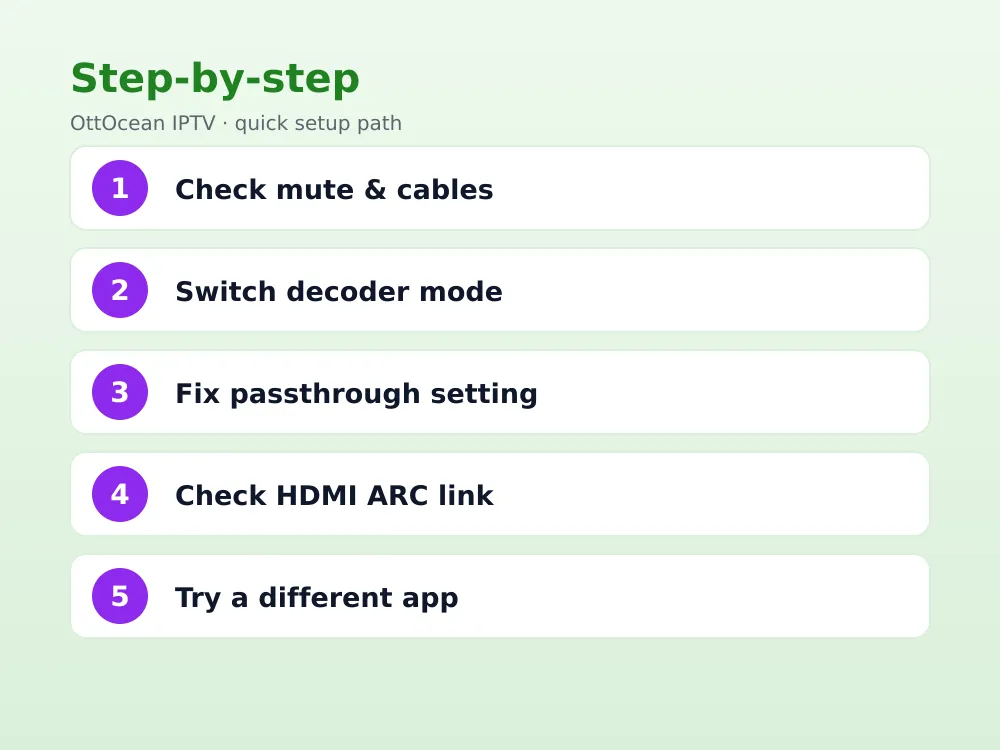
- Fix Audio Passthrough Settings for Your Soundbar or Receiver
- HDMI ARC and eARC Troubleshooting for Soundbar Setups
- Select the Correct Audio Track for the Channel
- Try a Different Player App
- Fixing IPTV No Sound on Specific Devices
- Key Takeaways
- FAQ: IPTV No Sound
- Get Sound Working the First Time
Why IPTV No Sound Happens Even Though the Picture Works Fine
Video and audio travel as separate data streams inside an IPTV broadcast, decoded independently by your device. That’s why it’s entirely possible for the picture to render perfectly while the audio decoder silently fails or gets rejected by your TV or receiver. The video decoder rarely cares what audio format is attached, so it keeps playing while the sound simply never makes it to your speakers.
The most common root cause is a codec mismatch. Live TV channels are frequently encoded with AC3 or EAC3 (Dolby Digital and Dolby Digital Plus) or DTS audio, formats that some Fire TV Sticks, budget Android boxes, and older Smart TV apps either can’t decode locally or expect to pass through untouched to an external receiver. When that handoff breaks, you get flawless video and total silence.
Worth understanding is that this isn’t an IPTV-specific quirk; the same codec mismatches occasionally show up on cable boxes and satellite receivers too. It’s more visible with IPTV simply because you’re often switching between more device types, app updates, and provider feeds than a fixed cable box setup ever exposes you to, so a codec that quietly worked yesterday can fail after any one of those variables changes.
Check the Simple Stuff First: Mute, Volume, and Cables
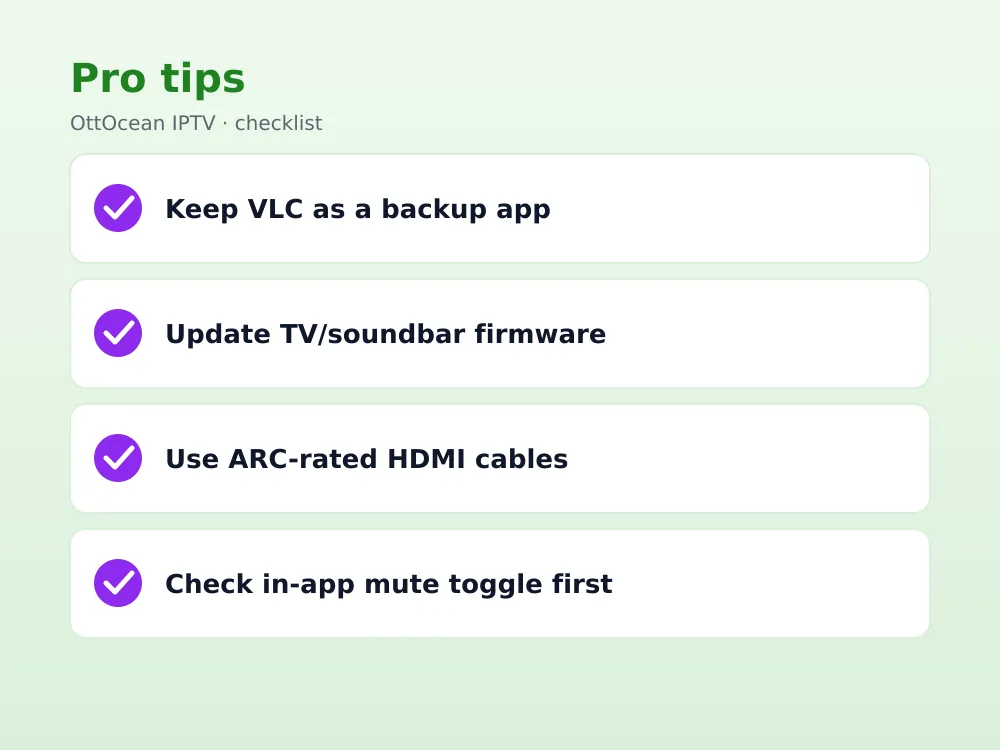
Before diving into codec settings, rule out the obvious. Check that the streaming app itself isn’t muted independently of your TV volume, since several IPTV players have their own in-app mute toggle that’s easy to hit by accident with a remote. Also confirm your TV isn’t set to a secondary audio output, like optical or headphone jack, that silently routes sound away from your main speakers.
If you’re running audio through an external soundbar or AV receiver, reseat the HDMI cable at both ends, and try a different HDMI port on the TV, since some TVs designate only one or two ports as ARC-capable. A loose or non-ARC port produces exactly this symptom: picture fine, sound completely absent.
It’s also worth a full app restart and, if that doesn’t help, a device reboot before touching any deeper settings. Streaming apps occasionally lose their grip on the audio session after a phone call interrupts playback, a screensaver kicks in, or the device wakes from sleep, and a clean restart clears that stuck state faster than hunting through menus.
Audio Codec Problems: AC3, EAC3, and DTS on Fire TV and Android
Fire TV Sticks and many Android-based streaming boxes handle AC3 and EAC3 passthrough reasonably well when connected to a receiver that also supports those formats, but they can stumble when a channel uses a less common DTS variant, or when the device tries to pass through a format your TV’s built-in speakers can’t decode without a receiver in the chain. If you’re using the TV’s own speakers rather than an external system, passthrough almost never works, since TV speakers typically only understand basic stereo PCM audio.
This is the single most common cause of IPTV no sound on a TV’s built-in speakers specifically. The fix is switching the audio output from passthrough to a decoded format like PCM or “Auto (decode),” which tells the device to convert AC3/EAC3/DTS locally into a format basic speakers can play, rather than trying to forward an encoded signal they were never built to understand.
You’ll usually find this setting under Settings > Display & Sounds on Fire TV, or Settings > Sound on most Android TV interfaces, listed as something like “Dolby Digital Output” with options for Auto, Passthrough, and PCM/Off. Choosing PCM forces every format down to basic stereo that any speaker understands, which sacrifices surround sound but guarantees you’ll hear something rather than nothing.
Switch Between Hardware and Software Audio Decoding
Most serious IPTV apps, including TiviMate, IPTV Smarters Pro, and XCIPTV, include an audio decoder toggle somewhere under Settings > Playback or Settings > Audio, usually offering a choice between hardware decoding and software decoding. Hardware decoding leans on your device’s dedicated audio chip and is generally more efficient, but it’s also pickier about which codecs it accepts.
Switching to software decoding forces the app itself to convert the audio in code rather than relying on the device’s chip, which resolves a meaningful share of IPTV no sound cases on budget hardware. It costs a small amount of extra processing overhead, which is rarely noticeable on anything released in the last few years, in exchange for far broader codec compatibility.
If your app doesn’t clearly label this toggle, look for terms like “Decoder priority,” “Audio engine,” or a simple hardware/software switch nested inside a Player or Playback settings screen. Toggling it and immediately testing the same channel that was silent is the fastest way to confirm whether this was the fix, since the change applies instantly without needing an app restart in most cases.
Fix Audio Passthrough Settings for Your Soundbar or Receiver
If you do have an external soundbar or AV receiver and want it handling the surround decoding rather than your streaming device, passthrough is the setting you want, but only if the receiver explicitly supports the format the channel is broadcasting in. Check your receiver’s manual or on-screen display for which formats it lists as supported, typically Dolby Digital, Dolby Digital Plus, and sometimes DTS.
A frequent mistake is leaving passthrough enabled after swapping to a different soundbar or TV that doesn’t support the same formats as the old one. If sound worked before a hardware change and stopped after, revisit the passthrough setting first, since it’s the setting most likely to have become mismatched with your new equipment.
Older AV receivers sometimes only decode standard Dolby Digital and choke on Dolby Digital Plus, which many IPTV providers use for HD channels since it carries more channels at a similar bitrate. If your receiver’s manual predates roughly 2015, that’s a reasonable first guess for why passthrough produces silence on newer HD feeds specifically while older SD channels play fine.
HDMI ARC and eARC Troubleshooting for Soundbar Setups
ARC (Audio Return Channel) and its newer version eARC send audio from your TV back to a soundbar over the same HDMI cable used for video, which is convenient but prone to handshake failures between mismatched devices. If your soundbar and TV occasionally lose the connection and require a power cycle to reconnect, that’s a classic ARC handshake problem rather than anything related to your IPTV app specifically.
Confirm your TV’s ARC/eARC port is set correctly in its audio output menu, usually under Settings > Sound > HDMI-CEC or a similarly named ARC toggle, and that CEC control is enabled if you want the TV and soundbar to negotiate automatically. Power-cycling both the TV and soundbar, in that order, resolves a surprising number of stuck ARC handshakes.
If you’ve recently added a fourth or fifth HDMI device to the chain, such as a game console or a second streaming box, check whether an HDMI switch or splitter sits between the TV and soundbar. These can interfere with the ARC handshake even when video passes through them cleanly, since ARC relies on a dedicated signaling path that some budget switches don’t fully support.
- Confirm the HDMI cable is rated for the audio format you’re trying to pass, since some older cables cap out below what eARC needs.
- Try the optical/TOSLINK connection as a temporary workaround if ARC keeps dropping, since it carries basic Dolby Digital reliably.
- Update your TV and soundbar firmware, since ARC handshake bugs are commonly patched in software updates.
Select the Correct Audio Track for the Channel
Some IPTV channels broadcast multiple audio tracks, most commonly a primary language track and one or more alternate language or commentary tracks, and it’s easy for a stream to default to a silent or foreign-language track without any obvious indicator. Most players show an audio track selector, sometimes accessed by pressing a dedicated button on the remote or through an on-screen menu icon during playback.
If a specific channel has no sound while every other channel works fine, this is worth checking before anything else, since it’s a per-channel setting rather than a device-wide problem. Cycling through the available audio tracks for that one channel often reveals a working track sitting right next to the silent default.
On TiviMate and IPTV Smarters Pro, this is typically accessed by pressing the info or menu button on your remote during playback, which brings up a small overlay listing available audio tracks alongside subtitle options. If only one track ever appears, the channel itself may only be broadcasting a single silent or misconfigured track at the source, which is a provider-side issue rather than anything fixable in your player’s audio track menu.
Try a Different Player App
If you’ve worked through codec, passthrough, and ARC settings and still get IPTV no sound on a specific channel or device, testing the same Xtream Codes login or M3U URL in a different app isolates whether the problem is app-specific. VLC, ExoPlayer-based apps, and TiviMate each handle audio decoding slightly differently under the hood, and a format that silently fails in one can work fine in another.
VLC in particular is worth keeping installed as a diagnostic tool even if you don’t use it daily, since its audio decoding is notably permissive and tends to play formats that stricter apps reject outright. If VLC plays sound correctly on a channel that’s silent everywhere else, the issue is specific to your main app’s audio handling, not the channel or your subscription, and it’s worth reporting to the app’s developer with the exact codec details if you can find them.
| Symptom | Likely cause | Fix |
|---|---|---|
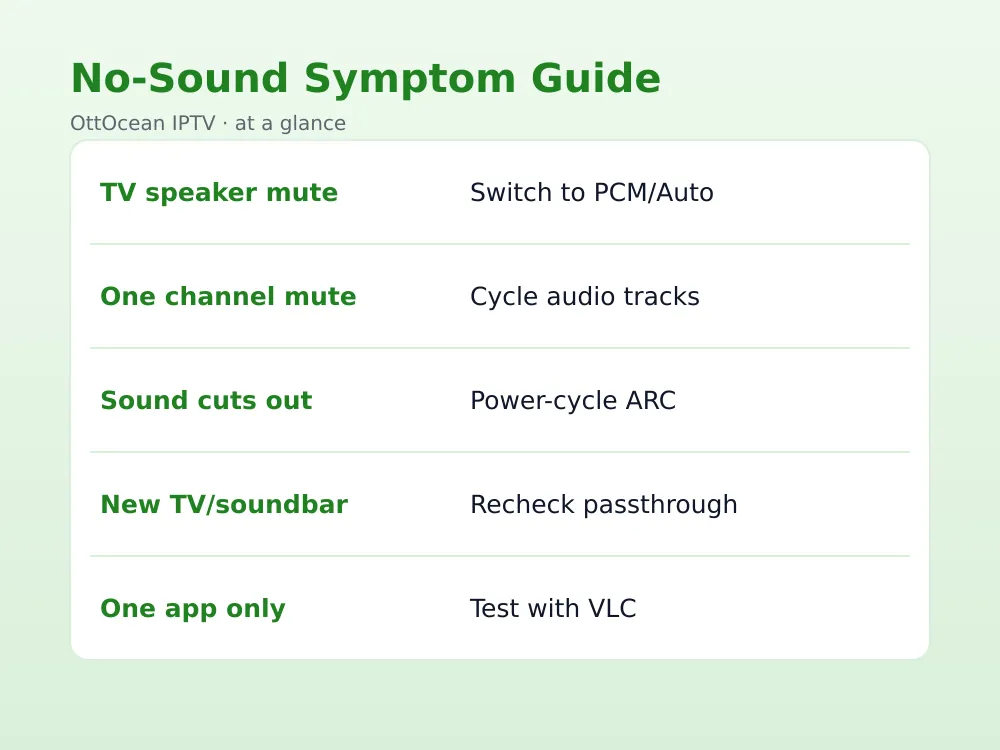
| No sound, TV speakers | Passthrough sent to speakers that can’t decode it | Switch to PCM/Auto decode |
| No sound, one channel only | Wrong audio track selected | Cycle audio tracks in player |
| Sound cuts in and out | ARC/eARC handshake instability | Power-cycle TV and soundbar |
| No sound after hardware swap | Passthrough mismatched with new device | Recheck passthrough settings |
| No sound in one app only | App-specific decoder limitation | Test with VLC or another player |
Fixing IPTV No Sound on Specific Devices
Firestick and Fire TV devices most often need the audio output set to “Auto” or “Best Available” under Settings > Display & Sounds > Audio, which lets the device negotiate the safest format rather than forcing passthrough. Android TV boxes usually expose a similar toggle under Settings > Device Preferences > Sound, though the exact wording varies by manufacturer skin.
Samsung, LG, Sony, Hisense, and TCL Smart TVs each nest their audio format settings slightly differently inside their own sound menus, but all of them include some version of a decode-versus-passthrough choice. When in doubt, set the TV’s own menu to whatever their equivalent of “Auto” is, then fine-tune passthrough only if you’re feeding a capable external receiver.
Key Takeaways
- IPTV no sound with working video almost always points to an audio codec or passthrough mismatch, not the stream itself.
- AC3, EAC3, and DTS passthrough rarely works through a TV’s built-in speakers without a receiver in the chain.
- Switching from hardware to software audio decoding fixes a meaningful share of stubborn cases.
- ARC and eARC handshake issues between TVs and soundbars mimic app-related sound problems.
- Check the audio track selector before anything else if only one specific channel is silent.
- VLC’s permissive audio decoding makes it a useful diagnostic tool even if it’s not your daily app.
- Revisit passthrough settings any time you swap a TV or soundbar, since old settings rarely carry over cleanly.
FAQ: IPTV No Sound
Why does IPTV have no sound but the video plays fine?
Audio and video decode separately, so a codec your device can’t handle, like AC3 or DTS passthrough sent to speakers that only understand PCM, silently fails while the video keeps rendering normally. Switch your audio output from passthrough to a decoded format such as PCM or Auto, which is the fix for the large majority of these cases.
Why does only one channel have no sound?
That channel is likely defaulting to a silent or alternate-language audio track rather than experiencing a device-wide failure. Open the audio track selector in your player app during playback and cycle through the available options; a working track is usually sitting right next to the silent default one.
Does audio passthrough or PCM work better for IPTV?
It depends on your setup. Passthrough is correct if you have an external receiver or soundbar that explicitly supports the broadcast codec; PCM or Auto decode is correct if you’re relying on a TV’s built-in speakers, since they generally can’t decode Dolby or DTS formats on their own without conversion first.
How do I fix no sound through my soundbar’s ARC connection?
Confirm the HDMI cable is plugged into the TV’s dedicated ARC or eARC port, enable HDMI-CEC in the TV’s sound settings, and power-cycle the TV and soundbar in that order. A stuck ARC handshake is a common cause of intermittent or total sound loss that has nothing to do with your IPTV app specifically.
Will switching IPTV apps fix a no-sound problem?
Sometimes. Different apps decode audio differently under the hood, so a format that fails silently in one app, such as TiviMate, can play correctly in another, like VLC or an ExoPlayer-based player. Testing the same login in a second app is a quick way to isolate whether the fault is app-specific.
Can a bad HDMI cable cause IPTV no sound?
Yes, particularly with eARC, which needs a cable rated for its higher bandwidth to carry uncompressed or high-bitrate audio formats reliably. An older or damaged HDMI cable can pass video fine while dropping the audio channel entirely, so swapping the cable is a cheap test before assuming a settings problem.
Get Sound Working the First Time
Correct audio settings on your device matter more than your provider here, but a subscription that ships proper Xtream Codes and M3U access with EPG on most channels gives you a clean feed to troubleshoot against. OttOcean IPTV supports Firestick, Android TV, Smart TVs from Samsung, LG, Sony, Hisense, and TCL, plus iPhone, iPad, and Windows/Mac, with 24/7 WhatsApp and email support if a specific channel’s audio still won’t cooperate. See our general IPTV troubleshooting guide and our best IPTV player apps comparison for app-specific audio settings.
If IPTV no sound keeps happening across multiple apps and devices no matter what you adjust, testing against a different provider’s stream rules out a channel-side encoding issue. Start a 5-day free trial, no credit card required, and check whether the same channels play with sound. Ready to switch? Compare plans on our IPTV subscription page starting at $9.99 a month. For technical detail on how Dolby Digital passthrough works, see Dolby Digital’s Wikipedia entry.