Last updated: October 31, 2026
An IPTV black screen is one of the most jarring problems you’ll run into, because unlike freezing or buffering, there’s often no visual clue at all about what went wrong. In our testing across Firestick, Android TV, and Smart TV apps, a black screen breaks down into a short list of causes: an HDCP handshake failure, a decoder mismatch, an expired subscription, or a genuine provider outage. This guide walks through all ten fixes in the order that actually resolves them fastest.
On this page
- Why IPTV Black Screen Happens With or Without Sound
- Black Screen With Sound vs No Signal: Know the Difference
- Fix an HDCP Handshake Error on HDMI
- Switch the Video Decoder Setting
- Update Your IPTV App to the Latest Version
- Check for an Expired Subscription
- Stream Format Mismatch: HLS vs TS
- VPN Interference and DNS Issues
- Fix IPTV Black Screen Caused by a Provider Outage
- Key Takeaways
- FAQ: IPTV Black Screen
- Fix Black Screens for Good
Why IPTV Black Screen Happens With or Without Sound
A black screen isn’t one problem; it’s a symptom that several completely different failures produce identically. The video decoder can crash while the audio decoder keeps working, which gives you sound with a black picture. Or the entire connection to the provider’s server can fail at login, which gives you total silence and a black screen at the same time, often with an error message if you wait a few seconds.
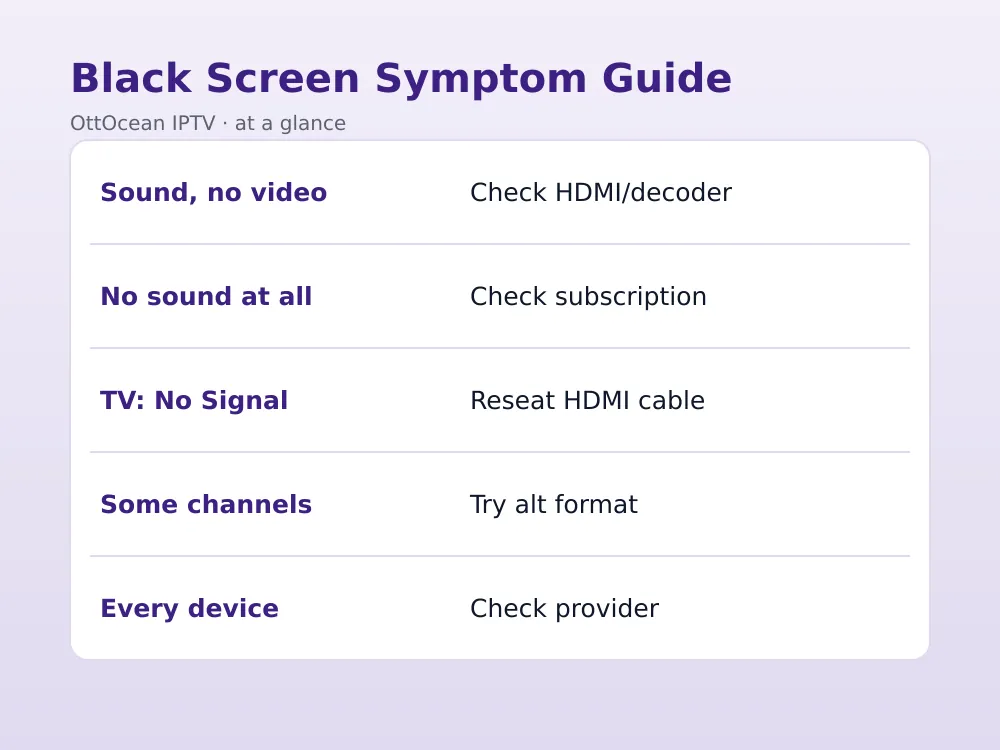
Because the visual symptom looks the same either way, the fastest diagnostic step is simply listening. If you hear audio playing normally against a black picture, the fault is almost certainly video-specific: HDCP, decoder settings, or a corrupted stream format. If there’s no sound either, look at login, subscription status, and server-side causes first, since those block the entire stream, not just the video half of it.
It helps to try a second channel and a VOD title before doing anything else. If everything on the service shows the same black screen, the cause is systemic, whether that’s your subscription, your network, or the provider. If only one channel or one category is affected while everything else plays normally, you’re looking at a much narrower problem tied to that specific stream.
Black Screen With Sound vs No Signal: Know the Difference
Alongside the audio test, check what your TV itself reports. If your TV shows “No Signal” rather than a black screen from within the app, that’s an HDMI-level problem, not an IPTV app problem at all, since the TV isn’t even receiving a video signal to display. A true app-level black screen shows the app’s own interface, menus, and possibly a paused video frame around a black content area, rather than your TV dropping to its generic no-signal message.
This distinction matters because it tells you which layer to troubleshoot. A “No Signal” TV message points to cabling, HDMI ports, or resolution settings, while a black screen inside a visible app interface points to the app’s video decoder, the stream itself, or your account status with the provider.
Also glance at the TV’s own resolution or picture settings menu if it’s accessible while the app is running. Some devices default to an output resolution the TV doesn’t support after a firmware update, and rather than showing a scaled or lower-quality image, the TV simply displays black until the output resolution is manually corrected back down to something it can render.
Fix an HDCP Handshake Error on HDMI
HDCP (High-bandwidth Digital Content Protection) is a copy-protection handshake that streaming devices, TVs, and any HDMI switches or extenders in between must all negotiate successfully before video displays. When that handshake fails, silently in most cases, you get exactly this symptom: sometimes sound, sometimes not, but always a black picture with no error message explaining why.
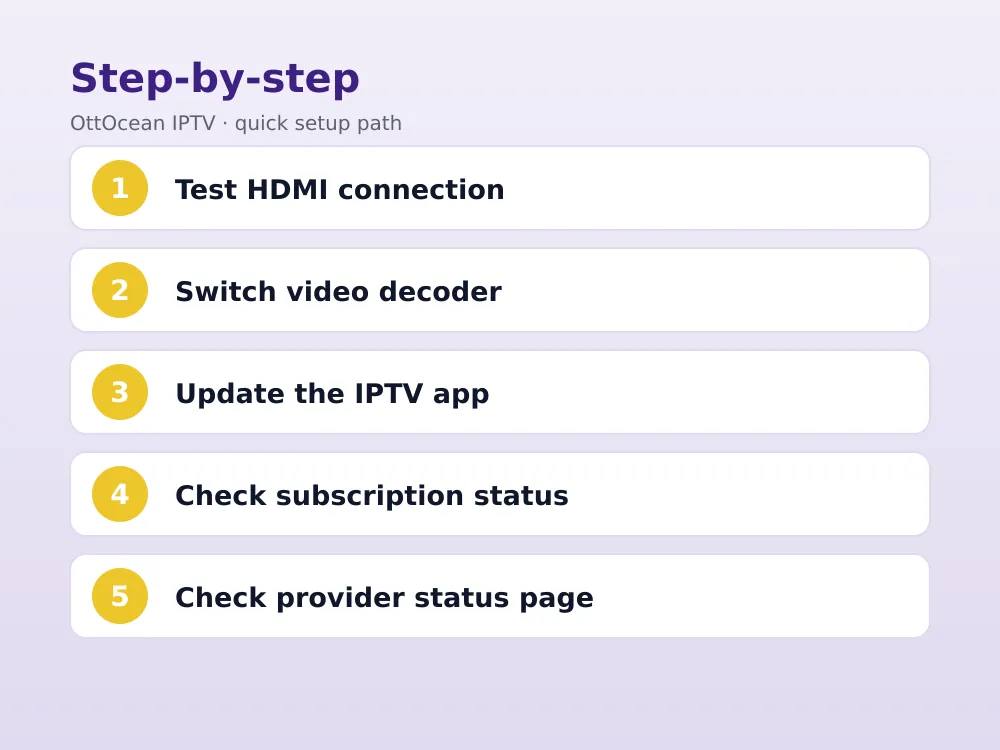
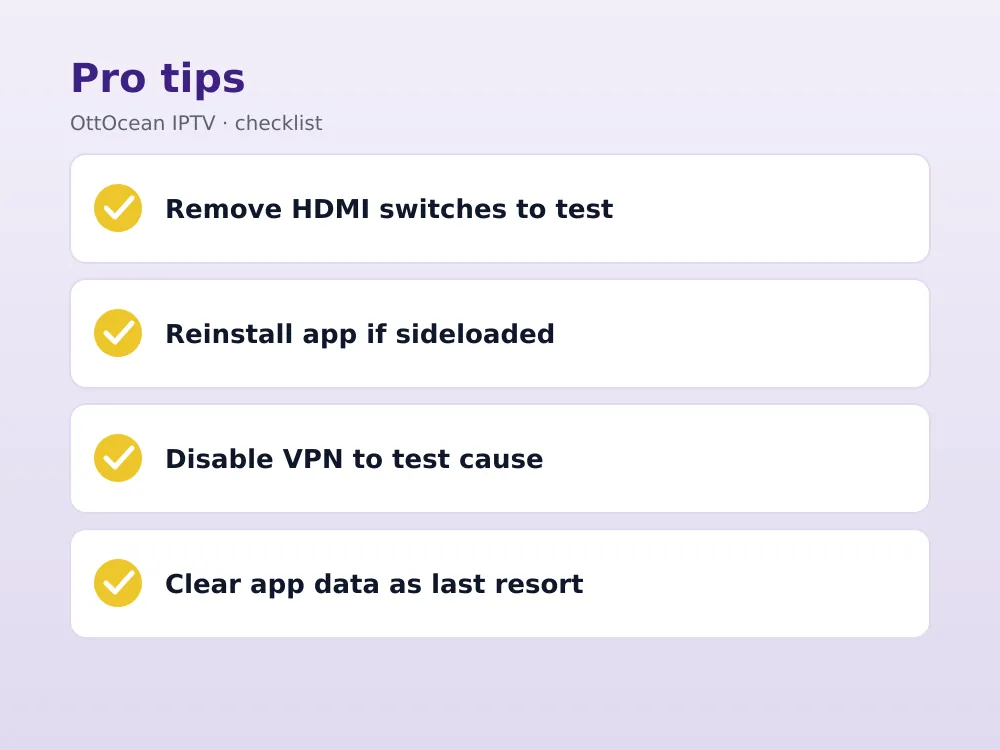
The fix is usually mechanical. Unplug the HDMI cable from both ends and reconnect it firmly, try a different HDMI port on the TV, and remove any HDMI switches, splitters, or extenders from the chain temporarily to test a direct connection. Older or cheaper HDMI switches are a common source of HDCP handshake failures, since they don’t always renegotiate cleanly every time a connected device changes its output.
A full power cycle helps more often than a simple cable reseat alone. Unplug the streaming device, the TV, and any switches or extenders from the wall for a full thirty seconds, not just a remote-triggered restart, since that clears the HDCP encryption keys each device has cached and forces a completely fresh handshake negotiation once everything powers back on together.
Switch the Video Decoder Setting
Similar to audio, most serious IPTV apps let you choose between hardware and software video decoding, usually under Settings > Playback or a Video/Decoder submenu. Hardware decoding is generally more efficient and is the default on most devices, but it’s also the more likely of the two to fail outright on a stream format it doesn’t recognize, producing a black screen rather than a visible error.
Switching to software decoding forces the app to decode the video in code instead of relying on the device’s dedicated chip, which is slower but considerably more forgiving of unusual encoding. If a black screen affects only specific channels or specific resolutions, like a 4K channel while 1080p ones play fine, a decoder mismatch is the leading suspect and this toggle is worth testing immediately.
Some devices also expose a separate “Force HDR off” or “Match content” option that’s worth checking alongside the decoder toggle. A TV that doesn’t fully support the HDR metadata a 4K IPTV channel is sending can display black instead of gracefully falling back to standard dynamic range, and disabling automatic HDR switching on the device resolves this specific variant of the black-screen problem.
Update Your IPTV App to the Latest Version
An outdated app version is an underrated cause of black screens, particularly after your provider updates their server software or changes how streams are encoded on their end. Apps like TiviMate, IPTV Smarters Pro, and XCIPTV receive regular updates specifically to keep pace with evolving stream formats, and a version that’s several months stale can start failing to decode content it used to handle fine.
Check the app store on your device, whether that’s the Amazon Appstore on Fire TV or the Google Play Store on Android TV, for a pending update. If the app was sideloaded outside an official store, you’ll need to manually download the latest APK from the developer’s official site and reinstall, since sideloaded apps don’t always auto-update.
If you’re not sure which version you’re running, most apps list it under an About or Settings > General screen. Comparing that number against the developer’s official changelog, usually posted on their website or a linked Telegram channel, tells you quickly whether you’re behind on updates that specifically mention stream compatibility or decoder fixes.
Check for an Expired Subscription
A black screen with no sound and no error message is sometimes just an expired subscription that failed to display a clear “authorization failed” message. Some apps handle an expired login gracefully with an on-screen prompt; others simply fail to load content and show black, leaving you to guess what happened. Check your subscription’s expiration date through your provider’s member area or the confirmation email from your last payment.
This is worth ruling out early because it’s the fastest fix on this entire list: renewing an expired subscription and re-entering your Xtream Codes or M3U details resolves the black screen instantly, with none of the cabling, decoder, or app-update troubleshooting the other causes require.
It’s also worth checking whether you’ve hit your subscription’s device limit, since some apps display a generic black screen or a brief flash of an error rather than a clear “too many connections” message. Log out of any device you’re not actively using, wait a minute, and try loading the channel again before assuming the account itself has expired.
Stream Format Mismatch: HLS vs TS
IPTV providers deliver content in different underlying stream formats, most commonly MPEG-TS (transport stream) for live channels and HLS (HTTP Live Streaming) for some VOD content or as an alternative live format. Occasionally a specific app version handles one format cleanly and stumbles on the other, producing a black screen only on certain channel types while the rest of the service works fine.
If your provider offers an alternate playlist URL format, such as switching from an .m3u8 (HLS) link to a standard .m3u (TS-based) link or vice versa, testing the alternate format is a reasonable troubleshooting step when a black screen is isolated to a specific content type rather than the whole service. Not every provider offers both, so check with support before assuming this applies to your setup.
This kind of format issue tends to show up more on niche or regional channels than on major networks, since smaller feeds sometimes get less testing across every app and device combination before going live. If a black screen is limited to a handful of less-common channels while every major channel works fine, a format quirk specific to that feed is a reasonable explanation.
VPN Interference and DNS Issues
A VPN that’s dropped its connection mid-stream, or one routed through a congested server, can produce a black screen that looks identical to a decoder failure, since the app simply can’t retrieve any data to decode. Disable the VPN temporarily and reload the channel; if the picture returns immediately, the VPN connection itself was the bottleneck, not your device or the app.
DNS resolution failures produce a similar symptom, particularly right after a router reboot or an ISP-side DNS outage. Switching to a public DNS like Cloudflare (1.1.1.1) or Google (8.8.8.8) at the router level resolves this for a meaningful number of users experiencing an otherwise-unexplained black screen that clears up on its own after a few minutes anyway.
We’ve also seen an IPTV black screen show up right after a router firmware update changes default firewall rules, quietly blocking the ports an app needs to reach a provider’s streaming server. If the black screen started immediately after any router-side change, temporarily reverting that change, or checking the router’s firewall log for blocked outbound connections, is worth the few extra minutes it takes.
- Test with the VPN fully disabled before assuming a decoder or app problem.
- Switch VPN server location if disabling it isn’t an option for your use case.
- Set a public DNS at the router level so every device benefits at once.
Fix IPTV Black Screen Caused by a Provider Outage
Sometimes the simplest explanation is correct: the provider’s server is down or a specific channel’s upstream feed has dropped. This produces a black screen across every device and app you own simultaneously, which is the clearest signal that the problem isn’t local to your network or hardware at all. A reputable provider posts status updates through a status page, Telegram channel, or support ticket system during genuine outages.
A provider outage rarely lasts more than a couple of hours on a well-run service, since server issues typically get flagged and escalated quickly once support tickets start coming in from multiple customers at once. If a black screen has persisted for a full day or longer across every device, that’s less likely a lingering outage and more likely something specific to your account, so contacting support directly with your username is the faster path forward.
Keep a simple log of when an IPTV black screen happens, which channel, and which device, even a quick note on your phone. Patterns that seem random in the moment often reveal themselves once you compare a handful of incidents side by side, whether that’s a specific time of day, a specific channel category tied to one provider outage, or a specific device that’s more affected than the others.
Before assuming an outage, clear your app’s stored data (not just cache) as a last resort, since a corrupted local session token occasionally produces symptoms identical to a server-side failure. On Fire TV this is Settings > Applications > Manage Installed Applications > your app > Clear Data, followed by re-entering your login details from scratch.
| Symptom | Likely cause | Fix |
|---|---|---|
| Black screen, sound plays | Video decoder or HDMI issue | Switch decoder, check HDMI |
| Black screen, no sound | Login, subscription, or outage | Check expiration, contact support |
| TV shows “No Signal” | HDCP or cable fault | Reseat HDMI, try new port |
| Only specific channels black | Stream format mismatch | Try alternate playlist URL |
| Black screen on every device | Provider outage | Check provider status page |
Key Takeaways
- IPTV black screen has several distinct causes; whether you hear audio narrows it down fast.
- An HDCP handshake failure is the leading cause of a black screen with sound still playing.
- Outdated apps and expired subscriptions both commonly produce a black screen with no error message.
- Switching between hardware and software video decoding resolves many format-specific black screens.
- A dropped VPN connection or DNS failure can mimic a decoder problem convincingly.
- A black screen across every device at once almost always means a provider-side outage.
- Clearing app data, not just cache, is worth trying before assuming the worst.
FAQ: IPTV Black Screen
Why is my IPTV screen black but I can hear the sound?
This points specifically to a video-side failure: an HDCP handshake error, a video decoder crash, or a corrupted stream format, while the audio decoder keeps working independently. Start by reseating your HDMI cable and trying a different port, then switch your app’s video decoder setting between hardware and software if the cable check doesn’t resolve it.
Why is my screen completely black with no sound at all?
Total silence alongside a black screen usually means the app never successfully loaded content in the first place, pointing to an expired subscription, incorrect login details, or a provider-side outage rather than a video-specific decoder issue. Check your subscription status first, since it’s the fastest thing to rule out.
How do I know if it’s my TV or my IPTV app causing the black screen?
Check whether your TV itself reports “No Signal.” If it does, the problem is HDMI cabling or ports, not the app. If the app’s own menus and interface are still visible around a black content area, the fault sits with the app’s decoder, the stream, or your account, not the physical connection.
Can a VPN cause an IPTV black screen?
Yes. A VPN connection that drops or routes through an overloaded server can prevent the app from retrieving any stream data, producing a black screen that looks identical to a decoder failure. Disable the VPN temporarily and reload the channel to test whether that was the cause before troubleshooting further.
Does updating my IPTV app fix black screen issues?
Often, yes, particularly if your provider recently changed how streams are encoded on their end. Apps update regularly to keep pace with format changes, and a stale version can fail silently on content it previously handled fine. Check your app store, or manually reinstall the latest APK if the app was sideloaded.
How can I tell if IPTV black screen is a provider outage?
If the black screen affects every channel, every app, and every device you own at the exact same time, that’s a strong signal of a provider-side outage rather than a local problem. Check your provider’s status page or contact their support directly; a reputable service will confirm known outages quickly rather than leaving you guessing.
Fix Black Screens for Good
Most black screen causes live on your side of the connection, but a provider with stable servers and clear support removes the outage variable from the equation entirely. OttOcean IPTV runs anti-freeze servers with a 99.9% uptime target and offers 24/7 WhatsApp and email support if a black screen persists after you’ve worked through the device-side fixes. Read our general IPTV troubleshooting guide and our failed to authorize fix if login errors are part of what you’re seeing.
If IPTV black screen keeps happening on your current subscription regardless of what you try, testing a different provider’s stream isolates whether the fault is server-side. Start a 5-day free trial, no credit card required, and load the same channels that went black before. If the picture holds, compare plans on our IPTV subscription page starting at $9.99 a month. For background on how HDCP content protection works, see the Wikipedia entry on HDCP.