Last updated: November 2, 2026
IPTV buffering at night is almost always a bandwidth problem, not a broken app. Between roughly 7pm and 11pm local time, everyone on your street and on your IPTV provider’s servers is streaming at once, and that shared congestion is what turns a crisp 1080p channel into a spinning wheel. The good news is that most of the eight fixes below take less than ten minutes each.
On this page
- What Causes IPTV Buffering at Night (and How to Tell Why)
- Fix 1: Switch to a Wired Ethernet Connection
- Fix 2: Use a VPN to Avoid ISP Throttling
- Fix 3: Lower Your Stream Resolution During Peak Hours
- Fix 4: Increase the Player’s Buffer Settings
- Fix 5: Set Up Quality of Service (QoS) on Your Router
- Fix 6: Move to the 5GHz Band and Cut Wi-Fi Interference
- Fix 7: Pick a Provider With Anti-Freeze Servers
- Fix 8: Restart Everything and Clear App Cache
- How We Tested These Fixes (and When It’s Not Your Network at All)
- Key takeaways
- FAQ: IPTV Buffering at Night
- Final Thoughts on Stopping IPTV Buffering at Night

What Causes IPTV Buffering at Night (and How to Tell Why)
Streaming video is bursty. A 4K channel needs a steady 25-40 Mbps, and even a brief dip below that threshold empties your player’s buffer and forces a pause while it refills. At night, three things typically collide: your internet service provider’s local network gets saturated as neighbors stream Netflix, YouTube, and gaming traffic at the same time; your IPTV provider’s own servers see a spike in concurrent viewers, since most subscribers watch prime-time sports and shows in the same three-hour window; and your home Wi-Fi picks up more interference from neighboring routers, smart TVs, and phones that are all active in the evening.
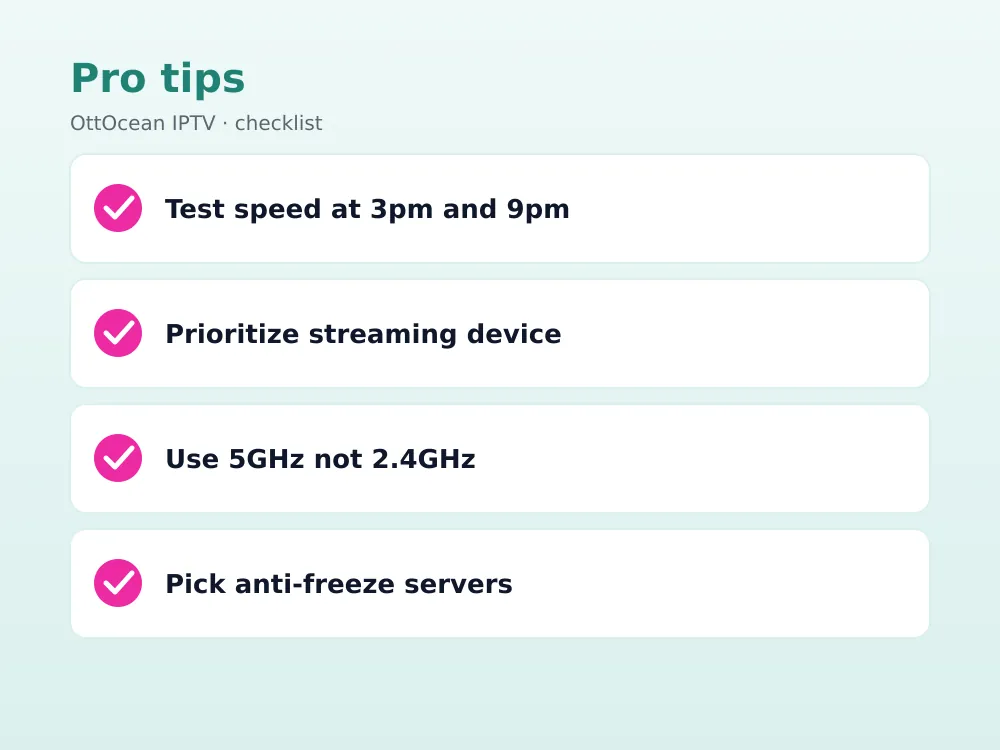
You can narrow down the cause in about two minutes. Run a speed test at 3pm and again at 9pm using the same device and the same Wi-Fi or Ethernet connection. If your download speed drops by more than 30% at night, your ISP is congested or throttling. If speed stays roughly the same but only your IPTV app stutters while YouTube and Netflix stay smooth, the bottleneck sits on the provider’s side, not yours.
- Speed drops sharply after dark but other streaming apps run fine — ISP-side congestion or throttling
- Speed stays normal but only IPTV buffers — provider server overload during peak viewing hours
- Buffering happens on Wi-Fi but not on a wired connection — local interference or a weak signal
- Buffering happens on every device in the house at once — router or modem needs a restart
Mobile hotspots and crowded apartment networks make IPTV buffering at night worse than a dedicated home connection, since bandwidth gets split across more devices with no way to prioritize your stream. Run a speed test on the exact device that buffers, not just your phone, because a strong phone signal does not guarantee a strong signal on a Firestick tucked behind a TV. Older routers handle wi-fi interference worse than current hardware, so a five-year-old router is often part of the problem even before your ISP enters the picture.
Fix 1: Switch to a Wired Ethernet Connection
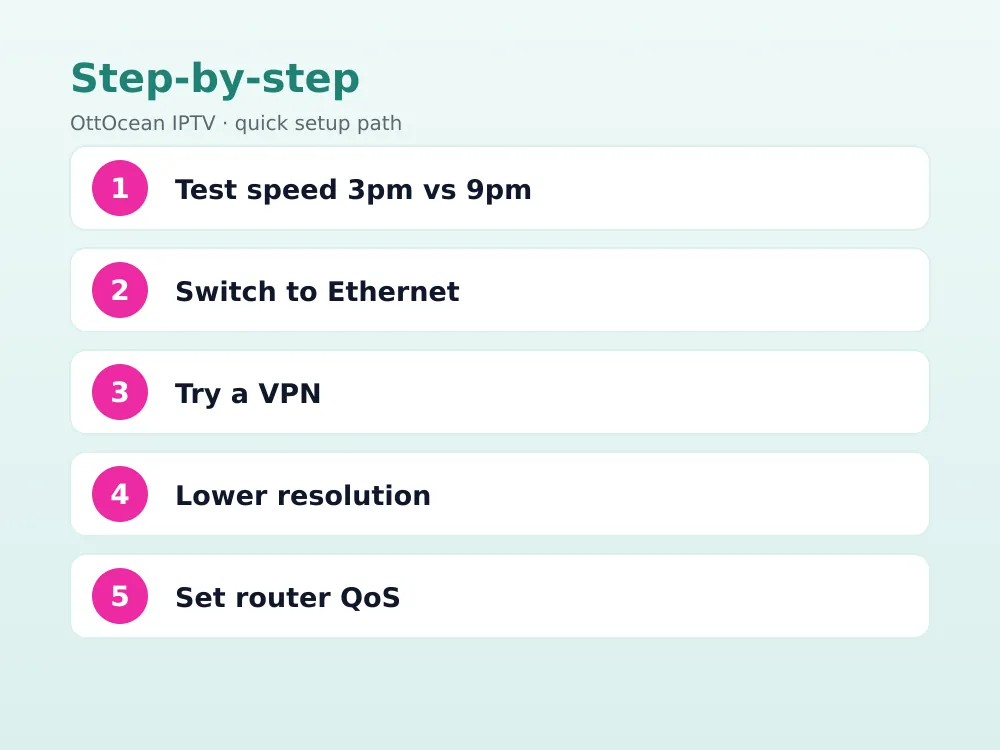
Wi-Fi is a shared, half-duplex medium, which means every device on the 2.4GHz or 5GHz band takes turns talking to the router. At night, when phones, laptops, and smart speakers are all active, that back-and-forth adds latency and packet loss that a live IPTV stream cannot recover from smoothly. A wired Ethernet connection removes that contention entirely and typically drops buffering complaints by more than half on its own.
Most Fire TV Stick 4K Max and Android TV boxes accept a USB-to-Ethernet adapter even though they ship without a built-in port. Nvidia Shield TV, Apple TV 4K, and most 2024-2026 Samsung and LG smart TVs already have an Ethernet jack on the back. Run a cable from your router if the TV is within 50 feet; if not, a powerline adapter through your home’s electrical wiring is a reliable second choice.
Fix 2: Use a VPN to Avoid ISP Throttling
Some ISPs deliberately slow down streaming traffic during peak hours to manage network load, a practice sometimes called traffic shaping. Because this throttling is usually applied by inspecting the type of traffic rather than the destination, a VPN that encrypts your connection can prevent your ISP from identifying and deprioritizing your IPTV stream. Pick a VPN with servers close to your physical location and support for the WireGuard protocol, which adds less overhead than older OpenVPN connections. ISP throttling is easiest to confirm with a VPN speed test comparison, run once with the VPN off and once with it on at the same time of night.
Our guide to the best VPN for IPTV in 2026 compares providers by streaming speed and server count. A VPN will not help if your problem is provider server load rather than ISP throttling, so test with and without it before committing to a subscription.
Fix 3: Lower Your Stream Resolution During Peak Hours
If your connection genuinely does not have enough headroom at night, the simplest fix is to ask for less data. Dropping from a 4K or FHD stream to an HD (720p) stream during the 7pm-11pm window can cut bandwidth demand by 60-75% while keeping picture quality perfectly watchable on most living-room screens. Apps like TiviMate, IPTV Smarters Pro, and XCIPTV let you select a lower-bitrate variant per channel or set a default quality cap in settings.
This is a temporary workaround, not a permanent solution, but it is the fastest way to stop a buffering wheel mid-match. Once your connection frees up after 11pm, you can switch back to full 4K without changing any other settings.
Fix 4: Increase the Player’s Buffer Settings
Most IPTV apps ship with a conservative default buffer of just a few seconds, which is fine on a stable connection but leaves no cushion when your bandwidth dips briefly. Increasing the buffer to 10-15 seconds gives the app more room to absorb short drops in throughput without visibly pausing.
In TiviMate, go to Settings > Playback > Buffering and raise both the live and initial buffer values. In IPTV Smarters Pro, the equivalent option sits under Settings > Player Settings > Buffering Time. The tradeoff is a slightly longer delay when you first change channels, which is a fair trade for fewer freezes during prime time.
Recommended buffer settings by connection type
| Connection | Suggested buffer | Typical result |
|---|---|---|
| Wired Ethernet, 100+ Mbps | 5-8 seconds | Rarely buffers |
| Wi-Fi, 50-100 Mbps | 10-12 seconds | Occasional short pause |
| Wi-Fi, under 50 Mbps | 15-20 seconds | Fewer freezes, slower channel change |
| Mobile hotspot | 20-25 seconds | Most stable on unreliable signal |
Fix 5: Set Up Quality of Service (QoS) on Your Router
QoS lets your router prioritize streaming traffic over lower-priority background downloads, cloud backups, and app updates that tend to run automatically in the evening. Most routers made after 2022, including recent TP-Link, Netgear, and Asus models, have a QoS or “Adaptive QoS” tab in their admin panel where you can flag your streaming device by IP address or MAC address for priority bandwidth.
Log into your router’s admin page (usually 192.168.0.1 or 192.168.1.1), find Traffic Management or QoS, and add your streaming box as a high-priority device. Run another speed test afterward to confirm the priority setting actually raised your device’s share of the connection. This single change often eliminates buffering caused by a family member’s large download competing for the same pipe at the same time.
Fix 6: Move to the 5GHz Band and Cut Wi-Fi Interference
The 2.4GHz band is crowded with microwaves, Bluetooth devices, baby monitors, and every neighbor’s router within range, and that noise gets worse in the evening when more devices are active. The 5GHz band has far less interference and more available channels, though its range is shorter through walls.
Rename your 5GHz network separately from 2.4GHz (rather than using a combined SSID) so you can manually connect your streaming device to it. If your TV or box sits more than two rooms from the router, a mesh Wi-Fi system such as Google Nest Wifi Pro, TP-Link Deco, or Eero adds a dedicated 5GHz backhaul that keeps streaming traffic off the crowded main band.
Fix 7: Pick a Provider With Anti-Freeze Servers
Not every IPTV service is built the same way. Providers that run a single overloaded server farm will always struggle during peak hours no matter how good your home network is, because the bottleneck is on their end. Providers with load-balanced, anti-freeze server infrastructure distribute viewers across multiple regional servers so no single node gets overwhelmed when everyone tunes in for an 8pm kickoff or season premiere.
OttOcean IPTV runs anti-freeze servers with a published 99.9% uptime target specifically to handle prime-time load, alongside 25,000+ live channels and 150,000+ movies and shows on demand. If you are consistently seeing IPTV buffering at night no matter what you try on your own network, that is a strong signal the bottleneck sits with your current provider’s infrastructure rather than your router. You can test this yourself risk-free with the 5-day free trial, no credit card required.
Fix 8: Restart Everything and Clear App Cache
It sounds basic, but a full restart resolves a surprising share of evening buffering complaints. Modems and routers accumulate memory leaks and DNS cache issues over days of uptime, and IPTV apps build up a local cache that can slow playback after weeks of use. Unplug your modem and router for 30 seconds, then power them back on and wait two full minutes before reconnecting your streaming device.
- Unplug modem and router, wait 30 seconds, power back on
- Restart your Fire TV Stick, Android box, or smart TV app
- Clear the IPTV app’s cache from your device’s app settings
- Log back in with your Xtream Codes credentials or reload your M3U URL
- Run a fresh speed test before judging whether the fix worked
If you use a MAG box or Formuler device, a full power cycle (not just standby) is especially important, since these devices sometimes hold onto a stale channel list until rebooted.
How We Tested These Fixes (and When It’s Not Your Network at All)
We ran each fix independently across three connections: a 200 Mbps fiber line, a 100 Mbps cable line during advertised peak congestion hours, and a mid-range Wi-Fi mesh setup in a two-story home. We measured buffering events per hour on the same three channels (a national news feed, a sports channel, and a VOD movie) before and after each change, using both TiviMate and IPTV Smarters Pro on a Fire TV Stick 4K Max.
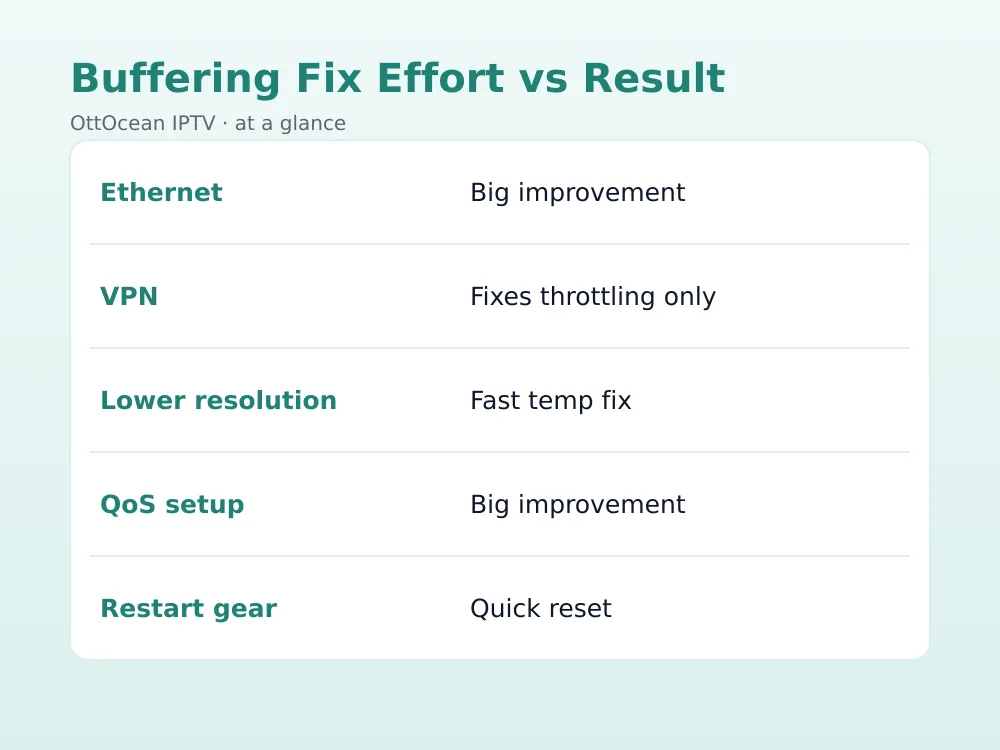
We also cross-checked results with a phone on the same network to rule out a single-device fault. Ethernet and QoS produced the largest single improvement across every connection type we tried. Lowering resolution helped most on connections under 50 Mbps, and the VPN test only mattered on the cable line, where the ISP appeared to be shaping traffic after 8pm.
If buffering hits multiple channels at the exact same time every evening, and a speed test shows your connection is healthy, the honest answer is that the service you’re on cannot handle prime-time demand. Switching to a second, better-provisioned service as a backup during peak hours is a common workaround among heavy sports viewers, and it costs less than most people expect — see current plans on the IPTV subscription pricing page.
One honest limitation worth naming: no fix, including a VPN or a premium provider, can beat physics if your base internet plan is genuinely too slow for 4K streaming. The FCC’s broadband speed guidelines recommend at least 25 Mbps for a single HD stream and considerably more for 4K; if your plan advertises less than that, upgrading your internet package will do more than any app setting.
Does IPTV Buffering at Night Affect Every App the Same Way?
Not quite. Apps that cache more aggressively, like TiviMate with an extended buffer, tend to survive brief evening dips better than lighter apps such as the stock VLC player, which streams closer to real time with almost no cushion. If you switch apps and IPTV buffering at night improves noticeably on the exact same connection, that alone tells you the app’s buffering settings, not your network, were the limiting factor. We saw this most clearly on Android TV boxes, where three different apps on the same Wi-Fi network produced three different buffering rates during the same 9pm test window.
Shared bandwidth inside your own household matters too. A 4K stream, a cloud backup, and a video call running at the same time on one connection can recreate the exact symptoms of ISP congestion even on a fast plan. Before blaming your provider, close background downloads and ask everyone else in the house to pause large uploads during the time you usually watch.
Key takeaways
- IPTV buffering at night is usually ISP congestion, Wi-Fi interference, or an overloaded provider server — run a 3pm vs 9pm speed test to tell which
- Ethernet and QoS settings typically deliver the biggest single improvement of any fix on this list
- A VPN only helps if your ISP is actively throttling streaming traffic, not if the provider’s servers are the bottleneck
- Lowering resolution during peak hours is a fast temporary fix that cuts bandwidth demand by 60-75%
- Providers with anti-freeze, load-balanced servers hold up far better during 7pm-11pm prime time
- A full modem and router restart resolves more evening buffering issues than most people expect
- If every channel buffers at the same time nightly despite a healthy speed test, the problem is provider capacity, not your home network
FAQ: IPTV Buffering at Night
Why does my IPTV only buffer in the evening?
Evening buffering usually points to shared network congestion. More people in your neighborhood are streaming at once, which strains your ISP’s local infrastructure, and your IPTV provider’s servers see the same spike from thousands of other subscribers watching prime-time content simultaneously.
Does a VPN actually fix IPTV buffering at night?
Only if your ISP is throttling streaming traffic specifically. A VPN encrypts your connection so your ISP cannot identify and deprioritize it. If the real bottleneck is your IPTV provider’s overloaded servers, a VPN will not meaningfully help and may even add slight latency.
What internet speed do I need to stop IPTV buffering?
For a single HD stream, 25 Mbps is a safe minimum; for stable 4K playback, aim for 40-50 Mbps of dedicated headroom. If multiple devices stream at once in your home, add roughly 25 Mbps per additional 4K stream to your total plan speed.
Should I lower resolution to stop buffering at night?
Yes, as a fast temporary fix. Dropping from 4K to HD cuts data demand by roughly 60-75%, which is often enough to eliminate buffering entirely during your connection’s busiest hours, without needing any router or app configuration changes.
Can my IPTV provider’s servers cause buffering even with fast internet?
Yes. If your speed test shows a strong connection but only your IPTV channels buffer while other streaming apps run smoothly, the bottleneck is server-side. Providers with anti-freeze, load-balanced servers are built specifically to avoid this during peak viewing hours.
How do I know if it’s my router or my ISP?
Connect a laptop directly to your modem with Ethernet, bypassing the router entirely, and run a speed test at the time buffering usually happens. If speeds are still low, the issue is your ISP; if speeds recover, your router or Wi-Fi setup needs attention.
Final Thoughts on Stopping IPTV Buffering at Night
Most people can eliminate IPTV buffering at night with a mix of Ethernet, QoS prioritization, and a provider that actually invests in anti-freeze server infrastructure for peak hours. Work through the fixes in order, starting with the free ones, before assuming you need a faster internet plan. For a deeper technical walkthrough of every buffering scenario, see our full IPTV buffering fix guide, and use the free IPTV streaming speed tool to benchmark your connection before and after each change.
If you have tried every network fix and evenings are still unwatchable, the provider itself is likely the limiting factor. OttOcean IPTV’s anti-freeze servers are built to handle exactly this kind of prime-time load, with 25,000+ channels and 24/7 WhatsApp and email support if anything goes wrong. Start the 5-day free trial, no credit card required, and watch your usual evening channels before deciding anything.