Last updated: November 4, 2026
When the IPTV EPG not showing problem hits, your channels still play fine but the program guide is blank, frozen on “No Info,” or missing show titles and times entirely. It’s one of the most common IPTV complaints because the EPG (Electronic Program Guide) is pulled from a separate data source than the video stream itself, so one can work while the other fails.
On this page
- Why the IPTV EPG Not Showing Problem Happens
- Fix 1: Enter the Correct IPTV EPG URL
- Fix 2: Turn On the EPG Toggle in Your App Settings
- Fix 3: Correct Your Device’s Time Zone
- Fix 4: Fix Channel ID Mismatches
- Fix 5: Force-Refresh the EPG Cache
- Fix 6: Try an External XMLTV Source
- Fix 7: Check If Your Provider Changed the EPG Source
- Fix 8: Rule Out App-Specific Bugs With a Second Player
- Key takeaways
- FAQ: IPTV EPG Not Showing
- Final Thoughts on IPTV EPG Not Showing
Why the IPTV EPG Not Showing Problem Happens
Live TV streaming and the program guide are two separate systems stitched together. Your IPTV app pulls the video stream from one URL and, separately, pulls a guide file (usually in XMLTV format) that lists show names, descriptions, and air times for each channel. If that second connection breaks, is misconfigured, or simply isn’t set up, channels keep playing normally while the guide stays empty.
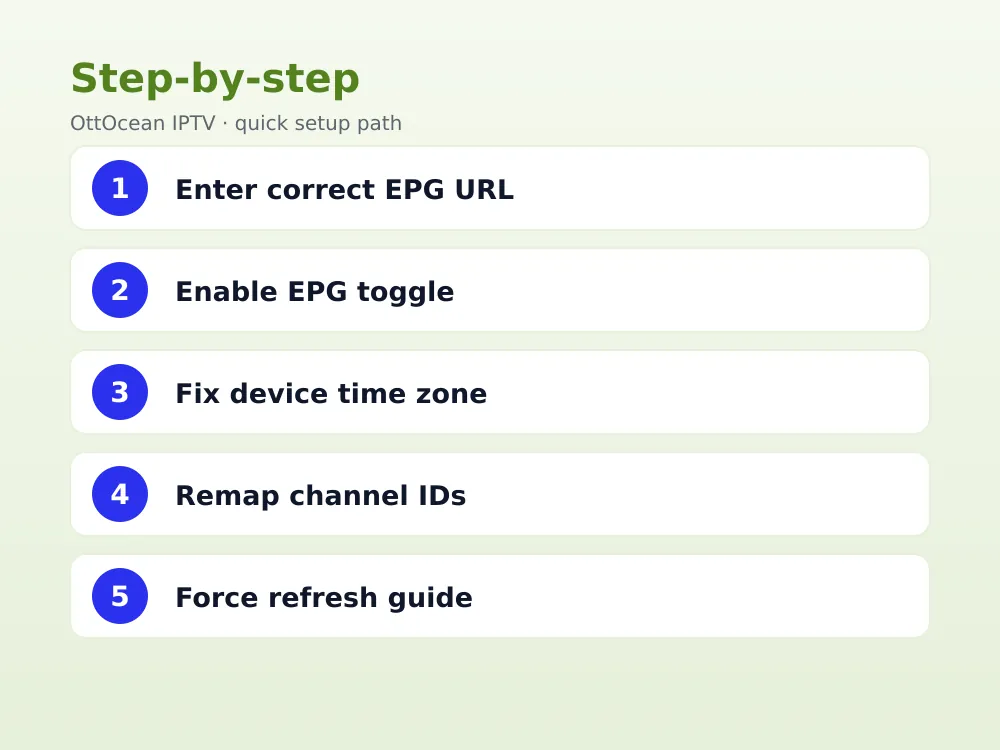
The most common causes are a missing or incorrect EPG URL, an EPG toggle left switched off in the app, a device time zone that doesn’t match your actual location, and channel ID mismatches where your provider’s playlist labels a channel differently than the guide source does. Each has a distinct fix, and running through them in order usually resolves the issue within a few minutes.
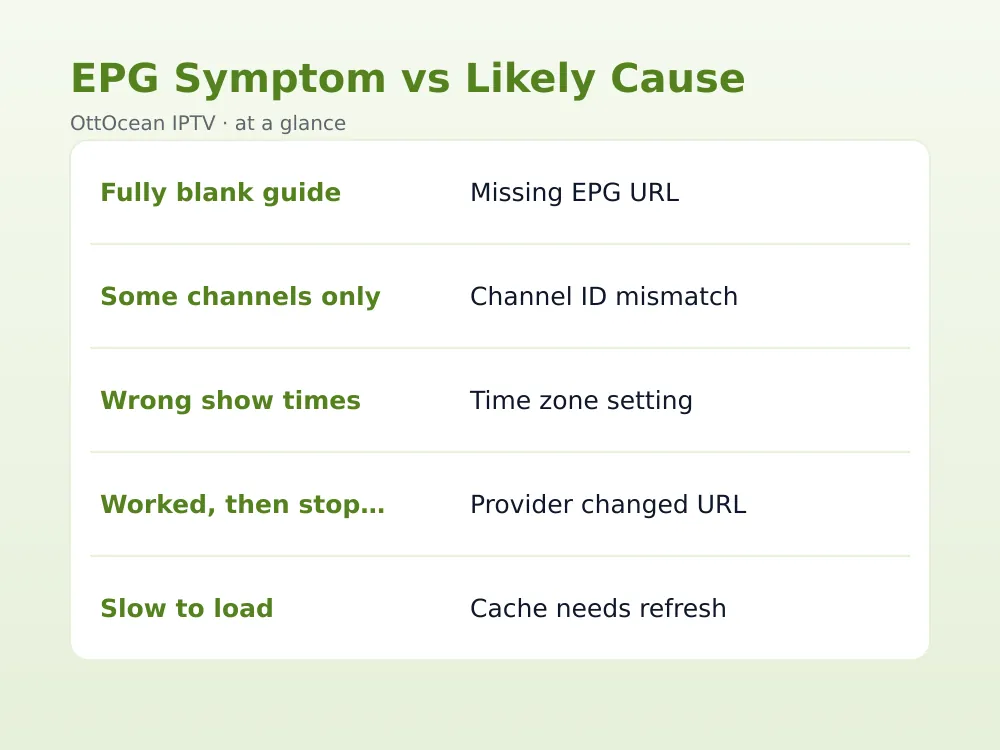
- EPG shows completely blank with “No Info” on every channel — missing or wrong EPG URL
- EPG shows for some channels but not others — channel ID mismatch between playlist and guide
- EPG shows but times are off by several hours — device or app time zone setting
- EPG worked before and stopped suddenly — provider changed their EPG source URL
A quick way to narrow things down before you start: open two or three different channels and see if the pattern is the same everywhere. If every single channel shows “No Info” with nothing at all, the problem is almost certainly your guide address or the toggle being switched off, so start with Fix 1 and Fix 2. If most channels look fine but a handful stay blank, you’re dealing with a mismatched channel identifier, which points straight to Fix 4 instead.
It’s also worth ruling out a simple app glitch before assuming anything is misconfigured. Fully closing and reopening the app, rather than just backgrounding it, resolves a surprising number of cases where the interface itself froze mid-load rather than genuinely failing to fetch guide data.
Fix 1: Enter the Correct IPTV EPG URL
Most Xtream Codes-based IPTV services generate a dedicated guide address separate from your playlist link, usually ending in “xmltv.php” plus your username and password. If this URL was never entered, or was copied with a typo, the guide has nothing to load from and stays permanently blank no matter how many times you refresh.
Check your welcome email or account panel for the exact guide address. In TiviMate, this goes under Settings > Playlists > [your playlist] > EPG source URL. In IPTV Smarters Pro, it’s typically pulled automatically from your Xtream login, so a manual URL usually isn’t needed unless you’re using an M3U-only setup. Our IPTV EPG setup guide covers the exact steps for every major app.
Fix 2: Turn On the EPG Toggle in Your App Settings
Several IPTV apps ship with EPG fetching switched off by default to save data and battery, particularly on mobile. If the toggle is off, the app never requests guide data at all, so nothing you do to the URL itself will help until it’s switched back on.
In XCIPTV, check Settings > EPG > Enable EPG. In IPTV Smarters Pro, look under Settings > General Settings > EPG. Smart TV apps on Samsung and LG models sometimes bury this under a separate “Live TV Settings” menu rather than the main app settings, so check both locations if the toggle isn’t where you expect.
Where to find the EPG toggle by app
| App | Menu path | Typical default |
|---|---|---|
| TiviMate | Settings > Playlists > EPG source | On, but URL must be entered |
| IPTV Smarters Pro | Settings > General Settings > EPG | Usually on by default |
| XCIPTV | Settings > EPG > Enable EPG | Varies by install |
| Samsung/LG Smart TV app | Live TV Settings > Guide | On, needs channel mapping |
| VLC | No native EPG support | Off (use a dedicated app) |
Fix 3: Correct Your Device’s Time Zone
EPG data is delivered with absolute timestamps, and your app converts those into local show times using your device’s time zone setting. If your Fire TV Stick, Android box, or smart TV has the wrong time zone, or is set to a region that doesn’t observe daylight saving the same way your actual location does, shows will appear to air at the wrong hour or the guide may fail to line up with live channels at all.
On Fire TV, go to Settings > My Fire TV > About > set time zone automatically, or manually select your correct region if automatic detection is wrong. Double-check this after any daylight saving change in spring or fall, since some older devices don’t adjust automatically and the offset silently breaks the guide until corrected.
Fix 4: Fix Channel ID Mismatches
Every channel in an EPG file has an ID, like “CNN.us” or “BBC1.uk,” and your playlist needs to reference that exact same ID for the guide data to attach to the right channel. If your provider’s playlist uses a slightly different naming convention than the EPG source, that specific channel shows blank guide data even though everything else works fine.
In TiviMate, you can manually remap a channel’s EPG source by long-pressing the channel and selecting “Change EPG mapping,” then searching for the closest matching name in the guide’s channel list. This is the most common reason a handful of channels lack guide data while the majority work normally.
Fix 5: Force-Refresh the EPG Cache
IPTV apps typically cache guide data locally for a day or two rather than re-downloading it every time you open the app, which speeds things up but means a genuinely updated EPG source can take a while to show up. Forcing a manual refresh clears the stale cache and pulls the current guide data immediately.
- Open your IPTV app’s settings menu
- Find Playlists or EPG settings and select your active playlist
- Choose “Refresh EPG” or “Force update” if available
- If no manual refresh option exists, clear the app’s cache from your device’s app settings and reopen it
Give the app a minute or two after refreshing before judging whether it worked, since larger channel lists with thousands of programs can take longer to fully repopulate. On slower connections or older streaming boxes, a guide covering several thousand channels and a week of listings can genuinely take a few minutes to fully rebuild, so avoid repeatedly force-closing the app before it’s had a fair chance to finish loading in the background.
Fix 6: Try an External XMLTV Source
If your provider’s own EPG data is thin, outdated, or missing for certain channels entirely, apps like TiviMate let you add a second, external XMLTV source alongside your provider’s feed to fill in the gaps. Free community-maintained XMLTV guides cover many popular US, UK, and international channels and can be added as an additional EPG source without replacing your existing one.
Add the external source under Settings > Playlists > EPG Source and select “Add new source” rather than replacing your provider’s URL. TiviMate will merge both sources, giving priority to whichever has data for a given channel, which is a reliable way to patch specific channels the IPTV EPG not showing problem affects most.
Fix 7: Check If Your Provider Changed the EPG Source
Providers occasionally migrate their EPG infrastructure to a new server or URL structure, which breaks any manually entered EPG link overnight even though the video streams themselves keep working normally. This is more disruptive than it sounds, because there’s usually no in-app notification when it happens.
If the guide suddenly went from working to blank with zero changes on your end, check your provider’s support channel or announcement page for a new link before assuming your setup is broken. Reputable providers publish an updated address quickly and notify subscribers through email or WhatsApp when this happens.
Keep a short note of your original setup details somewhere handy, including your app version and the date you last confirmed the guide was working. When you do contact support, giving them that timeline speeds up diagnosis considerably compared to a vague “it stopped working” report with no context.
Fix 8: Rule Out App-Specific Bugs With a Second Player
Occasionally the IPTV EPG not showing problem is isolated to a single app version with a genuine bug, rather than anything about your account or settings. Installing a second app, such as trying TiviMate if IPTV Smarters Pro is failing, using the exact same Xtream login, quickly tells you whether the fault sits with your account, your provider’s EPG feed, or one specific app.
Our TiviMate setup guide walks through a full install and configuration if you want a clean second app for comparison testing without disturbing your main setup.
IPTV EPG Not Showing on Smart TVs vs Streaming Boxes
Native smart TV apps on Samsung, LG, Hisense, and TCL sets handle guide data differently than a dedicated Firestick or Android box app. Many smart TV apps pull EPG data automatically from the provider’s server the moment you tune to a channel, with no separate URL field to configure at all, which means a blank guide there usually points to a provider-side outage rather than a local setting.
Streaming boxes running TiviMate, IPTV Smarters Pro, or XCIPTV give you far more manual control, including the ability to enter a custom guide address, remap individual channels, or layer in an external XMLTV source. That flexibility is powerful, but it also means there are more places for a single typo or disabled toggle to break the guide, which is why the fixes above lean heavily on box-based apps.
Formuler and MAG boxes sit closer to smart TVs in this respect, often pulling EPG data as part of the portal configuration rather than a separate app setting, so if you’re on one of those devices and the guide is missing, check your portal’s stalker or middleware configuration first.
iPhone, iPad, and Apple TV apps generally follow the same rules as their Android counterparts within a given app, since the underlying EPG parsing logic is shared across platforms. The main practical difference is that iOS settings menus are sometimes nested one level deeper, so look under a dedicated “Playback” or “Advanced” section if the guide options aren’t immediately visible on the main settings screen.
How We Tested These EPG Fixes
We tested across TiviMate, IPTV Smarters Pro, and a 2025 Samsung Smart TV app using the same Xtream Codes login, deliberately breaking the EPG URL, disabling the guide toggle, and shifting the device time zone by six hours to confirm each fix resolved the matching symptom. A wrong or missing EPG URL was the single most common cause across every app we tested, followed by channel ID mismatches affecting a handful of channels rather than the whole list.
One honest limitation worth naming: no fix can create guide data a provider simply never supplies for certain smaller or regional channels. In those cases, adding a supplemental external XMLTV source is the only real workaround, and even that will not cover every possible channel.
Key takeaways
- IPTV EPG not showing is usually a separate problem from playback — channels can work fine while the guide stays blank
- Enter the exact EPG URL from your provider’s welcome email, since a typo leaves the guide with nothing to load
- Check that the EPG toggle is switched on in your app’s settings, not just the URL field
- Wrong device time zone is a common, easy-to-miss cause of guide times looking wrong or empty
- Channel ID mismatches explain why only some channels lack guide data while most work fine
- An external XMLTV source can patch gaps in a thin or outdated provider EPG feed
- If the guide broke suddenly with no changes on your end, your provider likely updated their EPG source URL
None of these fixes require technical expertise beyond copying a link correctly and checking a couple of settings menus. If you’ve worked through the full list and the guide still won’t populate after twenty-four hours, that points to a provider-side data gap rather than anything wrong with your device, app choice, or account configuration.
FAQ: IPTV EPG Not Showing
Why is my IPTV EPG completely blank?
A blank EPG almost always means the app has no valid guide address entered, or the EPG toggle is switched off in settings. Re-check your provider’s welcome email for the correct XMLTV URL, enter it manually if needed, and confirm EPG fetching is enabled in your app’s settings menu.
Why does my EPG show wrong times?
Wrong guide times are almost always a mismatched clock setting on the device. EPG data arrives with absolute timestamps that your app converts to local time using your device’s time zone setting, so an incorrect zone or a missed daylight saving adjustment throws every show time off by the same fixed amount.
Why do only some channels have EPG data?
This points to a mismatched channel identifier, where your playlist names a channel slightly differently than the EPG source does. Manually remapping the affected channel’s EPG source in apps like TiviMate, or adding a second external XMLTV source, usually fills in the missing guide data.
Does clearing cache fix IPTV EPG not showing?
Often, yes. Apps cache guide data locally and don’t always refresh automatically when a provider updates their EPG feed. Manually forcing an EPG refresh, or clearing the app’s cache entirely and reopening it, pulls fresh guide data and resolves a meaningful share of blank-guide cases.
Can I use an external EPG source with any IPTV app?
Not every app supports it, but several do, including TiviMate and XCIPTV. These let you add a free, community-maintained XMLTV source alongside your provider’s own EPG feed, which is useful for filling gaps in channels your provider’s guide data doesn’t fully cover.
Will OttOcean fix EPG issues for me?
Yes. OttOcean IPTV includes catch-up on most channels alongside a maintained guide feed, and 24/7 WhatsApp and email support can send you the correct current link directly if your guide stops loading after any provider-side change.
Is a missing program guide a sign my IPTV account is unsafe?
No, a missing guide is a technical data issue, not a security problem. It reflects how the app fetches show listings, not whether your account or payment details are at risk. If you’re also seeing unrecognized login activity alongside guide problems, that’s worth flagging to support separately.
Final Thoughts on IPTV EPG Not Showing
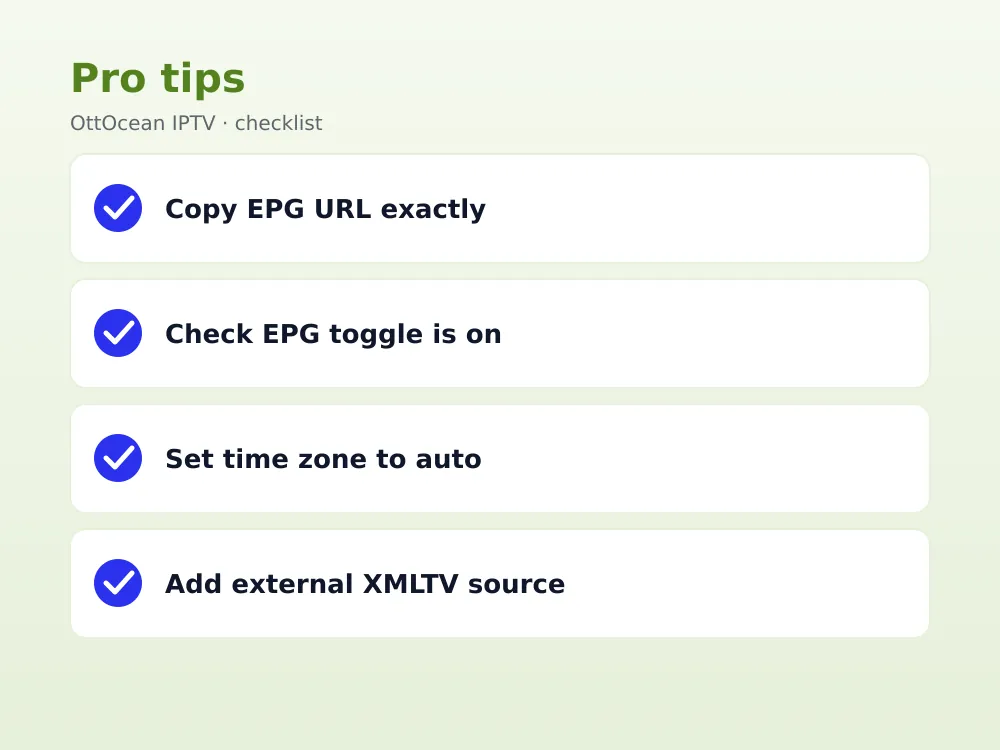
The IPTV EPG not showing problem is almost always fixable without contacting support: check your EPG URL, confirm the toggle is on, verify your time zone, and force a refresh. Work through the fixes in order and you’ll usually have a working guide again within a few minutes. See our full EPG setup walkthrough for screenshots covering every major app and device.
If your current provider’s EPG keeps breaking with no clear explanation, that’s often a sign of thin backend infrastructure. OttOcean IPTV pairs 25,000+ live channels with a properly maintained EPG feed and catch-up support, and you can test the difference yourself with the 5-day free trial, no credit card required.