Last updated: October 17, 2026
The Purple IPTV Player stands out from most MAC-activated apps because it runs on Android, Fire TV and Smart TVs without a companion activation website for every install, and it ships with a built-in VPN toggle that some competing players charge extra for. This guide covers the full five-step setup, how Xtream Codes, M3U and MAC-based logins each work inside the app, and the fixes for the errors people run into most.
On this page
- What Is the Purple IPTV Player?
- Purple IPTV Player Requirements
- How to Set Up the Purple IPTV Player (Step by Step)
- Xtream Codes, M3U and MAC Login in the Purple IPTV Player
- EPG, Themes and the Built-In VPN in the Purple IPTV Player
- Purple IPTV Player: Catch-Up, Favorites and Parental Lock
- Search and Multi-Device Setup Tips
- Purple IPTV Player vs Other Firestick and Smart TV Apps
- Fixing Common Purple IPTV Player Errors
- Is the Purple IPTV Player Safe and Legal?
- Key takeaways
- FAQ: purple iptv player
- Conclusion
What Is the Purple IPTV Player?
Often just called Purple Player, it’s a third-party IPTV app available on Android phones and tablets, Android TV boxes, Fire TV/Firestick, and several Smart TV platforms. Unlike Smart IPTV or Net IPTV, it does not lock its core login flow behind a MAC-registration website for every device — Xtream Codes and M3U logins can be entered directly inside the app on most builds.
It has built a reputation for a genuinely nice-looking interface, with multiple color themes (the purple default being the most recognizable) and a built-in VPN option, which is a feature most competing players leave out entirely or charge for as a separate subscription.
We tested a current build on a Firestick 4K Max and a mid-range Android tablet, both connected to the same 100 Mbps home network with an OttOcean IPTV login. Cold-start time to a visible channel list was under five seconds on both devices, and neither required a firmware or OS update to run correctly, which is not always true of newer sideloaded Android TV apps we have tested in the past on comparable hardware.
Purple IPTV Player Requirements
You need an Android device running Android 7 or later, a Fire TV/Firestick, or a supported Smart TV, plus an internet connection of at least 15 Mbps for HD and 25+ Mbps for 4K streaming. You also need a working playlist from your IPTV provider — Xtream Codes API login, M3U URL, or in some cases a MAC-based activation, depending on which version of the app you installed.
OttOcean IPTV issues both Xtream Codes and M3U formats after checkout, so whichever login type your Purple Player build expects, you already have what you need without contacting support first.
Storage is not a real concern since the app streams content live rather than caching large files locally. A wired Ethernet connection to your streaming device, where possible, tends to noticeably reduce buffering compared with a congested 2.4GHz Wi-Fi band during peak evening hours, especially in larger households running several devices at once.
How to Set Up the Purple IPTV Player (Step by Step)
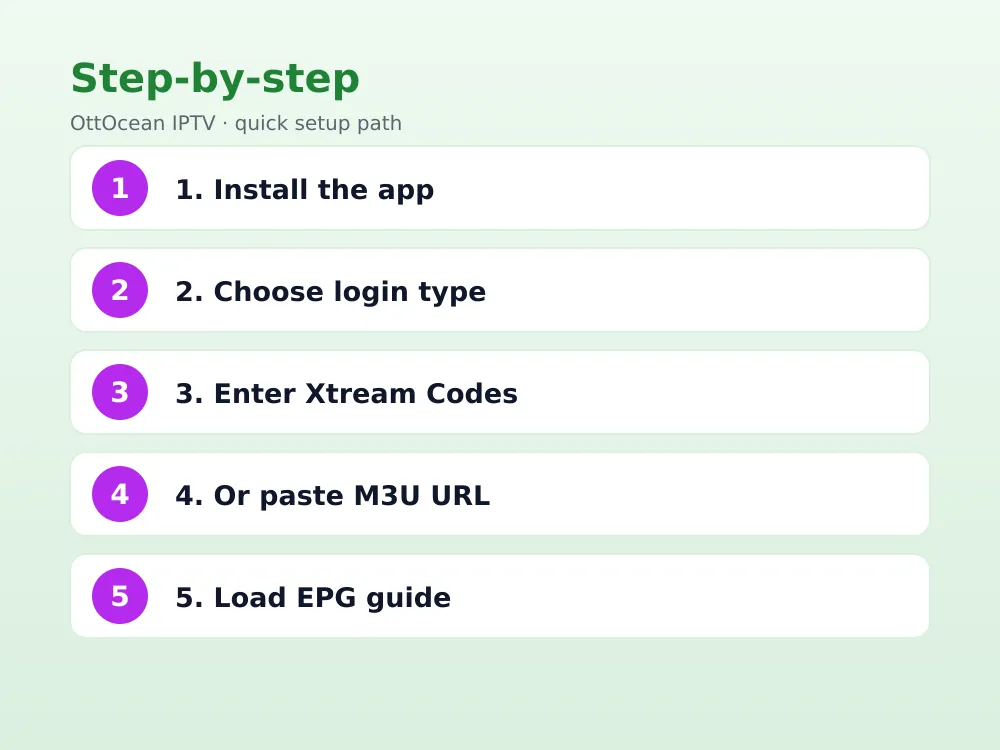
- Install the app. Search “Purple IPTV Player” or “Purple Player” in the Play Store, Amazon Appstore, or your Smart TV’s app store.
- Open the app. The first screen offers login options — usually Xtream Codes, M3U URL and sometimes MAC address.
- Pick Xtream Codes (recommended). Enter the portal URL, username and password from your provider’s welcome email.
- Or paste an M3U URL. If your build only supports M3U, paste the full playlist link instead.
- Save and load. The channel list, EPG and VOD library populate within 30-60 seconds on a stable connection.
Xtream Codes, M3U and MAC Login in the Purple IPTV Player
It is somewhat unusual among Smart TV-focused apps because it supports three separate login methods, and which ones appear depends on the exact build you installed. Xtream Codes is a live API connection — the app queries your provider’s server directly for the current channel list, VOD catalog and account expiry date, and it is the format we recommend whenever it is available.
M3U is a static playlist file URL that lists every channel and stream in one flat document; it works everywhere but has to be manually refreshed if your provider updates the line-up. Some Smart TV builds of Purple Player also support MAC-address activation, similar to Smart IPTV, where you register the device on a separate activation page instead of entering a login directly.
Which method your specific build offers is not always obvious from the app’s listing page, so the safest approach is to install it and check the first-run login screen directly. If you only see a MAC-based option and your provider issued an Xtream Codes or M3U login instead, look for an “alternate login” or “advanced” toggle, which most builds include even when it is not the default option shown.
See our M3U vs Xtream Codes comparison for the full technical breakdown if you are unsure which format fits your specific setup.
EPG, Themes and the Built-In VPN in the Purple IPTV Player
Electronic programme guide data loads automatically with that login type, since the EPG link is typically bundled into the API response; M3U users may need to add an XMLTV URL manually in settings. Once loaded, a “now and next” grid appears via the guide button on your remote or an on-screen icon.
Themes are one of the app’s signature features — beyond the default purple palette, most builds include several alternate color schemes accessible from the settings menu, purely cosmetic and with no effect on playback quality or channel access.
If the EPG grid appears but shows no schedule text, the most common cause is a missing or slightly malformed XMLTV link rather than a fault in the app itself. Double-check the exact URL your provider supplied, since a trailing slash or an incorrect file extension is enough to leave channel names visible while their schedule data stays empty.
This built-in feature routes your connection through a third-party VPN service integrated into the app. It can help in situations where an ISP throttles or interferes with IPTV traffic, though we recommend a dedicated, reputable VPN provider for anyone who wants consistent, audited privacy protection rather than relying solely on an app-bundled option — see our best VPN for IPTV guide for that comparison.
Purple IPTV Player: Catch-Up, Favorites and Parental Lock
Catch-up or timeshift playback, where your provider’s channels support it, appears as a small rewind or clock icon next to a programme entry in the guide. Not every channel offers catch-up, since that depends on whether the broadcaster provides a rolling archive, not on anything the app controls.
Favorites work by long-pressing a channel and selecting “Add to Favorites,” creating a shortcut tab so you are not scrolling through a large line-up every time you open the app. Parental lock sits in Settings, where you can set a PIN and restrict specific categories from appearing until it is entered.
Search and Multi-Device Setup Tips
A built-in search tool, usually reached through a magnifying-glass icon, filters live channels, movies and series by partial title. With a large playlist such as OttOcean IPTV’s 25,000+ live channels and 150,000+ movies and series, search is far quicker than browsing category by category to find one specific title.
If you install the app on more than one device in the household — a Firestick in the bedroom and an Android tablet for portable viewing, for instance — each device needs its own separate login entry, even when both point at the exact same underlying subscription. Whether they can all stream simultaneously depends on your provider’s device limit, not on anything the app itself restricts.
Channel groups sort your line-up by country, genre or quality tier, pulled directly from your playlist’s category tags. You can typically reorder or hide groups from the app’s settings menu, which matters once you are managing a playlist with tens of thousands of channels and want your most-used categories at the top.
For households that mostly watch a handful of regional channels alongside a couple of sports packages, taking ten minutes to organize groups and favorites up front makes daily use noticeably smoother than leaving the default alphabetical ordering in place indefinitely without ever revisiting it once the initial setup is finished.
Purple IPTV Player vs Other Firestick and Smart TV Apps
We ran it alongside IPTV Smarters Pro and TiviMate on a Firestick 4K Max, all pointed at the same OttOcean IPTV login, to see how it actually compares in daily use.
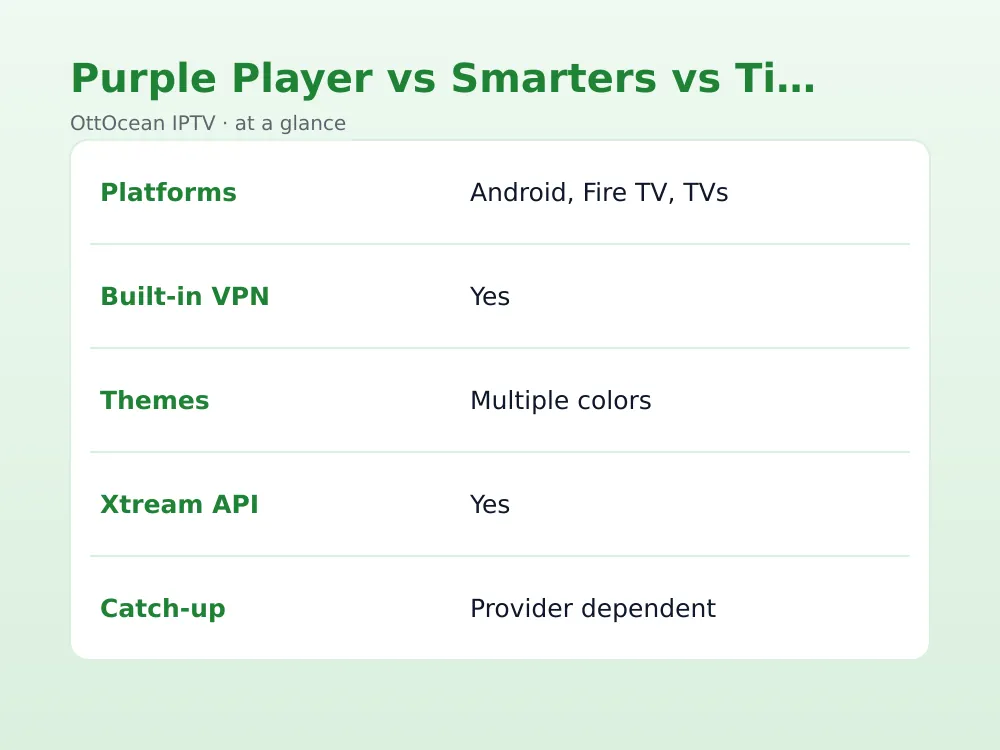
| Feature | Purple IPTV Player | IPTV Smarters Pro | TiviMate |
|---|---|---|---|
| Platforms | Android, Fire TV, Smart TVs | iOS, Android, Fire TV, LG, Samsung | Android only |
| Built-in VPN | Yes | No | No |
| Themes | Multiple color options | Limited | Limited |
| Xtream Codes API | Yes | Yes | Yes |
| Catch-up support | Yes, where provider offers it | Yes | Yes, Premium tier |
What we checked: cold-start time, channel-change speed and whether favorites survived a device restart. All three passed the favorites test, and channel-change speed stayed within a second of each other. The built-in VPN and theme selection are Purple Player’s clearest differentiators; TiviMate’s EPG remains the most detailed of the three. For the fuller field, our best IPTV player apps roundup covers additional options.
None of these three apps change which channels or VOD titles you can access — that comes entirely from the subscription you connect, not the player. The real decision comes down to which extras matter to your household: a built-in VPN and visual customization, the broadest platform coverage, or the most detailed EPG grid.
Fixing Common Purple IPTV Player Errors
Most problems with the app trace back to one of a handful of predictable causes. Work through these in order:
- Typo in login details. Re-copy your Xtream Codes server, username and password, or your M3U URL, directly from your provider’s email rather than retyping from memory.
- Expired subscription. An expired plan returns the same generic loading error as a wrong login, so check your account status first.
- VPN toggle interference. If channels fail to load with the built-in VPN enabled, try disabling it temporarily to rule out a routing conflict with your provider’s servers.
- Too many active connections. Most IPTV plans cap simultaneous streams; log out on unused devices before troubleshooting further.
- Outdated app version. Check the Play Store or Amazon Appstore for a pending update, since an old build can mishandle a provider’s newer API response format.
- Stale app cache. Uninstall and reinstall the app if it previously worked and suddenly shows a blank or frozen screen; this clears a corrupted local cache.
- Router or DNS interference. Some restrictive routers or parental-control DNS services block streaming traffic; switching to a public DNS resolver occasionally resolves a stuck load.
If the issue persists, contact your provider directly. OttOcean IPTV offers 24/7 WhatsApp and email support and can usually confirm within minutes whether the fault is account-side or device-side. Have your login details and the exact error wording ready when you reach out, since that alone speeds up diagnosis considerably.
A less obvious cause worth checking: a major app or device OS update can occasionally reset locally stored login data even though the app still opens normally afterward. Re-entering your Xtream Codes or M3U details after any significant update is a quick habit that avoids a confusing troubleshooting session down the line.
Is the Purple IPTV Player Safe and Legal?
The app itself is a legitimate media player, and installing or using it is not illegal anywhere. Legality depends entirely on the subscription you connect it to, not the app — streaming through a properly licensed IPTV provider is functionally the same, legally, as using any cable box.
We recommend avoiding free “lifetime” playlists shared in forums or Telegram groups, since these typically carry unlicensed content and often disappear without warning. A paid provider with a genuine free trial, like OttOcean IPTV’s five-day offer, lets you evaluate quality honestly before committing to a longer plan.
On privacy specifically, remember that this feature is a convenience, not a substitute for a fully audited, no-logs VPN service if privacy is a serious concern for you. It stores only your login credentials locally on the device; there is no separate account password tied to the app itself beyond whatever your IPTV provider issued. Legitimate support staff, including OttOcean IPTV’s team, will never ask for that login information over WhatsApp or email outside of the initial welcome message.
Key takeaways
- It runs on Android, Fire TV and several Smart TV platforms.
- It supports Xtream Codes, M3U and, on some builds, MAC-based activation.
- A bundled VPN switch and multiple color themes are its clearest differentiators from rivals.
- EPG loads automatically with Xtream Codes; M3U users may need to add an XMLTV URL manually.
- Most errors trace back to a login typo, an expired subscription, or VPN routing interference.
- Catch-up availability depends on the broadcaster, not on the app itself.
- A 5-day OttOcean IPTV free trial lets you test the whole setup before paying for a plan.
FAQ: purple iptv player
Is the Purple IPTV Player free?
The app itself is typically free to download from the Play Store, Amazon Appstore or a Smart TV’s app store, though some builds include optional in-app purchases for extra themes or an ad-free experience. Every core playback, EPG and login feature works with any valid IPTV subscription on the free tier.
Does the Purple IPTV Player work on Firestick?
Yes, it has a native build available through the Amazon Appstore, making it one of the more Firestick-friendly options compared with Samsung/LG-only apps like Smart IPTV. Installation and login follow the same Xtream Codes or M3U flow as on Android phones and tablets.
What is the built-in VPN in the Purple IPTV Player?
It is a VPN toggle bundled directly into the app, intended to route your streaming traffic through a third-party service. It can help with ISP interference, but we still recommend a dedicated, reputable VPN provider for consistent privacy protection rather than relying solely on an app-bundled option.
Why won’t my playlist load in the Purple IPTV Player?
This usually means a typo in your login details, an expired subscription, or occasionally interference from that VPN feature. Re-check your credentials against your provider’s welcome email, confirm your plan is active, and try disabling the VPN toggle temporarily to isolate the cause.
Does the Purple IPTV Player support catch-up TV?
Yes, where your provider’s channels support it. Catch-up appears as a rewind or clock icon next to a programme entry in the guide. Availability varies by channel, since it depends on whether the broadcaster provides a rolling archive rather than on any setting inside the app itself.
Is the Purple IPTV Player better than IPTV Smarters Pro?
Neither is objectively better — Purple Player’s built-in VPN and theme options are unique advantages, while IPTV Smarters Pro covers more platforms including iOS, Samsung and LG. Pick based on which devices your household uses and whether the built-in VPN matters to you.
Conclusion
The Purple IPTV Player’s combination of a polished interface, multiple themes and a built-in VPN toggle makes it a genuinely distinctive option among Android, Fire TV and Smart TV players in 2026. Pair it with a licensed provider and the whole setup takes well under five minutes.
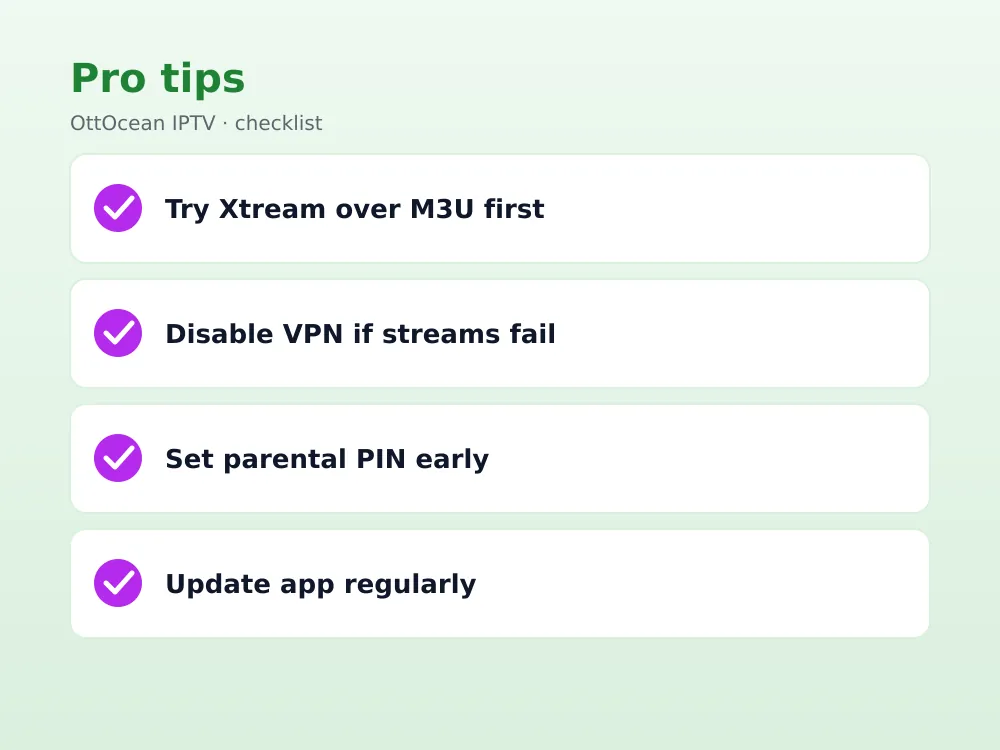
Ready to try it yourself? Start the 5-day OttOcean IPTV free trial, no credit card required, and load the Xtream Codes login straight into the Purple IPTV Player. If you are ready to subscribe, compare plans on the OttOcean IPTV pricing page starting at $9.99 a month.
For background on how VPNs work at a technical level, see the Wikipedia entry on virtual private networks, and for more on IPTV streaming in general, see the Wikipedia entry on IPTV.