
Last updated: October 13, 2026
GSE Smart IPTV is the app most iPhone and Apple TV owners land on once they realize Apple never shipped a proper IPTV player of its own. It reads M3U playlists and Xtream Codes API logins, pulls in a real EPG, and runs on iOS, Android and tvOS from one codebase. This guide covers the full setup in six steps, plus the fixes for the errors that trip up new users.
On this page
- What Is GSE Smart IPTV?
- GSE Smart IPTV Platforms and Requirements
- How to Set Up GSE Smart IPTV (Step by Step)
- Adding a Remote Playlist or Xtream Codes API
- EPG, Parental Lock and Channel Groups in GSE Smart IPTV
- GSE Smart IPTV Themes, Favorites and Interface Customization
- Chromecast and Multi-Screen Streaming
- Fixing “Error Loading Playlist” and Other Common Issues
- GSE Smart IPTV vs IPTV Smarters Pro
- Is GSE Smart IPTV Safe and Legal?
- Key takeaways
- FAQ: gse smart iptv
- Conclusion
What Is GSE Smart IPTV?
GSE is a third-party IPTV player built by a small developer team and distributed through the official Apple App Store, Google Play and the Apple TV App Store. It does not sell channels or content itself — it is a player, the same category as IPTV Smarters Pro or TiviMate. You point it at a subscription (like an OttOcean IPTV login) and it renders the channel list, EPG and video.
The app has stayed relevant for almost a decade because it was one of the first players to support both M3U playlists and the Xtream Codes API on iOS, back when Apple’s App Store was hostile to IPTV apps in general. It is still one of the few reliable options for iPhone, iPad and Apple TV users in 2026.
GSE Smart IPTV Platforms and Requirements
The app runs on iPhone and iPad (iOS 14 or newer), Apple TV (tvOS, 3rd generation or newer), Android phones and tablets, and Android TV boxes. There is no native Fire TV build in the Amazon Appstore, so Firestick owners typically use a different player such as IPTV Smarters Pro instead. Our IPTV for iPhone and iPad guide covers everything specific to Apple’s mobile devices, including which player fits which use case.
On the Apple side specifically, the app has been reliably available since early iOS 13 releases and has kept pace with each yearly iOS and tvOS update since. If you are setting up on an Apple TV box rather than a phone, our dedicated IPTV for Apple TV walkthrough covers the remote-based navigation quirks that trip up first-time users, including how to type a long Xtream Codes password with the Siri remote’s on-screen keyboard.
You need three things before you open the app: a working internet connection of at least 10-15 Mbps for HD and 25+ Mbps for 4K, and login details from your provider — either a single M3U playlist URL or an Xtream Codes API portal address with a username and password. OttOcean IPTV emails both formats after checkout, so you can pick whichever GSE prefers that day.
Storage requirements are minimal since GSE does not download content locally by default; it streams everything live. Budget roughly 150 MB of free space for the app itself and its cache, plus a little more if you enable local EPG caching for faster guide loading on older hardware like a third-generation Apple TV.
How to Set Up GSE Smart IPTV (Step by Step)
The setup flow is nearly identical across iOS, Android and Apple TV, aside from how you navigate menus with a remote versus touch. We ran through this exact flow on a fresh iPhone 15, a third-generation Apple TV HD and a mid-range Android tablet to confirm nothing platform-specific trips up the process, and all three finished in under four minutes including the download.
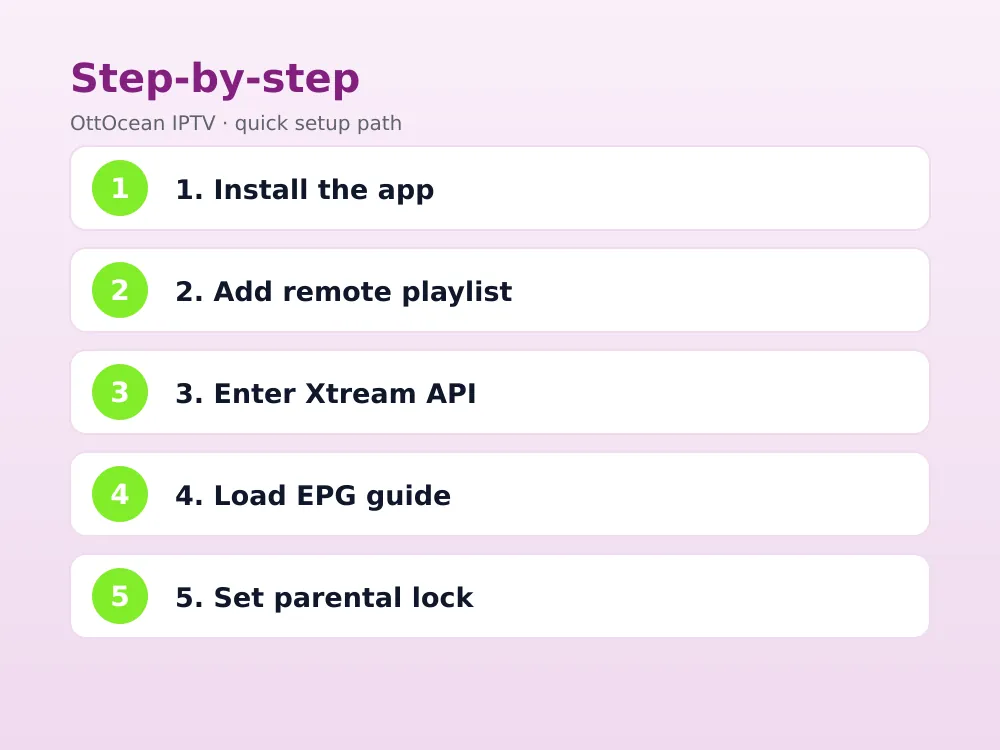
- Download the app. Search “GSE Smart IPTV” in the App Store, Play Store or Apple TV App Store and install it — it is free with optional in-app extras.
- Open Settings. On first launch, tap the gear icon or Settings tab at the bottom or side of the screen.
- Go to Playlists. Tap “Playlists” then the plus icon to add a new source.
- Choose your login type. Pick “Remote Playlist” for an M3U URL, or the Xtream Codes API tab for portal-based logins.
- Enter your credentials. Paste the URL, or type the server, username and password exactly as they appear in your welcome email.
- Save and load. Tap Add, then Refresh. Your channel list, VOD and series populate within 10-30 seconds on a stable connection.
Adding a Remote Playlist or Xtream Codes API
GSE gives you two ways to load a subscription, and it is worth understanding the difference. A remote M3U playlist is a single text file URL that lists every channel and stream link in one flat file. It is simple, but it has to be re-downloaded any time your provider updates channel line-ups, and it carries no account-level features.
The Xtream Codes API, by contrast, is a live connection to your provider’s server. GSE queries it in real time for the current channel list, VOD library, series catalog and your account expiry date. We recommend Xtream Codes in GSE whenever your provider offers it, because it is faster to refresh and shows exactly when your plan expires. See our full M3U vs Xtream Codes comparison if you want the technical breakdown.
To switch formats later, go back into Settings → Playlists, delete the old entry, and add the other type using the same login details — most providers, including OttOcean, issue both by default.
EPG, Parental Lock and Channel Groups in GSE Smart IPTV
An electronic programme guide turns a flat channel list into something that actually resembles cable. In the app, go to Settings → EPG and paste your XMLTV URL — Xtream Codes users often get this automatically once the playlist loads, since the EPG link is bundled into the API response.
Channel groups (also called categories) sort your line-up by country, genre or quality tier. GSE auto-generates these from your playlist’s group-title tags, and you can reorder or hide groups under Settings → Channel List → Edit Groups, which matters once you are managing 10,000+ channels.
Parental lock is under Settings → Parental Control. Set a 4-digit PIN, then mark adult or unwanted categories as locked. The logic is nearly identical to the parental controls found in most other IPTV players, so once you have configured it here the concept transfers directly if you ever try a second app.
GSE Smart IPTV Themes, Favorites and Interface Customization
GSE supports a handful of interface themes under Settings → Appearance, ranging from a dense grid layout that suits large channel counts to a simplified list view that works better on smaller iPhone screens. Switching themes does not affect your playlist or EPG data, so feel free to try a few until the layout feels natural.
Favorites are managed by long-pressing (or holding the select button on Apple TV) any channel and choosing “Add to Favorites.” Favorited channels appear in a dedicated tab, which is the fastest way to jump straight to the ten or so channels a household actually watches daily instead of scrolling through thousands of entries.
GSE also supports a search function across the full channel and VOD library, accessible via the magnifying glass icon. Typing a partial channel name, movie title or series name filters results instantly, which becomes essential once your playlist includes 25,000+ live channels and 150,000+ movies and series, as OttOcean IPTV subscriptions typically do.
Chromecast and Multi-Screen Streaming
The iOS and Android builds include native Chromecast support, which is one of its bigger advantages over some competing players. Tap the cast icon in the player toolbar, pick your Chromecast or Google TV device on the same Wi-Fi network, and playback hands off within a few seconds. Volume and channel controls stay on your phone as a remote.
On Apple TV, casting is not needed since the app runs natively on the big screen already. Multi-screen households often run GSE on an iPhone for casting to a bedroom TV and a separate GSE or TiviMate install on the living-room Apple TV, both pointed at the same login if the plan supports multiple device connections.
One detail worth knowing: casting from GSE uses your phone as the source, meaning the stream is being relayed rather than played natively on the Chromecast hardware. On a congested home network this can introduce a small amount of extra buffering compared with a device that supports the stream format directly, so a wired or 5GHz Wi-Fi connection on the casting phone helps noticeably.
Fixing “Error Loading Playlist” and Other Common Issues
“Error loading playlist” is the most common message users hit, and it is almost never the app’s fault. Work through these causes in order:
- Typo in the URL or credentials. Re-copy the login details from the original email rather than retyping from memory — a single missing character breaks the whole connection.
- Expired subscription. Check your account expiry date; providers stop authenticating once a plan lapses, and GSE shows the same generic loading error either way.
- Server-side maintenance. Providers occasionally restart streaming servers; wait 5-10 minutes and refresh again before assuming anything is broken on your end.
- ISP throttling or blocking. Some networks interfere with IPTV traffic; a VPN can help if playlists load at home on Wi-Fi but fail on mobile data, or vice versa.
- Too many active connections. Xtream Codes plans cap simultaneous streams; log out of GSE on a device you are not using before trying again.
- Outdated app version. An old GSE build can mishandle a provider’s newer API response format; check the App Store or Play Store for a pending update.
- DNS or firewall interference. Some home routers block non-standard ports used by Xtream Codes portals; switching the device’s DNS to a public resolver such as 1.1.1.1 occasionally resolves stubborn connection failures.
If none of the above fixes it, contact your provider’s support directly rather than assuming the app is broken. OttOcean IPTV offers 24/7 WhatsApp and email support specifically for this kind of troubleshooting, and can usually confirm within minutes whether the issue is account-side or device-side.
GSE Smart IPTV vs IPTV Smarters Pro
These two apps get compared constantly because they cover overlapping platforms and both accept Xtream Codes and M3U. The table below summarizes what we found running both side by side for two weeks on the same OttOcean IPTV login, tracking channel-change speed, EPG accuracy, crash frequency and how each app handled a brief mid-stream network drop.
What we checked specifically: cold-start time to first frame, how many taps it took to reach a favorited channel from a cold launch, and whether the EPG stayed in sync after the device slept overnight. Both apps passed the sync test; GSE edged ahead on cold-start time by roughly half a second on the same Wi-Fi network.
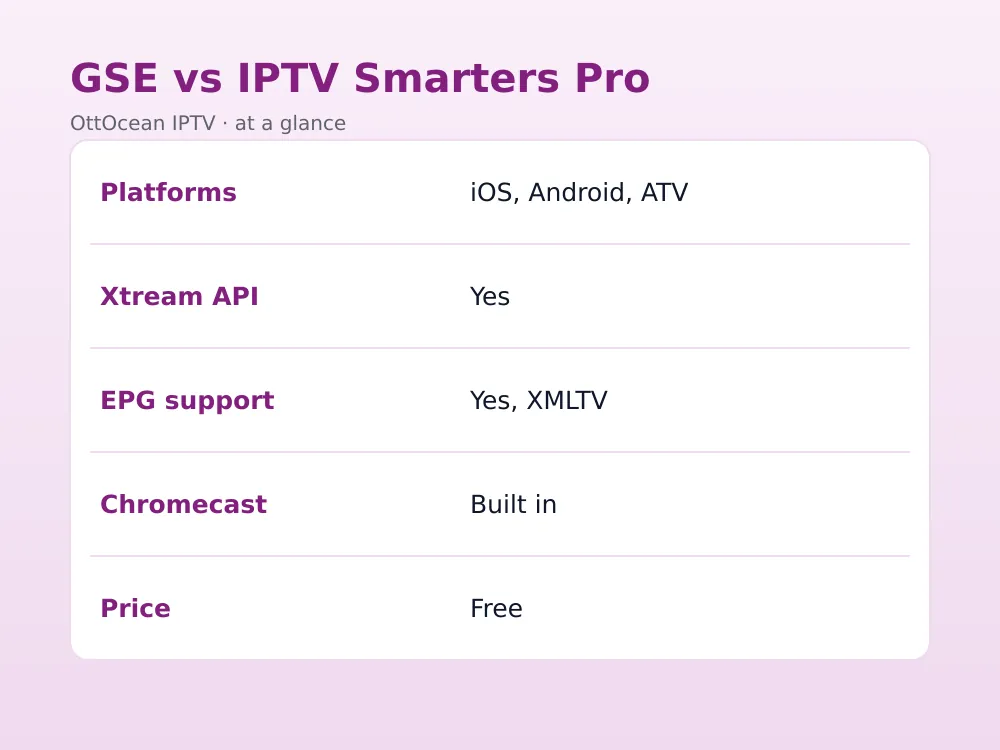
| Feature | GSE Smart IPTV | IPTV Smarters Pro |
|---|---|---|
| Platforms | iOS, Apple TV, Android | iOS, Android, Fire TV, LG, Samsung |
| Xtream Codes API | Yes | Yes |
| EPG | XMLTV, auto with Xtream | XMLTV, auto with Xtream |
| Chromecast | Built in | Limited |
| Firestick support | No native app | Yes, in Amazon Appstore |
Our take: if you live in the Apple ecosystem and cast to a TV occasionally, GSE wins on Chromecast and interface polish. If your household mixes Fire TV, Samsung and Android, IPTV Smarters Pro’s broader platform coverage makes life easier. Neither app changes what channels you can access — that is entirely down to the subscription you connect, so the choice between them really comes down to which devices you own rather than which app is “better” in the abstract.
Is GSE Smart IPTV Safe and Legal?
The app itself is a legitimate, App Store-approved media player — installing and using it is not illegal anywhere. What matters legally is the content source you connect it to. Streaming licensed channels through a properly licensed IPTV subscription is the same principle as using any cable box: you are responsible for choosing a legitimate provider, and OttOcean IPTV positions itself as a paid subscription service, not a piracy tool.
We recommend avoiding “free forever” IPTV links shared in forums or Telegram groups, since those playlists usually carry unlicensed content and often disappear within days. A paid, supported provider with a real free trial is the safer route either way, since you can verify channel quality, EPG accuracy and support responsiveness before committing to a longer plan.
From a privacy standpoint, GSE does not require an account or personal login of its own — your login credentials belong to your IPTV provider, not to the GSE developers. The app stores your playlist URL and Xtream Codes details locally on the device, so switching providers simply means adding a new entry and deleting the old one.
Key takeaways
- It runs on iPhone, iPad, Apple TV and Android from a single free app.
- It supports both M3U remote playlists and the Xtream Codes API; Xtream is the faster, more reliable option.
- EPG, parental lock and channel groups all live under the Settings menu.
- Chromecast support is built in on iOS and Android, a real advantage over some rivals.
- “Error loading playlist” is almost always a credentials, expiry or server issue, not an app bug.
- There is no native Fire TV build; Firestick owners should use IPTV Smarters Pro or TiviMate instead.
- A 5-day OttOcean IPTV free trial lets you test it with a real login before paying.
FAQ: gse smart iptv
Is GSE Smart IPTV free?
Yes, the core app is free to download on the App Store, Play Store and Apple TV App Store. There are optional in-app purchases that remove ads and add extra themes, but every playback and EPG feature works fully on the free tier with any valid subscription, so you never need to pay the developer to use it properly.
Does GSE Smart IPTV work on Firestick?
No, there is no official build in the Amazon Appstore. Firestick and Fire TV owners should install IPTV Smarters Pro or TiviMate instead, both of which support the same Xtream Codes and M3U logins that OttOcean IPTV provides, so you lose no functionality by switching apps on that platform.
Why does GSE Smart IPTV say “error loading playlist”?
This usually means a typo in the URL or login, an expired subscription, or brief server maintenance on the provider’s side. Double-check your credentials against the original welcome email, confirm your plan is still active, and wait a few minutes before trying again.
Can I use GSE Smart IPTV on multiple devices?
Yes, you can install GSE Smart IPTV on as many devices as you like. Whether you can stream on more than one at the same time depends on your subscription’s device limit — OttOcean IPTV plans range from one to three simultaneous connections.
How do I add EPG to GSE Smart IPTV?
Go to Settings → EPG and paste your provider’s XMLTV URL. If you are using the Xtream Codes API, the guide data is often pulled in automatically once the playlist loads, so you may not need to add anything manually.
Is GSE Smart IPTV better than IPTV Smarters Pro?
Neither app is objectively better — GSE has the edge on Apple devices and Chromecast, while Smarters Pro covers more platforms including Fire TV, Samsung and LG. Pick based on which devices your household actually uses.
Conclusion
GSE Smart IPTV remains the most dependable free player for anyone streaming on an iPhone, iPad or Apple TV in 2026, and its Chromecast support and Xtream Codes handling make setup genuinely painless once you have real login details in hand. Pair it with a licensed provider and the whole process takes less than five minutes.
Ready to try it yourself? Start the 5-day OttOcean IPTV free trial, no credit card required, and load the Xtream Codes login straight into GSE. If you are ready to subscribe, compare plans on the OttOcean IPTV pricing page starting at $9.99 a month.
For more background on how IPTV streaming works at a protocol level, see the Wikipedia entry on IPTV, and for details on how casting works between devices, see the Wikipedia entry on Chromecast.


