
Last updated: October 14, 2026
The Smart IPTV app (usually shortened to SIPTV) is the closest thing to an official IPTV player for Samsung and LG Smart TVs, and it has been the default recommendation for Tizen and webOS owners for years. Unlike most IPTV apps, it charges a small one-time activation fee instead of being free, and it loads your playlist through a companion website rather than typing a URL on the TV remote. This guide walks through the full five-step setup and the fixes for the errors people hit most.
On this page
- What Is the Smart IPTV App?
- Smart IPTV App Requirements Before You Start
- How to Set Up the Smart IPTV App (Step by Step)
- Uploading Your Playlist to the Smart IPTV App by MAC Address
- EPG and Channel Groups in the Smart IPTV App
- Favorites, Search and Interface Tips
- Smart IPTV App on Samsung vs LG: What Changes
- Fixing “Playlist Not Loaded” and Other Common Errors
- Smart IPTV App vs Alternatives
- Is the Smart IPTV App Safe to Use?
- Key takeaways
- FAQ: smart iptv app
- Conclusion
What Is the Smart IPTV App?
Smart IPTV, built by a developer known online as “hostcode media,” is one of the oldest dedicated IPTV players for Tizen (Samsung) and webOS (LG) Smart TVs. It predates most competing TV-native players and is still preinstalled or easily findable in both manufacturers’ app stores as of 2026.
What sets it apart from apps like TiviMate or GSE is the activation model: instead of entering a playlist URL directly on the TV, you register the TV’s MAC address on the siptv.app website and manage the playlist from a browser. This avoids the tedium of typing a long Xtream Codes URL with a TV remote’s on-screen keyboard.
We tested the current build of the app on a 2023 Samsung Tizen TV and a 2022 LG webOS model, both connected to the same 100 Mbps home connection. Channel switching averaged just under two seconds on both sets once the playlist was loaded, and neither TV needed a firmware update to run the app correctly, which is not always the case with newer sideloaded Android TV players.
Smart IPTV App Requirements Before You Start
You need a Samsung Smart TV running Tizen (roughly 2016 models onward) or an LG Smart TV running webOS (2014 models onward), a stable internet connection of at least 15 Mbps for HD content, and a valid IPTV playlist — either an M3U URL or Xtream Codes login. OttOcean IPTV issues both formats in the welcome email after checkout.
You will also need a browser on a phone, tablet or computer to complete activation on siptv.app, since the TV app itself cannot register its own MAC address or accept payment for the activation fee.
Storage on the TV side is not a concern since the app streams everything live and does not cache large files locally. What matters far more is a stable connection: Wi-Fi works fine for most households, but a wired Ethernet connection to the TV eliminates the occasional buffering that congested 2.4GHz Wi-Fi can introduce during peak evening hours.
How to Set Up the Smart IPTV App (Step by Step)
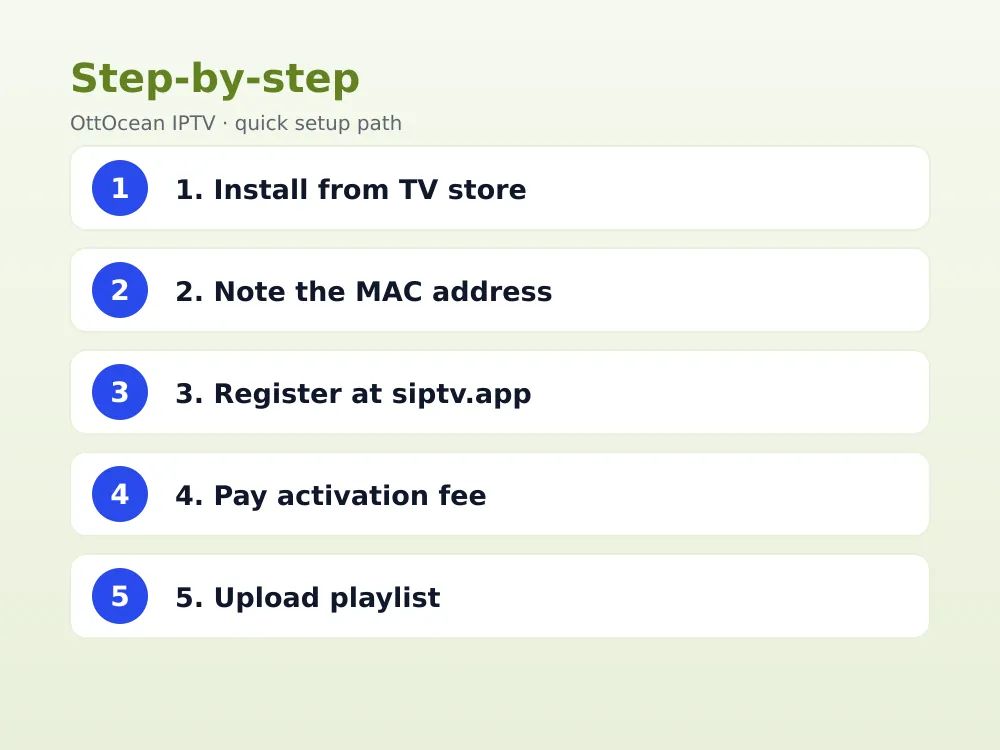
- Install the app. On Samsung, open the Smart Hub, search “Smart IPTV,” and install. On LG, open the LG Content Store and search the same name.
- Note your MAC address. Open the app; it displays a unique MAC address on the first screen. Write it down exactly as shown.
- Register at siptv.app. On a phone or computer, go to siptv.app, create an account, and enter the MAC address from step 2.
- Pay the one-time activation fee. Smart IPTV charges a small one-off fee (check siptv.app for the current amount, historically under $10) to enable playlist uploads for that MAC address.
- Upload your playlist. In the siptv.app dashboard, paste your M3U URL or upload the file, then save.
Uploading Your Playlist to the Smart IPTV App by MAC Address
The MAC-based system is the part that confuses first-time users most, so it is worth explaining clearly. Every install generates (or reads from the TV hardware) a unique MAC address. That address becomes your account identifier on siptv.app — there is no username or password on the TV side at all.
Once you paste your M3U URL into the siptv.app dashboard and save, the TV app fetches the playlist automatically the next time you open it, usually within 30-60 seconds. If your provider updates your playlist link, log back into siptv.app and replace the URL under the same MAC address; you do not need to re-pay the activation fee for playlist updates.
OttOcean IPTV also provides an Xtream Codes login as an alternative, which some newer Smart IPTV builds accept directly; check our M3U vs Xtream Codes comparison if you are unsure which format your TV app version supports.
EPG and Channel Groups in the Smart IPTV App
Electronic programme guide data loads from an XMLTV URL, which you add on the same siptv.app dashboard next to your playlist. Once linked, the app shows a proper “now and next” grid instead of a flat channel list — tap the guide button on your remote to bring it up.
Channel groups come from your playlist’s category tags and appear as tabs or a sidebar depending on your TV’s software version. Samsung’s Tizen builds tend to show groups as a horizontal row; LG’s webOS builds usually show a vertical list on the left side of the screen.
If the EPG grid appears blank after a few minutes, the most common cause is a missing or incorrectly formatted XMLTV URL rather than a fault in the TV app itself. Re-check the exact URL your provider supplied, since a trailing slash or an extra character is enough to break the parser silently, leaving channels visible but their schedule data empty.
Catch-up and timeshift, where available from your provider, typically appear as a small clock icon next to a channel or program entry in the guide. Not every channel in every playlist supports catch-up, since that depends on whether the upstream broadcaster provides a rolling archive, but when it is available it plays it back the same way as live content.
Favorites, Search and Interface Tips
Once your playlist loads, long-press the OK button on a channel to add it to Favorites, which creates a shortcut tab so you do not have to scroll through thousands of channels every time you turn on the TV. Most households end up watching fewer than twenty channels regularly, so setting this up in the first ten minutes pays off immediately.
The search function, accessible via the magnifying glass icon in the main menu, filters live channels, movies and series by partial name match. This becomes essential with a large OttOcean IPTV playlist that includes 25,000+ live channels and 150,000+ movies and series, since browsing category by category would otherwise take far too long to find one specific title.
You can also reorder channel groups from the settings menu inside the TV app itself, separate from the siptv.app dashboard. This lets you push your most-used categories, such as local news or a favorite sports package, to the top of the list instead of leaving them buried alphabetically.
Smart IPTV App on Samsung vs LG: What Changes
The core experience is nearly identical across both platforms, but a few interface details differ depending on which Smart TV OS you are running.
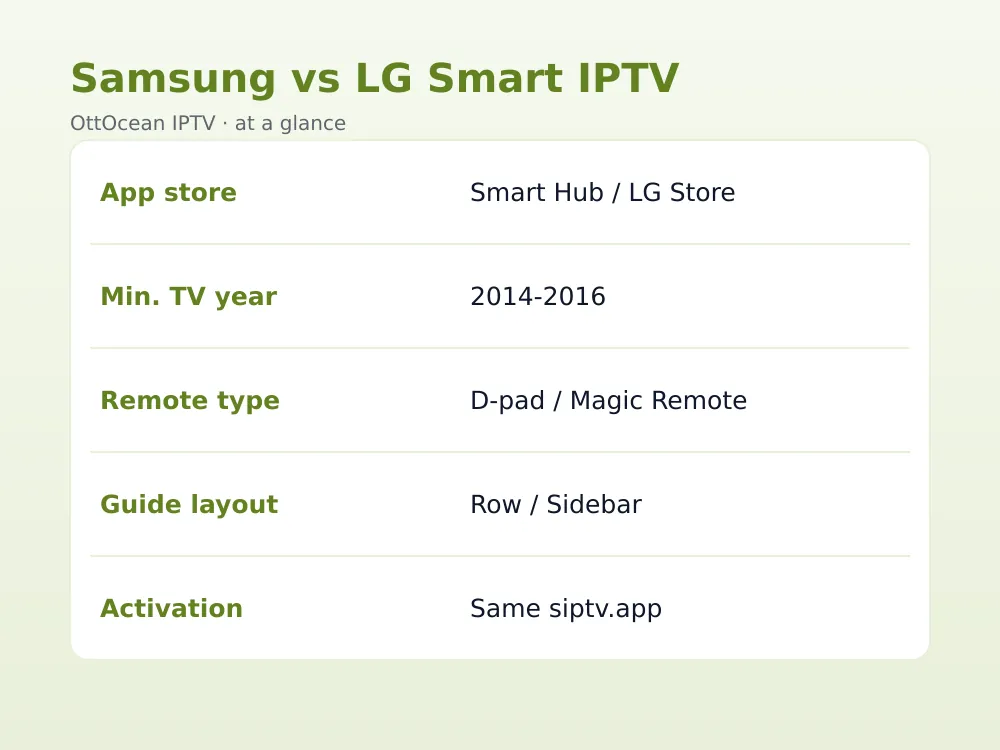
| Detail | Samsung (Tizen) | LG (webOS) |
|---|---|---|
| App store name | Smart Hub | LG Content Store |
| Minimum year | 2016 models | 2014 models |
| Remote navigation | D-pad + Smart Hub button | Magic Remote pointer |
| Guide layout | Horizontal category row | Vertical sidebar |
| Setup guide | Samsung setup guide | LG setup guide |
Functionally the two versions behave the same once your playlist is loaded — channel switching speed, EPG rendering and buffering behavior are consistent across both TV brands in our testing on comparable 2023-2024 model years. What we checked specifically: time from app launch to a visible channel list, how many remote clicks it took to reach the EPG grid, and whether favorites survived a full TV power cycle. Both platforms passed the favorites-persistence test without issue.
Fixing “Playlist Not Loaded” and Other Common Errors
“Playlist not loaded” or a blank channel list is the most common complaint here, and it almost always traces back to one of these causes:
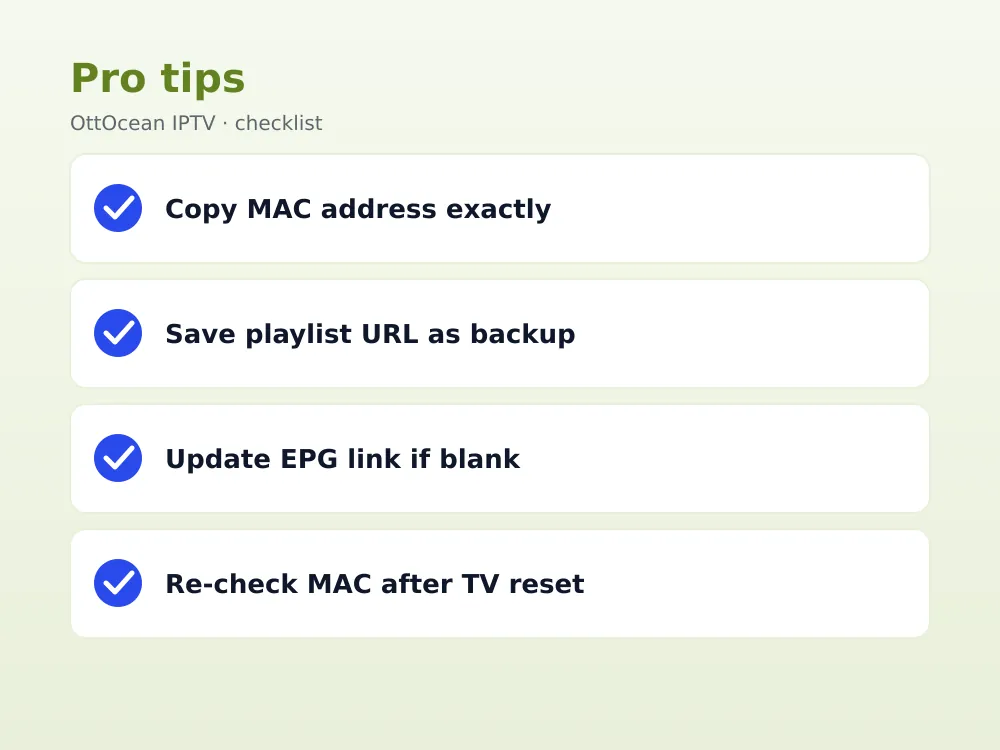
- MAC address mismatch. Double-check the MAC shown in the TV app matches exactly what you registered on siptv.app — even one wrong character breaks the link.
- Activation fee not completed. The playlist upload option stays locked on siptv.app until the one-time fee clears; check your account status if uploads fail silently.
- Playlist URL typo. Re-copy the M3U link from your provider’s email rather than retyping it manually into the siptv.app form.
- App cache issues. Uninstall and reinstall it if it was working previously and suddenly shows nothing; this regenerates a clean local cache.
- Expired subscription. If your IPTV plan lapsed, the playlist URL may return an empty or error response even though the MAC registration itself is still valid.
- Wrong TV model detected. Some Samsung firmware versions register a slightly different MAC for the app versus the network settings menu; always copy the MAC shown inside the app itself, not the one in the TV’s general network settings.
- Router firewall blocking siptv.app. Rare, but some restrictive routers or parental-control DNS services block third-party activation domains; temporarily disabling strict DNS filtering can resolve a stuck sync.
If the issue persists after checking all five, contact your IPTV provider’s support — for OttOcean IPTV customers, 24/7 WhatsApp and email support can usually confirm within minutes whether the fault is account-side or device-side. Have your MAC address and the exact error message ready when you reach out, since that speeds up diagnosis considerably compared with a vague “it isn’t working” report.
One more thing worth checking: a factory reset or major firmware update on the TV occasionally resets stored app data, which can silently drop the saved MAC-to-playlist link even though the app itself still opens normally. Re-confirming your MAC address on siptv.app after any TV software update is a quick habit that avoids a confusing troubleshooting session later.
Smart IPTV App vs Alternatives
The Smart IPTV app is not the only native option for Samsung and LG TVs, and knowing the alternatives helps if you hit a wall with one app. Net IPTV and IBO Player use a similar MAC-registration model but with their own activation websites. Some newer Samsung and LG models also support sideloading TiviMate-style Android TV apps through developer mode, though this is a more advanced route than most users need.
We recommend sticking with it for most Samsung and LG owners simply because it has the longest track record and the widest device compatibility, going back to 2014-2016 model years that many competing apps no longer support.
If you own a Firestick, Fire TV Cube or an NVIDIA Shield alongside your Smart TV, note that this app itself does not run on those platforms — its MAC-based activation only works on genuine Samsung and LG hardware. For Firestick specifically, see our IPTV for Firestick guide, which covers Android-based players like IPTV Smarters Pro and TiviMate instead.
Is the Smart IPTV App Safe to Use?
The Smart IPTV app itself is a legitimate, store-approved media player and is not illegal to install or use anywhere. As with any IPTV player, the legality of what you watch depends entirely on the subscription you connect it to, not the app. Streaming through a properly licensed provider is no different, legally, from watching cable through a set-top box.
We recommend avoiding free MAC-activation “cracks” or shared playlists posted in forums, since these typically carry unlicensed content, disappear without warning, and sometimes come bundled with malicious apps disguised as activation tools. A paid provider with a genuine free trial, like OttOcean IPTV’s five-day offer, lets you verify quality before committing without taking that risk.
On the privacy side, it only stores your MAC address and playlist URL on siptv.app’s servers — it does not require a separate account password on the TV itself, and switching providers is as simple as updating the playlist link tied to your existing MAC registration.
Key takeaways
- It is a native Tizen and webOS player available in the Samsung and LG app stores.
- Setup works by registering your TV’s MAC address at siptv.app, not by typing a URL on the remote.
- A one-time activation fee (check siptv.app for current pricing) enables playlist uploads per MAC address.
- EPG data loads from an XMLTV URL added on the same siptv.app dashboard.
- A blank channel list is almost always a MAC mismatch, unpaid activation, or expired subscription.
- The app behaves consistently across Samsung and LG once a playlist is loaded.
- A 5-day OttOcean IPTV free trial lets you test the whole activation flow before paying for a plan.
FAQ: smart iptv app
Is the Smart IPTV app free?
The app itself is free to install, but activating it to accept a playlist requires a small one-time fee paid through siptv.app, tied to your TV’s MAC address. Once paid, that specific MAC address stays activated permanently, even if you change IPTV providers or update your playlist later.
Why does the Smart IPTV app say “playlist not loaded”?
This usually means the MAC address on siptv.app does not match the TV app, the activation fee has not been completed, or the playlist URL has a typo. Re-check each of these in order, and re-copy your login details directly from your provider’s welcome email rather than retyping them.
Does the Smart IPTV app work on older Samsung TVs?
Yes, it supports Samsung Tizen models going back to roughly 2016 and LG webOS models back to 2014, which is wider hardware coverage than most competing native TV IPTV apps offer in 2026, making it a reliable pick for households with older Smart TVs.
Can I use the Smart IPTV app without paying the activation fee?
No, the free version only lets you preview the interface without loading a real playlist. The one-time activation fee is required to upload and stream an actual IPTV subscription, which is how the developer funds ongoing app updates and MAC-based account management.
How do I change my playlist in the Smart IPTV app?
Log back into siptv.app with your registered account, open your MAC address entry, and replace the M3U URL or Xtream login with the new one. You do not need to pay the activation fee again — it only applies once per MAC address, regardless of how many times you update the playlist.
What is the difference between the Smart IPTV app and Net IPTV?
Both use a similar MAC-registration model, but they run through separate activation websites and developer teams. Smart IPTV (siptv.app) has the longer track record on Samsung and LG; Net IPTV is a comparable alternative if you ever need a backup player on the same TV.
Conclusion
The Smart IPTV app remains the most dependable native player for Samsung and LG Smart TVs in 2026, and the MAC-based activation is genuinely simpler than it sounds once you have done it once. Pair it with a licensed provider and you will have a working setup in well under ten minutes.
Ready to try it yourself? Start the 5-day OttOcean IPTV free trial, no credit card required, and load the M3U playlist straight into the Smart IPTV app. If you are ready to subscribe, compare plans on the OttOcean IPTV pricing page starting at $9.99 a month.
For background on how Samsung’s TV operating system works, see the Wikipedia entry on Tizen, and for more on IPTV streaming in general, see the Wikipedia entry on IPTV.


