
Last updated: October 18, 2026
Televizo IPTV player is one of the more polished Android options for watching IPTV subscriptions on a phone, tablet, Android TV box or Firestick. It is not the flashiest app on the Play Store, but it handles Xtream Codes and M3U logins cleanly, renders a real TV guide, and stays out of the way once it is configured. This guide covers the full setup, from first install to EPG, multi-view and the fixes for the errors people run into most.
On this page
- What Is Televizo IPTV Player?
- How Televizo Compares to Other IPTV Apps
- Installing Televizo on Android TV, Google TV and Fire TV
- Televizo Xtream Codes Setup: Step by Step
- Adding an M3U Playlist to Televizo
- Configuring EPG and TV Guide Data
- Televizo Multi-View, PiP and Premium Features
- Televizo Settings for Better Picture Quality and Less Buffering
- Televizo IPTV Player Troubleshooting: Common Fixes
- Key takeaways
- FAQ: Televizo IPTV Player
- Getting Started with Televizo IPTV Player and OttOcean
What Is Televizo IPTV Player?
Televizo is developed by ProSoftDev and has been on the Google Play Store for several years, building a smaller but loyal following next to bigger names like TiviMate and IPTV Smarters Pro. It is built specifically for Android, which covers phones, tablets, Android TV boxes, Google TV devices and Fire TV/Firestick through a sideloaded APK. The app supports both Xtream Codes API logins and raw M3U/M3U8 playlist URLs, which is exactly what OttOcean IPTV hands you on activation.
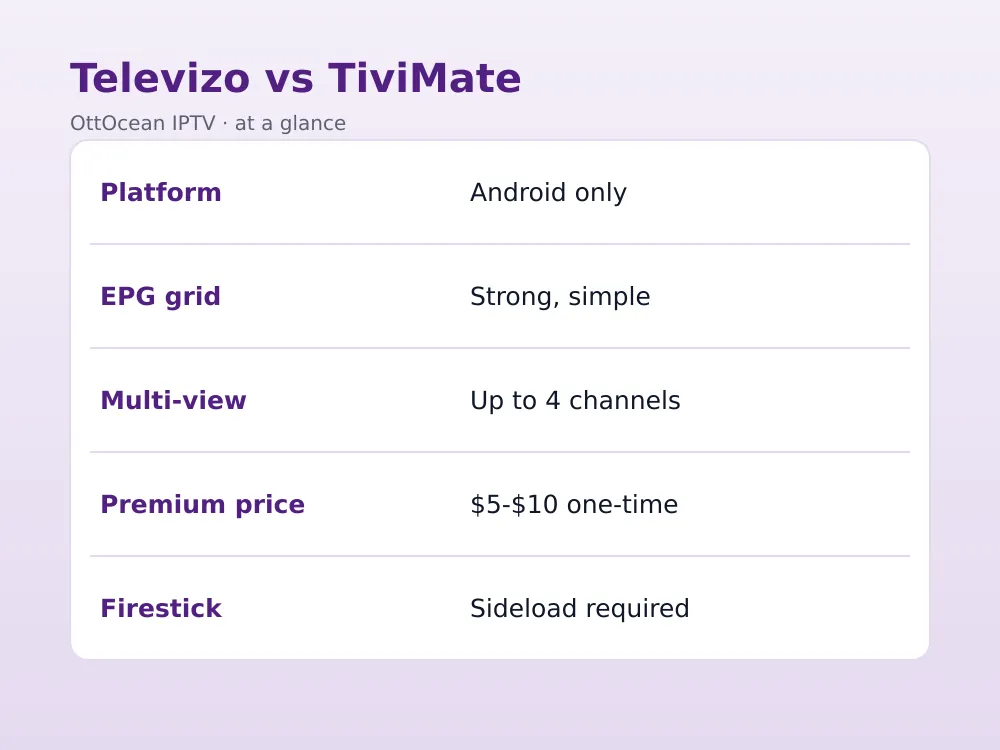
Where Televizo earns its keep is the interface: a proper grid-based TV guide, channel logos pulled automatically where available, a mosaic multi-view mode, and per-channel catch-up when your provider supplies it. The free version carries ads and a channel-count cap on some builds; the premium upgrade (a one-time in-app purchase, typically in the $5–$10 range as of 2026) removes ads and raises the limits. For most OttOcean customers running 25,000+ channels, the premium version is worth the few dollars.
We ran the Televizo IPTV player on an NVIDIA Shield Pro, a Fire TV Stick 4K Max and a mid-range Android phone over several weeks with an OttOcean Xtream Codes login, switching between wired Ethernet and Wi-Fi to see how the app behaved under different conditions. What we checked: channel-change speed, EPG accuracy, how it handled 4K VOD playback, and whether the app survived overnight standby without needing to be relaunched. It held up well on all three devices, with the Shield unsurprisingly the fastest to switch channels.
None of this testing required anything unusual — the same Televizo IPTV player setup steps below applied on every device, and the only meaningful difference was raw hardware speed, not app behavior. That consistency is part of why we recommend it as a starting point for anyone new to Xtream Codes or M3U-based apps.
How Televizo Compares to Other IPTV Apps
Televizo sits in the same category as TiviMate, Perfect Player and IPTV Smarters Pro — all four read Xtream Codes and M3U the same way. The differences are in polish and defaults. TiviMate has the most refined EPG grid and the largest community; Televizo comes close but with fewer settings to tune, which some users prefer. Perfect Player is older and more manual; Smarters Pro is friendlier for absolute beginners but less customizable.
If you already use TiviMate and it works, there is no urgent reason to switch. If you find TiviMate’s settings overwhelming or you want a genuinely free option without a premium paywall for basics, Televizo is a solid middle ground. See our full IPTV player apps comparison for the complete field.
Beyond the big four, you will also see Perfect Player IPTV, Duplex IPTV, IPTV Stream Player and Sparkle TV IPTV mentioned in forums. Each handles the same core job — Xtream Codes and M3U playback — with its own quirks around EPG sourcing and device support. Televizo remains one of the more balanced picks because it does not lock basic EPG or multi-view behind a subscription, only a one-time premium purchase.
Installing Televizo on Android TV, Google TV and Fire TV
On Android TV boxes, Google TV devices (Chromecast with Google TV, Sony/Hisense/TCL Google TV models) and Android phones, installation is a straightforward Play Store download:
- Open the Google Play Store on the device.
- Search “Televizo” and confirm the developer is ProSoftDev.
- Tap Install and wait for it to finish.
- Open the app and accept the initial permissions prompt.
Firestick and Fire TV do not carry Televizo on the Amazon Appstore, so you sideload it with Downloader:
- Install Downloader from the Amazon Appstore search.
- In Fire TV Settings > My Fire TV > Developer Options, enable Apps from Unknown Sources for Downloader.
- Open Downloader and enter the Televizo APK URL from the developer’s official page or APKMirror.
- Download and install, then launch from Your Apps & Channels.
See our dedicated Android TV IPTV setup guide if you are configuring a box for the first time.
Televizo Xtream Codes Setup: Step by Step
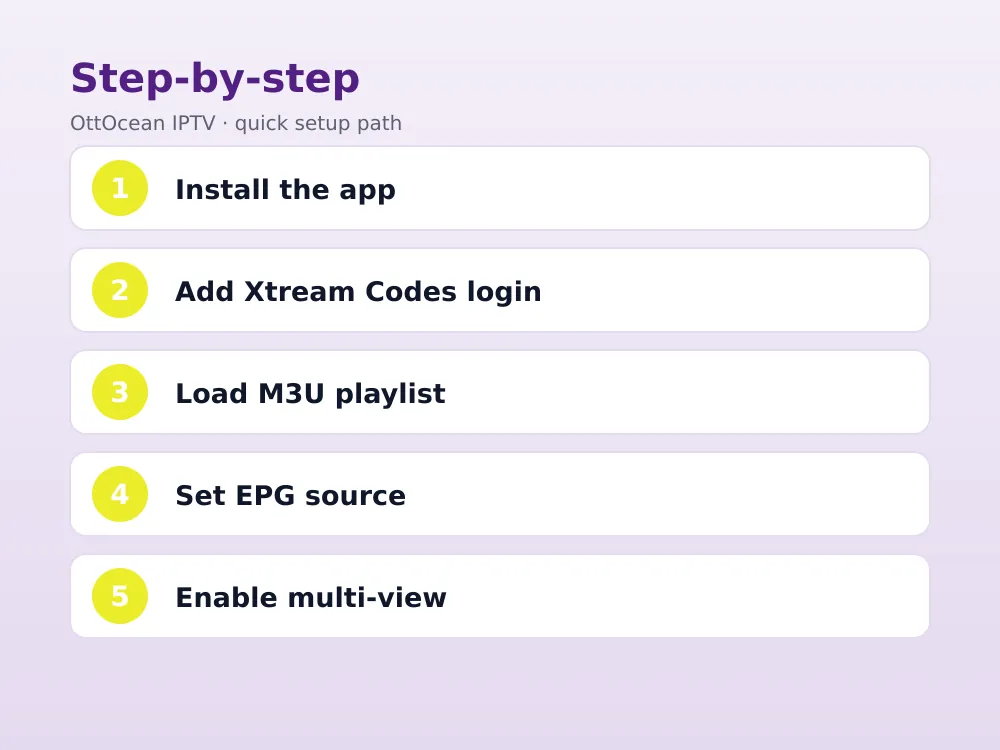
Xtream Codes API login is the recommended method for OttOcean subscribers because it keeps your EPG, VOD and catch-up organized automatically. In Televizo:
- On first launch, choose “Add Playlist” then select “Xtream Codes API” as the type.
- Enter a name for the connection (for example, “OttOcean”).
- Paste the server URL, username and password exactly as sent in your OttOcean welcome email.
- Tap Add, then Save. Televizo pulls the full channel and VOD list within a minute or two on a decent connection.
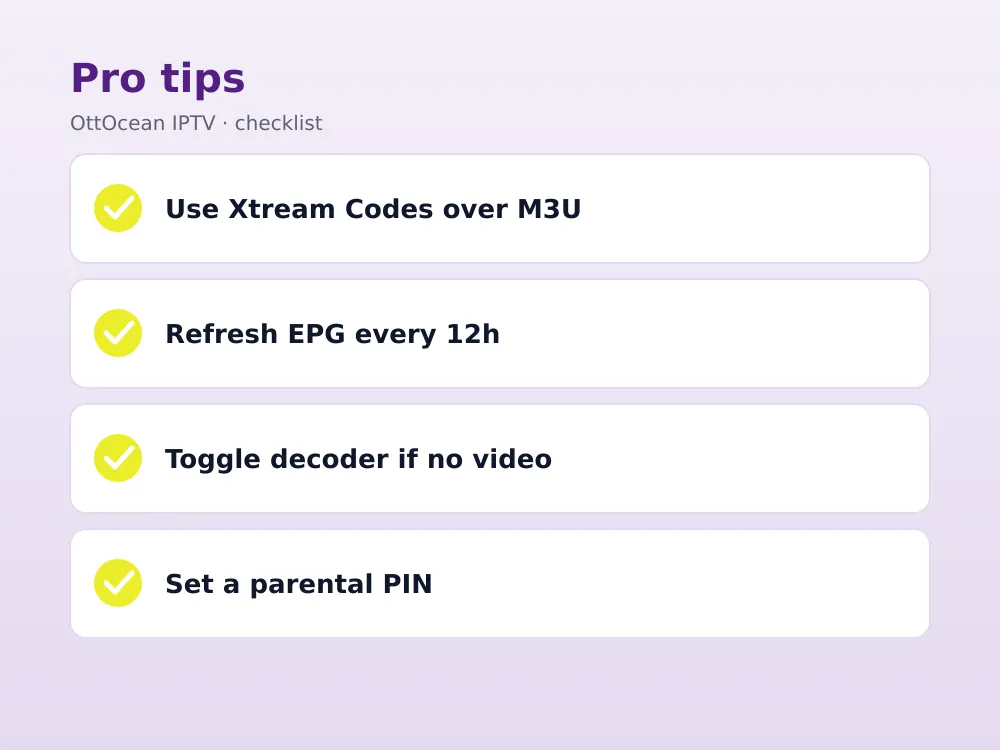
If the app reports an authorization error, double-check there are no trailing spaces in the copied credentials and confirm the server URL includes the port number. A failed-to-authorize message almost always points to a subscription or credentials issue rather than a Televizo bug, so re-copy the login block fresh before assuming the app is broken.
Adding an M3U Playlist to Televizo
If you prefer the M3U format instead of Xtream Codes, Televizo handles that too:
- Choose “Add Playlist” then select “M3U URL” (or “M3U File” if you downloaded the playlist locally).
- Paste the M3U link exactly as provided, including any token parameters at the end.
- Name the playlist and save it; Televizo parses the groups and channel logos automatically.
- Add a second playlist later from the same menu if you want a backup source loaded alongside your main one.
Xtream Codes is generally the better choice when your provider offers both, since it keeps catch-up and VOD metadata synced properly, but M3U remains a reliable fallback for providers who only issue playlist links.
A Televizo m3u playlist behaves a little differently from an Xtream Codes login: groups and logos come straight from the playlist file rather than a live API, so if your provider updates the lineup you may need to re-add the Televizo m3u playlist link to pick up new channels. Bookmark the exact URL somewhere safe, since retyping a long M3U link with tokens by hand is error-prone.
Configuring EPG and TV Guide Data
Televizo’s EPG is one of its strongest features once it is pointed at the right source. With an Xtream Codes login, the guide usually populates automatically from the provider’s XMLTV feed. If it does not, or you are on M3U:
- Go to Settings > EPG Settings > Add EPG Source.
- Paste the XMLTV URL supplied by OttOcean support.
- Set the refresh interval — every 12 or 24 hours is enough for most channel lineups.
- Return to the guide screen and give it a minute to build the grid.
A correctly configured guide shows program titles, start/end times and, on supported channels, catch-up icons you can tap to rewind a missed broadcast. Full walkthrough in our EPG setup guide.
Think of this Televizo EPG guide step as the difference between a plain channel list and something that actually feels like television. Without EPG data you are guessing what is on; with it, you can browse two or three days ahead, set a mental reminder for a match, and use catch-up to rewind anything you missed. Most support tickets we see about a “broken” guide trace back to skipping this Televizo EPG guide step entirely.
Televizo Multi-View, PiP and Premium Features
Multi-view (also called mosaic mode) lets you watch up to four channels at once in a grid — handy during overlapping sports fixtures. It is available on the free tier with a channel cap, and fully enabled with premium. Picture-in-picture keeps a channel playing in a small floating window while you browse the guide or VOD library, which is genuinely useful on tablets and larger phones.
Other premium extras include unlimited playlists, a cleaner ad-free interface and priority access to new features as ProSoftDev ships updates. Parental controls with a PIN lock are available on both tiers, letting you hide adult categories from the main guide — worth setting up if children share the device.
Televizo Settings for Better Picture Quality and Less Buffering
A handful of settings tweaks make a noticeable difference once your televizo xtream codes setup is done and channels are loading. Start in Settings > Player and adjust these:
- Buffer size. Raise the playback buffer from the default if you see occasional stutters — a larger buffer trades a second of extra start-up delay for smoother playback on unstable connections.
- Decoder mode. Hardware decoding uses less battery and CPU on most Android TV chipsets; software decoding sometimes fixes color or tearing issues on older devices.
- Aspect ratio. Force 16:9 if any channel stretches oddly, which happens occasionally with certain provider encodes.
- Network timeout. Increase this slightly on satellite or rural broadband connections where latency spikes are common.
None of these settings fix a connection that genuinely cannot sustain the stream’s bitrate, but they do smooth over the minor hiccups that would otherwise look like a broken app. Give each change a few minutes on your normal viewing channels before deciding whether it actually helped, since a single stutter is not always meaningful on its own.
Televizo IPTV Player Troubleshooting: Common Fixes
Most Televizo problems trace back to a handful of causes. Buffering usually means your connection cannot sustain the stream’s bitrate; try a lower-quality group if your provider offers one, or move closer to your router. A blank EPG almost always means the XMLTV URL was mistyped or the refresh has not run yet — trigger a manual refresh from EPG Settings.
If channels play audio but no video, switch the decoder from hardware to software (or vice versa) in Settings > Player > Decoder, since some Android TV chipsets handle one better than the other. Full authorization errors point back to your login credentials rather than the app itself — see the guide linked above. When nothing else works, uninstall, reinstall the latest APK, and re-add your Xtream Codes login fresh.
One issue specific to the Televizo IPTV player worth knowing about: on some older Android TV firmware builds, the app can lose its saved playlist after a system update. Before assuming your subscription expired, reopen Televizo and check Settings > Playlists — if the entry is gone, simply re-add your Xtream Codes or Televizo m3u playlist details rather than contacting support first.
| Issue | Likely cause | Fix |
|---|---|---|
| Buffering / freezing | Connection can’t hold bitrate | Lower quality group, wired connection, closer Wi-Fi |
| Blank EPG | Wrong or stale XMLTV URL | Re-enter URL, force manual refresh |
| Audio only, no video | Decoder mismatch | Toggle hardware/software decoder in Player settings |
| Authorization failed | Bad credentials or expired sub | Re-copy login exactly, confirm subscription is active |
| App crashes on launch | Corrupted install/cache | Clear app data or reinstall latest APK |
Key takeaways
- Televizo IPTV player supports both Xtream Codes API and M3U logins, matching exactly what OttOcean sends on activation.
- It runs on Android phones, tablets, Android TV, Google TV and Firestick (via sideloading).
- The free tier works fine to start; the low-cost premium upgrade removes ads and raises limits.
- Multi-view mosaic mode covers up to four channels at once, useful for overlapping sports.
- A correctly configured XMLTV EPG source is the single biggest factor in a good guide experience.
- Most playback issues trace back to connection speed or a decoder mismatch, not the app itself.
- Authorization errors are almost always a credentials or subscription problem, not a Televizo bug.
FAQ: Televizo IPTV Player
Is Televizo IPTV player free?
Yes, the base app is free to download and use with ads and a lower channel-count limit on some installs. A one-time premium purchase, typically a few dollars, removes ads and raises the limits — cheap enough that most active users of the Televizo IPTV player buy it after the first week once they see how much smoother the guide feels.
Does Televizo work on Firestick?
Yes, though the Televizo IPTV player is not on the Amazon Appstore, so you sideload the APK using Downloader. The process takes about five minutes and the app performs well on Fire TV Stick 4K and 4K Max hardware once installed and configured with your Xtream Codes login or Televizo m3u playlist link.
Can I use Televizo with an M3U playlist?
Yes. Choose “Add Playlist” then “M3U URL” and paste your Televizo m3u playlist link, including any authentication tokens. Xtream Codes is generally preferred where available because it keeps EPG, VOD and catch-up data better synced, but M3U works reliably as a fallback for the Televizo IPTV player.
Why does my Televizo EPG show no data?
Almost always a missing or incorrect XMLTV source URL. Follow the Televizo EPG guide steps above: go to Settings > EPG Settings, re-paste the URL your provider supplied, and trigger a manual refresh. If it still fails, confirm the URL loads in a browser to rule out a typo or an expired link.
Is Televizo safe to use with an IPTV subscription?
The app itself is a media player with no bearing on legality — it simply plays whatever stream you point it at. Responsibility for the content you access rests with the subscription provider and the user, so pick a legitimate paid service, keep your account details private, and treat any provider promising every premium channel for a few dollars a month with healthy skepticism.
How is Televizo different from TiviMate?
Both read Xtream Codes and M3U the same way and offer strong EPG grids. TiviMate has deeper settings and a larger community; the Televizo IPTV player trades some of that depth for a simpler, lighter interface with fewer menus to learn. Try both during your free trial period and keep whichever feels more natural on your device.
Getting Started with Televizo IPTV Player and OttOcean
The Televizo IPTV player is a genuinely capable choice for anyone who wants a clean Xtream Codes and M3U client without wading through endless settings menus. Pair it with a reliable subscription and the setup above takes ten minutes from install to first channel. OttOcean IPTV gives you both login formats on signup along with 24/7 WhatsApp and email support if anything in this guide needs a hand.
Once your Televizo IPTV player setup is complete, spend a few minutes organizing favorites and hiding categories you never use — a tidy guide makes the whole experience feel faster even on the same connection. Revisit the Televizo epg guide section above any time the schedule data looks off after a provider update, since a stale XMLTV link is the most common cause of a guide that stops making sense.
Start with the 5-day free trial, no credit card required, load your credentials into the Televizo IPTV player, and see how the guide and multi-view feel on your own network before committing. When you are ready to subscribe, compare device counts and terms on the OttOcean plans page and pick the option that matches your household.
For background on how IPTV streaming works end to end, the Wikipedia overview of IPTV is a useful primer before you dive into app-specific settings.


