
Last updated: October 29, 2026
When your IPTV keeps freezing mid-match or mid-episode, the picture locks on one frame while the audio either stutters along or cuts out entirely, and the instinct is almost always to blame the app. In our experience testing IPTV setups across Firestick, Android TV, and Smart TV apps, freezing has a short list of real causes, and most of them take under five minutes to rule out. This guide covers all eleven fixes we actually use.
On this page
- Why IPTV Keeps Freezing While Everything Else Streams Fine
- Freezing vs Buffering: What’s Actually Happening
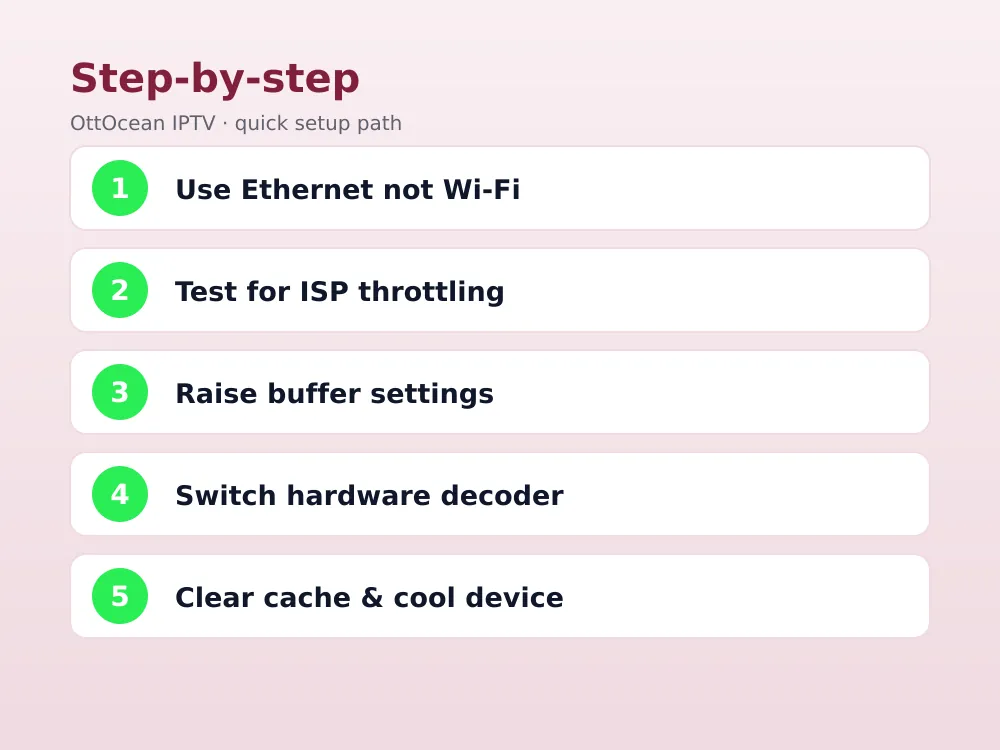
- Check Your Wi-Fi vs Ethernet Connection
- Is ISP Throttling Behind Your IPTV Keeps Freezing Problem?
- Adjust Your Player’s Buffer Settings
- Switch the Hardware Decoder Setting
- Clear App Cache and Check for Device Overheating
- Change Your DNS Server
- Why IPTV Keeps Freezing Even When Your Internet Is Fine
- Key Takeaways
- FAQ: IPTV Keeps Freezing
- Stop the Freezing for Good

Why IPTV Keeps Freezing While Everything Else Streams Fine
The confusing part of IPTV freezing is that Netflix or YouTube on the same device keeps playing smoothly. That’s because those services use adaptive bitrate streaming with content cached on servers physically close to you, while a live IPTV stream typically runs at a single fixed bitrate from your provider’s server and has far less room to gracefully drop quality when the network hiccups. A tiny packet-loss event that Netflix absorbs invisibly can freeze an IPTV stream outright.
The device matters too. Older Firestick models, budget Android boxes, and some Smart TV apps use software decoding for certain formats, which taxes the processor more than hardware decoding does. Combine a weak processor with a marginal connection and freezing becomes almost inevitable during high-motion scenes like sports, where the video data rate spikes hardest.
There’s also a household factor that gets overlooked: multiple devices streaming simultaneously on the same connection compound each other’s demand at exactly the moments you’re most likely to notice freezing, like a Saturday afternoon with several games on across different rooms. A connection that comfortably handles one 4K stream can stutter badly the moment a second or third device joins in, even if your advertised speed looks generous on paper.
Freezing vs Buffering: What’s Actually Happening
These get used interchangeably, but they’re different problems with different fixes. Buffering shows a spinning wheel while the app waits for more data; freezing locks the last frame on screen, often with no loading indicator at all, and sometimes needs you to back out and reopen the channel to recover. Freezing usually points to a decoder or device-side issue, while buffering points more directly at the network.
If your stream buffers occasionally but recovers on its own, focus on the network fixes below. If it freezes hard and stays frozen until you manually restart the channel, look first at the hardware decoder and buffer settings sections, since those target the device-side causes more directly than a network fix would.
A useful diagnostic: switch to a different channel or a VOD movie on the same app during a freeze. If the new content plays smoothly right away, the problem was tied to that specific stream, possibly a server-side hiccup on the provider’s end for that channel. If everything you try freezes within a minute or two, the cause is almost certainly on your side, whether that’s the network, the device, or an app setting.
Check Your Wi-Fi vs Ethernet Connection
Wi-Fi is the single biggest source of freezing we see in support tickets. A 2.4GHz signal shared with a dozen neighboring routers, a microwave running nearby, or simply too much distance from the router introduces the kind of micro-dropouts that Netflix hides and IPTV doesn’t. If your streaming device supports a wired Ethernet connection, use it; a direct cable eliminates almost the entire category of Wi-Fi interference issues in one step.
If Ethernet isn’t an option, switch your router to the 5GHz band if your device supports it, since 5GHz suffers far less interference than the crowded 2.4GHz band, even though its range is shorter. Also move the router or a mesh extender closer to your streaming device rather than routing the signal through two or three walls, which noticeably degrades throughput.
Powerline adapters, which send network data over your home’s existing electrical wiring, are a reasonable middle ground when running a physical Ethernet cable isn’t practical. They’re not as consistent as a direct cable run, but they generally beat a weak Wi-Fi signal, especially in older homes with thick walls or metal lath that blocks wireless signals more than newer construction does.
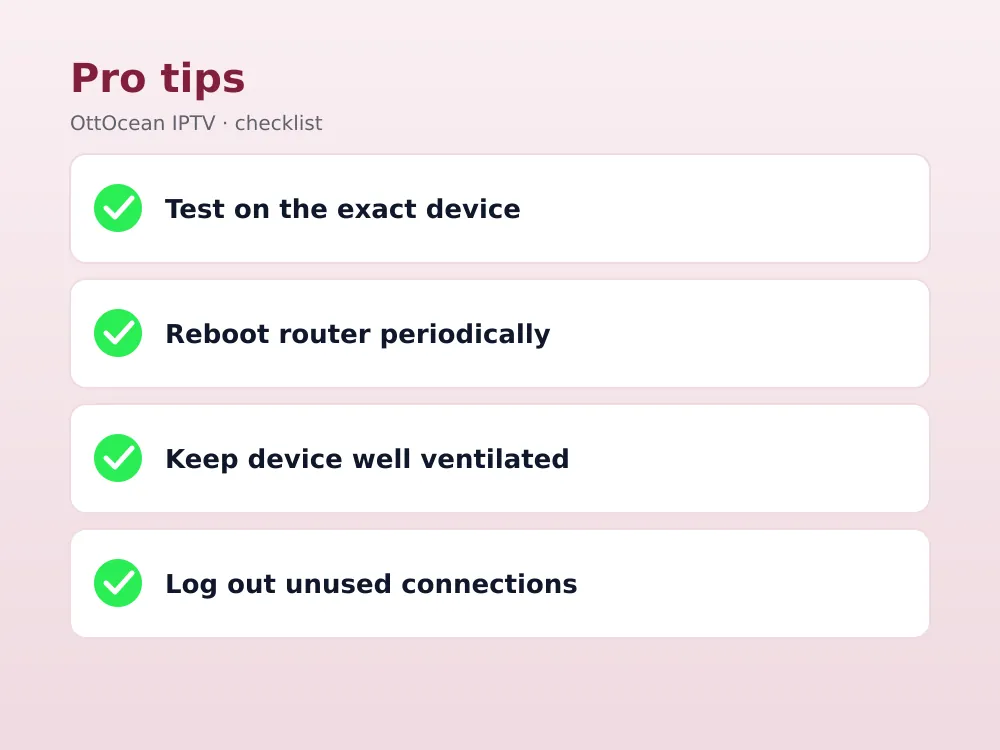
- Run a speed test on the exact device that’s freezing, not just your phone, since Wi-Fi chipsets vary in quality.
- Aim for at least 25 Mbps sustained for a single 4K IPTV stream, and more if multiple devices share the connection.
- Restart your router periodically; a router under continuous load for weeks can develop connection instability that a simple reboot clears.
Is ISP Throttling Behind Your IPTV Keeps Freezing Problem?
Some internet providers apply traffic shaping to streaming-pattern data, deliberately slowing connections that look like continuous video streams, especially during peak evening hours when their network is under the heaviest load. This is harder to prove than a simple speed test, since a throttled connection often still shows decent numbers on a generic speed test while your actual stream freezes.
The most reliable way to test for ISP throttling is a reputable VPN. Connect to a nearby VPN server and watch the same channel that was freezing before. If the freezing disappears or drops sharply once the VPN masks your traffic pattern from your ISP, throttling was very likely the cause. If nothing changes, the bottleneck is somewhere else in the chain, not your ISP’s traffic shaping.
Not every VPN handles this well. A budget VPN with overloaded servers can introduce its own slowdown, masking whether throttling was actually the issue. Choose a paid VPN known for streaming performance, pick a server geographically close to you, and test at a similar time of day to your original freezing episode so the comparison is fair.
Adjust Your Player’s Buffer Settings
Most serious IPTV apps, including TiviMate, IPTV Smarters Pro, and XCIPTV, let you manually set a buffer size, usually measured in seconds or megabytes, under a Playback or Advanced settings menu. A buffer that’s too small means the app runs out of pre-loaded data the moment your connection dips even slightly, which shows up as a freeze rather than a graceful pause.
Raising the buffer setting gives the app more of a cushion before a network dip becomes visible on screen, at the cost of a slightly longer wait when you first change channels. We generally recommend starting around 5 to 10 seconds of buffer and increasing it in small steps if freezing persists, since an oversized buffer on a genuinely unstable connection just delays the freeze rather than preventing it.
Different apps label this setting differently. TiviMate calls it “Buffer size” under Settings > Playback; IPTV Smarters Pro hides it under Settings > General > Buffering; and some Smart TV apps bury it a layer deeper inside an “Advanced” or “Expert” menu. If you can’t find it at all, the app may auto-manage buffering, in which case the network and decoder fixes matter even more.
Switch the Hardware Decoder Setting
Inside most IPTV apps there’s a toggle between hardware decoding and software decoding, sometimes labeled “Codec” or “Decoder type” in settings. Hardware decoding uses a dedicated chip on your device built specifically for video, and it’s almost always the better choice; software decoding falls back to the general processor, which struggles on older or budget hardware and produces exactly the freeze-then-catch-up pattern people report.
If hardware decoding is already selected and freezing continues on a specific format, try switching to software decoding as a test, since occasionally a specific stream format trips up a device’s hardware decoder chip. It’s rare, but on some older Smart TV apps it resolves freezing that nothing else touches.
Worth noting: HDR content and 4K streams demand considerably more from a decoder than standard 1080p, so a device that handles your regular channels fine may still freeze specifically on a 4K sports feed. If that pattern matches what you’re seeing, dropping to a 1080p version of the same channel, when your provider offers one, is a practical workaround while you sort out the underlying decoder limitation.
Clear App Cache and Check for Device Overheating
A bloated cache on your IPTV app can slow its own internal processing enough to cause freezing that has nothing to do with your network at all. On Fire TV, go to Settings > Applications > Manage Installed Applications, select your player, and clear the cache; on Android TV the path is Settings > Apps > See all apps. Do this every few weeks if you stream heavily, since cache buildup is a slow, cumulative problem.
Overheating is the other device-side cause worth ruling out, especially on Firestick models tucked behind a TV in a poorly ventilated cabinet. A streaming device that’s genuinely hot to the touch will throttle its own processor to cool down, and that throttling produces freezing that looks identical to a network problem. Give the device open air, or use a short HDMI extender to pull it away from the heat radiating off the back of the TV.
Dust buildup inside a set-top box or Android TV console has the same effect over time, since blocked vents trap heat that would otherwise dissipate. A quick compressed-air cleaning every few months, especially if the device sits low near a carpeted floor, is a cheap habit that prevents the slow performance decline that eventually shows up as freezing during longer viewing sessions.
Change Your DNS Server
Your device’s default DNS, usually assigned automatically by your ISP, occasionally resolves your IPTV provider’s server addresses slowly or inconsistently, which introduces connection hiccups that look like freezing right at channel-change time. Switching to a faster, more reliable public DNS such as Cloudflare (1.1.1.1) or Google (8.8.8.8) is a free, low-risk change that resolves this for a meaningful number of users.
You can set this at the router level so every device benefits, or on the individual streaming device under its network settings if your router doesn’t allow custom DNS. It won’t fix every case of IPTV keeps freezing, but it’s quick enough to try before moving on to more involved troubleshooting.
Some ISPs also run transparent DNS interception, silently redirecting all DNS requests through their own servers regardless of what you configure on the device. If you’ve set a custom DNS and freezing hasn’t budged at all, that’s a sign your router or ISP is overriding it, and you may need to configure DNS at the router’s WAN settings instead of the individual device.
Why IPTV Keeps Freezing Even When Your Internet Is Fine
If you’ve confirmed a strong, wired connection, tuned your buffer settings, and freezing still happens, the bottleneck may sit on the provider’s side. Every IPTV service runs a fixed server capacity, and during huge live events, oversold or under-provisioned servers slow down for everyone connected, regardless of how good your home connection is. This shows up as freezing that coincides suspiciously with kickoff times or season premieres.
A related and often overlooked cause is a connection limit exceeded error, where your subscription is tied to a specific number of simultaneous devices and a forgotten open stream on another TV or app quietly eats your allowance, degrading the active stream. Log out of unused devices and confirm only your intended screens are connected.
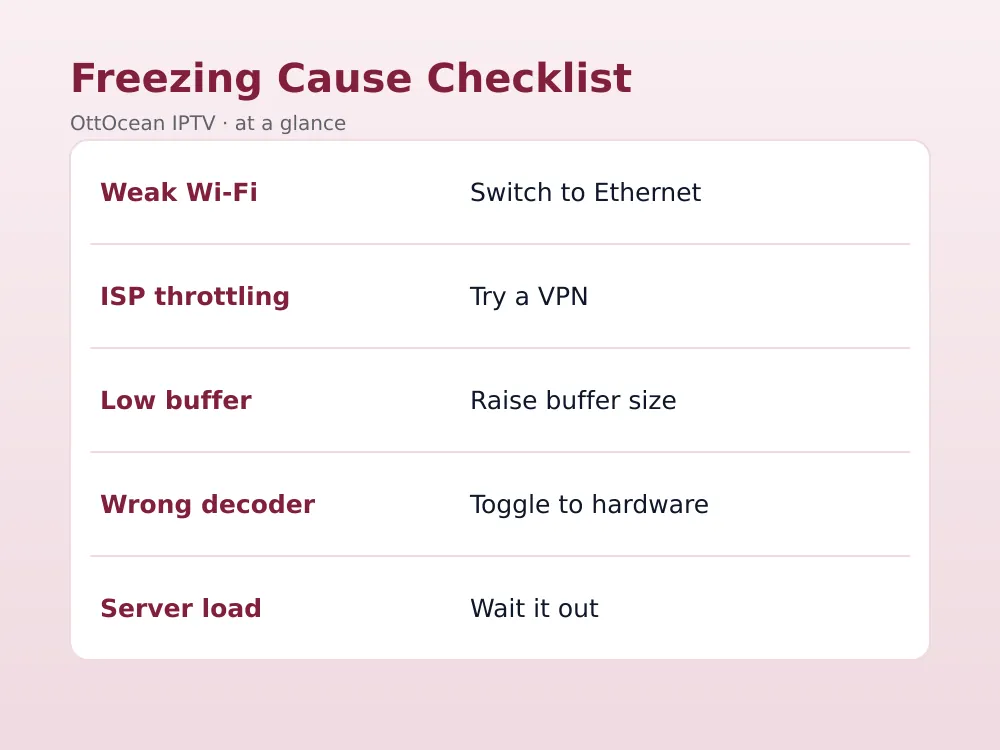
| Cause | How to confirm | Fix |
|---|---|---|
| Weak Wi-Fi | Speed test drops under load | Switch to Ethernet or 5GHz |
| ISP throttling | VPN test changes the result | Use a reputable VPN |
| Low buffer setting | Freezes right after channel change | Raise buffer in app settings |
| Wrong decoder | Freezes on high-motion scenes | Toggle hardware/software decoder |
| Provider server load | Freezes only during big events | Wait it out or switch provider |
Key Takeaways
- IPTV keeps freezing mostly due to network instability, ISP throttling, buffer settings, or decoder mismatches.
- Freezing and buffering are different symptoms; freezing points more to device or decoder issues.
- Ethernet and 5GHz Wi-Fi eliminate most connection-side freezing in a single step.
- A VPN test is the fastest way to confirm or rule out ISP throttling.
- Raising the buffer setting adds a cushion against short network dips.
- Clear app cache and watch for device overheating, both common device-side causes.
- If freezing hits only during huge live events, provider server load is the likely culprit.
FAQ: IPTV Keeps Freezing
Why does my IPTV freeze only during live sports?
Live sports push far more motion data per second than a typical show, which stresses both your connection and your device’s decoder harder than anything else you watch. It also coincides with peak viewership on the provider’s servers. Check your buffer settings and hardware decoder first, and expect some servers to slow slightly during the biggest global matches regardless of your own setup.
Does a VPN fix IPTV freezing?
A VPN only helps if ISP throttling is the actual cause, which you can confirm by testing with and without it on the same channel. If freezing persists identically with a VPN connected, the cause lies elsewhere, such as buffer settings, decoder mismatch, or provider server load, and a VPN won’t resolve those.
Is IPTV freezing a sign my subscription is bad?
Not usually. Most freezing traces back to your home network, your device’s decoder setting, or your player app’s buffer configuration rather than the subscription itself. A genuinely unreliable provider shows freezing across every device and every channel at all hours; freezing tied to specific times or events points more to a network or device cause.
Why does IPTV keep freezing right after I change the channel?
This is almost always a buffer setting that’s too small, giving the app no cushion of pre-loaded data before the stream catches up. Raise the buffer size in your player’s Playback or Advanced settings, accepting a slightly longer initial load time in exchange for fewer freezes during the first few seconds of a new channel.
Can device overheating really cause freezing?
Yes. Streaming devices tucked into closed cabinets or pressed directly against a hot TV back panel can throttle their own processor once internal temperatures rise, and that throttling produces the exact freeze-then-catch-up pattern people blame on their internet. Improve airflow around the device or use a short HDMI extender cable to pull it into open air.
How do I know if it’s ISP throttling versus provider server load?
Throttling tends to be consistent at certain times of day across every channel and every app, while server load issues cluster around specific huge live events and usually ease off within an hour or two. The VPN test is the cleanest way to separate the two, since it isolates your ISP’s behavior from whatever the provider’s server is doing.
Stop the Freezing for Good
Working through network, buffer, and decoder fixes solves the vast majority of freezing complaints, but a provider running anti-freeze infrastructure on well-provisioned servers removes a whole category of the problem before it starts. OttOcean IPTV runs anti-freeze servers with a 99.9% uptime target and delivers both Xtream Codes and M3U formats, so your player app has a stable feed to work with. Read our full guide on fixing IPTV buffering for network-focused troubleshooting, and our best VPN for IPTV roundup if you suspect throttling.
If IPTV keeps freezing on your current subscription no matter what you try, that’s worth testing against a different server before you assume your home setup is broken. Start a 5-day free trial, no credit card required, and load the same channels you’ve been struggling with. If the freezing disappears, compare our plans on the IPTV subscription page starting at $9.99 a month. For a technical breakdown of how adaptive streaming reduces freezing versus fixed-bitrate feeds, see the Wikipedia entry on adaptive bitrate streaming.