Last updated: October 28, 2026
TiviMate EPG not working is one of the most common complaints we hear from Android TV and Firestick users, and it almost never means the app itself is broken. In nearly every case we’ve traced, the guide grid is empty, frozen, or showing the wrong show times because of one setting buried a few menus deep. This guide walks through the nine fixes that actually resolve it, in the order we’d try them ourselves.
On this page
- Why TiviMate EPG Not Working Still Happens in 2026
- Check Your EPG Source: Xtream Codes API vs XMLTV URL
- Fix an EPG Time Offset That Shows the Wrong Schedule
- Increase the EPG Update Interval So Guide Data Actually Refreshes
- Match Channel IDs When Guide Data Doesn’t Line Up With Channels
- Clear TiviMate’s Cache and App Data
- Remove and Re-Add Your Playlist to Force a Fresh Pull
- TiviMate Premium and What It Actually Changes for EPG
- How to Fix TiviMate EPG Not Working with Alternative EPG Sources
- Key Takeaways
- FAQ: TiviMate EPG Not Working
- Get an IPTV Guide That Actually Works
Why TiviMate EPG Not Working Still Happens in 2026
TiviMate doesn’t generate programme data itself. It pulls a guide feed from your IPTV provider, either through the Xtream Codes API tied to your login or from a separate XMLTV URL, then renders that feed as the scrolling grid you scroll through with the remote. When the grid is blank, frozen on yesterday’s schedule, or misaligned with what’s actually playing, the break is almost always in that handoff, not in TiviMate’s code.
We’ve tested this across dozens of playlists on Fire TV Stick 4K Max and Android TV boxes, and the pattern repeats: a playlist added months ago with a working EPG suddenly goes blank after the provider rotates their guide server, or after a TiviMate update changes how it parses XMLTV timestamps. Knowing which layer failed saves you from reinstalling the app for no reason.
Two other triggers show up often enough to mention. A firmware update on the streaming box itself can silently reset network-related app permissions, which blocks TiviMate’s background EPG fetch even though the playlist and channel list still load fine. And a router reboot mid-refresh can leave the guide half-downloaded, which looks identical to a broken feed until you force a fresh pull. Both are worth ruling out before you touch any settings.
Check Your EPG Source: Xtream Codes API vs XMLTV URL
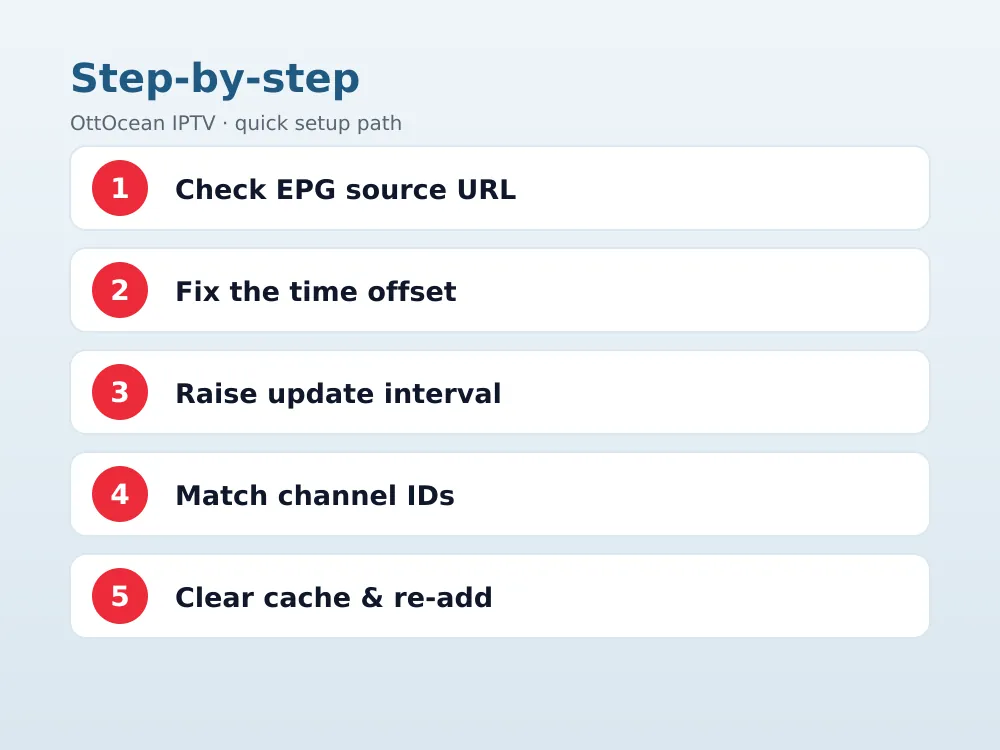
Open TiviMate, go to Settings > Playlists, highlight your playlist and press the menu button, then choose Edit. Look at the EPG source field. If your provider issues Xtream Codes credentials (username, password, server URL), set this to “Xtream Codes API” so TiviMate pulls the guide from the same server as your channel list. If you were only given an M3U link, you likely need a separate XMLTV URL pasted into the “EPG source” as “XMLTV URL”.
Mixing these up is the single most common reason this happens right after setup. An M3U playlist with that field left on Xtream Codes API, when no Xtream login exists, produces a permanently empty grid with no error message. Double-check the exact URL your provider’s welcome email or portal lists for EPG, since a typo of even one character returns nothing.
Before assuming the app is at fault, paste the XMLTV URL into a browser address bar on your phone or computer. A working feed downloads or displays a large block of XML text starting with programme listings; a broken one returns a blank page, a login prompt, or a server error. This ten-second test tells you immediately whether the problem sits with TiviMate’s settings or with the feed your provider is serving.
Fix an EPG Time Offset That Shows the Wrong Schedule
If programmes appear in the guide but the times are off by an hour or more, that’s a time-zone mismatch, not a broken feed. Some XMLTV feeds are published in UTC and expect the player to apply your local offset; others already bake in a specific region’s time. In the playlist editor, look for an “EPG time-shift” or “time offset” field and adjust it in whole-hour steps until the current show lines up with what’s actually airing.
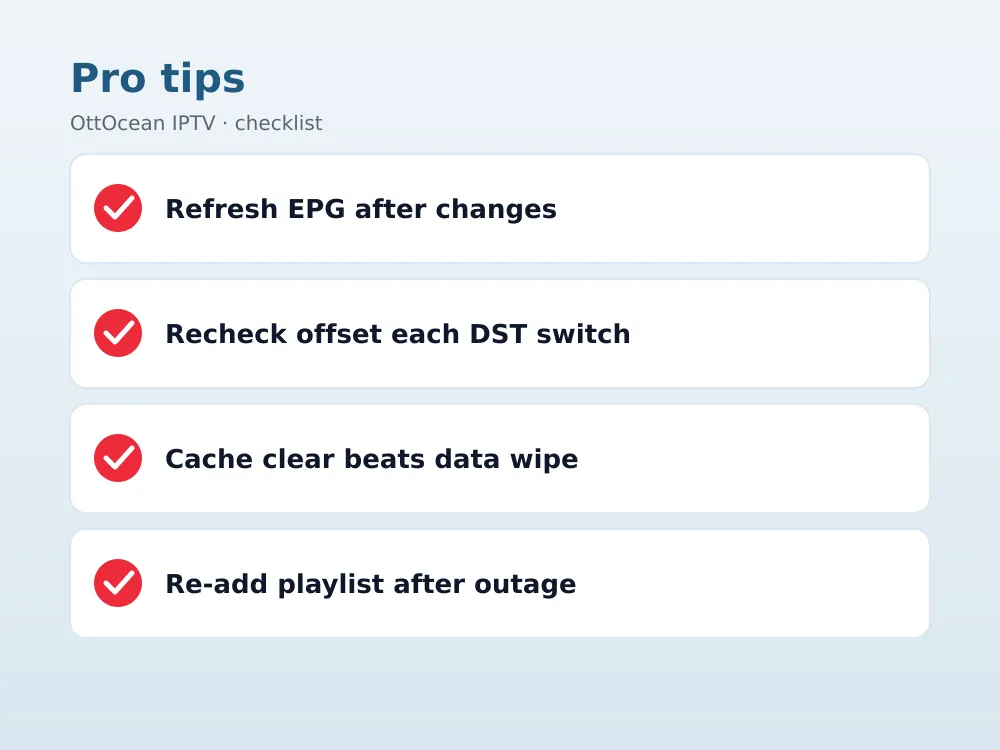
A quick way to confirm the offset direction: check what’s showing right now on a channel you recognize, then compare it to what TiviMate’s grid claims is airing at this moment. If the grid is showing a program that already aired, shift forward; if it’s showing something that hasn’t started, shift back. Daylight saving changes can undo a correct offset twice a year, so revisit this setting each spring and fall.
Keep in mind the offset is per-playlist, not global, so if you’ve combined two providers into one TiviMate setup, each one may need its own correction. We’ve seen users fix the offset for their main Xtream Codes login and assume the whole guide is sorted, only to find a second XMLTV source still running an hour behind because its correction was never applied separately.
Increase the EPG Update Interval So Guide Data Actually Refreshes
TiviMate caches guide data locally and only re-fetches it on a schedule you control. Go to Settings > Interface > Channels > EPG, and check the update interval. If it’s set to a long window, or if the app hasn’t had a chance to run that refresh cycle since you changed a setting, you’ll keep seeing stale data even after fixing the source. Setting the interval to update every few hours strikes a good balance between fresh data and not hammering your provider’s guide server.
You can also force an immediate refresh without waiting for the interval to elapse. From the main guide screen, press and hold the menu button and look for a manual “Update EPG” or “Refresh” option; on some TiviMate builds this lives under Settings > Playlists > your playlist > Update Now. Forcing a manual refresh after any settings change is the fastest way to confirm whether your fix actually worked.
Setting the interval too aggressively can backfire, though. Some provider EPG servers throttle or temporarily block requests that come in too frequently from the same connection, which paradoxically makes the guide less reliable. If you notice the guide working, then breaking, then working again on a cycle, try lengthening the update interval rather than shortening it, and rely on the manual refresh button for on-demand updates instead.
Match Channel IDs When Guide Data Doesn’t Line Up With Channels
Sometimes the EPG loads fine but shows the wrong programme for a specific channel, or no data at all for a handful of channels while the rest look correct. This happens when the channel ID inside your provider’s XMLTV feed doesn’t match the one TiviMate assigned when it parsed your playlist. It’s common with regional or duplicate-named channels.
To fix it manually, long-press the affected channel in the channel list, choose “Edit channel,” and look for an EPG or “channel ID” field where you can paste the correct tvg-id string from the XMLTV source. If you don’t know the exact ID, open the XMLTV URL in a browser and search the raw text for the channel’s name to find its associated id attribute, then copy that value in exactly.
- Confirm the channel’s tvg-id matches between the M3U playlist and the XMLTV feed.
- Watch for trailing spaces or capitalization differences that break an otherwise-correct ID.
- Regional feeds (UK, US, Canada variants of the same channel) often use different suffixes on the same base ID.
- If a channel has no tvg-id at all in the playlist, TiviMate has nothing to match against and will always show blank guide data for it, regardless of the EPG source setting.
This is fiddly work on a remote, so if you’re fixing more than a handful of channels it’s worth doing the edits on a phone or tablet running TiviMate, where a touch keyboard makes pasting the tvg-id string far faster than hunting for characters with a D-pad.
Clear TiviMate’s Cache and App Data
When nothing above resolves it, a corrupted local cache is a strong suspect. On Fire TV or Android TV, go to Settings > Applications > Manage Installed Applications > TiviMate > Clear Cache first, and only use Clear Data as a last resort since that wipes your saved playlists and favorites. After clearing cache, reopen TiviMate and let it rebuild the guide from scratch, which can take several minutes on a large channel list.
We’ve seen this single step fix a stubborn guide issue that survived a playlist re-add and a time offset correction, because the corrupted cache kept serving an old, broken parse of the guide even after the underlying feed was fine. It costs nothing to try and takes under a minute.
The exact menu path varies slightly by device. On Fire TV it’s Settings > Applications > Manage Installed Applications > TiviMate; on Google TV and most Android TV boxes it’s Settings > Apps > See all apps > TiviMate > Storage. If Clear Cache alone doesn’t help after a few minutes of rebuilding, Clear Data followed by re-entering your playlist details is the next step up, accepting that you’ll need your login information handy.
Remove and Re-Add Your Playlist to Force a Fresh Pull
If cache clearing alone doesn’t help, delete the playlist entirely from Settings > Playlists rather than just editing it, then add it again as new. Editing an existing playlist sometimes preserves old EPG mapping data behind the scenes; a full removal and re-add forces TiviMate to treat the guide feed as brand new and re-parse every channel ID from zero.
This is also the right move after your provider changes servers or issues you a fresh Xtream Codes login, which happens occasionally with any IPTV service including our own during infrastructure upgrades. A stale playlist pointed at an old server address will show channels but never populate a working guide.
Before deleting, export your favorites list if TiviMate offers it under Settings > Backup, since re-adding a playlist from scratch can reset your favorite channel order on some app versions. It’s a small step that saves you re-sorting your channel list by hand afterward, particularly if you’ve spent time organizing categories exactly how you like them.
TiviMate Premium and What It Actually Changes for EPG
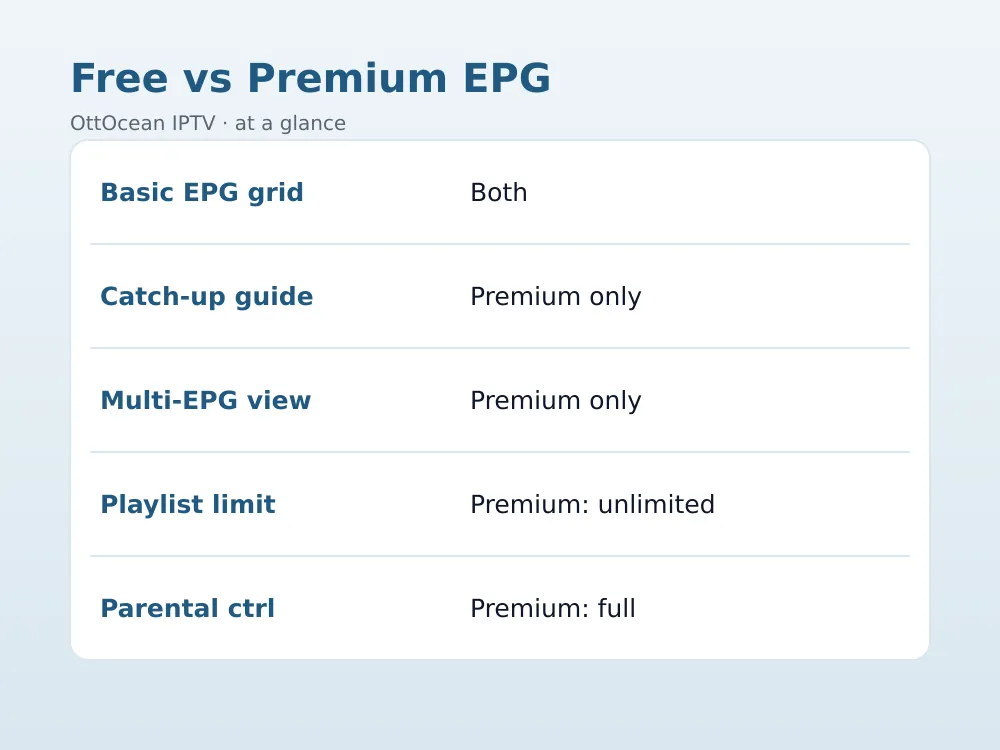
TiviMate’s free tier includes a working EPG grid, but Premium (a one-time purchase, not a subscription) adds catch-up TV integration inside the guide, a multi-EPG view for comparing channels side by side, and longer guide history. If your grid works but lacks catch-up icons or extended history, that’s expected free-tier behavior, not a bug.
Premium pricing has stayed in the same rough range for a few years, and a lifetime license transfers to a new device if you factory reset or upgrade your streaming box, as long as you sign in with the same account. It’s worth buying once you’re confident the app itself is a keeper, but it won’t fix a guide feed that’s misconfigured or a feed your provider isn’t maintaining properly.
| Feature | Free TiviMate | TiviMate Premium |
|---|---|---|
| Basic EPG grid | Yes | Yes |
| Catch-up in guide | Limited | Full |
| Multi-EPG compare view | No | Yes |
| Number of playlists | Limited | Unlimited |
| Parental control profiles | Basic | Full |
How to Fix TiviMate EPG Not Working with Alternative EPG Sources
If your provider’s own EPG feed is consistently unreliable, TiviMate lets you point at a third-party XMLTV URL instead of (or blended with) your provider’s feed. Public XMLTV aggregators cover many US, UK, and international channels by name-matching, which can fill gaps for channels your provider’s own guide never populated correctly in the first place.
Add the alternate URL in that same field discussed earlier, then re-map any channels whose IDs don’t automatically match using the channel-ID edit process above. This is a reasonable workaround, but for a paid IPTV subscription the cleanest long-term fix is a provider whose own EPG server is properly maintained, so you’re not stitching together guide data from multiple sources every few months.
One thing worth checking before you go hunting for a third-party feed: a VPN or an aggressive router firewall can silently block the specific port or domain TiviMate uses to fetch guide data, even while your regular internet browsing works fine. If EPG data has never loaded, on any playlist, since you set up a VPN, try disabling it temporarily to see whether the guide populates.
- Try a public XMLTV aggregator URL as a temporary guide feed.
- Re-check channel ID mapping after switching sources, since names rarely match exactly.
- If your subscription’s own EPG is the problem, contact your provider’s support before assuming TiviMate is at fault.
Key Takeaways
- This usually comes down to a source, cache, or offset issue, not an app bug.
- Confirm that field is set to Xtream Codes API or XMLTV URL to match what your provider actually issued.
- Adjust the time-shift field if programmes appear but times are wrong, especially around daylight saving changes.
- Force a manual EPG refresh after any settings change instead of waiting for the scheduled interval.
- Clear the app cache before clearing app data, which wipes your saved playlists.
- Remove and re-add the playlist after any provider server change to force a clean EPG re-parse.
- A properly maintained provider EPG server beats stitching together third-party XMLTV sources long term.
FAQ: TiviMate EPG Not Working
Why is my TiviMate EPG completely blank?
A blank grid almost always means the EPG source field is unset or pointed at the wrong type, such as Xtream Codes API selected when your provider only issued an M3U link and a separate XMLTV feed. Open Settings > Playlists, edit the playlist, and confirm the guide source matches exactly what your provider’s welcome instructions specify, then force a manual refresh.
Why do TiviMate EPG times show the wrong hour?
This is a time-zone offset problem. Find the EPG time-shift field in your playlist settings and adjust it in one-hour steps, comparing against a channel you know is currently airing something specific. Daylight saving transitions in spring and fall commonly break a previously correct offset, so revisit it twice a year.
Does clearing TiviMate’s cache delete my playlists?
No. Clearing cache only removes temporarily stored guide and image data, leaving your saved playlists, favorites, and settings intact. Clearing app data is the destructive option that wipes everything, so always try cache first and only fall back to a full data reset if cache clearing doesn’t fix the guide.
Do I need TiviMate Premium to get a working EPG?
No. The free version includes a functional EPG grid for browsing what’s on now and next. Premium, a one-time purchase, adds extras like catch-up TV integration inside the guide, a multi-EPG comparison view, and unlimited saved playlists, but a working basic guide doesn’t require paying anything.
Why does the EPG show the wrong show for one specific channel?
That’s a mapping mismatch between your M3U playlist and the XMLTV guide feed. Long-press the channel, choose Edit channel, and manually enter the correct tvg-id value pulled from the raw XMLTV source. Regional variants of the same channel name often use slightly different ID suffixes, which is the usual culprit.
How long should I wait after fixing the EPG source before it works?
Give it 10 to 15 minutes for a full channel list, since TiviMate has to download and parse the entire guide feed in the background. If it’s still empty after that, force a manual refresh from the playlist menu rather than waiting longer, and confirm the URL loads correctly if pasted into a browser.
Get an IPTV Guide That Actually Works
A properly configured player only gets you halfway; the other half is a provider whose Xtream Codes and XMLTV feeds stay online and accurate. OttOcean IPTV ships both an Xtream Codes login and an M3U URL with every subscription, along with EPG and catch-up on most channels, so TiviMate has a real feed to work with from day one. Our TiviMate setup guide walks through the full install alongside our own service, and our EPG setup guide covers configuring guide data across other players too.
If your current provider’s EPG keeps breaking no matter what you try in TiviMate, that’s often a server-side problem you can’t fix from the app. Start a 5-day free trial, no credit card required, and load our Xtream Codes details into TiviMate to see whether the guide populates cleanly. If you’re ready to subscribe, compare plans on our IPTV subscription page starting at $9.99 for one device. For background on how XMLTV standardizes guide data across players, the XMLTV project wiki documents the format in detail.
Most of the time, TiviMate EPG not working comes down to one of the nine causes above, and working through them in order takes less than fifteen minutes even on a large channel list. Start with the EPG source setting, confirm the offset, force a manual refresh, and only move to cache clearing or a playlist re-add if the simpler checks don’t resolve it. A reliable guide makes the whole IPTV setup feel finished rather than half-configured.