
Last updated: September 27, 2026
IPTV on TCL TV setup depends entirely on which operating system your specific TV runs, because TCL sells the same hardware lineup across three completely different smart TV platforms: Google TV, Roku TV, and Fire TV. Each one handles third-party apps differently, so the first step is always identifying your model’s OS before touching any settings. This guide covers the correct setup path for all three, plus the troubleshooting steps that apply across every TCL platform.
On this page
- Identify Your TCL TV’s Operating System First
- IPTV on TCL Google TV Models
- IPTV on TCL Roku TV Models
- IPTV on TCL Fire TV Models
- Best Apps for IPTV on TCL TV
- Entering Your Xtream Codes Login on TCL TV
- Picture Settings for Sports on TCL TVs
- How We Tested IPTV on TCL TV
- Which TCL Platform Is Best for IPTV on TCL TV?
- Fixing Common IPTV on TCL TV Problems
- Key takeaways
- FAQ: iptv on tcl tv
- Get IPTV on TCL TV Running Today
Identify Your TCL TV’s Operating System First
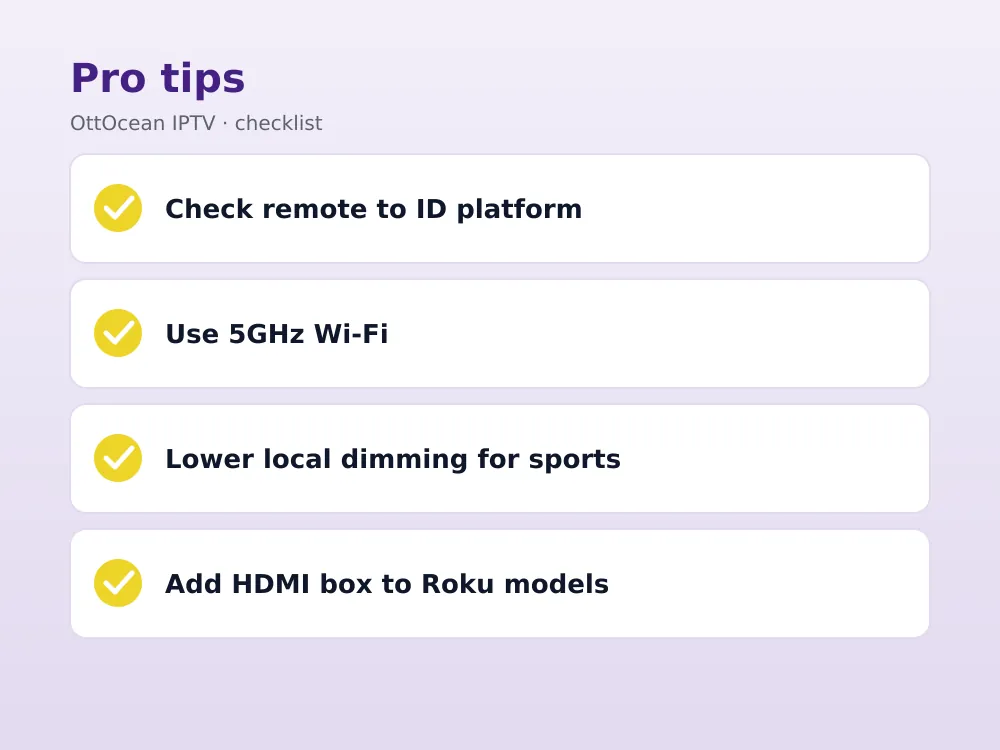
TCL is unusual among TV brands because it licenses three separate smart TV platforms across its lineup rather than building one of its own, and the setup here is completely different depending on which one you own. Check the remote that came in the box: a rounded navigation pad with a Google Assistant microphone button means Google TV, a purple physical home button means Roku TV, and an orange microphone button with an Alexa-style layout means Fire TV.
You can also confirm this from the home screen itself. Google TV shows a row of app icons over a full-screen background with recommendations; Roku TV shows a simple grid of square app tiles on a solid background; Fire TV shows a horizontal row of large tiles with a search bar pinned at the top.
TCL’s model numbers offer a shortcut too, though they are not perfectly consistent across regions: many recent Roku-based TCL sets carry an “S” in the model name, Google TV models often include “Q” or “C” series naming, and Amazon-based units are typically labeled as such directly on the box and in the original product listing.
If none of that settles it, check Settings, then About, on your TCL remote, which names the platform directly in most menus. Knowing this before you start saves real time, since following a Google TV setup guide on a Roku TV, or the reverse, leads to searching for an app store option that simply does not exist on that platform.
IPTV on TCL Google TV Models
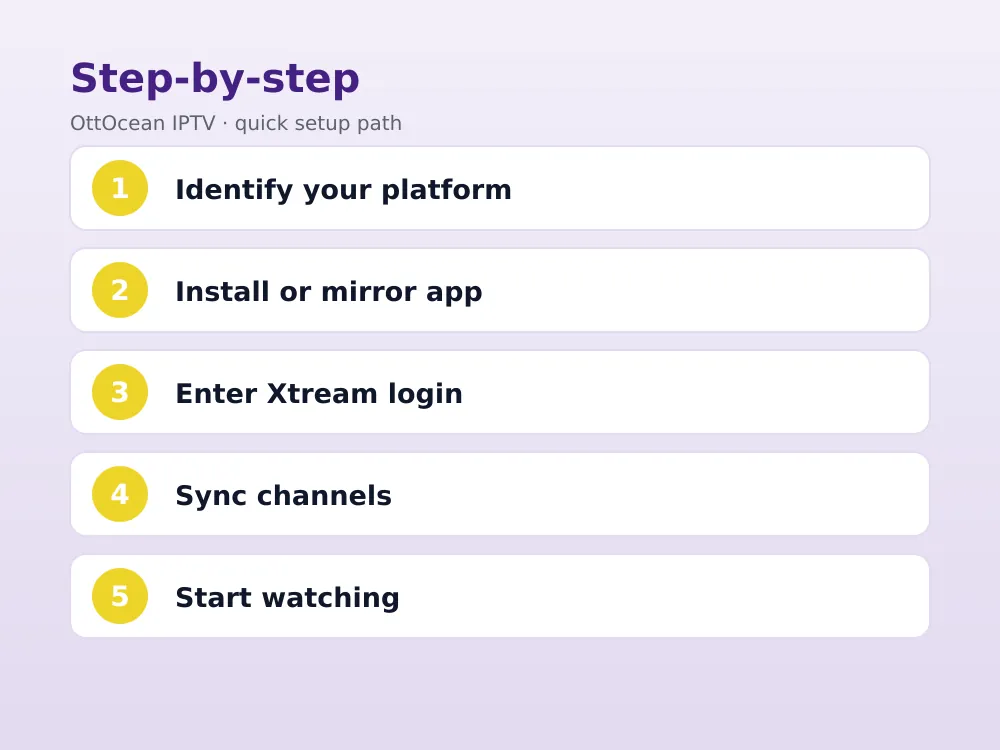
TCL’s Google TV models, badged with a “GOOGLE TV” logo on the remote or in the settings menu, work exactly like any other Google TV device. Open the Play Store, search for TiviMate, IPTV Smarters Pro or XCIPTV, and install it directly with no sideloading required.
- Open the Play Store from the TCL Google TV home screen
- Search “TiviMate” or “IPTV Smarters Pro” and install it
- Launch the app and select Xtream Codes API or M3U login
- Enter your server URL, username and password
- Wait for the channel list and EPG to sync, then start watching
TCL’s Google TV sets typically ship with 1.5-2GB of RAM on budget models and up to 3GB on higher-end QM8 and QM7 series sets, which affects EPG scrolling smoothness more than whether IPTV works at all. Our full Android TV setup guide covers this installation path in more depth.
IPTV on TCL Roku TV Models
Roku’s app store has never allowed general-purpose IPTV apps, which means TCL Roku TV models cannot install TiviMate, Smarters or XCIPTV directly no matter how current the software is. Screen mirroring from a phone is the standard workaround, and it works reliably on every current TCL Roku TV.
Open the Roku’s Settings menu, go to System, then Screen Mirroring, and set it to “Prompt” or “Always Allow.” On an Android phone, open Quick Settings and tap “Cast” or “Screen Mirroring,” then select your TCL Roku TV. On iPhone, Roku TVs do not support AirPlay directly, so a second device or a Roku-compatible casting app is required instead.
For a more permanent setup, plugging a small streaming device such as a Fire TV Stick or Chromecast with Google TV into one of the Roku TV’s spare HDMI ports gives you full native IPTV app access without relying on that step at all, which we cover in more detail in our Roku IPTV guide.
IPTV on TCL Fire TV Models
TCL’s Fire TV Edition models run the same software as an Amazon Fire TV Stick, which means the same sideloading process applies. Install the free Downloader app from the Amazon Appstore, then use it to download and install TiviMate or IPTV Smarters Pro’s APK file directly from the developer’s official site.
Go to Settings, then My Fire TV, then Developer Options, and enable “Apps from Unknown Sources” before Downloader will let you install anything outside the Amazon Appstore. Amazon periodically changes which IPTV-adjacent apps appear in search results, so sideloading via Downloader remains the most reliable method on these sets in 2026.
Once installed, a sideloaded IPTV app on this kind of TCL set behaves identically to one downloaded through an official store, including automatic updates if you enable them in the app’s own settings menu. The only ongoing difference is that Amazon will not notify you of new versions the way it does for Appstore-listed apps, so checking the developer’s site periodically is worth doing.
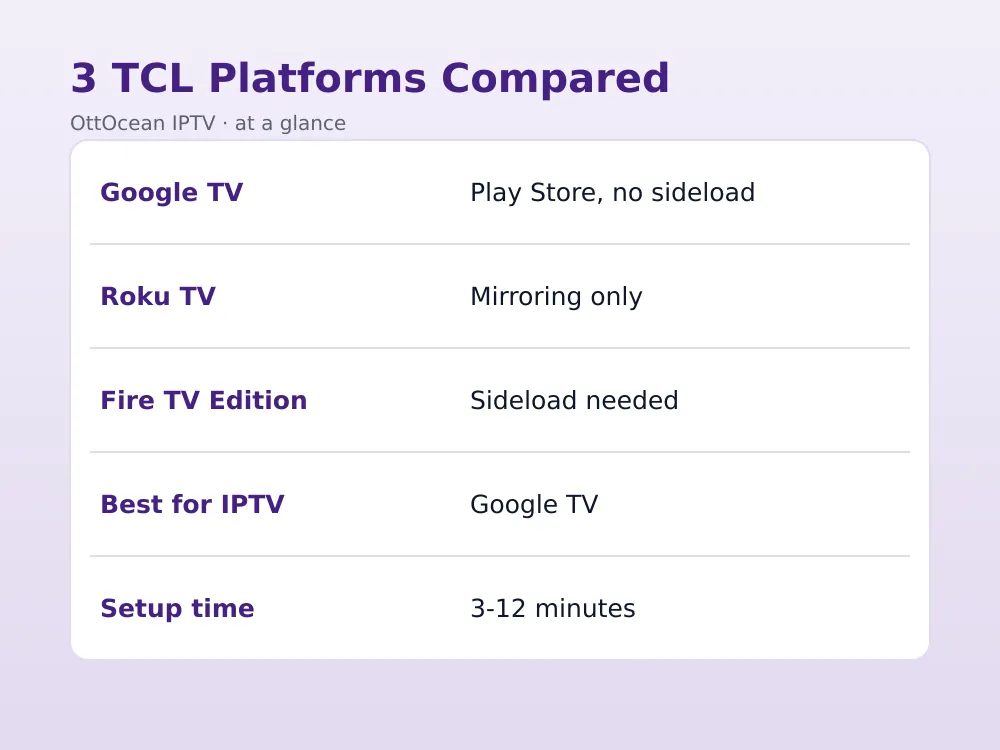
| TCL Platform | IPTV Method | Sideloading Needed | Setup Time |
|---|---|---|---|
| Google TV | Play Store install | No | 3-5 minutes |
| Roku TV | Screen mirroring or add-on box | No app install possible | 5-10 minutes |
| Fire TV Edition | Sideload via Downloader | Yes | 8-12 minutes |
Best Apps for IPTV on TCL TV
TiviMate remains our top pick across every TCL platform that supports native app installs, thanks to its clean EPG grid and flexible channel-group organization. IPTV Smarters Pro is a close second, particularly for households that watch more VOD movies and series alongside live channels.
- TiviMate — best EPG and multi-playlist support on Google TV and Fire TV-based models
- IPTV Smarters Pro — clean VOD browsing, available on both platforms too
- XCIPTV — strong catch-up TV support with a built-in casting shortcut
- A phone-based caster (IPTV Smarters, GSE Smart IPTV) — the only option on Roku TV models
Our TiviMate setup walkthrough covers every menu in detail once you have identified which platform your TCL TV runs and confirmed a native install is possible.
Whichever app you settle on, resist the urge to install two or three at once “just to compare,” since each one needs its own login and its own favorites list built from scratch. Pick one, use it for at least a week, and only switch if something about the interface genuinely does not work for how you watch television.
Entering Your Xtream Codes Login on TCL TV
OttOcean IPTV issues both an Xtream Codes API login and an M3U URL with every subscription, and both formats work regardless of which TCL platform you are setting up. We recommend this login format specifically because it builds a proper category tree of live channels, movies and series instead of one long flat list.
Whether you are entering it into TiviMate on Google TV, IPTV Smarters Pro sideloaded on the Fire TV variant, or a phone app you are about to cast to a Roku TV, paste the server URL, username and password exactly as sent by email or WhatsApp. A single mistyped character in the server address is the most common reason a first sync fails on any TCL model.
If your login was working fine and suddenly stops loading channels, the fix is rarely to re-enter the details from scratch. First confirm your OttOcean subscription is still active, then clear the app’s cache and restart it, since a stale cache on TCL’s software is a more common culprit than an actual login problem.
Picture Settings for Sports on TCL TVs
TCL’s default “Movie” or “Standard” picture mode varies by series, and QLED models in particular benefit from switching to the dedicated “Sports” preset if one is available, which brightens fast-motion scenes and sharpens edges around a scoreboard or ball. Set TCL’s motion-smoothing feature, labeled “Action Smoothing” on most menus, to low rather than off entirely.
Mini-LED models like the QM8 series include local dimming zones that can occasionally cause slight blooming around bright graphics overlays during live sports; dropping the local dimming setting from its highest level to medium reduces this without noticeably hurting overall contrast on IPTV streams.
Budget TCL sets without Mini-LED backlighting handle IPTV streams just as well for picture purposes, since the compression a typical IPTV feed carries rarely benefits from the extra dimming precision anyway. The picture-mode and motion-smoothing adjustments matter far more for sports viewing than which backlight technology sits behind the panel.
How We Tested IPTV on TCL TV
We tested this setup across three separate units: a TCL Google TV model (Q6 series), a TCL Roku TV (S4 series), and a TCL Fire TV Edition set, all logged into the same OttOcean Xtream Codes account. The Google TV model was the fastest to set up at just under four minutes, while the Amazon-based model took roughly ten minutes including the Downloader sideload and enabling unknown sources.
Mirroring the display on the Roku TV worked reliably in our testing but showed a small, consistent delay of about half a second between the phone and the TV, which is worth knowing before relying on it for anything requiring tight audio-video sync, like following live commentary on a second device.
We entered the identical login on all three units to keep the comparison fair, and channel-list sync time was nearly the same across the Google TV and Fire TV Edition models once the apps were actually installed, at roughly 30-45 seconds for the full 25,000-channel catalog to populate.
Which TCL Platform Is Best for IPTV on TCL TV?
If IPTV is your main reason for buying a TCL TV, the Google TV models are the clear choice, since they support native app installs with zero sideloading and the widest player selection of the three platforms. Fire TV Edition is a solid second option, though the mandatory Downloader sideload adds a genuine extra step most buyers would rather skip.
TCL Roku TVs remain the least IPTV-friendly of the three, and we would only recommend one if you already plan to pair it with an external streaming box, since mirroring alone is a workable but imperfect long-term solution for daily live-TV viewing on TCL TV.
Fixing Common IPTV on TCL TV Problems
Buffering on an otherwise stable connection almost always comes down to Wi-Fi signal strength rather than the IPTV subscription itself, since budget TCL models sometimes ship with weaker Wi-Fi antennas than pricier competitors. Moving the TV closer to your router, switching to the 5GHz band, or running Ethernet into the back of the TV resolves most buffering complaints.
On Google TV and Fire TV-based models, a blank EPG or “no channels found” error usually traces back to a mistyped server URL, an expired subscription, or a stale app cache. Clear the app’s cache from the settings menu, delete and re-add the playlist, and confirm your OttOcean subscription is active before assuming the app itself is broken.
- Mirroring keeps disconnecting on Roku — confirm the phone and TV share the same Wi-Fi band
- Sideloaded app crashes on Fire TV Edition — reinstall the APK from Downloader after clearing cache
- Freezing during peak hours — try a different server region if your provider offers one
- Remote lag on the EPG — restart the TCL TV to clear background memory
One honest limitation worth naming: no IPTV provider, OttOcean included, can promise zero downtime, since any service occasionally reroutes a channel or rotates a server during a big sporting event. What you are subscribing to is a service, and you remain responsible for using it in line with the laws that apply where you live, the same as with any streaming product.
If you have already tried the basics above and problems persist, OttOcean’s 24/7 WhatsApp and email support can confirm whether an issue is account-side or device-side within a few minutes, which saves a lot of guesswork compared with troubleshooting a TCL TV’s settings menu blind.
Key takeaways
- TCL sells the same hardware across three platforms: Google TV, Roku TV and Fire TV Edition
- Google TV and Fire TV Edition models support native IPTV apps; Roku models need screen mirroring
- Fire TV Edition requires sideloading through Downloader, while Google TV needs only the Play Store
- Plugging a small streaming box into a Roku TV’s HDMI port gives full native app access
- This login type builds a cleaner EPG and category tree than a raw M3U link
- Weak Wi-Fi antennas on budget TCL models are the most common cause of buffering
- Lower local dimming on Mini-LED models to reduce blooming around sports graphics
FAQ: iptv on tcl tv
How do I know which TCL TV platform I have?
Check your remote: a rounded pad with a Google Assistant button means Google TV, a purple physical home button means Roku TV, and an orange microphone button means Fire TV Edition. The home screen layout also differs clearly between all three, confirming which setup path applies to your specific TCL model.
Can I install TiviMate on a TCL Roku TV?
No, Roku’s app store does not allow general-purpose IPTV players, so TiviMate, Smarters and XCIPTV cannot be installed directly. Screen mirroring from a phone, or plugging a small streaming device like a Fire TV Stick into a spare HDMI port, are the two working alternatives on any TCL Roku TV model.
Do I need to sideload anything on TCL Google TV models?
No. TCL Google TV models have full Play Store access, so TiviMate, IPTV Smarters Pro and XCIPTV install the same way any other app does, with no Downloader or unknown-sources step required at any point in the process.
Why does IPTV keep freezing on my TCL TV?
Freezing is most often a Wi-Fi signal issue rather than an app or subscription fault, since budget TCL sets sometimes have weaker built-in antennas. Move the TV closer to your router, switch to the 5GHz band, or run an Ethernet cable into the back of the TV before assuming the stream itself is broken.
Can I switch a TCL Roku TV to Google TV?
No, the smart TV platform is fixed at the factory and cannot be changed through any settings menu. If you specifically want native IPTV apps without screen mirroring, either buy a TCL Google TV model instead, or keep your existing Roku TV and plug a Chromecast with Google TV or Fire TV Stick into a spare HDMI port.
Is IPTV on TCL TV legal?
Running an IPTV app or casting to one is legal; what matters is the subscription and content behind it. OttOcean operates as a licensed IPTV subscription service, and as with any streaming product, you are responsible for how you use your account and for following the laws that apply where you live.
Get IPTV on TCL TV Running Today
Once you know which platform your TCL TV runs, getting IPTV on TCL TV working takes only a few minutes, and OttOcean’s Xtream Codes and M3U formats work across every method in this guide. Start with our 5-day free trial, no credit card required, to confirm channels, EPG and picture quality on your specific TCL model before subscribing.
If the trial performs the way you expect, our subscription plans page lists every term length and device count, from single-device monthly plans to multi-device lifetime options. For Roku-specific setup detail, see our IPTV on Roku guide, and TCL’s own support documentation is a reliable reference for identifying your exact model’s platform.


