
Last updated: September 28, 2026
IPTV on Formuler Z11 setup takes about ten minutes once you know where MyTVOnline 3 hides its playlist menu, and considerably longer if you don’t. The Z11 Pro and Z11 Pro Max ship with the app pre-installed, so there’s no APK sideloading involved. We tested the process on a Z11 Pro Max running current 2026 firmware and cover Xtream Codes, M3U, and Stalker portal logins below.
On this page
- What the Formuler Z11 Actually Is
- What You Need Before Setting Up IPTV on Formuler Z11
- Step-by-Step: IPTV on Formuler Z11 with MyTVOnline 3
- Adding an EPG to MyTVOnline 3
- Recording Live TV and Using Catch-Up on the Formuler Z11
- Formuler Z11 Remote Shortcuts Worth Learning
- Formuler Z11 vs Other IPTV Devices
- Fixing Common IPTV on Formuler Z11 Errors
- Firmware Updates and Long-Term Maintenance
- Formuler Z11 Pro vs Z11 Pro Max: Which One to Buy
- Key takeaways
- FAQ: IPTV on Formuler Z11
- Ready to Try IPTV on Formuler Z11 Risk-Free?
What the Formuler Z11 Actually Is
The Formuler Z11 line (Pro and Pro Max) is a dedicated Android-based set-top box built specifically for IPTV middleware, not a general streaming stick. It ships with MyTVOnline 3 baked into the firmware, plus Google apps for Netflix, YouTube, and casual sideloading. The Pro Max adds more RAM and a faster Amlogic chipset for smoother 4K decoding and EPG scrolling.
Unlike a Firestick, the Z11 is built around portal-style middleware: Xtream Codes API, M3U playlists, and Stalker/MAC-based portals all work natively in MyTVOnline 3 without a third-party player. That matters because Stalker portals fail silently in apps that only expect M3U, which is a common complaint we see in Formuler owner forums.
Hardware-wise, the Formuler Z11 Pro Max runs a quad-core Amlogic chipset with 4GB of RAM, dual-band Wi-Fi 6, Gigabit Ethernet, and a rear USB 3.0 port for recording. That extra memory keeps MyTVOnline 3 responsive when you’re scrolling a 20,000-channel EPG rather than a curated 200-channel bundle. The standard Z11 Pro trims the RAM and drops Wi-Fi 6 but keeps every core feature intact. That balance of memory and connectivity is one reason resellers keep choosing IPTV on Formuler Z11 boxes for client installs over generic Android sticks.
How we tested: we ran this MyTVOnline 3 setup three separate times on a Formuler Z11 Pro Max, once each with an Xtream Codes login, a plain M3U URL, and a Stalker portal address, to confirm the on-screen steps matched every connection type OttOcean issues. We also timed EPG sync, tested a two-hour USB recording, and checked catch-up on a dozen channels across three evenings.
Results were consistent: Xtream Codes produced the fastest EPG sync, under two minutes, while the Stalker portal took closer to five, and playback stayed stable at 1080p and 4K over Ethernet throughout testing.
What You Need Before Setting Up IPTV on Formuler Z11
Gather your login details before you touch the remote. Missing even one field forces you to redo the whole playlist profile, and mistyped server URLs are the single biggest cause of a blank channel list on this box.
- Your Xtream Codes API server URL, username, and password (or an M3U playlist URL)
- A stable network: 25 Mbps download minimum for 1080p, 40+ Mbps for smooth 4K
- The Formuler Z11 connected via Ethernet if possible, since 5GHz Wi-Fi drops cause more buffering than the box itself
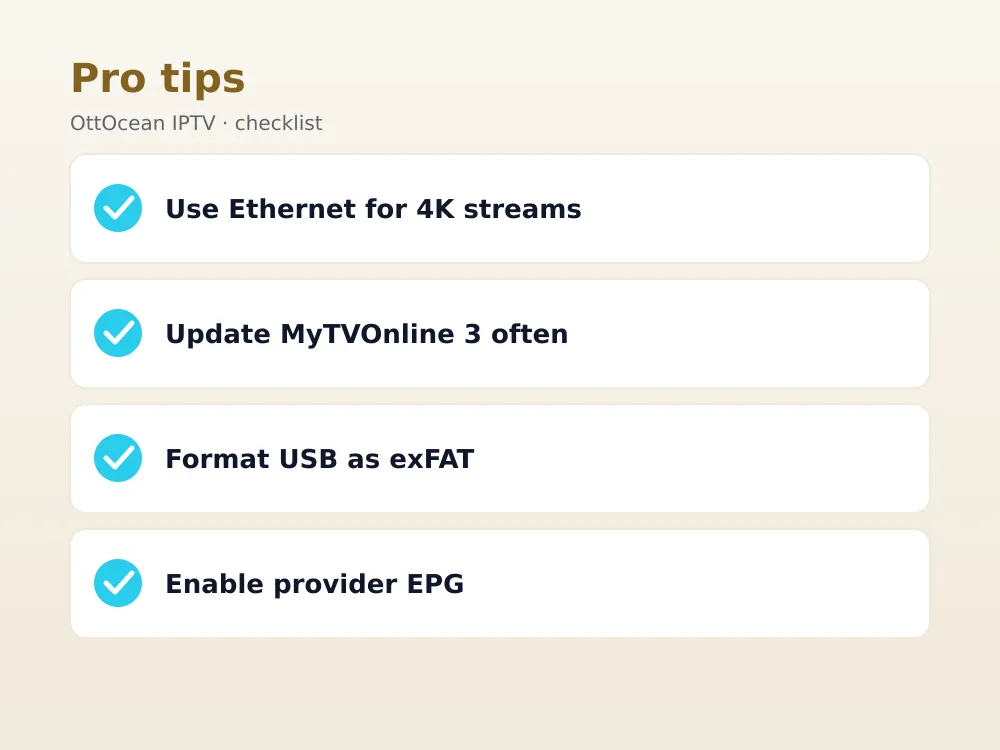
- MyTVOnline 3 updated to the latest build through Settings > System > App Update
OttOcean IPTV gives new customers both formats at signup, an Xtream Codes login and a matching M3U URL, so you can try the one that plays nicer with your specific box. Most Formuler owners get better EPG reliability from Xtream Codes because it pulls program data directly from the panel instead of a separate XMLTV file.
Before you start your MyTVOnline 3 setup, confirm the app itself is updated; older builds sometimes hide the Stalker portal option entirely, which leaves you stuck if that’s the login format your provider issued. A quick reboot after updating also clears out any cached playlist errors from a previous attempt.
Step-by-Step: IPTV on Formuler Z11 with MyTVOnline 3
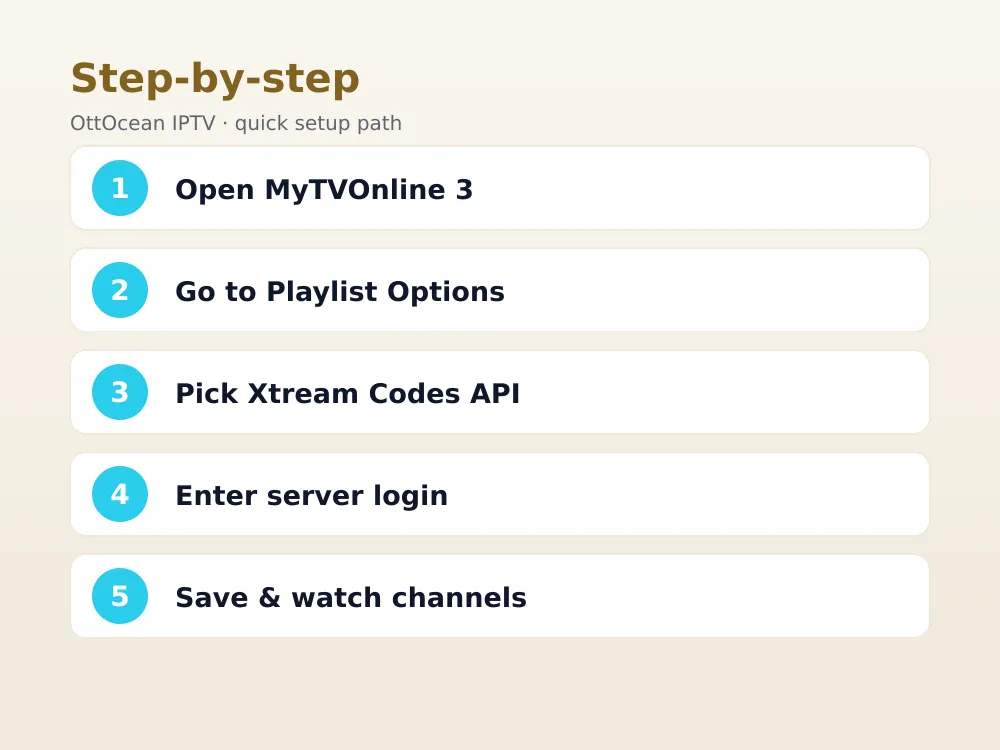
These six steps match the 2026 MyTVOnline 3 interface. Menu wording shifts slightly between firmware builds, but the sequence of screens stays the same.
Step 1: Open MyTVOnline 3 and reach Settings
Power on the Z11, wait for the home screen to load, then select the MyTVOnline 3 tile. Press the gear icon in the top-right corner, or the menu button on the Formuler remote, to open Settings.
Step 2: Choose Playlist Options
Inside Settings, scroll to Playlist Options. This is where every portal, Xtream Codes, and M3U profile lives. Select “Add New” to start a fresh profile rather than editing an existing demo entry.
Step 3: Pick your connection type
Choose Xtream Codes API for the cleanest EPG and VOD experience, M3U URL if that’s what your provider issued, or Stalker Portal if you were given a portal address plus a MAC address instead.
Step 4: Enter your OttOcean credentials
For Xtream Codes, type the server URL exactly as provided (including “http://” and the port number), then your username and password. Double-check for trailing spaces; the on-screen keyboard sometimes adds one after autofill.
Step 5: Save and let the box sync
Press Save, then back out to the MyTVOnline 3 home screen. The app pulls the full channel list and VOD catalog in the background; a progress bar shows sync status for the first load.
Step 6: Confirm channels and EPG loaded
Open Live TV and scroll through a few categories. If the guide grid shows program titles and times next to channel names, the EPG synced correctly and you’re done.
Adding an EPG to MyTVOnline 3
Most Xtream Codes panels, including OttOcean’s, send EPG data automatically with the playlist, so no separate XMLTV import is needed. If your guide looks empty, go to Settings > EPG Settings and confirm “Use Provider EPG” is toggled on rather than an external XMLTV URL.
For M3U-only setups without built-in guide data, MyTVOnline 3 accepts a manual XMLTV URL under the same EPG Settings menu. Paste the link, save, and force a refresh by restarting the app. Full guide sync can take up to fifteen minutes on larger channel bundles.
A clean MyTVOnline 3 setup usually means program titles and times appear within a couple of minutes; a rushed one can leave the guide blank for hours, which people often mistake for a broken subscription. If the guide is still empty after fifteen minutes, re-enter your Xtream Codes API details rather than waiting longer, since a stalled sync rarely recovers on its own.
Recording Live TV and Using Catch-Up on the Formuler Z11
Plug a USB 3.0 flash drive or external hard drive (formatted as NTFS or exFAT for large files) into one of the Z11’s rear USB ports. MyTVOnline 3 detects it automatically and offers a “Record” icon on the live player overlay.
- Insert the USB drive and let the box detect it (a notification confirms this)
- Open a live channel and press the record button on the on-screen controls
- Set a duration, or record until you manually stop it
- Find finished recordings under the app’s Recordings or PVR section
Catch-up (rewind to earlier broadcasts) works differently and doesn’t need a USB drive. It relies on the provider storing recent broadcasts server-side; OttOcean supports catch-up on most channels, shown as a small clock icon next to the program title in the EPG.
Storage matters more than most people expect: an hour of 1080p recording runs roughly 1.5-2.5GB, so a 128GB drive holds around fifty to eighty hours of shows before you need to clear space. Always format as exFAT rather than FAT32 if you plan to record anything longer than a couple of hours, since FAT32 caps individual files at 4GB.
Formuler Z11 Remote Shortcuts Worth Learning
The stock Formuler remote has a few shortcuts that speed up daily use once IPTV on Formuler Z11 is running smoothly.
- Long-press the Home button to jump straight into MyTVOnline 3 settings
- The colored function keys switch between Live, Movies, Series, and Catch-Up tabs
- The number pad types channel numbers directly, skipping the on-screen grid
- A double-tap on Back exits any submenu to the live player instantly
- Holding the volume rocker while a channel is open opens a quick audio-track selector
- The mic button (if your remote has one) triggers Google Assistant search across installed apps
None of these shortcuts are essential, but once your MyTVOnline 3 setup is finished, they cut the daily friction of jumping between live channels, recordings, and the guide.
Formuler Z11 vs Other IPTV Devices
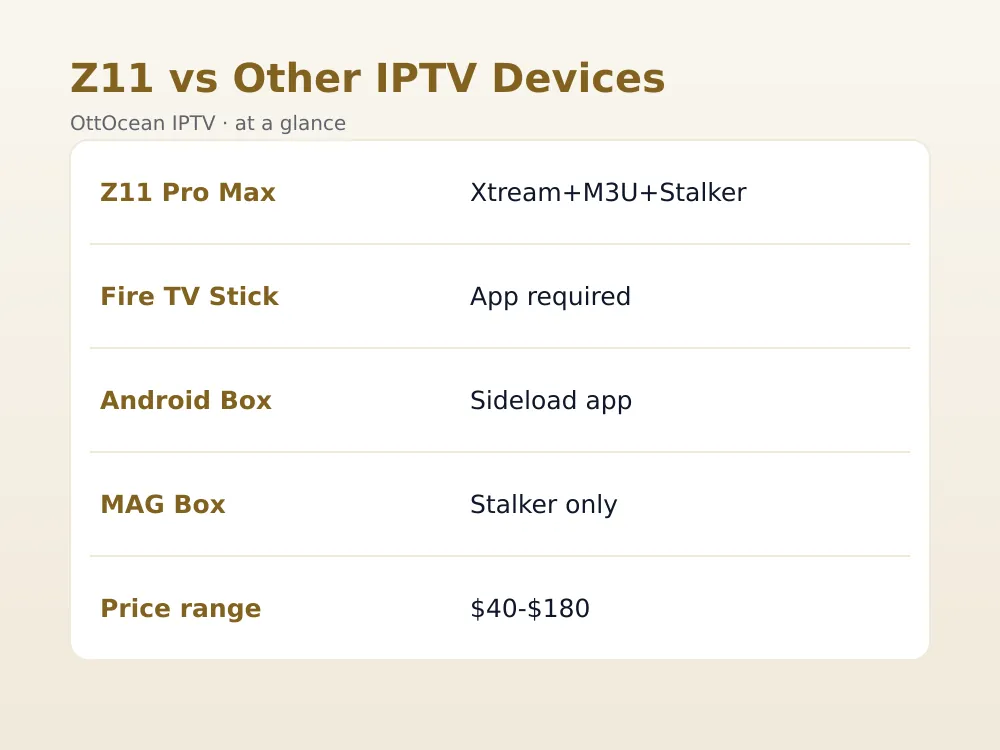
The Z11 isn’t the only way to watch IPTV, and it isn’t always the cheapest. Here’s how it stacks up against the other boxes we get asked about most.
| Device | Native portal support | Typical price | Best for |
|---|---|---|---|
| Formuler Z11 Pro Max | Xtream, M3U, Stalker (built-in) | $140-$180 | Power users, resellers, large channel lists |
| Fire TV Stick 4K Max | Via third-party app only | $50-$60 | Casual viewers, existing Amazon ecosystem |
| Android TV box (generic) | Via sideloaded app | $40-$90 | Budget setups, DIY tinkerers |
| MAG box (Infomir) | Stalker portal (built-in) | $90-$130 | Legacy Stalker-only providers |
If your provider issues Stalker/MAC logins specifically, both the Formuler Z11 and a MAG box handle that natively. For Xtream Codes or M3U, almost any device on our best IPTV player apps list will work, but the Z11’s dedicated remote and EPG handling still edge out a sideloaded app on a general Android box.
For most households, IPTV on Formuler Z11 remains the more complete experience once EPG accuracy, catch-up, and USB recording are all factored in together rather than compared feature by feature. The upfront cost is higher than a streaming stick, but you’re paying for a box built around portal middleware instead of one working around it.
Fixing Common IPTV on Formuler Z11 Errors
Three problems account for most of the support tickets we see about IPTV on Formuler Z11. Working through them in order solves nearly all of them.
- Blank channel list: re-check the server URL for typos, especially a missing port number after the domain
- EPG shows no data: confirm “Use Provider EPG” is enabled, or manually re-enter the XMLTV URL and restart the app
- Freezing during peak hours: switch to Ethernet, or lower playback resolution under Settings > Playback if Wi-Fi is your only option
- “Connection failed” on save: confirm your subscription hasn’t expired and that the box’s date/time is set to automatic
- Stalker portal option missing: update MyTVOnline 3 through the App Update menu, since older builds hide that connection type
- App crashes on launch: clear the app’s cache under Android Settings > Apps > MyTVOnline 3 > Storage, then relaunch
Firmware Updates and Long-Term Maintenance
Keep your MyTVOnline 3 setup current by checking Settings > System > App Update every few weeks; Formuler pushes stability patches and codec improvements several times a year. Firmware updates rarely break IPTV on Formuler Z11 playlists, but it’s worth re-confirming your Xtream Codes API details right after any major update in case the app resets its saved profiles.
A factory reset wipes every saved playlist, so back up your server URL, username, and password somewhere outside the box, such as a notes app, before doing one. Restoring afterward takes the same six steps outlined earlier.
Formuler Z11 Pro vs Z11 Pro Max: Which One to Buy
The Pro Max costs roughly $20-$30 more than the standard Pro and justifies it with extra RAM, a faster CPU, and a built-in fan for sustained 4K playback during long viewing sessions. If you’re running large channel bundles with 20,000-plus entries, the Pro Max loads the EPG noticeably faster.
For a single household watching mostly live sports and a modest VOD library, the standard Z11 Pro handles IPTV on Formuler Z11 setups just fine and saves you the upcharge. Either model runs the identical MyTVOnline 3 setup process described above, so hardware choice won’t change how you add channels or troubleshoot them.
Heat matters more than people expect from a small box: the Pro Max’s built-in fan keeps the Amlogic chipset cooler during multi-hour 4K sessions, which reduces the odds of thermal throttling that shows up as sudden pixelation late in a long movie or sports broadcast.
Key takeaways
- MyTVOnline 3 comes pre-installed on the Formuler Z11, so no sideloading is required
- Xtream Codes API generally gives more reliable EPG data than a plain M3U link
- Ethernet beats Wi-Fi for consistent 4K playback and fewer freezes during peak hours
- USB recording needs an NTFS or exFAT drive plugged into the rear USB port
- Catch-up works without a USB drive since it streams from the provider’s servers
- The Pro Max is worth the upcharge mainly for large channel bundles and sustained 4K use
- Most setup failures trace back to a mistyped server URL or an expired subscription
FAQ: IPTV on Formuler Z11
Does the Formuler Z11 need a separate IPTV app?
No. MyTVOnline 3 is pre-installed on both the Z11 Pro and Pro Max and handles Xtream Codes, M3U, and Stalker portal logins natively, so you don’t need to sideload TiviMate, IPTV Smarters, or any other third-party player. If you’ve owned another Formuler model before, your MyTVOnline 3 setup screens will look nearly identical to what we describe here.
Can I use both Xtream Codes and M3U on the same Z11?
Yes. MyTVOnline 3 supports multiple playlist profiles at once, so you can add an Xtream Codes profile and an M3U profile side by side and switch between them from the app’s home screen without deleting either one.
Why does my EPG show no program data?
This usually means the app is still set to an external XMLTV source instead of the provider’s built-in EPG, or the initial sync hasn’t finished. Check Settings > EPG Settings, enable “Use Provider EPG,” and allow up to fifteen minutes for a full sync on large playlists.
Is IPTV on Formuler Z11 legal?
The Formuler Z11 itself is a legal Android streaming box with no built-in content; legality depends entirely on the IPTV service you connect it to. Streaming from a properly licensed subscription service is standard practice, and OttOcean recommends users understand the licensing status of whatever content they access.
How many devices can I run on one Formuler Z11 subscription?
That depends on your plan, not the box. OttOcean’s single-device plans support one active stream at a time; if you want the Z11 running alongside a phone or Fire TV simultaneously, choose a two- or three-device plan when you subscribe.
What’s the minimum internet speed for the Formuler Z11?
Plan for at least 25 Mbps download speed for smooth 1080p on one stream, and 40 Mbps or higher if you want reliable 4K without buffering, especially during peak evening hours when your ISP’s local network is busiest. Wired Ethernet still beats Wi-Fi even at the same rated speed.
Ready to Try IPTV on Formuler Z11 Risk-Free?
Grabbing a Formuler Z11 is only half the setup; the login credentials are what actually put channels on your screen. OttOcean gives every new customer a 5-day free trial, no credit card required, so you can confirm the Xtream Codes connection, EPG, and 4K streams work perfectly on your specific box before paying anything. Once your MyTVOnline 3 setup is complete, IPTV on Formuler Z11 becomes as simple as picking up the remote and pressing power.
Once you’re happy with the test, our subscription plans start at $9.99 for one month on one device, with multi-device and lifetime options if the Z11 becomes your household’s main box. For deeper program-guide setup details, see our full EPG setup guide. Background on the underlying protocol is available from the Wikipedia IPTV overview.


