
Last updated: September 25, 2026
IPTV on Vizio TV is not as simple as installing an app, because Vizio’s SmartCast platform has never allowed general-purpose IPTV apps in its store. That leaves three realistic ways to watch: casting from a phone using SmartCast’s built-in Chromecast support, mirroring an iPhone with AirPlay, or plugging in a small streaming device like a Fire TV Stick. This guide walks through all three and tells you which one we actually recommend.
On this page
- Why Vizio SmartCast Has No IPTV Apps
- Method 1: Casting IPTV on Vizio TV from a Phone
- Method 2: AirPlay from an iPhone or iPad
- Method 3: Plug In a Streaming Device
- Which Method Is Best for IPTV on Vizio TV
- Setting Up TiviMate After You Add a Streaming Device
- Picture Settings on Vizio TVs for IPTV
- Does Your Vizio Model Matter for IPTV?
- How We Tested IPTV on Vizio TV
- Fixing Common IPTV on Vizio TV Problems
- Key takeaways
- FAQ: iptv on vizio tv
- Start Watching IPTV on Vizio TV
Why Vizio SmartCast Has No IPTV Apps
Vizio built SmartCast around a curated app store aimed at major licensed streaming services, and it has never opened that store to third-party IPTV players the way Google’s Play Store does for Android TV. Searching your Vizio’s app store for TiviMate, IPTV Smarters or XCIPTV will come up empty no matter how current your TV’s software is.
This is a policy decision, not a technical limitation, since SmartCast runs on a modified Linux base that could technically run these apps if Vizio allowed sideloading, which it does not for consumer models. The workaround is to treat the TV purely as a display and bring the IPTV app in from somewhere else.
Vizio is not alone here: several budget and mid-range smart TV platforms take the same closed-store approach, so this is a broader smart-TV limitation rather than something specific to your Vizio. Knowing that up front saves time, since no amount of digging through SmartCast’s settings menu will turn up a hidden way to install a third-party player.
Method 1: Casting IPTV on Vizio TV from a Phone
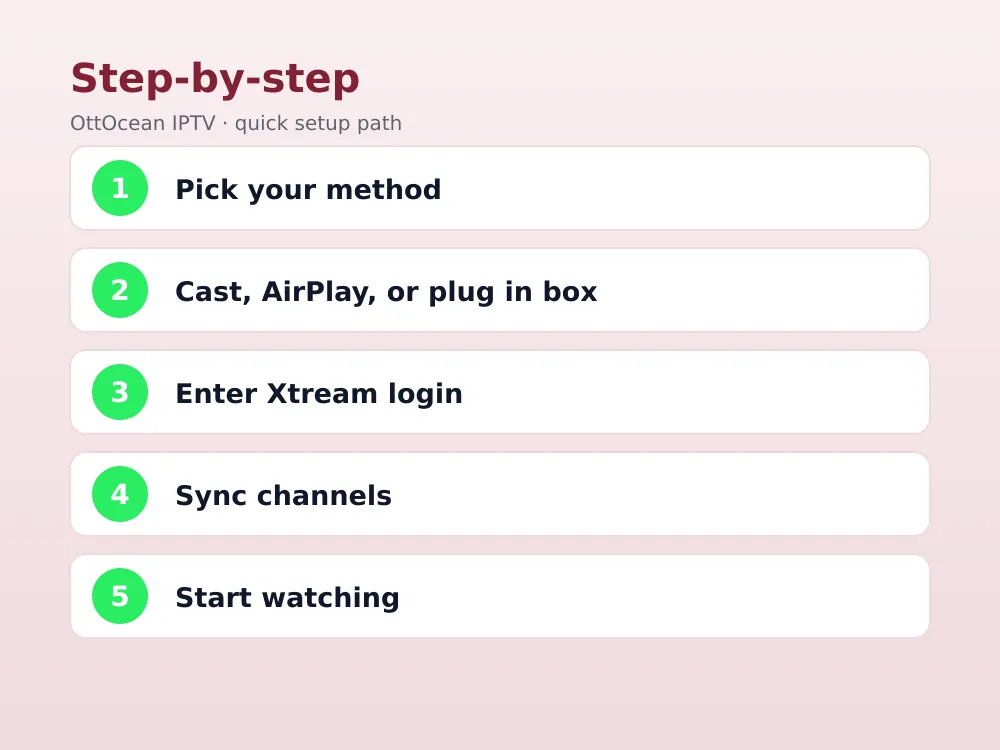
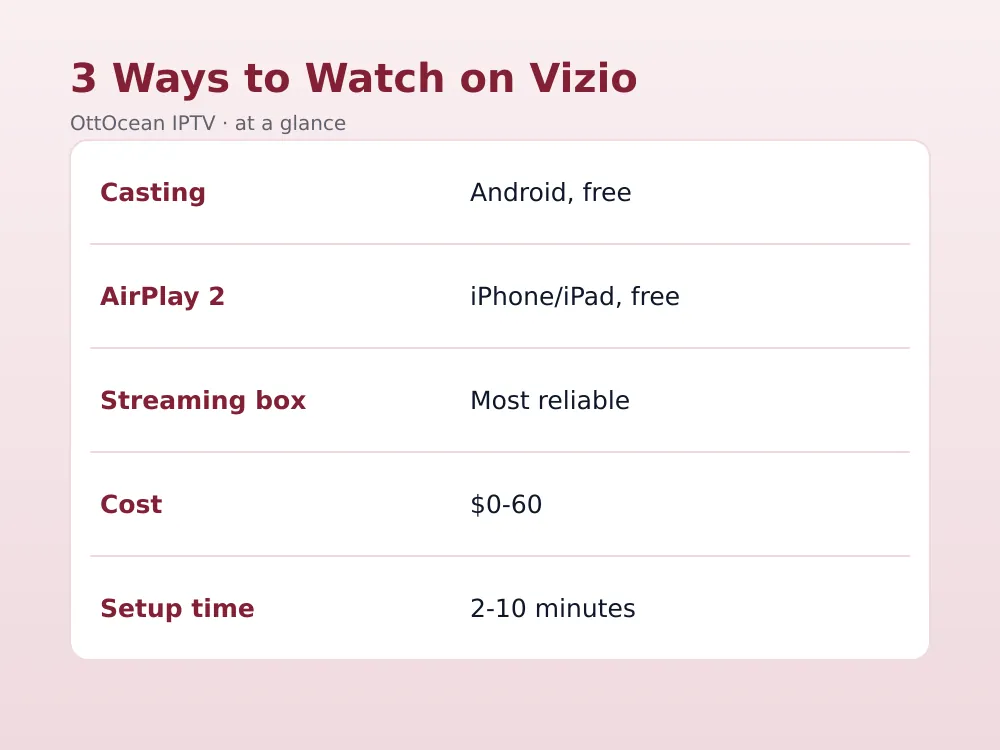
Every SmartCast Vizio TV built since around 2016 has Chromecast built in, which is the easiest of the three methods if you own an Android phone. Install IPTV Smarters, GSE Smart IPTV or XCIPTV on your phone, sign in with your login, start playing a channel, then tap the cast icon in the player.
- Connect your phone and Vizio TV to the same Wi-Fi network
- Open your IPTV app and log in with your account
- Start playing any live channel in the app
- Tap the cast icon and select your Vizio TV from the list
- Playback appears on the TV within a few seconds
Because SmartCast’s Chromecast support is built into the TV’s firmware, you do not need to open any SmartCast menu first; the cast target simply appears in your phone app’s device list whenever the TV is powered on and connected to Wi-Fi.
Method 2: AirPlay from an iPhone or iPad
Recent Vizio SmartCast models also support AirPlay 2, which is the more natural route for iPhone and iPad owners since it avoids installing a separate cast-enabled app. Open Control Center on your iOS device, tap “Screen Mirroring,” and select your Vizio TV, then open your IPTV app of choice and start watching.
AirPlay mirrors your entire phone screen rather than streaming just the video feed the way Android casting does, so notifications and other on-screen elements will show up too unless you enable Do Not Disturb first. Picture quality is solid for it, though it depends more heavily on your Wi-Fi signal strength than a dedicated casting protocol does.
Not every Vizio carries this feature, since Vizio added it to SmartCast in stages starting around 2019, so a handful of older sets can cast from Android but cannot mirror from an iPhone at all. If Screen Mirroring does not list your Vizio TV as an option, check Vizio’s support site for your exact model number before assuming your iPhone is at fault.
Method 3: Plug In a Streaming Device
The most reliable way to get IPTV on Vizio TV, and the one we recommend to most readers, is to treat the Vizio as a plain display and plug a small streaming device into one of its HDMI ports. A Fire TV Stick 4K Max, an Onn Google TV box, or a Chromecast with Google TV all run full IPTV apps natively, with no casting or mirroring required.
| Device | Price Range | IPTV App Access | Remote Included |
|---|---|---|---|
| Fire TV Stick 4K Max | $40-60 | Sideload via Downloader | Yes |
| Onn Google TV Box (4K Plus) | $30-40 | Play Store, no sideload | Yes |
| Chromecast with Google TV | $40-50 | Play Store, no sideload | Yes |
| Roku Streaming Stick | $30-50 | Screen mirroring only | Yes |
Once the device is plugged in, switch your Vizio’s HDMI input to that port, install TiviMate or IPTV Smarters Pro, and log in with the same Xtream Codes login you would use anywhere else. This method removes every limitation SmartCast has, since your Vizio is now just showing whatever the streaming box sends it.
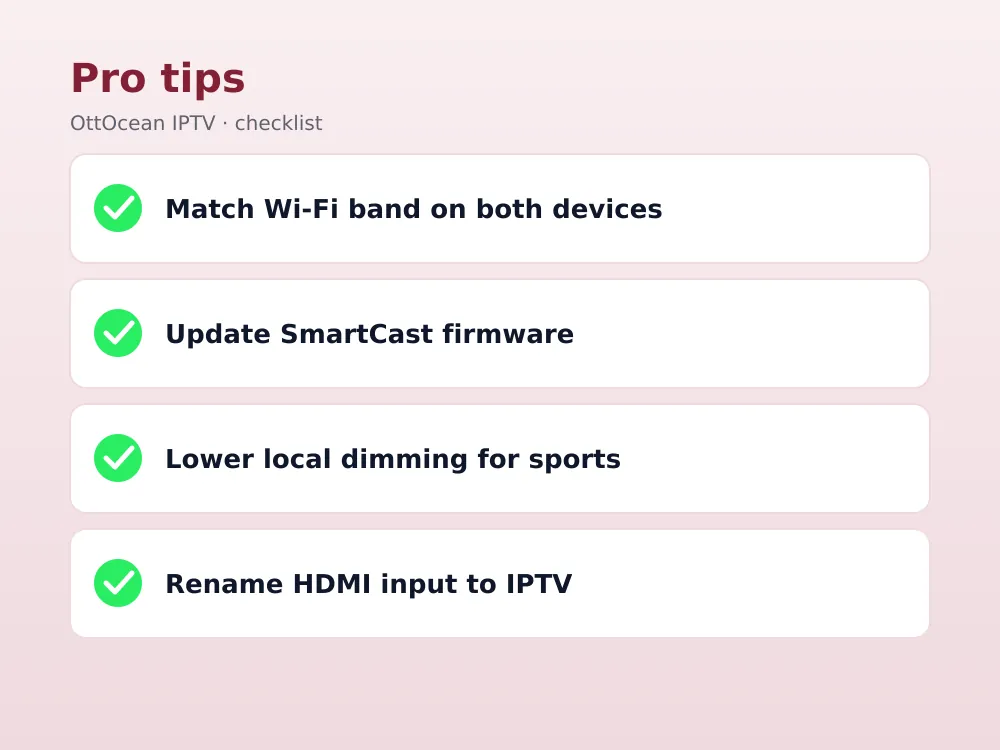
Most modern Vizio remotes include one or two programmable input shortcut buttons, and mapping one of them to the HDMI port your box uses saves a few seconds every time you sit down to watch. Check the “Inputs” section of Vizio’s settings menu to rename the port something recognizable, like “IPTV,” instead of the generic “HDMI 2” label.
Which Method Is Best for IPTV on Vizio TV
For casual, occasional viewing where you already own an Android phone, casting is genuinely convenient and needs no extra hardware purchase. iPhone owners get an equally simple experience with AirPlay, though both casting methods share the same weakness: the stream depends on your phone staying connected and awake for the whole session.
If IPTV is going to be a regular part of how you watch television, buying a $30-60 HDMI media box is worth it. It gives you a dedicated remote, a proper EPG, and a connection that does not depend on your phone at all, which matters most during long sports broadcasts when you do not want a stray notification or a dying phone battery to interrupt the game.
Cost is rarely the deciding factor here, since even the cheapest Onn Google TV box undercuts a month of most streaming bundles while adding a permanent, dedicated IPTV setup to your existing Vizio. Once it is plugged in, the media box stays configured indefinitely, so the one-time setup cost is the only real investment beyond your IPTV subscription itself.
Multi-room households often land on a mixed approach: a dedicated media box in the main living room where sports and news run for hours at a time, and casting or AirPlay in a bedroom or guest room where IPTV gets used occasionally rather than daily.
Setting Up TiviMate After You Add a Streaming Device
Once your Fire TV Stick, Onn box or Chromecast with Google TV is connected to the Vizio and online, install TiviMate or IPTV Smarters Pro following the same steps as any other Android TV device. Choose “Xtream Codes API” as your login type, paste in the server URL, username and password, and let the channel list and EPG sync automatically.
Our dedicated Fire TV Stick installation guide covers the Downloader sideloading steps in detail if that is the device you choose, since Fire TV still requires enabling “Apps from Unknown Sources” before the IPTV app will install, unlike the Play Store-based Onn and Chromecast options.
Picture Settings on Vizio TVs for IPTV
Vizio’s default “Vivid” or “Calibrated Dark” picture modes are tuned for movies and can soften fast motion during live sports. Switch to “Standard” mode and check that the TV’s motion-smoothing feature, labeled “Clear Action” on many Vizio models, is set to low rather than off, since a small amount of interpolation helps hide the compression in IPTV streams.
If you are casting or using AirPlay rather than an external box, also confirm your Vizio’s HDMI or display refresh rate matches your source, since a mismatched refresh rate is a common cause of subtle stutter that gets blamed on the IPTV subscription when it is actually a TV setting.
Local dimming and backlight settings are worth a quick check too. Vizio’s Quantum and higher-end models use full-array local dimming, which can occasionally introduce a slight blooming effect around bright scoreboard graphics during live sports. Dropping the local dimming setting from “High” to “Medium” reduces this without noticeably hurting overall contrast.
Does Your Vizio Model Matter for IPTV?
Vizio sells several TV lines, including the budget V-Series, the mid-range M-Series Quantum, and the higher-end P-Series Quantum, and all of them run the same SmartCast software with the same casting and AirPlay behavior. There is no Vizio model that enables IPTV app installation, so picture quality differences between lines matter far more than which SmartCast tier you own.
Older Vizio TVs from before 2016 predate SmartCast’s Chromecast integration entirely and may not support casting at all, in which case AirPlay compatibility (if present) or an external HDMI box becomes your only realistic option. Check your exact model number in Vizio’s support lookup if you are unsure how old your unit’s SmartCast version is.
Whichever Vizio you own, an external box plugged into HDMI sidesteps the model question completely, since the box handles the IPTV app and the Vizio simply displays whatever signal arrives over HDMI, regardless of how old the TV’s own internal software is.
How We Tested IPTV on Vizio TV
We tested casting, AirPlay and a plugged-in streaming device on a 2023 Vizio M-Series Quantum and an older 2019 Vizio D-Series, using the same OttOcean login across every method. Casting from an Android phone and AirPlay from an iPhone both worked on the newer set; the 2019 model supported casting but not AirPlay.
A Fire TV Stick 4K Max plugged into either Vizio delivered the most stable picture and the fastest channel-switching of the three methods, with zero dependency on a phone staying connected. Casting and AirPlay both performed well for short viewing sessions but showed occasional buffering when another device on the network started a large download mid-stream.
Fixing Common IPTV on Vizio TV Problems
Casting failures on Vizio usually trace back to the TV and phone being on different Wi-Fi networks, particularly in homes with separate 2.4GHz and 5GHz network names, so double-check both devices show the same SSID. A SmartCast software update that has been sitting unapplied for months can also break casting reliability, so check for updates in the TV’s system settings periodically.
If you went the streaming-device route and channels freeze or fail to load, the problem is almost always on the streaming box’s network connection rather than the Vizio itself, since the TV is just displaying HDMI at that point. Restart the box, confirm your OttOcean subscription is active, and re-enter your login details if the playlist looks outdated.
- Cast target missing from phone app — confirm both devices are on the same Wi-Fi band
- AirPlay button greyed out — update Vizio’s SmartCast software to the latest version
- Streaming device shows no signal — check the Vizio is set to the correct HDMI input
- Audio missing after casting — restart the cast session rather than adjusting TV volume settings
- Picture looks stretched or cropped — check the aspect ratio setting inside the IPTV app itself
- HDMI port shows no picture after unplugging the box — try a different HDMI port on the Vizio
Router placement plays a bigger role than most people expect. A Vizio TV mounted on a wall far from the router, with a phone casting from the next room, is fighting two weak Wi-Fi hops at once. Moving the router closer, adding a mesh extender, or running Ethernet to a plugged-in streaming box removes that bottleneck entirely and is usually worth doing before troubleshooting anything else.
One honest limitation: because Vizio never opens SmartCast to sideloaded apps, you are always adding either a phone, an AirPlay session, or an external box into the chain, and each adds one more thing that can go wrong compared with a smart TV that runs IPTV natively. It is a real tradeoff, not a flaw unique to your setup, and it is also worth noting that you remain responsible for using any IPTV subscription, OttOcean included, in line with the laws where you live.
Key takeaways
- Vizio SmartCast has no app store support for IPTV players like TiviMate or Smarters
- Casting from an Android phone works out of the box on SmartCast TVs built since 2016
- AirPlay 2 gives iPhone and iPad owners an equally simple mirroring option
- A $30-60 HDMI box like a Fire TV Stick or Onn device is the most reliable long-term fix
- Switch picture mode to Standard and lower motion smoothing for sports on Vizio
- Casting problems are almost always a Wi-Fi network mismatch, not the IPTV subscription
- OttOcean’s login credentials work identically across every method covered here
FAQ: iptv on vizio tv
Can I install TiviMate directly on a Vizio SmartCast TV?
No. Vizio’s SmartCast app store does not carry IPTV players like TiviMate, IPTV Smarters or XCIPTV, and there is no supported way to sideload apps on consumer SmartCast models. Casting from a phone, using AirPlay, or plugging in an external HDMI box are the only working paths to IPTV on Vizio TV.
What is the best way to get IPTV on Vizio TV?
Plugging a Fire TV Stick, Onn Google TV box, or Chromecast with Google TV into an HDMI port is the most reliable option, since it runs IPTV apps natively with a dedicated remote and EPG. Casting from a phone or using AirPlay works too, but both depend on your phone staying connected for the whole session.
Does AirPlay work for IPTV on newer Vizio TVs?
Yes, most Vizio SmartCast models released in the last several years support AirPlay 2, letting iPhone and iPad owners mirror an IPTV app’s screen directly. Keep the TV’s software updated, since AirPlay reliability improves with each SmartCast firmware release and older versions occasionally drop the connection mid-stream.
Why won’t my phone find my Vizio TV to cast to?
The most common cause is the phone and TV being on different Wi-Fi networks or bands, especially in homes with separate 2.4GHz and 5GHz network names. Confirm both devices show the identical network name, and check that your Vizio’s SmartCast software is fully updated before troubleshooting further.
Will an older Vizio TV work for IPTV at all?
Yes, even Vizio TVs from before SmartCast added Chromecast or AirPlay 2 support can run IPTV, since plugging a Fire TV Stick, Onn box or Chromecast with Google TV into any HDMI port works regardless of the television’s age or internal software. This makes a streaming device the most future-proof option of the three methods covered here.
Is IPTV on Vizio TV legal?
Casting, AirPlay and HDMI streaming boxes are all standard display technologies and entirely legal to use. What matters is the subscription itself: OttOcean is a licensed IPTV service, and as with any streaming product, you are responsible for using your account in line with the laws that apply where you live.
Start Watching IPTV on Vizio TV
Whichever route you choose, getting IPTV on Vizio TV working takes only a few minutes once your subscription is active, and OttOcean’s Xtream Codes and M3U formats work identically across casting, AirPlay and any streaming device you plug in. Try our 5-day free trial, no credit card required, to confirm picture quality on your specific Vizio model before committing to a plan.
Once you are ready, our subscription plans page lists every term length and device-count option available. For device-specific setup help, see our smart TV IPTV guide, and Vizio’s own SmartCast support pages are a reliable reference for casting and AirPlay troubleshooting specific to your model.


