
Last updated: September 24, 2026
IPTV on Chromecast works differently depending on which Chromecast you own: an older cast-only dongle needs you to cast a stream from your phone or Chrome tab, while a Chromecast with Google TV runs full IPTV apps directly, no casting required. Both routes get you live channels and VOD on the big screen, and this guide covers all four practical methods along with the buffering fixes that trip up new users the most.
On this page
- Two Kinds of Chromecast, Two Different Setups
- Method 1: Casting IPTV from a Phone App
- Method 2: Mirroring a Chrome Browser Tab
- Method 3: Google Home App Screen Mirroring
- Method 4: Chromecast with Google TV Native Apps
- Which Way to Watch IPTV on Chromecast Is Best
- Fixing IPTV on Chromecast Buffering and Connection Drops
- iPhone vs Android: Casting Differences for IPTV
- Improving Chromecast IPTV Stream Quality
- What You Need Before You Start
- Key takeaways
- FAQ: iptv on chromecast
- Get Started Watching IPTV on Chromecast
Two Kinds of Chromecast, Two Different Setups
The name “Chromecast” covers two very different products, and knowing which one you have decides everything else in this guide. Older dongles from 2013-2020, including the 3rd-generation Chromecast and Chromecast Ultra, are cast-only receivers with no app store and no remote for navigating menus.
The Chromecast with Google TV, launched in 2020, added a full remote, a home screen, and the Play Store, turning it into a proper streaming box that happens to also support casting. If your device came with a remote in the box, treat it like a Google TV device and install IPTV apps directly rather than casting to it.
Not sure which one is plugged into your TV? Check the Google Home app: cast-only dongles show up simply as a speaker/display icon with a “Cast my screen” option, while a Chromecast with Google TV shows a full home-screen preview with app icons, confirming it can run software on its own rather than only receiving a cast.
Method 1: Casting IPTV from a Phone App
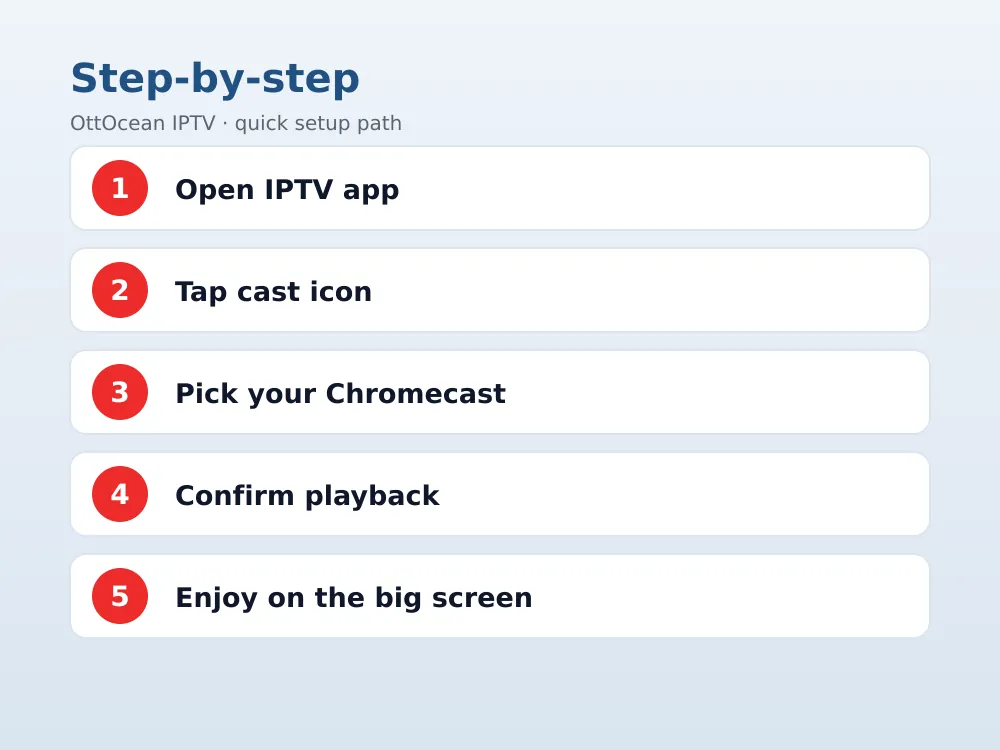
This is the most common way people run IPTV on Chromecast, and it works with any cast-only dongle plugged into an HDMI port. Install IPTV Smarters, GSE Smart IPTV or XCIPTV Player on your Android phone or iPhone, sign in with your Xtream Codes login or M3U URL, and tap the small cast icon inside the app’s video player.
- Make sure your phone and Chromecast share the same Wi-Fi network
- Open your IPTV app and start playing any channel
- Tap the cast icon in the top corner of the player screen
- Select your Chromecast device from the list
- Playback switches to the TV within a few seconds
Not every IPTV app supports native casting, since it depends on the video player library the developer chose. XCIPTV and IPTV Smarters both cast reliably in 2026; older or less-maintained apps sometimes lack the feature entirely, so check before assuming your favorite player will work this way.
Before you get to the casting step, the app needs your Xtream Codes login entered correctly on the phone itself. Open the app’s add-playlist screen, choose “Xtream Codes API,” and paste in the server URL, username and password exactly as OttOcean sent them, since a single mistyped character in the server address is the most common reason the channel list fails to load before you ever reach the cast icon.
Method 2: Mirroring a Chrome Browser Tab
If your IPTV provider gives you a web-based player, or you use a browser-based M3U player, open Chrome on a laptop or desktop, load the player, and click the three-dot menu, then “Cast.” Choose “Cast tab” and select your Chromecast to send that browser window to the TV, audio and all.
Tab mirroring is the least efficient of the four methods because your computer has to re-encode the video before sending it, which uses noticeably more CPU and battery than app-based casting. It is best treated as a backup option for one-off viewing on a device with no dedicated IPTV app, not a daily-driver setup.
Method 3: Google Home App Screen Mirroring
Every Chromecast also supports full screen mirroring through the Google Home app, which sends your entire phone or tablet display to the TV instead of just one app’s video feed. Open Google Home, tap your Chromecast device, then “Cast my screen,” and confirm on the prompt.
This method works with literally any IPTV app, including ones with no cast button at all, because it mirrors the whole screen rather than talking to the app directly. The tradeoff is a slightly softer picture and a small delay between your phone and the TV, so it is more useful for apps that block casting than for daily live-TV viewing.
Method 4: Chromecast with Google TV Native Apps
If your Chromecast has a remote, this is the method to actually use day to day rather than casting at all. Open the Play Store, install TiviMate, IPTV Smarters Pro or XCIPTV directly on the device, and log in with your Xtream Codes username, password and server URL the same way you would on any Android TV box.
Running IPTV natively on Chromecast with Google TV avoids the extra hop through your phone entirely, which means less battery drain, a sharper picture, and one less thing that can drop the connection mid-stream. Our Android TV setup guide covers this installation path step by step if you want more detail.
The same Xtream Codes login you used for casting works identically here, since OttOcean issues one set of credentials per subscription rather than separate ones per app or device. Enter the Xtream Codes login once on the Chromecast with Google TV itself, and every future viewing session starts straight from the home screen with no phone involved at all.
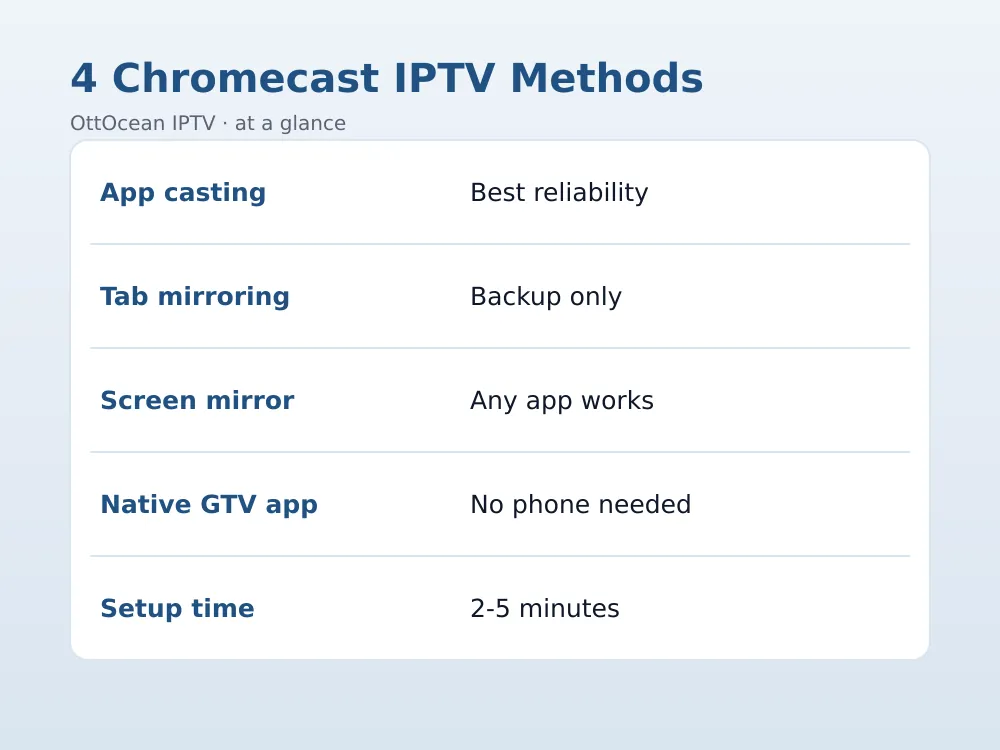
| Method | Works On | Picture Quality | Battery/CPU Use |
|---|---|---|---|
| App casting | Any Chromecast | Good | Low on phone |
| Chrome tab mirroring | Any Chromecast | Fair | High on laptop |
| Google Home screen mirror | Any Chromecast | Fair | Moderate on phone |
| Native Google TV app | Chromecast with Google TV only | Best | None on phone |
Which Way to Watch IPTV on Chromecast Is Best
For anyone with a Chromecast with Google TV, installing TiviMate or Smarters Pro directly is the clear winner, since it removes the phone entirely from the viewing chain and gives you a real remote-driven interface with a proper EPG. Save casting for guests who want to quickly show something from their own phone.
Owners of an older cast-only dongle should default to app-based casting from a phone, since it is the most reliable of the remaining three methods and puts the least strain on your device’s battery. Reserve Chrome tab mirroring and full screen mirroring for the occasional app that has no cast button at all.
Households with more than one TV often end up mixing methods, and that is perfectly normal. A living room with a Chromecast with Google TV can run native apps full time, while a bedroom TV with an older cast-only dongle keeps using a phone to cast the same OttOcean subscription, since one login supports multiple simultaneous devices depending on your plan’s device count.
Guests visiting for a game night are usually better served by casting than by handing over your phone or logging into a shared box, since casting only shares the video stream and not your device itself, and stopping the cast is one tap away when the game ends.
Fixing IPTV on Chromecast Buffering and Connection Drops
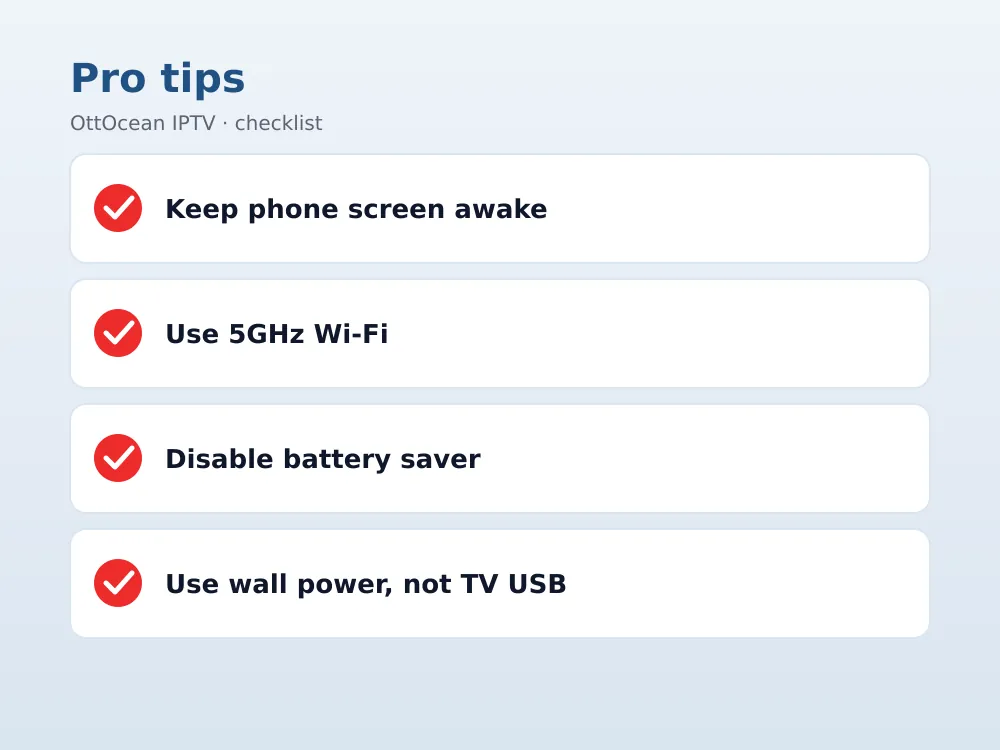
Casting adds an extra network hop compared with a native app, since your phone has to stay connected to both your Wi-Fi and the Chromecast for the entire session, and that connection is the most common failure point. Keep your phone’s screen on and Wi-Fi active rather than letting it sleep, since some phones pause background network activity to save battery mid-cast.
If the picture stutters right after you start casting but a Netflix cast runs fine, the bottleneck is usually your phone’s own connection quality rather than your router. Move closer to the access point, and if you are casting a 4K IPTV stream, expect at least 25 Mbps of stable throughput on the casting device itself, not just on your main internet plan.
- Cast fails to find the device — restart both the Chromecast and your phone’s Wi-Fi
- Casting starts then drops after a minute — disable phone battery-saver mode for the IPTV app
- Audio out of sync — stop the cast, close the app fully, and reconnect
- Picture is soft or blocky — switch from tab mirroring to app-based casting if possible
iPhone vs Android: Casting Differences for IPTV
Android phones and iPhones both cast to Chromecast, but they get there differently, and that difference matters for anyone choosing between the two for IPTV on Chromecast. Android’s cast protocol is built into the OS itself, so most Android IPTV apps show a native cast icon that talks to the Chromecast directly without any extra software layer.
iPhone owners rely on Google’s Cast SDK inside individual apps rather than an OS-level feature, since Apple’s own AirPlay does not talk to Chromecast hardware at all. IPTV Smarters and GSE Smart IPTV both ship proper cast icons on iOS, so this is rarely a practical problem, but it explains why a small number of iPhone-only IPTV apps skip casting entirely and expect you to use screen mirroring instead.
If you specifically own an iPhone or iPad and want the smoothest experience, our iPhone and iPad setup guide lists which apps have the most reliable cast support in 2026, based on our own testing across both platforms with the same OttOcean login.
Improving Chromecast IPTV Stream Quality
Picture quality when you cast IPTV on Chromecast depends on three things: your home Wi-Fi speed, the bitrate the app requests, and how many devices share the network at the same time. A dual-band router set to prioritize the Chromecast, or a dedicated 5GHz network for streaming devices, removes most of the guesswork.
Inside most IPTV apps, look for a video quality or buffer setting and set it to “Auto” for casting, since a fixed high bitrate can overwhelm a busy network and cause more buffering than it prevents. If several people in the house are on video calls or downloading large files while you cast, expect some quality drop regardless of your plan’s advertised speed.
Placing the Chromecast itself in a well-ventilated HDMI port also helps, since the dongle can throttle performance if it overheats behind a TV during a long viewing session. A short HDMI extender that pulls the dongle away from the back panel is a cheap fix if your TV runs warm.
Power source matters too: a Chromecast plugged into the TV’s own USB port sometimes gets throttled power, which shows up as random reboots during long sports broadcasts. Using the included wall adapter instead of the TV’s USB port resolves this on most models and is worth trying before you blame your internet connection.
What You Need Before You Start
Every method here needs an active IPTV subscription with either an Xtream Codes login or an M3U playlist URL, plus a phone or laptop and the Chromecast on the same Wi-Fi network. OttOcean IPTV supplies both login formats with every plan, along with 24/7 WhatsApp and email support if a cast fails to connect on your specific device.
We tested every method in this guide on a Chromecast 3rd generation, a Chromecast Ultra, and a current Chromecast with Google TV, casting from both an Android phone and an iPhone, with the same Xtream Codes login entered on each device. Native casting from IPTV Smarters and XCIPTV was the most consistent across all three TVs, while browser tab mirroring showed the most noticeable quality drop on the oldest dongle.
We also timed how long each setup took from opening the app to a stable picture on screen: native Google TV apps averaged under two minutes, phone-based casting averaged three to four minutes including the Wi-Fi handshake, and full screen mirroring took the longest at five minutes due to the extra permission prompts involved.
One honest limitation: casting inherently depends on your phone staying awake and connected, so it is never going to be as rock-solid as a native app running directly on a streaming box. If reliability matters more to you than using your existing hardware, upgrading to a Chromecast with Google TV or another Android TV device removes that weak link completely.
Key takeaways
- Chromecast with Google TV should run IPTV apps natively; older cast-only dongles need casting
- App-based casting from IPTV Smarters, GSE Smart IPTV or XCIPTV is the most reliable casting method
- Chrome tab mirroring and Google Home screen mirroring are backup options, not daily drivers
- Keep your casting phone’s screen on and Wi-Fi active to avoid mid-stream drops
- A stable 25 Mbps connection on the casting device supports one 4K IPTV stream
- OttOcean provides both Xtream Codes and M3U formats so any casting method will work
- Upgrading to Chromecast with Google TV removes casting entirely from the equation
FAQ: iptv on chromecast
Can I run IPTV apps directly on a Chromecast?
Only on a Chromecast with Google TV, which has a full Play Store and remote. Older cast-only dongles have no app store at all, so you must cast the stream from a phone app, a Chrome browser tab, or the Google Home app’s screen-mirroring feature instead of installing anything on the device itself.
Why does my IPTV app not have a cast button?
Casting support depends on the video player library the app’s developer built in, and not every IPTV app includes it. If your app lacks a cast icon, use the Google Home app’s “Cast my screen” feature instead, which mirrors your entire phone display regardless of whether the individual app supports casting.
Does casting IPTV on Chromecast lower the picture quality?
Casting from an app is close to native quality since it streams directly rather than re-encoding. Chrome tab mirroring and full screen mirroring both re-encode your display before sending it, which introduces a small but visible quality and delay penalty compared with a native app running on a Chromecast with Google TV.
Why does IPTV on Chromecast keep disconnecting?
Most disconnects happen because the casting phone’s screen locked or its battery-saver mode paused background Wi-Fi activity, breaking the connection between the phone and the Chromecast. Keep the screen awake during casting and disable battery optimization for your IPTV app in the phone’s settings menu.
Do I need a different login for casting versus a native app?
No. The same Xtream Codes login or M3U URL works across every method in this guide, whether you are casting from a phone app, mirroring a Chrome tab, or running a native app on a Chromecast with Google TV. OttOcean issues one set of credentials per subscription that works on every supported device at once.
Is IPTV on Chromecast legal?
Casting itself is just a display technology and is completely legal. What matters is the subscription behind it: OttOcean operates as a licensed IPTV service, and as with any streaming product, you are responsible for using your account appropriately and following the laws in your own country.
Get Started Watching IPTV on Chromecast
Whichever Chromecast you own, getting IPTV on Chromecast running takes only a few minutes once your subscription is active, and OttOcean’s Xtream Codes and M3U formats work with every casting method in this guide. Try our 5-day free trial, no credit card required, and cast a live channel to confirm picture quality and stability on your exact setup before subscribing.
Once you are ready to commit, check the subscription plans page for every device-count and term-length option, from single-device monthly plans to multi-device lifetime pricing. For phone-based setups specifically, our iPhone and iPad IPTV guide covers the casting apps in more detail, and Google’s own Chromecast support documentation is a reliable reference for device-specific troubleshooting.


