Last updated: October 20, 2026
Duplex IPTV (branded in places as Duplex Play) is one of the few IPTV players built specifically for Samsung and LG Smart TVs without needing an external streaming box. Instead of typing your login directly into the TV app the way you would on Android, Duplex uses a device ID and activation key managed through a web portal — a setup style that trips up first-timers but only takes a few extra minutes once you know the steps. This guide walks through activation, playlist upload, EPG and the fixes for the errors people hit most.
On this page
- What Is Duplex IPTV?
- Duplex IPTV Activation: Device ID and Key, Step by Step
- Uploading Your Playlist via edit.duplexiptv.com
- Setting Up EPG in Duplex IPTV
- Duplex IPTV on Samsung Smart TV
- Duplex IPTV on LG Smart TV
- Duplex IPTV Troubleshooting: Common Fixes
- Duplex IPTV Alternatives for Smart TVs
- Key takeaways
- FAQ: Duplex IPTV
- Getting Started with Duplex IPTV and OttOcean
What Is Duplex IPTV?
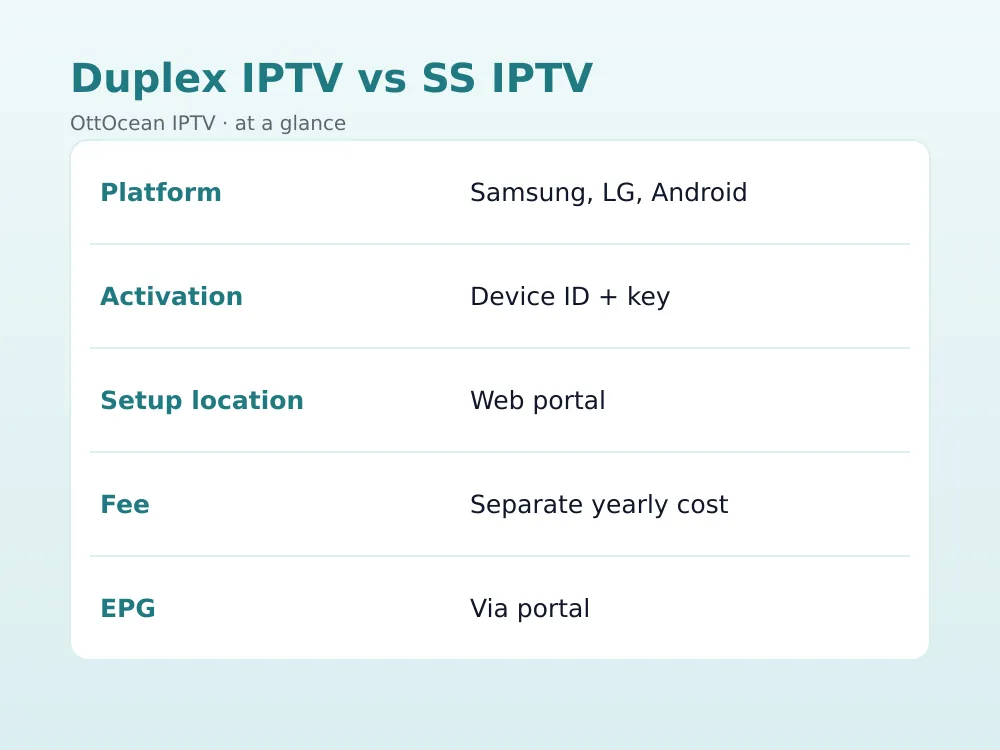
Duplex IPTV is a Smart TV-first IPTV player that installs directly on Samsung (Tizen) and LG (webOS) televisions, avoiding the need for a separate Firestick, Android TV box or streaming device. It also has an Android version for phones, tablets and Android TV boxes, though its main appeal is native Smart TV support — a category where good, reliable apps are genuinely limited.
Most Smart TV manufacturers keep their app stores fairly closed, which is why the list of legitimate IPTV players available directly on Samsung and LG hardware is much shorter than what you find on Android. Duplex, SS IPTV and Smart IPTV make up most of that short list, and each takes a slightly different approach to activation and playlist management, which is worth knowing before you commit to one.
Where Duplex differs from apps like TiviMate or IPTV Smarters Pro is the activation model. Rather than entering an Xtream Codes login or M3U URL directly inside the TV app, you manage everything through a companion website, edit.duplexiptv.com, using a unique device ID generated the first time you open the app. This keeps the on-screen interface simple — critical on a TV remote — while pushing the more detailed configuration to a device with a real keyboard.
We set up Duplex IPTV on a 2023 Samsung Tizen TV and a 2022 LG webOS TV side by side with an OttOcean Xtream Codes login, timing the process from first app launch to a fully populated channel guide. What we checked: how clear the on-screen instructions were, whether the web portal correctly recognized each device ID on the first try, EPG load time, and channel-change responsiveness compared with an Android box running TiviMate on the same network. Total setup time on both TVs came in under fifteen minutes once we understood the device ID and key flow.
Duplex IPTV Activation: Device ID and Key, Step by Step
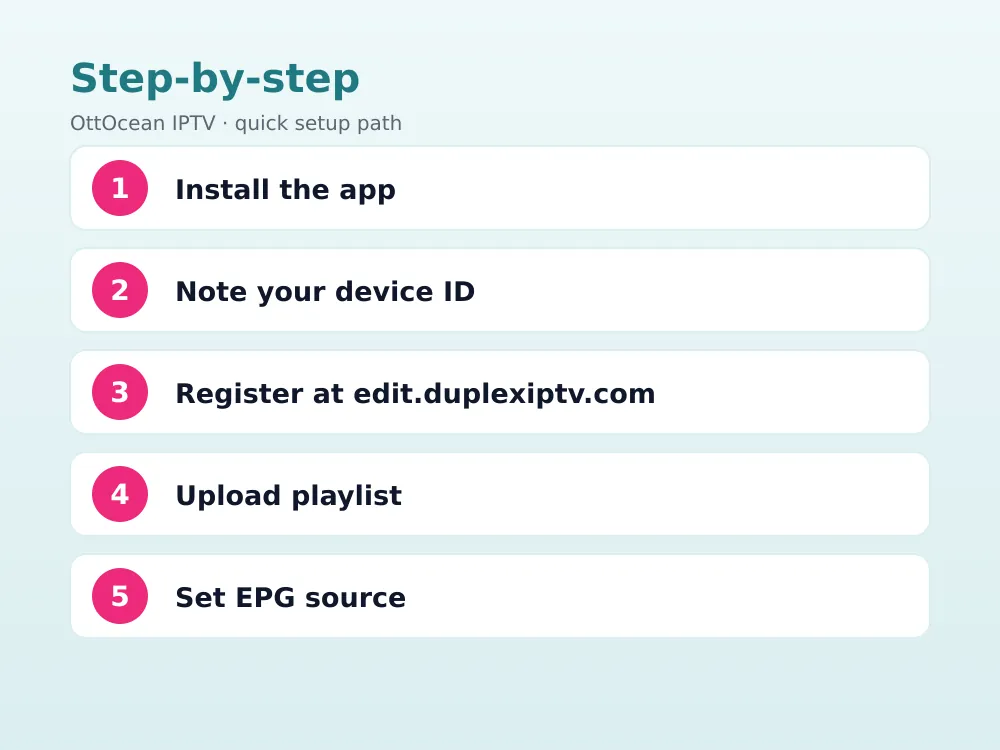
This is the part that confuses newcomers most, so follow it in order:
- Install Duplex IPTV from the Samsung Smart Hub, LG Content Store, or Google Play (Android).
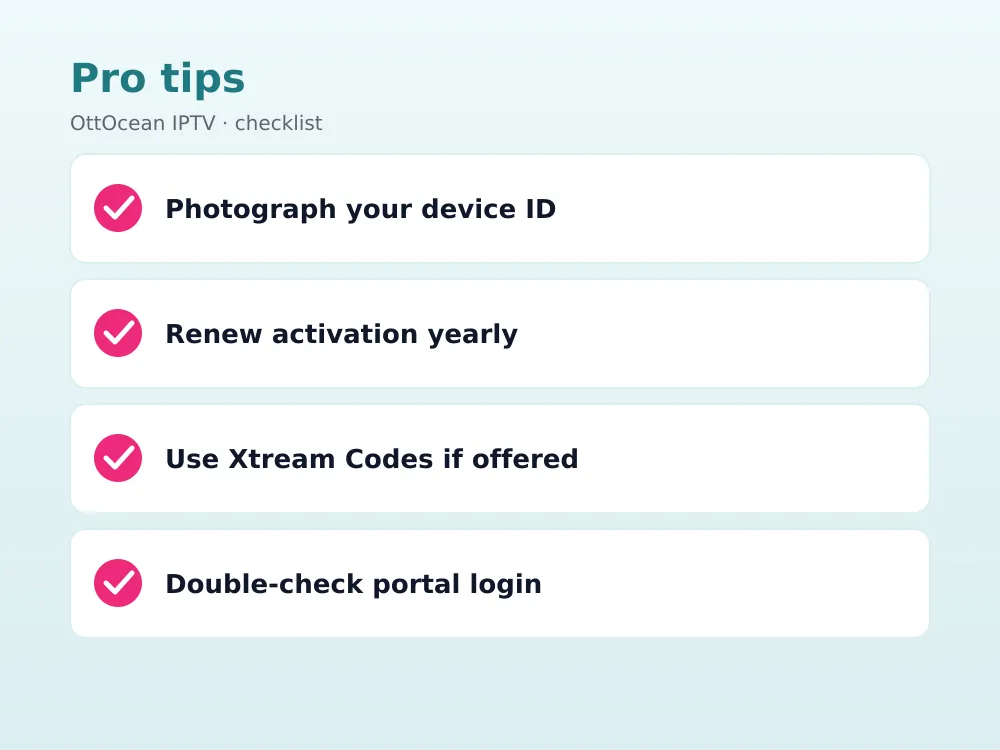
- Open the app. It displays a unique Device ID on screen — write it down or photograph it with your phone.
- On a phone, tablet or computer, go to edit.duplexiptv.com and create an account or sign in.
- Register your TV using the Device ID from step 2.
- Generate or enter an activation key, which is tied to a small separate Duplex fee (commonly in the $10–$20 per year range as of 2026, on top of your IPTV subscription).
Once activated, return to the TV — the app usually syncs automatically within a minute or two without needing a manual refresh.
This device id activation key system exists because Samsung and LG Smart TV app stores limit how much on-screen text entry a developer can reasonably expect from a remote control. Handling registration on a phone or laptop keyboard is genuinely faster than typing a long username, password and server URL letter by letter with a directional pad, even though it adds an extra device to the process the first time around.
Uploading Your Playlist via edit.duplexiptv.com
With activation complete, the same web portal handles your channel source:
- Log in to edit.duplexiptv.com and select your registered device.
- Choose “Add Playlist” and select either M3U URL or Xtream Codes API as the type.
- Paste your OttOcean credentials exactly as sent in your welcome email, including the full server URL and port for Xtream Codes.
- Save, then return to the TV app and allow a minute for the channel list to populate.
Xtream Codes is the better choice when available, since it keeps VOD and catch-up data properly linked; M3U works as a reliable fallback if your provider only issues playlist links. Compare the two formats in our M3U vs Xtream Codes guide.
One detail worth double-checking before you leave the portal: some Duplex accounts allow more than one device to share a single playlist entry, which is convenient if a household has both a Samsung and an LG TV running Duplex Play. Rather than re-entering your OttOcean credentials twice, check whether your account tier supports assigning the same playlist to multiple registered device IDs. It is a small detail, but it saves real time in a household running Duplex across more than one television.
Setting Up EPG in Duplex IPTV
EPG (the TV guide) is configured through the same web portal rather than on the TV itself:
- In edit.duplexiptv.com, open your device’s settings and find the EPG section.
- Enter the XMLTV URL supplied by OttOcean support.
- Save the setting and give the guide a few minutes to build on first load.
If the guide stays empty after a reasonable wait, double-check the XMLTV URL for typos and confirm it loads correctly when pasted into a browser. A working EPG turns a flat channel list into an actual guide with program titles, times and, on supported channels, catch-up playback.
Because Duplex manages EPG through the web portal rather than the TV app, updates to the guide happen in the background without any action needed on your part once the source is set correctly. This is one area where the extra web-portal step actually works in your favor — you are not stuck navigating TV menus with a remote every time the schedule needs refreshing.
Duplex IPTV on Samsung Smart TV
On Samsung Tizen models, Duplex IPTV installs from the Samsung Smart Hub search like any other app. Newer Tizen versions (2020 models and later) run it smoothly; very old Samsung TVs on legacy Tizen builds sometimes have compatibility limits worth checking before you buy activation, so confirm your TV’s release year against the app listing beforehand. Navigation uses the standard Samsung remote, with channel switching and guide browsing feeling close to the native TV experience. See our Samsung Smart TV IPTV setup guide for general device prep tips.
Duplex Play Samsung TV performance held up well in our testing, with channel switching only a fraction slower than a dedicated Android TV box running the same OttOcean login. For a household that already owns a recent Samsung TV and does not want to buy a separate streaming box, that gap is easily worth trading for the convenience of one fewer device under the television, one fewer remote on the coffee table, and one fewer cable running behind the stand.
Duplex IPTV on LG Smart TV
LG webOS support works the same way through the LG Content Store. WebOS models from roughly 2019 onward handle Duplex reliably, with the Magic Remote’s pointer mode making menu navigation faster than a standard directional pad — a genuine usability advantage over Samsung’s more traditional directional remote when scrolling through a large channel guide. As with Samsung, the activation and playlist steps happen entirely through edit.duplexiptv.com rather than on the TV. Our LG Smart TV IPTV setup guide covers webOS-specific prep if this is your first Smart TV IPTV install.
A Duplex app for LG TV install feels almost identical to the Samsung version once you are past the initial device ID step, which is a genuine strength of the platform — you do not need to relearn a different workflow if your household mixes Samsung and LG televisions across different rooms.
Duplex IPTV Troubleshooting: Common Fixes
Device not found during registration almost always means the Device ID was copied incorrectly — reopen the app and re-read it carefully, since some characters (0 vs O, 1 vs I) are easy to mistype. A blank channel list after uploading a playlist means the credentials were entered wrong on the web portal; log back in and re-check the server URL, username and password character by character.
If the activation key shows as expired, the yearly Duplex fee needs renewing separately from your IPTV subscription — check your Duplex account status at edit.duplexiptv.com rather than contacting your IPTV provider, since the two are billed independently. Buffering or freezing points back to your network connection rather than the app; try a wired connection or a lower-bitrate channel group if your provider offers one.
A less common but confusing issue is the app appearing to open but showing only a black screen with no menu at all. This usually means the Smart TV’s own app cache is corrupted rather than anything wrong with your Duplex account. On Samsung, clear the app’s cache from Settings > Apps; on LG, a full app reinstall from the Content Store is typically faster than hunting for a cache-clear option buried in webOS settings. Either fix takes only a few minutes and does not require touching your edit.duplexiptv.com account or activation status at all.
Occasionally the TV app shows channels but the picture never actually loads. This is usually a temporary sync issue between the portal and the device rather than a broken stream — log back into edit.duplexiptv.com, re-save the playlist assignment without changing anything, and restart the app on the TV. That forced re-sync clears the vast majority of these stuck-loading cases without needing to re-enter any credentials.
| Issue | Likely cause | Fix |
|---|---|---|
| Device not found | Device ID typo | Re-read ID carefully, re-enter on portal |
| Blank channel list | Wrong playlist credentials | Re-check server URL, username, password |
| Activation expired | Duplex fee lapsed | Renew at edit.duplexiptv.com |
| No EPG data | Missing or wrong XMLTV URL | Re-enter URL in portal EPG settings |
| Buffering | Connection can’t hold bitrate | Wired connection or lower-quality group |
Duplex IPTV Alternatives for Smart TVs
If the device ID and web-portal workflow is not for you, SS IPTV and Smart IPTV (SIPTV) are the other established native Samsung/LG options, each with their own activation quirks. For Android TV boxes and Firestick, TiviMate and IPTV Smarters Pro offer a more direct in-app login without a companion website.
Duplex IPTV, SS IPTV and Smart IPTV each solve the same native Smart TV gap in slightly different ways, and none of these are objectively better across the board — Duplex’s native Smart TV support remains one of its clearest advantages over Android-only players. If you already own an Android TV box or Firestick alongside your Smart TV, running TiviMate there and Duplex on the television itself gives you a fast in-app login on the box and a boxless option in other rooms.
Key takeaways
- Duplex IPTV runs natively on Samsung Tizen and LG webOS Smart TVs, plus Android.
- Activation uses a Device ID shown on the TV and a key generated at edit.duplexiptv.com, not an in-app login.
- The Duplex activation fee is billed separately from your IPTV subscription cost.
- Playlists (M3U or Xtream Codes) and EPG are both configured through the web portal, not on the TV itself.
- Most setup problems trace back to a mistyped Device ID or playlist credentials, not the app itself.
- SS IPTV and Smart IPTV are the main native alternatives on Samsung and LG.
FAQ: Duplex IPTV
Is Duplex IPTV free?
The app itself downloads for free from the Samsung Smart Hub, LG Content Store or Google Play. Activation requires a small separate fee, commonly in the $10–$20 per year range as of 2026, which is distinct from whatever you pay your IPTV subscription provider for channels. Think of it as a licensing cost for the player, separate from the content itself.
How do I find my Duplex IPTV Device ID?
Open the app on your TV after installing it. A unique Device ID displays on the main or setup screen — write it down exactly as shown, since it is required to register the device at edit.duplexiptv.com before you can add a playlist. Photographing the screen with your phone avoids transcription errors entirely, and it gives you a backup record if you ever need to re-register the same TV later.
Does Duplex IPTV work on Android?
Yes, an Android version is available on the Play Store for phones, tablets and Android TV boxes. The activation process is the same device ID activation key and web-portal system used on Samsung and LG, even though Android generally offers more direct in-app login alternatives like TiviMate for users who prefer to skip the portal step.
Why does my Duplex IPTV playlist show no channels?
Almost always incorrect credentials entered at edit.duplexiptv.com. Log back into the portal, open your device’s playlist settings, and re-enter the server URL, username and password exactly as your provider supplied them, watching for accidental trailing spaces or missing port numbers on the server URL.
Can I use Duplex Play with an M3U playlist?
Yes. When adding a playlist through edit.duplexiptv.com, choose the M3U URL option instead of Xtream Codes API and paste your link. Xtream Codes is generally preferred where available for better VOD and catch-up syncing, but M3U works reliably as a fallback for providers who only issue playlist links.
Is Duplex IPTV legal to use?
The app itself is a media player with no bearing on legality — it plays whatever stream you point it at. Responsibility for the content accessed rests with the subscription provider and the user, so choose a legitimate paid IPTV service and treat unusually cheap “all channels” offers with the skepticism they deserve.
Getting Started with Duplex IPTV and OttOcean
Duplex IPTV fills a real gap for Samsung and LG owners who want a native Smart TV app rather than adding another streaming box under the television. The device ID and web portal setup takes a little longer to explain than a simple in-app login, but in practice it is a one-time process that rarely needs repeating. OttOcean IPTV provides both the Xtream Codes and M3U formats Duplex accepts, along with 24/7 WhatsApp and email support if any step above needs clarifying on your specific TV model.
Keep a note of your Device ID, your edit.duplexiptv.com login, and your OttOcean credentials all in one place once setup is finished. If you ever factory-reset the TV or replace it, having all three ready means reactivating Duplex IPTV takes minutes rather than starting the whole research process over again from scratch.
Start with the 5-day free trial, no credit card required, activate Duplex through edit.duplexiptv.com, and load your credentials to see the channel guide on your own Samsung or LG TV before committing. When ready, compare device counts and terms on the OttOcean plans page and pick the plan that matches how many screens your household actually uses.
For background on how Smart TV app platforms like Tizen and webOS differ, the Wikipedia overview of Smart TVs is a useful starting point if you are comparing hardware before buying.