Last updated: October 19, 2026
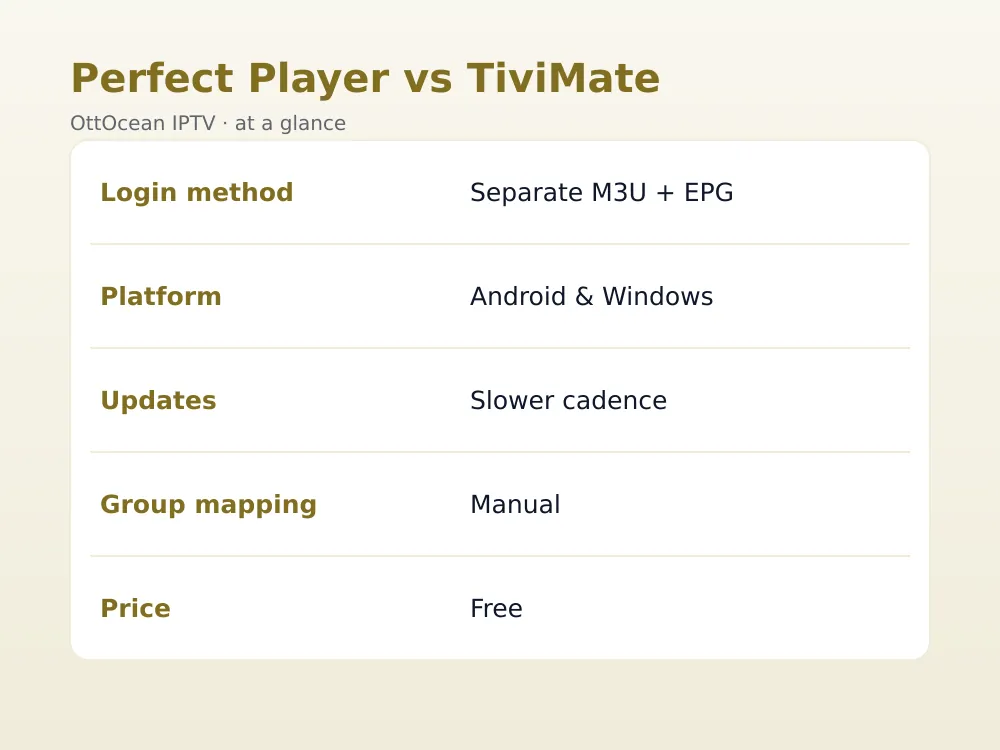
Perfect Player IPTV has been around since the early days of Android streaming, and it still has a loyal following in 2026 even though newer apps get more attention. It works a little differently from Xtream-Codes-first apps like TiviMate: you load a separate playlist URL and a separate EPG URL, then map channel groups by hand. That extra step puts off some newcomers, but it also gives you more control once it is set up. This guide covers the full seven-step setup, EPG sourcing, decoder tuning, and an honest look at where the app stands today.
On this page
- What Is Perfect Player IPTV?
- Perfect Player IPTV in 2026: Is It Still Worth Installing?
- Installing Perfect Player on Android and Windows
- Perfect Player M3U Playlist Setup: Step by Step
- Perfect Player EPG Setup: Adding the TV Guide
- Mapping Channel Groups in Perfect Player
- Perfect Player Decoder Settings and Performance Tuning
- Perfect Player IPTV Troubleshooting
- Perfect Player IPTV Alternatives Worth Knowing
- Key takeaways
- FAQ: Perfect Player IPTV
- Getting Started with Perfect Player IPTV and OttOcean
What Is Perfect Player IPTV?
It’s an M3U-based media player that has existed on Android since roughly 2014, making it one of the older names still in circulation. Unlike TiviMate or IPTV Smarters Pro, it was not built around the Xtream Codes API from day one — its core workflow is a plain M3U playlist URL plus a separate XMLTV EPG URL, entered independently in settings. Later versions added limited Xtream Codes support, but most long-time users still run it the original way.
The trade-off is manual control. You map channel groups yourself, choose hardware or software decoding per device, and tune buffer settings that most modern apps hide behind an “automatic” toggle. For users who like knowing exactly what the app is doing, that is a feature. For anyone who just wants channels working in two minutes, it can feel like extra homework compared to a guided Xtream Codes login.
We tested it on a Windows 11 laptop and an older Android tablet running Android 10, both connected through an OttOcean Xtream Codes and M3U login, to see how well an app this old still holds up. What we checked: channel-change latency, whether the group mapping survived a playlist refresh, EPG accuracy after a manual update, and general stability over a two-week period of daily use. Both installs stayed stable with zero crashes, which says something about how mature this codebase actually is.
Memory usage stayed low on both devices too — noticeably lighter than some newer, more visually heavy players, which matters if your Android box or tablet is older hardware nearing the end of its useful life. A leaner app extending a device’s usable lifespan is a real, if unglamorous, benefit.
Perfect Player IPTV in 2026: Is It Still Worth Installing?
Honestly, yes — with a caveat. The app itself still works well: playback is stable, the EPG grid is functional once configured, and it runs on modest Android hardware better than some heavier competitors. The caveat is update frequency. Perfect Player has not seen major feature releases in some time, and users on forums have periodically reported longer gaps between updates than apps like TiviMate receive.
That does not make it broken. Media players do not need constant updates to keep playing an M3U stream — the core job barely changes. If you want an app that is still getting frequent new features (multi-view, cloud DVR, built-in catch-up UI), look at TiviMate or Televizo instead. If you want something lightweight, free, and proven, Perfect Player remains a reasonable choice. Our IPTV player apps comparison covers the full field side by side.
The Windows availability also sets it apart. Most competing players are Android-only or need Android emulation to run on a desktop; Perfect Player runs natively on Windows, which makes it one of the few genuinely good choices if your main streaming device is a laptop or desktop PC rather than a TV box.
For anyone using IPTV mainly at a desk during the day — a second monitor tuned to news or sports while working — this native Windows support alone can outweigh the manual setup steps elsewhere in the app. There is no need to run an Android emulator or dedicate a separate TV box just to watch on a computer screen, and the app’s low resource footprint means it rarely competes with other work happening on the same machine.
Installing Perfect Player on Android and Windows
On Android phones, tablets and Android TV boxes:
- Open the Google Play Store and search “Perfect Player IPTV”.
- Install the app (it is a small download, typically under 20MB).
- Open it and dismiss the initial setup tips if prompted.
On Windows, the app is not distributed through the Microsoft Store, so download the official build directly:
- Visit the official Perfect Player website and download the Windows installer.
- Run the installer and follow the prompts (no unusual permissions required).
- Launch Perfect Player from the Start menu.
Perfect Player M3U Playlist Setup: Step by Step
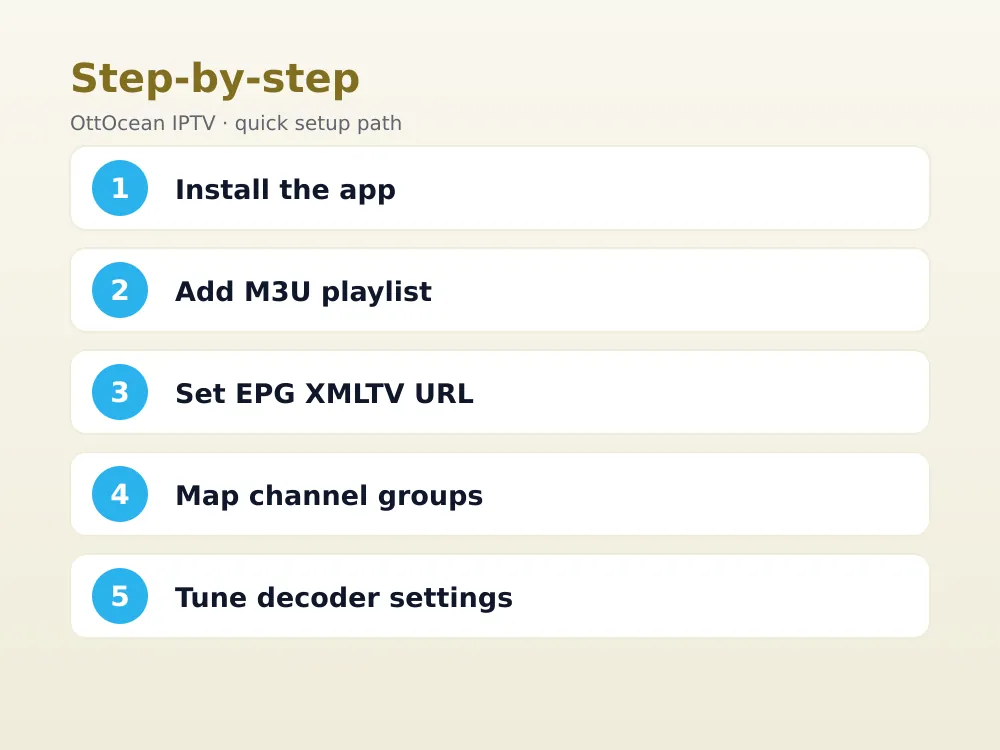
This is where Perfect Player differs most from Xtream-Codes-first apps. To load your OttOcean m3u playlist link:
- Open Settings (the gear icon or long-press on remote/mouse) and go to General > Playlist.
- Choose “Playlist type: M3U/M3U8 URL (Remote)”.
- Paste the M3U URL from your OttOcean welcome email exactly, including any token at the end.
- Save and return to the main screen; Perfect Player downloads and parses the channel list.
If Xtream Codes support is present in your build, you can alternatively enter the server, username and password directly, which behaves similarly to how TiviMate or Televizo handle logins — but the classic M3U method remains the most reliable path across every Perfect Player version in circulation.
Once the Perfect Player m3u playlist loads, give it a minute or two to fully download before judging the channel count. Large lineups like OttOcean’s 25,000+ channels take longer to parse than a small 200-channel playlist, and the app does not always show a loading indicator, so a seemingly empty list often just needs a bit more time.
Perfect Player EPG Setup: Adding the TV Guide
The EPG URL is entered completely separately from the playlist, which trips up first-time users:
- Go to Settings > EPG > EPG list.
- Choose “URL address (XMLTV)” as the source type.
- Paste the XMLTV link supplied by OttOcean support.
- Set “Update EPG on app start” if you want fresh data every launch, or a scheduled interval if you prefer less network traffic.
A correct EPG setup gives you the same two-to-three-day guide you would expect from any modern player, with program titles and times per channel. See our full EPG setup guide for XMLTV background if this is your first time configuring one.
One quirk worth knowing: because the Perfect Player EPG setup uses a separate URL from the playlist, the two can drift out of sync if your provider changes channel naming conventions. If program data suddenly stops matching the right channels after a provider update, redo the EPG setup from scratch rather than troubleshooting individual channels one by one.
Mapping Channel Groups in Perfect Player
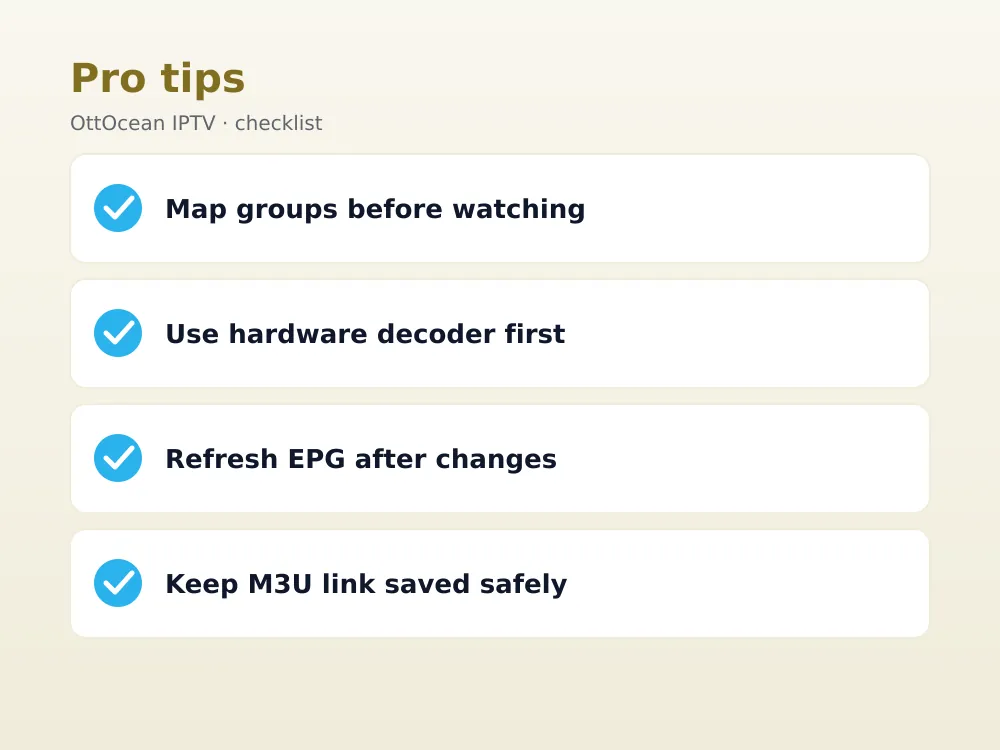
Group mapping is the step most new users skip and later regret. Without it, your entire channel list can appear as one long scroll instead of organized categories:
- Open the channel list and tap the group/category icon.
- Select “Group mapping” (sometimes labeled “Categories” depending on version).
- Assign channels to groups such as Sports, News, Entertainment, Kids and Movies, matching however your provider’s playlist labels them.
- Save the mapping; it persists across app restarts and playlist refreshes as long as channel names stay consistent.
Ten minutes spent here makes the difference between a usable guide and a wall of unlabeled channels, especially on a 25,000-channel OttOcean subscription where organization matters more than raw count.
A practical approach that saves time later: map broad categories first (Sports, News, Movies, Kids, Local) rather than trying to create dozens of narrow subcategories on the first pass. You can always split a group further once you know which channels you actually watch. Most users find that five to eight groups cover a large lineup comfortably without turning the sidebar into its own scrolling problem. Renaming groups to match how you actually think about content — “Weekend Sports” instead of a generic “Sports 2” — also makes the guide faster to scan once you are used to it.
If your provider reorganizes categories on their end — which happens occasionally as lineups get refreshed — your existing mapping may need a quick touch-up rather than a full redo. Perfect Player generally preserves mappings for channels whose names have not changed, so only newly renamed or added channels typically need attention after a playlist update.
Perfect Player Decoder Settings and Performance Tuning
These settings live under Settings > General > Video, and they matter more here than in most modern apps because Perfect Player exposes more manual control:
| Setting | Options | When to use |
|---|---|---|
| Decoder | Hardware / Software | Hardware first; switch to software if picture tears or colors look wrong |
| Deinterlace | On / Off | On for older SD or interlaced feeds; off for clean 1080p/4K sources |
| Buffer size | Low to High | Raise on unstable Wi-Fi; keep low for fastest channel switching |
| Audio track | Auto / Manual | Manual if a channel defaults to the wrong language track |
These settings rarely need touching once dialed in for your device, but they are the first place to look when a specific channel misbehaves while everything else plays fine.
Perfect Player IPTV Troubleshooting
Blank channel list after adding a playlist almost always means the M3U URL was mistyped or the link has expired — re-copy it fresh from your OttOcean account. A guide with no program data means the XMLTV EPG URL is wrong or has not refreshed yet; force a manual EPG update from Settings. If channels play but look wrong (stretched, torn, wrong colors), revisit the decoder and deinterlace settings above rather than assuming the stream itself is broken.
On Windows specifically, older installs sometimes need a codec pack if hardware decoding is not detected correctly; installing the K-Lite Codec Pack resolves most of those cases. On Android, clearing the app’s cache (not data, which would erase your playlist) fixes the occasional stuck-loading screen after an OS update.
If the app freezes entirely on launch, the most reliable fix is a clean reinstall rather than trying to repair the existing install — The app stores its configuration in a way that a fresh install picks up cleanly once you re-enter your playlist and EPG URLs. Keep both links saved in a notes app so a reinstall takes two minutes instead of ten.
Sound-only playback with a frozen last frame usually means the video decoder crashed mid-stream while the audio pipeline kept running independently. Switching the decoder mode, as covered above, resolves this in most cases; if it persists on one specific channel only, the issue is more likely on the provider’s encoding side than in the app. Test the same channel in a second player briefly to confirm before assuming Perfect Player itself is at fault. Keeping a spare app like TiviMate or Televizo installed as a quick diagnostic tool is a habit worth building regardless of which player you use day to day.
Perfect Player IPTV Alternatives Worth Knowing
If the manual playlist-plus-EPG workflow is not for you, TiviMate and Televizo both offer guided Xtream Codes setup with less configuration. IPTV Smarters Pro is the friendliest option for absolute beginners. None of these require abandoning Perfect Player entirely — many users keep it installed as a lightweight backup precisely because its manual setup, once done, rarely needs revisiting.
Key takeaways
- Perfect Player IPTV uses a separate M3U playlist URL and XMLTV EPG URL rather than a single guided login on most versions.
- It runs on Android and Windows, with the Windows build downloaded directly from the official site, not the Microsoft Store.
- Group mapping is a manual but essential step for an organized guide on a large channel lineup.
- Perfect player decoder settings give you more manual control over hardware/software decoding than most modern apps.
- Update frequency has slowed, but the app remains stable and functional for everyday use in 2026.
- TiviMate, Televizo and IPTV Smarters Pro are the main alternatives if you want a more guided setup experience.
FAQ: Perfect Player IPTV
Is Perfect Player IPTV free?
Yes, it’s free on both Android and Windows with no premium tier or in-app purchase required to access features. There are no ads in most current builds either, which is unusual compared to many free IPTV apps on the Play Store.
Does Perfect Player support Xtream Codes?
Some versions do, though the app’s core design is built around a separate M3U playlist URL and XMLTV EPG URL. If your build supports Xtream Codes, entering the server, username and password works similarly to TiviMate; otherwise stick with the M3U method described above.
Why is my Perfect Player EPG setup showing no data?
Check Settings > EPG > EPG list and confirm the XMLTV URL is entered correctly with no typos. Trigger a manual refresh and wait a minute for the download to complete. If the link has expired or changed, contact your provider for the current URL rather than assuming the app is at fault.
Is Perfect Player still updated in 2026?
Updates have slowed compared to years past, but the app remains functional and stable for everyday IPTV playback. If active development and new features matter more to you than a proven, lightweight player, TiviMate or Televizo are better bets going forward.
Can I use a Perfect Player m3u playlist with OttOcean?
Yes. OttOcean provides an M3U URL alongside Xtream Codes credentials specifically so it works with apps like Perfect Player. Paste the link into Settings > General > Playlist as described above, and the channel list should populate within a minute.
Why do some channels look wrong in Perfect Player?
Usually a decoder or deinterlace mismatch rather than a stream problem. Open Settings > General > Video and toggle the decoder between hardware and software, or flip deinterlace, to see which combination renders the picture correctly on your device.
Getting Started with Perfect Player IPTV and OttOcean
Perfect Player IPTV is not the newest or flashiest app on the list, but the manual control it offers over playlists, EPG and decoding still appeals to a real segment of IPTV users in 2026. Once the group mapping and Perfect Player EPG setup are done, it runs quietly in the background without asking much of you again. OttOcean IPTV supplies both the M3U link and Xtream Codes login you need, whichever app you land on.
If you tried Perfect Player years ago and moved away from it, it is worth another look — the perfect player decoder settings and stability have not really changed, and for a Windows-based setup it still has few real competitors. Keep your Perfect Player m3u playlist and EPG URLs written down somewhere safe so switching devices later takes minutes, not a support ticket.
Try the 5-day free trial, no credit card required, load your playlist into Perfect Player IPTV, and spend the ten minutes mapping groups properly the first time. When you are ready to commit, compare plans and device counts on the OttOcean plans page and choose the option that fits your setup.
For a technical primer on how XMLTV guide data is structured, the XMLTV project wiki is a useful reference if you want to go deeper than this guide covers.