Last updated: October 21, 2026
IPTV Stream Player is a lightweight, cross-platform app built for one job: taking an Xtream Codes or M3U login and turning it into a working channel guide on Android, iOS and Fire TV. It does not try to be everything TiviMate or IPTV Smarters Pro are — no heavy skinning options, no multi-view mosaic — and that simplicity is exactly why some users prefer it. This guide covers the full setup across every supported platform, EPG and favorites, multi-user profiles, and the login errors people run into most.
On this page
- What Is IPTV Stream Player?
- IPTV Stream Player: Supported Devices and Platforms
- Installing IPTV Stream Player on Android, iOS and Fire TV
- IPTV Stream Player Xtream Codes Login Setup
- Adding an M3U Playlist for Firestick and Other Devices
- EPG and Favorites in IPTV Stream Player
- Multi-User Profiles in IPTV Stream Player
- Fixing IPTV App Login Error Messages
- IPTV Stream Player Alternatives
- Key takeaways
- FAQ: IPTV Stream Player
- Getting Started with IPTV Stream Player and OttOcean
What Is IPTV Stream Player?
This app is a media player designed around a single clear workflow: enter your provider’s login details, and it builds a channel guide, VOD library and EPG from there. It is genuinely cross-platform, with native builds for Android, iOS/iPadOS and Fire TV, which is not something every IPTV app manages — many are Android-only, leaving iPhone and iPad owners to hunt for a separate app entirely.
The interface favors simplicity over customization. You will not find the deep decoder tuning of Perfect Player or the multi-view grid of TiviMate here. What you do get is a clean, fast channel list, working EPG, and a favorites system that keeps your most-watched channels one tap away — a solid fit for anyone who wants IPTV to just work without spending an evening in settings menus.
We spent two weeks running the app across an iPhone 15, a mid-range Android phone and a Fire TV Stick 4K, all connected to the same OttOcean account, to see how consistent the experience really was across such different hardware. What we checked: how quickly channels loaded after switching networks, whether favorites and profile settings carried over correctly between app updates, and how the interface handled a large 25,000+ channel lineup without feeling sluggish. Performance stayed consistent across all three devices, with the Fire TV Stick unsurprisingly the quickest to switch channels thanks to its wired Ethernet connection during testing.
IPTV Stream Player: Supported Devices and Platforms
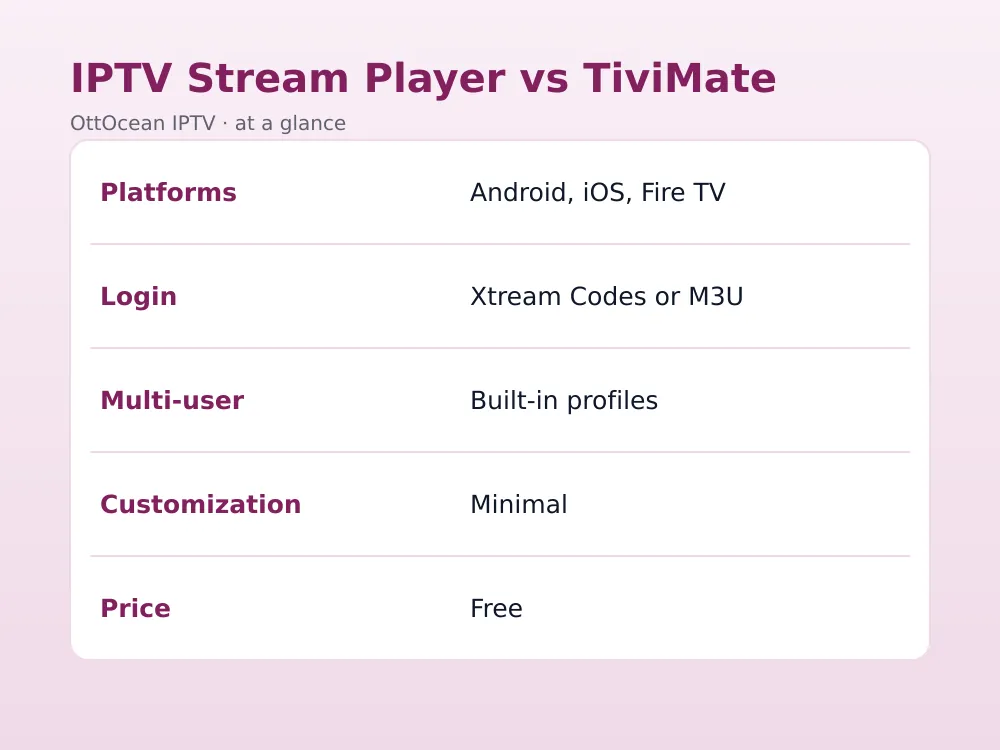
Coverage spans the devices most OttOcean subscribers actually own:
- Android — phones, tablets, Android TV boxes and Google TV devices via the Play Store.
- iOS/iPadOS — iPhone and iPad via the App Store, a genuine advantage since many IPTV players skip Apple entirely.
- Fire TV/Firestick — available directly through the Amazon Appstore, no sideloading required.
This spread matters for mixed households — one member on an iPhone, another on a Firestick, a third on an Android tablet — since everyone can run the same app with the same login rather than juggling three different clients. See our iPhone and iPad IPTV setup guide for Apple-specific tips.
Older devices deserve a quick mention too. The app runs acceptably on Android phones from around 2019 onward and on any Fire TV Stick model from the past several years, though very old hardware may show slower channel switching regardless of which player you choose. If your device already struggles with other streaming apps, upgrading the hardware will help more than switching media players.
Tablets deserve a specific note as well. On a larger screen, the same interface that feels clean on a phone gets noticeably more comfortable to browse, with more channel logos visible at once and less scrolling needed to find something specific. If your household has an older tablet sitting unused in a drawer, it makes a surprisingly good dedicated second screen for casual viewing, especially for kids’ channels or background news during the day when the main television is busy with something else.
Installing IPTV Stream Player on Android, iOS and Fire TV
On Android:
- Open the Google Play Store and search “IPTV Stream Player”.
- Install the app and open it.
- Accept any initial permission prompts (usually just storage, for caching).
On iPhone or iPad:
- Open the App Store and search “IPTV Stream Player”.
- Tap Get to install, then open the app.
- Allow notifications if prompted (optional, for update alerts).
On Fire TV/Firestick, install directly from the Amazon Appstore search — no Downloader or sideloading needed, which is a genuine convenience compared with apps like TiviMate or Televizo. Search for the app by name from the home screen, select Get, and launch once installed.
IPTV Stream Player Xtream Codes Login Setup
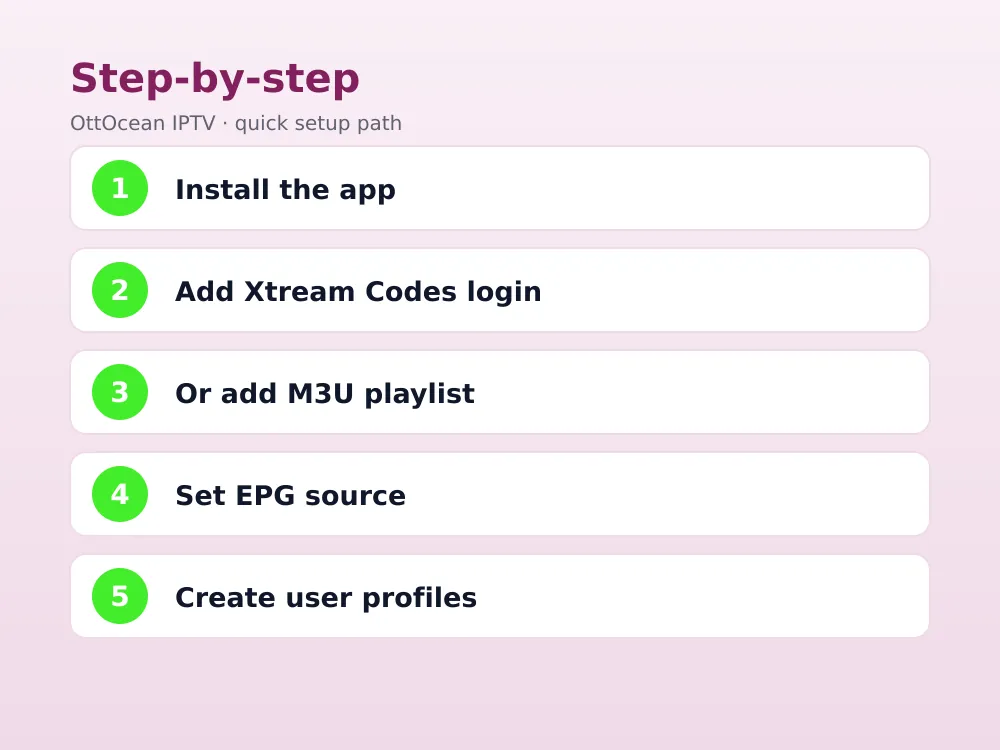
Xtream Codes API is the recommended login method for OttOcean subscribers, since it keeps your VOD, catch-up and EPG properly linked. Completing this login process takes about a minute:
- On first launch, select “Add Playlist” then choose “Xtream Codes API”.
- Enter the server URL exactly as sent, including the port number.
- Enter your username and password from the OttOcean welcome email.
- Tap Connect. The app downloads channels, VOD and EPG data automatically.
If this login step fails, the most common cause is a typo in the server URL or a missing port — double-check both before assuming your subscription is inactive. Our authorization troubleshooting guide covers the rest of the likely causes.
Adding an M3U Playlist for Firestick and Other Devices
If you prefer M3U over Xtream Codes, or your provider only issues playlist links, the process for using a playlist link on Firestick and other devices is nearly identical:
- Select “Add Playlist” then choose “M3U URL” instead of Xtream Codes API.
- Paste the full M3U link, including any authentication tokens at the end.
- Name the playlist and save; channels populate within a minute or two.
- Repeat on each device — the app does not sync playlists across devices automatically, so add the same login on every phone, tablet or Fire TV you use.
This playlist method works identically to the Android and iOS versions since the app shares the same core across platforms — a genuine advantage over apps that behave differently depending on the device.
EPG and Favorites in IPTV Stream Player
EPG data usually loads automatically with an Xtream Codes login, pulling program titles and times directly from your provider’s feed. If it does not appear, or you are running M3U:
- Open Settings and find the EPG or TV Guide section.
- Enter the XMLTV URL supplied by OttOcean support.
- Save and allow a few minutes for the guide to build.
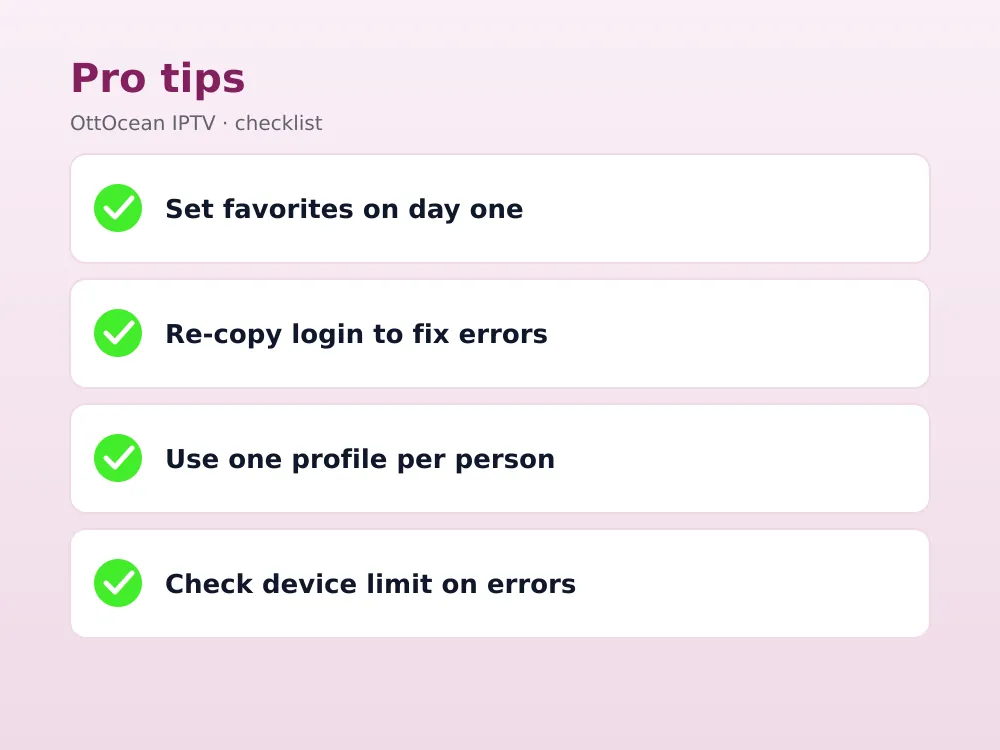
Favorites work simply: long-press or tap the star icon next to any channel to pin it to a Favorites row at the top of the guide. This is worth setting up on day one — with 25,000+ channels available, favorites turn an overwhelming list into the handful of channels your household actually watches daily.
A less obvious benefit of building out favorites early is search speed. Once your most-watched channels sit in a dedicated row, you rarely need to scroll or search the full guide at all during normal viewing, which matters more than it sounds once you are used to a lineup this size. Spend the first evening curating rather than watching, and every session after that gets noticeably faster.
Multi-User Profiles in IPTV Stream Player
One feature that sets this app apart from simpler competitors is built-in multi-user support. Each profile keeps its own favorites and recently watched list, without needing separate logins or separate app installs:
- Go to Settings > Profiles > Add Profile.
- Name the profile (for example, a household member’s name).
- Switch between profiles from the main menu — the channel list and login stay shared, but favorites stay personal.
This is particularly useful on a shared living-room device where different family members have different favorite channels but do not want to manage separate logins or apps.
It also solves a smaller but real annoyance: without separate profiles, one person’s favorites list can end up cluttered with channels someone else pinned, defeating the whole point of curating a shortlist. Setting up individual profiles the first week a household starts using the app avoids that mess entirely rather than trying to untangle it months later.
Fixing IPTV App Login Error Messages
A login error almost always falls into one of a few categories. “Invalid credentials” means the username, password or server URL has a typo — re-copy them fresh rather than retyping by hand. “Connection timeout” usually points to a network issue on your end; try switching from Wi-Fi to mobile data briefly to confirm, or check whether a VPN is interfering with the connection.
“Max connections reached” means your subscription’s device limit is already in use elsewhere — log out of an unused device or upgrade to a multi-device plan. This happens more often than people expect, especially after reinstalling the app or switching phones without properly logging out of the old device first, since the old session can stay counted as active for a short period. A persistent error after checking all of the above usually means the subscription itself needs attention; contact OttOcean support via WhatsApp or email rather than continuing to retry the same login.
A quieter but common mistake is typing credentials manually instead of copying and pasting them. Passwords with mixed case, numbers and special characters are easy to mistype on a TV remote’s on-screen keyboard, so whenever possible, email the login details to yourself and copy them directly on the device rather than retyping from memory or a photo of the welcome email.
Time zone mismatches occasionally cause a related but different symptom: the app logs in fine but the EPG shows programs at the wrong times. This is a display setting rather than a login problem — check your device’s system time zone matches your actual location, since some Android TV boxes default to UTC out of the box.
Router-level issues are worth a mention too, even though they show up rarely. Some home routers apply aggressive firewall or parental-control rules that block streaming ports without any obvious error message, leaving the app stuck loading indefinitely rather than showing a clear failure. If every other troubleshooting step comes up empty, temporarily testing on mobile data rules the router out as the culprit within a minute. Once confirmed, checking your router’s firewall or content-filtering settings for anything blocking outbound streaming ports usually resolves it without needing to contact your internet provider.
| Error | Likely cause | Fix |
|---|---|---|
| Invalid credentials | Typo in login details | Re-copy username, password, server URL exactly |
| Connection timeout | Network or VPN interference | Switch network, disable VPN temporarily |
| Max connections reached | Device limit exceeded | Log out unused device or upgrade plan |
| Blank EPG | Missing or wrong XMLTV URL | Re-enter EPG URL, force refresh |
| App won’t load channels | Expired or inactive subscription | Check subscription status, contact support |
IPTV Stream Player Alternatives
If you want deeper customization, TiviMate and Televizo offer more settings and a multi-view mosaic mode. Perfect Player suits users who prefer manual control over decoding and group mapping. IPTV Smarters Pro is another cross-platform option with a similarly simple workflow. None of these are strictly better — the cross-platform reach and multi-user profiles here remain genuine advantages worth weighing against the extra features competitors offer.
The honest way to decide is to try more than one during your provider’s free trial period. Since OttOcean’s trial does not require a credit card, there is no real cost to loading the same login into two or three apps over a few days and seeing which interface feels most natural on the devices your household actually uses day to day.
Pay attention to small details during that comparison rather than just the headline features. How quickly does each app resume from standby? Does the guide remember your scroll position after watching a channel? Do favorites survive an app update? These are the things that determine whether an app feels pleasant six months in, long after the initial setup excitement has worn off.
It also helps to involve whoever in the household will actually use the app most, rather than choosing entirely on your own. A guide layout that feels intuitive to one person can feel cluttered to another, and the fastest way to end up reinstalling a different app a month later is picking one nobody but you actually likes using, only to find the rest of the household quietly going back to the remote for the old cable box instead.
Cost is rarely the deciding factor between these options since almost all of them are free at the core level, with only an optional premium purchase on some competitors adding a few dollars for extra features. The real differences are in workflow, platform coverage and how much manual configuration you are willing to do.
Key takeaways
- This app supports Android, iOS/iPadOS and Fire TV natively, with no sideloading required on any platform.
- Both Xtream Codes API and M3U logins are supported, matching exactly what OttOcean provides on activation.
- Multi-user profiles let household members keep separate favorites on one shared device and login.
- Favorites are worth setting up immediately given how large a 25,000+ channel lineup can feel unsorted.
- Most login errors trace back to typos, network issues or device limits rather than app bugs.
- TiviMate, Televizo and IPTV Smarters Pro are the main alternatives if you want deeper customization.
FAQ: IPTV Stream Player
Is IPTV Stream Player free?
Yes, the app is free to download and use on Android, iOS and Fire TV, with no premium tier or in-app purchase required for core features like EPG, favorites and multi-user profiles. It relies entirely on your IPTV subscription for content.
Does IPTV Stream Player work on iPhone?
Yes, a native iOS/iPadOS version is available on the App Store, which is a genuine advantage since many popular IPTV players like TiviMate are Android-only. Installation and login work the same way as on Android, using either Xtream Codes or M3U credentials.
Why does my IPTV Stream Player show a login error?
Check the exact wording of the error first. “Invalid credentials” usually means a typo in your login details; “connection timeout” points to a network issue; “max connections reached” means your device limit is already in use. Re-copy your login fresh from your OttOcean account before contacting support.
Can I use an M3U playlist for Firestick with this app?
Yes. Select “Add Playlist” then “M3U URL” on the Fire TV version, exactly as on Android and iOS. The app shares the same core across platforms, so this playlist method behaves identically to the mobile versions.
How do multi-user profiles work in IPTV Stream Player?
Each profile keeps its own favorites and recently watched list while sharing the same login and channel lineup. Set up profiles under Settings > Profiles, then switch between them from the main menu — useful for households where different people watch different channels regularly.
Is IPTV Stream Player safe and legal to use?
The app itself is a media player with no bearing on legality — it plays whatever stream your login points to. Responsibility for the content accessed rests with the subscription provider and the user, so choose a legitimate paid IPTV service rather than an unofficial free source.
Getting Started with IPTV Stream Player and OttOcean
IPTV Stream Player earns its place by doing the basics well across every major platform, without demanding a learning curve to get channels playing. The xtream codes login setup takes about a minute, multi-user profiles suit shared households, and the app’s simplicity means fewer things to configure wrong in the first place. OttOcean IPTV supplies both login formats on signup, with 24/7 WhatsApp and email support if you hit an iptv app login error this guide does not cover.
Start with the 5-day free trial, no credit card required, load your credentials into IPTV Stream Player on whichever device you use most, and see how the guide and favorites feel before committing. When ready, compare device counts and terms on the OttOcean plans page.
For background on how the Xtream Codes API structure works under the hood, the Wikipedia overview of IPTV is a useful starting reference.