
Last updated: October 6, 2026
IPTV on Android phone viewing has become a genuine alternative to carrying a tablet or laptop for live sports and news, since modern phone screens and mobile data speeds finally make it watchable on the go. We tested six of the most popular Android IPTV apps to find which ones are worth installing in 2026.
On this page
- What You Need for IPTV on Android Phone
- The 6 Best Apps for IPTV on Android Phone
- IPTV Smarters Pro: Setup Walkthrough
- XCIPTV: Setup and Features
- GSE IPTV and Televizo: Lightweight Alternatives
- OTT Navigator: Advanced Customization
- TiviMate on Android Tablets
- Casting IPTV from Android Phone to TV
- Mobile Data Usage, Battery, and Picture-in-Picture Tips
- Setting Up IPTV on Android Phone Over Cellular vs Wi-Fi
- Key Takeaways
- FAQ: IPTV on Android Phone
- Start Watching IPTV on Android Phone Today
What You Need for IPTV on Android Phone
Any Android phone running Android 8.0 or newer handles modern IPTV apps without issue, and most phones sold in the last five years clear that bar easily. You will need your provider’s Xtream Codes login (server, username, password) or an M3U playlist URL, plus a data or Wi-Fi connection rated for at least 5-8 Mbps for smooth HD playback on a phone-sized screen.
Screen size matters less than you would think, since even a 4K channel downscales cleanly to a 6-inch display. What matters more is battery: continuous video streaming is one of the more demanding tasks a phone does, so keep a charger handy for anything beyond a quick channel check. A phone holder or car mount helps if you plan to watch iptv app android sessions hands-free.
Storage space is a minor concern too: every app on this list installs in under 50MB, leaving plenty of room even on budget phones with limited internal storage. None of them download or cache full episodes locally by default, since IPTV streams live rather than storing files on your device, so your phone’s storage stays free regardless of how many channels or how many hours you watch.
- Android 8.0 or newer (most phones from 2019 onward qualify)
- Xtream Codes API login or M3U playlist URL from your provider
- 5-8 Mbps data or Wi-Fi connection for stable HD playback
- A charger or power bank for extended viewing sessions
The 6 Best Apps for IPTV on Android Phone
We installed and tested six apps across a mid-range and a flagship Android phone, checking install size, login flow, EPG quality, and how each handled a phone-sized portrait screen versus rotating to landscape for playback. All six are free downloads, with the paid tier, if any, adding extra themes or multi-screen viewing rather than gating core playback. Every app in this roundup accepts the same iptv app android login formats, so trying two or three apps before settling on a favorite costs nothing but a few extra minutes of setup time.
| App | Best For | EPG | Install Size |
|---|---|---|---|
| IPTV Smarters Pro | Beginners, clearest UI | Yes | ~40MB |
| XCIPTV | Catch-up and recording | Yes | ~35MB |
| GSE IPTV | Low-data, lightweight | Basic | ~20MB |
| Televizo | Simple channel switching | Basic | ~15MB |
| OTT Navigator | Power-user customization | Yes | ~30MB |
| TiviMate | Tablets, big-screen feel | Yes | ~45MB |
IPTV Smarters Pro: Setup Walkthrough
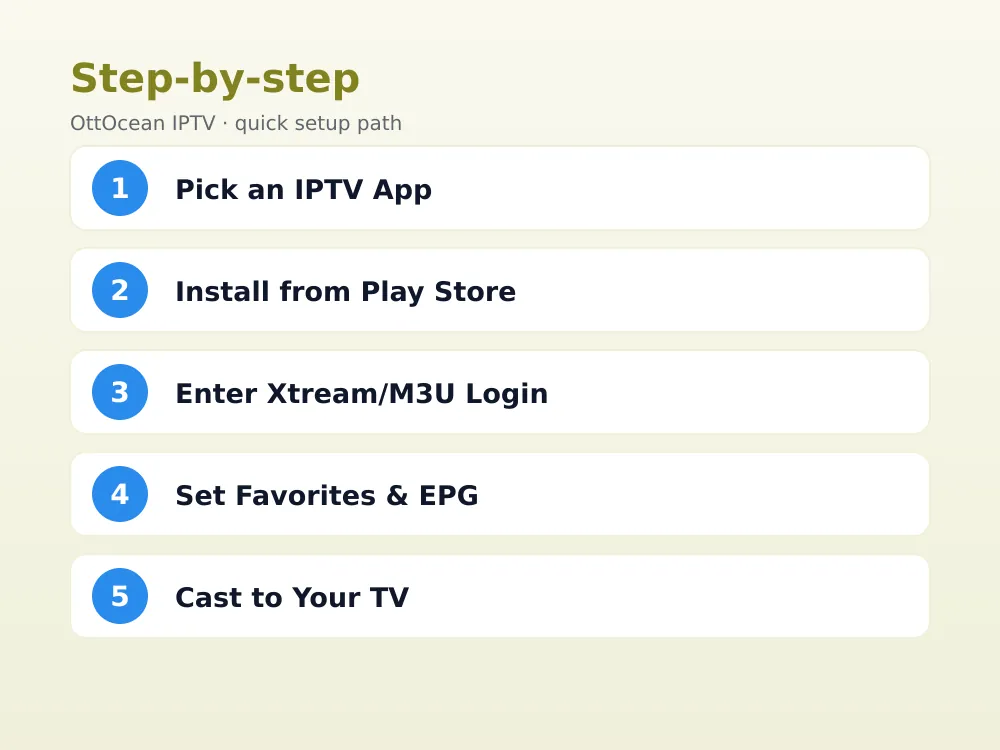
IPTV Smarters Pro remains the most widely recommended iptv app android choice because its login screen clearly separates the Xtream Codes API fields from the M3U URL option, avoiding the confusion beginners often hit with less guided apps. Download it from the Play Store, open it, and choose “Login with Xtream Codes API” or “Load your playlist or file URL / M3U.”
Enter your server address, username, and password exactly as your provider supplied them, then tap Add User. The app pulls your full channel list, VOD library, and EPG data within a minute or two on a decent connection. Favorites, parental controls, and a built-in EPG grid are all included at no extra cost.
XCIPTV: Setup and Features
XCIPTV matches IPTV Smarters Pro closely on core functionality but adds catch-up TV and cloud recording support on providers that offer it, which not every app surfaces cleanly. The xciptv android setup process mirrors Smarters: install from the Play Store, choose Xtream Codes login or M3U URL, enter your credentials, and let the channel list populate.
Where XCIPTV pulls ahead is its multi-screen mode on larger phones, letting you watch two channels in a split view, and its slightly more detailed channel information panel showing bitrate and resolution per stream. It is a close second choice to Smarters Pro and a fine primary app on its own.
GSE IPTV and Televizo: Lightweight Alternatives
GSE IPTV strips things down to a fast, low-overhead player that starts up quickly and uses less battery than the heavier apps in this list, making it a good pick if your phone is older or you mainly want quick channel checks rather than long viewing sessions. Its EPG support is more basic, showing current and next program but less of the deeper grid view competitors offer.
Televizo goes even further toward minimalism, with an interface built around fast channel switching and swipe gestures rather than a heavy guide. Both apps accept standard Xtream Codes and M3U logins the same way as the larger apps, so functionality is not sacrificed, just visual polish and some of the extra features.
We would recommend GSE IPTV or Televizo specifically for an older phone with 2-3GB of RAM, where the heavier apps can occasionally stutter during channel switching. On a modern phone with 6GB or more, the performance gap between any of the six apps tested here is small enough that personal preference on layout matters more than raw speed.
OTT Navigator: Advanced Customization
OTT Navigator is the deepest customization option here, with adjustable channel list layouts, multiple EPG source support, and detailed playback settings most casual viewers will never touch. It rewards the time investment if you want fine control over buffering behavior, subtitle handling, or how channel groups are organized, but it is a steeper learning curve for a first IPTV on Android phone app.
The free version carries occasional ads and limits some features behind a one-time purchase, which is worth it if you settle on OTT Navigator as your long-term app. For a first-time setup, we would still point beginners toward IPTV Smarters Pro or XCIPTV and consider OTT Navigator once you know exactly what you want tuned. Its login screen supports the same Xtream Codes and M3U formats as every other app here, so nothing about your provider credentials changes if you switch to it later.
TiviMate on Android Tablets
TiviMate is technically an Android TV app, but it installs and runs on Android tablets and even some larger phones through the Play Store or a sideloaded APK. Its channel guide is widely considered the best-looking EPG layout of any Android IPTV app, with a true grid view resembling a cable box guide rather than a simple list.
On a phone-sized screen, TiviMate’s interface feels cramped since it was designed for a 10-foot TV experience, so we recommend it mainly for tablets 8 inches or larger. If you split viewing between a tablet and a phone, running TiviMate on the tablet and IPTV Smarters Pro or XCIPTV on the phone covers both screen sizes well.
Casting IPTV from Android Phone to TV
Most of these apps support casting through Google Cast built into Android, letting you tap a cast icon and send the current channel to any Chromecast-enabled TV or streaming device on the same Wi-Fi network. This is the easiest way to cast iptv to tv without buying a separate streaming stick if your television already supports Chromecast or Android TV.
Screen mirroring is the fallback if an app lacks a dedicated cast button: Android’s built-in “Cast” quick-settings toggle mirrors your entire phone screen, audio included, to any Chromecast or Miracast-compatible display. Mirroring uses more battery and can introduce a slight lag compared to a native cast button, so use the in-app cast option when it is available.
To cast iptv to tv reliably, make sure both devices sit on the same Wi-Fi band; some routers separate 2.4GHz and 5GHz networks under different names, and a phone on one band cannot always discover a Chromecast on the other. If casting fails to find your TV, double-check both devices show the same network name in their Wi-Fi settings before troubleshooting further.
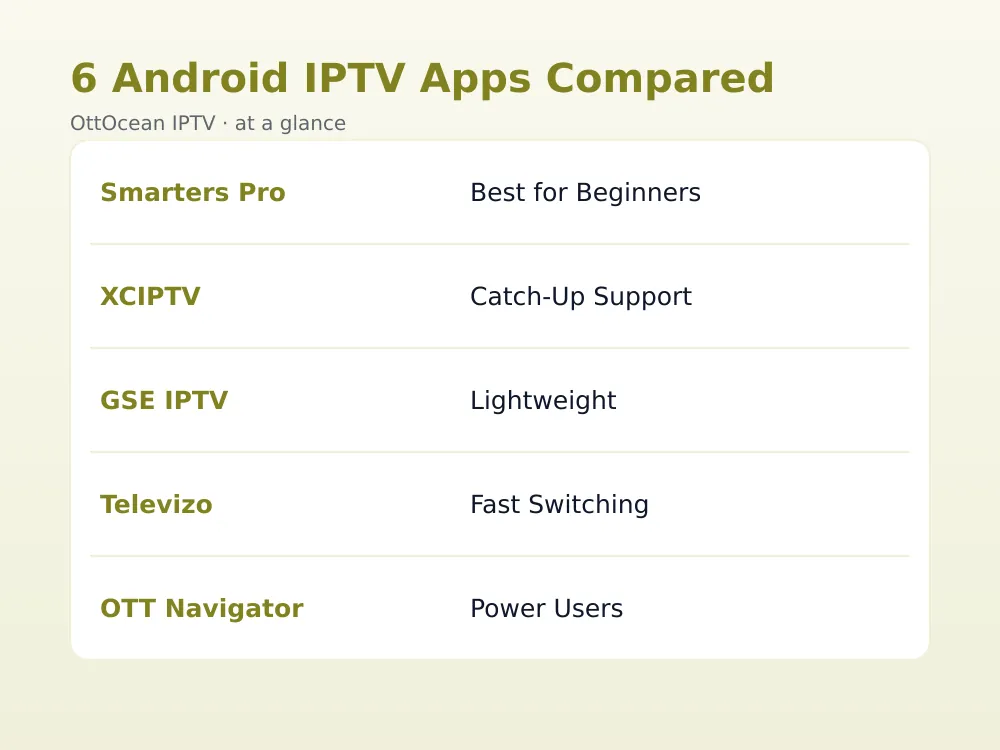
- Native cast button: lowest latency, least battery drain, available in most apps
- Screen mirroring: works with any app but uses more battery and adds lag
- Both require the phone and TV/streaming device on the same Wi-Fi network
Mobile Data Usage, Battery, and Picture-in-Picture Tips
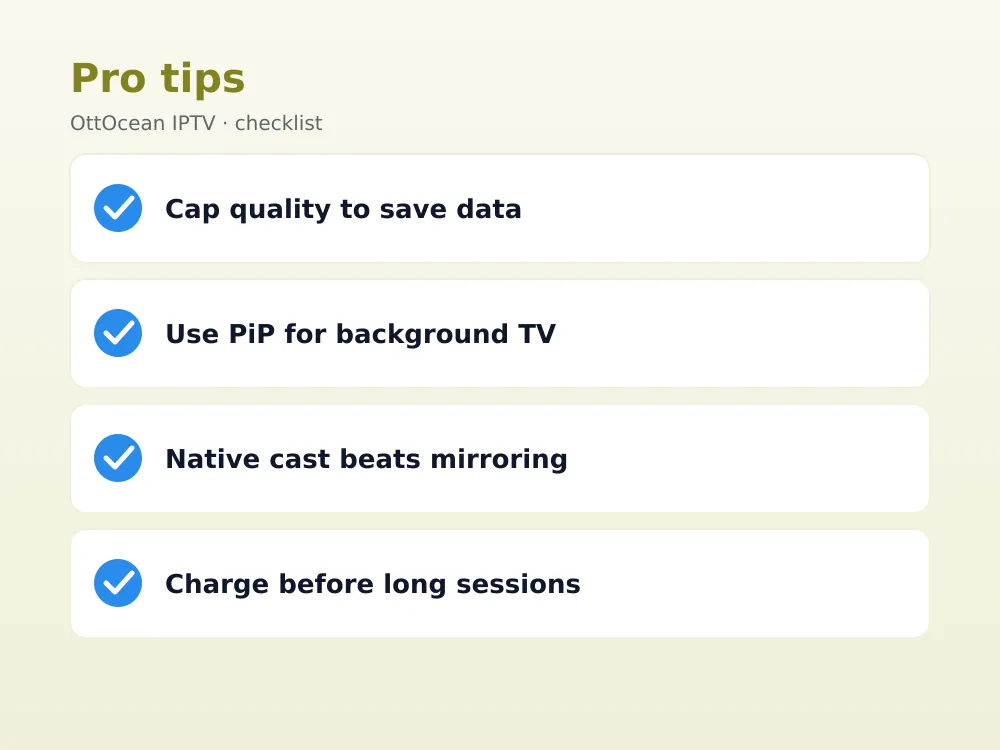
An HD IPTV stream on mobile data uses roughly 1-1.5GB per hour, and 4K channels can exceed 3GB per hour, so keep an eye on your data plan if you are not on Wi-Fi. Most apps let you cap the stream quality manually in settings, which is worth doing before a long commute if your plan has a hard data cap.
Picture-in-picture mode, supported by IPTV Smarters Pro, XCIPTV, and GSE IPTV, lets a channel keep playing in a small floating window while you use other apps, similar to how YouTube’s PiP works. This is one of the more underrated features for IPTV on Android phone use, since it turns a live channel into background viewing instead of an all-or-nothing screen.
For battery life, lower the screen brightness, close unused background apps, and expect roughly 3-4 hours of continuous streaming on a mid-range phone’s battery. A power bank is the practical fix for anything longer, since no app-level setting meaningfully extends playback time beyond what screen and radio usage already dictate. This is simply the reality of iptv app android streaming on battery power, not a flaw specific to any one app.
Setting Up IPTV on Android Phone Over Cellular vs Wi-Fi
All six apps behave identically whether you connect over Wi-Fi or your carrier’s cellular network, since the login process and playback engine do not care about the connection type. The practical difference is speed consistency: home Wi-Fi tends to hold a stable 20-50 Mbps, while cellular speeds swing widely depending on signal strength, carrier congestion, and whether you are on 5G or falling back to LTE.
For IPTV on Android phone use away from home, 5G networks comfortably handle even 4K channels, but a weak LTE signal in a basement or rural area may need you to drop to a lower quality setting inside the app to avoid constant buffering. Most apps auto-adjust bitrate to some degree, though manually capping quality to 720p on cellular is the more reliable fix when signal is marginal.
One more practical note: some carriers throttle video streaming specifically once you exceed a monthly data threshold, which shows up as sudden, unexplained buffering that has nothing to do with your IPTV app or provider. If a stream that worked fine yesterday suddenly buffers everywhere, check your carrier’s data usage app before assuming the channel or service is at fault. Switching to Wi-Fi, if it’s available, usually confirms within a minute whether the issue is your cellular plan or something on the provider’s side, which is a quick way to rule out your iptv app android setup as the cause.
Key Takeaways
- IPTV Smarters Pro and XCIPTV are the strongest all-round apps for IPTV on Android phone use
- GSE IPTV and Televizo trade features for speed and lower battery use
- OTT Navigator suits power users who want deep customization over ease of use
- TiviMate looks best but fits tablets better than phone-sized screens
- Casting via the in-app cast button beats screen mirroring for battery life and lag
- HD streaming uses roughly 1-1.5GB of data per hour on mobile networks
- Picture-in-picture mode lets a channel keep playing while you use other apps
FAQ: IPTV on Android Phone
What is the best free app for IPTV on Android phone?
IPTV Smarters Pro is the best starting point for most people, with a clear login screen for both Xtream Codes and M3U formats, a built-in EPG, and no paywall on core playback features. XCIPTV is a close alternative with catch-up support if your provider offers recorded programming.
How much data does an iptv app android setup use per hour?
Expect roughly 1-1.5GB per hour for HD channels and up to 3GB per hour for 4K on mobile data. Most apps let you manually cap stream quality in settings, which is worth doing on a limited data plan or when you plan to watch for more than thirty minutes.
How do I complete an xciptv android setup with my Xtream login?
Install XCIPTV from the Play Store, open it, and select “Xtream Codes API” on the login screen. Enter the server address, username, and password exactly as provided, tap Add User, and the app downloads your channel list, VOD library, and EPG automatically within a minute or two.
Can I cast iptv to tv directly from my Android phone?
Yes, most IPTV apps include a native Google Cast button that sends the stream to any Chromecast-enabled TV or Android TV device on the same Wi-Fi network. If an app lacks a cast button, Android’s built-in screen mirroring feature works as a fallback for any Miracast or Chromecast display.
Does IPTV on Android phone drain the battery quickly?
Continuous streaming is demanding on any phone, typically delivering 3-4 hours of playback on a mid-range battery. Lowering screen brightness, closing background apps, and using picture-in-picture mode instead of full-screen playback all help stretch battery life during longer viewing sessions.
Which app has the best channel guide for IPTV on Android phone?
TiviMate has the most polished EPG grid visually, though it is built for larger screens like tablets. On a standard phone, IPTV Smarters Pro and OTT Navigator both offer solid, readable program guides that fit a smaller display better than TiviMate’s TV-oriented layout.
Is IPTV on Android phone legal to use?
IPTV itself is just a streaming delivery method, the same technology cable and satellite companies use internally. What matters is whether the channels a service provides are properly licensed. OttOcean IPTV is offered and described as a subscription streaming service, and you are responsible for how you use it under the laws where you live.
Do I need a VPN for an iptv app android setup?
A VPN is not required for any app covered here to function, but some users add one for general privacy on public Wi-Fi or to keep their connection encrypted while streaming. If you do use a VPN, pick a server close to your actual location to avoid unnecessary buffering from added latency.
Start Watching IPTV on Android Phone Today
Six solid apps cover every kind of Android phone user: IPTV Smarters Pro or XCIPTV for most people, GSE IPTV or Televizo if you want speed and low data use, and OTT Navigator or TiviMate (best on a tablet) if you want deep customization. All of them work with the same Xtream Codes or M3U login, so switching apps later costs nothing but a few minutes.
To try any of these apps with a real channel list, OttOcean IPTV offers a 5-day free trial with no credit card required. Full plan pricing across 1, 3, 6, and 12-month options is on the IPTV subscription plans page. If you also watch on an iPhone or iPad, see our iOS IPTV setup guide, and for more on watching away from home, see our on-the-go IPTV guide. For background on mobile data standards referenced above, see the Wikipedia entry on data caps.
Whichever app you land on, the setup itself takes less time than reading this guide: install, paste your login, and your channel list appears. IPTV on Android phone viewing has genuinely closed the gap with living-room streaming, and with picture-in-picture and one-tap casting built into most apps, your phone can double as either your primary screen or a remote control for the TV.


