
Last updated: October 7, 2026
IPTV on Chromebook is more workable in 2026 than most people assume, since ChromeOS quietly gained Android app support and a real Linux environment over the last several years. We tested all four practical routes on a mid-range Chromebook to see which ones actually hold up for daily live-TV viewing.
On this page
- What You Need for IPTV on Chromebook
- Way 1: Android IPTV Apps via Google Play Store
- Way 2: Web-Based Xtream Codes Players in Chrome
- Way 3: Linux (Crostini) and VLC on Chromebook
- Way 4: Casting IPTV on Chromebook to a TV
- School-Managed and Work Chromebook Limitations
- Which Method Is Best for Your Chromebook
- Troubleshooting Common IPTV on Chromebook Issues
- IPTV on Chromebook vs a Dedicated Streaming Device
- Key Takeaways
- FAQ: IPTV on Chromebook
- Watch IPTV on Chromebook Today
What You Need for IPTV on Chromebook
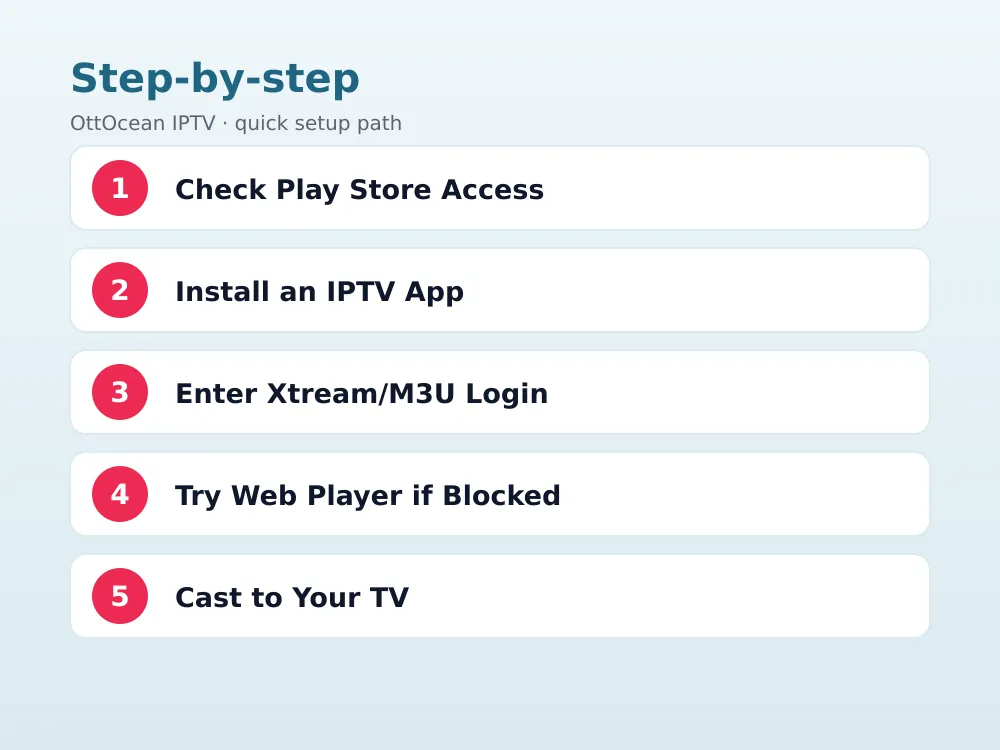
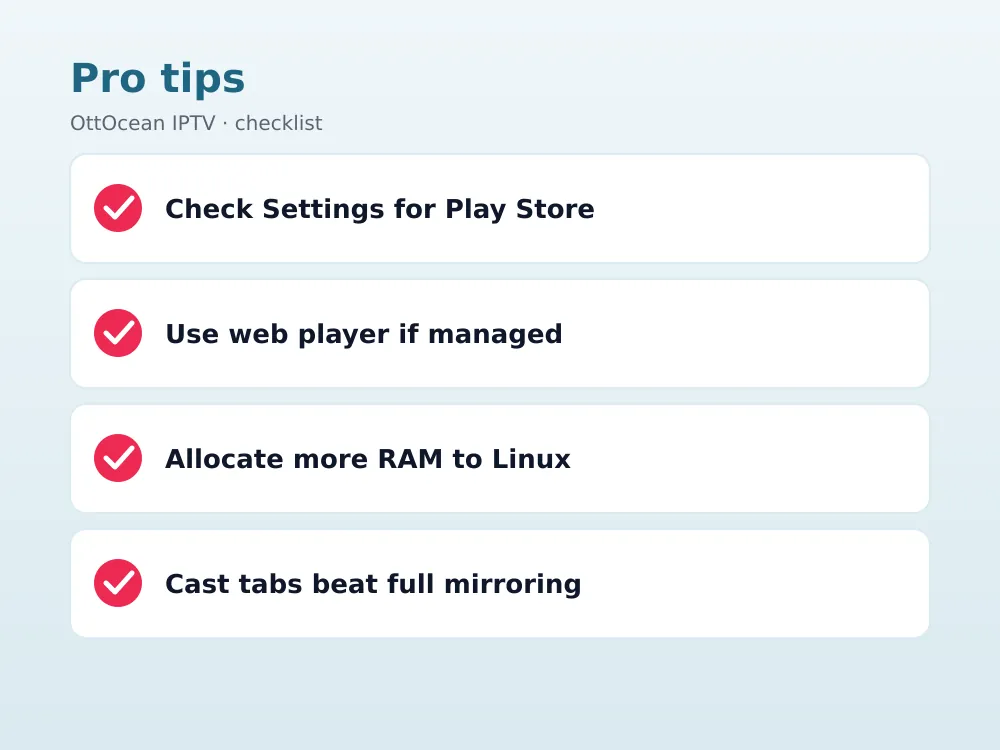
Most Chromebooks released since 2019 support Android apps through the Google Play Store, which is the single biggest factor in how easy your setup will be. Check under Settings > Apps to confirm Google Play Store is listed and enabled; if it is missing, your model may be too old or restricted by an administrator, in which case the web-player or Linux routes below become your main options.
You will also need your provider’s login details ready: either an Xtream Codes API login (server, username, password) or an M3U playlist URL. A Wi-Fi connection of at least 8-10 Mbps covers HD channels comfortably, while 4K needs closer to 25 Mbps. ChromeOS handles both connection types identically to any other Chrome-based device.
A quick legal note before you start: IPTV is simply a delivery method, the same as cable or satellite, and what matters is whether the channels a service streams are properly licensed. OttOcean IPTV is offered and described as a subscription streaming service, and you are responsible for how you use it under the laws that apply where you live.
- A Chromebook from 2019 or later with Google Play Store support (check Settings > Apps)
- Xtream Codes API login or M3U playlist URL from your provider
- Wi-Fi rated for 8-10 Mbps (HD) or 25 Mbps (4K)
- Roughly 100MB of free storage for an Android IPTV app, or none at all for web players
Way 1: Android IPTV Apps via Google Play Store
This is the simplest and most complete option for IPTV on Chromebook. Open the Play Store from your app shelf, search for “IPTV Smarters Pro,” “TiviMate,” “XCIPTV,” or “GSE IPTV,” and install exactly as you would on an Android phone or tablet. Every one of these chromebook iptv app options runs in a resizable window on ChromeOS rather than full screen only, which is handy for keeping an eye on a channel while working.
Once installed, open the app and choose Xtream Codes API login or M3U playlist URL, entering the credentials your provider supplied. The app pulls in your full channel list, VOD library if included, and EPG data within a minute or two, identical to the phone experience covered in our Android IPTV coverage elsewhere on the site.
Performance is generally strong since Chromebooks running Android apps use the same compatibility layer as Android tablets, and most ChromeOS devices from the last few years have enough RAM to run a single IPTV app smoothly alongside a browser tab or two. Lower-end Chromebooks with 4GB of RAM can slow down if you also have many browser tabs open simultaneously.
Window resizing is a genuine advantage a chromebook iptv app has over the same app on a phone: you can snap the player to half the screen and keep a browser or document open in the other half, something no phone or tablet interface offers. This split-screen habit is one of the more underrated reasons to prefer the Android app route on a Chromebook specifically.
Way 2: Web-Based Xtream Codes Players in Chrome
If Play Store access is unavailable, several browser-based Xtream Codes players run entirely inside Chrome with no installation at all. These chrome web iptv player tools accept your server address, username, and password directly on a web page, then stream channels through the browser’s built-in video player, similar to how a streaming service’s website works.
The tradeoff is fewer features: most web players lack a proper EPG grid, favorites syncing across devices, or catch-up support, focusing instead on straightforward live playback. For a managed or restricted Chromebook where installing apps is not possible, this remains a genuinely workable option rather than a last resort, since picture quality in the browser is not meaningfully different from a native app.
Way 3: Linux (Crostini) and VLC on Chromebook
Chromebooks with Linux support enabled (Settings > Advanced > Developers > Linux development environment) can install VLC through the same terminal commands used on Ubuntu, since Crostini runs a genuine Debian-based container. Open the Linux terminal and run sudo apt update && sudo apt install vlc, then launch VLC from your app shelf once installation finishes.
From there, linux vlc chromebook playback works exactly like desktop Linux: go to Media > Open Network Stream, paste your M3U URL or Xtream get.php link, and play. This route is the most technical of the four, best suited to Chromebooks with 4GB of RAM or more, since running a full Linux container alongside ChromeOS uses noticeably more memory than a lightweight Android app.
The benefit of this approach is control: VLC on Linux gives you the same fine-grained codec and subtitle options as a full desktop install, and it works even on Chromebooks where Android app support has been disabled by an administrator, since Crostini is a separate permission from Play Store access.
Way 4: Casting IPTV on Chromebook to a TV
Whichever method you use to watch on the Chromebook itself, casting the picture to a bigger screen is straightforward if your TV supports Chromecast or Google Cast. Click the Chrome menu, select “Cast,” and choose your TV from the list of available devices on the same Wi-Fi network. This mirrors either a browser tab (for web players) or the entire screen (for Android apps and VLC).
Casting a full Android app window tends to add slightly more lag than casting a single browser tab, since the whole screen is being mirrored rather than just one stream. For the smoothest big-screen experience, a web-based Xtream player cast as a single tab is often more responsive than mirroring the Android app’s window, though the difference is small on a fast Wi-Fi network.
If your TV has no built-in Chromecast support, an inexpensive standalone Chromecast or Chromecast with Google TV device solves that for a few dollars, plugging into any spare HDMI port the same way a Fire Stick does. Once paired to your Wi-Fi network, it shows up automatically in Chrome’s Cast menu the next time you look for a device to send your IPTV stream to.
School-Managed and Work Chromebook Limitations
If your Chromebook is managed by a school or employer, an administrator may have disabled the Play Store, Linux development environment, or even specific website categories, which limits which of the four methods above are actually available to you. Check Settings for a message indicating “This device is managed by your organization” as the first sign of these restrictions.
On a fully locked-down managed Chromebook, a web-based Xtream Codes player is often the only route left, and even that can be blocked if the administrator filters streaming sites specifically. There is no way around administrator-level restrictions without changing the device’s management policy, which is outside what any IPTV app or setup guide can fix. Use a personal, unmanaged Chromebook for the most reliable IPTV on Chromebook experience.
Which Method Is Best for Your Chromebook
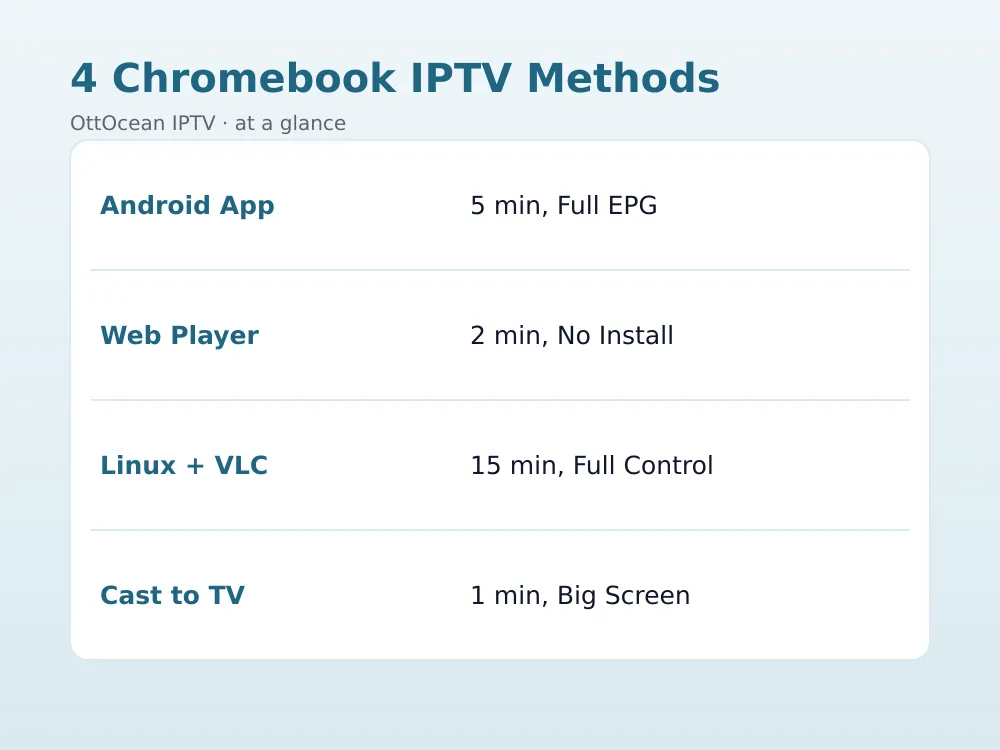
For most people with a personal, unmanaged Chromebook, the Android app route through Google Play Store is the clear winner: fastest setup, full EPG support, and a native app experience with resizable windows. Choose this first unless you have a specific reason not to.
| Method | Setup Time | EPG Support | Works on Managed Chromebooks |
|---|---|---|---|
| Android app (Play Store) | ~5 minutes | Yes | No, if Play Store blocked |
| Web-based Xtream player | ~2 minutes | Limited | Often yes |
| Linux (Crostini) + VLC | ~15 minutes | No | No, if Linux blocked |
| Cast to TV | ~1 minute | Depends on source | Yes, if casting allowed |
Troubleshooting Common IPTV on Chromebook Issues
If the Play Store is missing entirely, your Chromebook model may not support Android apps regardless of ChromeOS version; check your model against Google’s supported device list before assuming it is a settings problem. If an installed app crashes on launch, restart the Chromebook fully rather than just closing and reopening the app, since ChromeOS occasionally needs a clean restart after installing a new Android app.
For Linux/VLC setups, a blank or frozen player usually means the Linux container needs more allocated resources; check Settings > Linux > Manage disk size if VLC becomes sluggish. For web-based players, clearing Chrome’s cache (Settings > Privacy > Clear browsing data) resolves most cases where a previously working stream suddenly shows a blank page.
If casting to a TV drops out mid-stream, confirm both the Chromebook and TV remain on the same Wi-Fi band, since some routers split 2.4GHz and 5GHz into separate network names and a device on one band cannot always maintain a stable cast connection to a device on the other. Reconnecting to the correct network usually resolves the drop immediately.
For any of the four methods, a persistent blank channel list almost always traces back to a mistyped Xtream Codes password or an M3U URL copied with a trailing space. Retype the login manually rather than trusting a copy-paste from an email or chat app, since hidden formatting characters are a common, invisible cause of failed logins on IPTV on Chromebook setups specifically.
IPTV on Chromebook vs a Dedicated Streaming Device
A Chromebook is a genuinely good IPTV device for one main reason: you likely already own it, so there is no extra hardware cost beyond a subscription. Compared to buying a Fire TV Stick or Onn box specifically for live channels, watching IPTV on Chromebook costs nothing extra if the laptop is already sitting on your desk or coffee table.
Where a dedicated streaming device wins is convenience for the living room: a Fire Stick or Onn box lives permanently plugged into the TV with a simple remote, while a Chromebook is a shared, general-purpose device that someone might need for schoolwork or a video call at the exact moment you want to watch. For a primary living-room setup, a $25-35 streaming stick is usually the better long-term choice.
The two are not mutually exclusive. Many households use a chromebook iptv app for quick viewing at a desk or in bed, while a dedicated box handles the main TV. Since the same Xtream Codes login works across every device type, there is no extra cost or complexity in running IPTV on Chromebook alongside a streaming stick elsewhere in the house. Your subscription is not tied to a single screen, so switching between a chromebook iptv app and a living-room box during the same day costs nothing extra and needs no re-purchase.
Key Takeaways
- Android apps like IPTV Smarters Pro via Google Play Store are the easiest IPTV on Chromebook method
- Web-based Xtream Codes players work with zero installation and survive most administrator restrictions
- Linux (Crostini) with VLC gives full desktop-style control but needs 4GB+ RAM and more setup time
- Casting to a TV works through Chrome’s built-in Cast feature on any Chromecast-compatible display
- School and work Chromebooks may block Play Store or Linux, leaving web players as the only option
- 8-10 Mbps covers HD; budget 25 Mbps for smooth 4K on any of the four methods
- A personal, unmanaged Chromebook gives access to all four methods with no restrictions
FAQ: IPTV on Chromebook
Can every Chromebook run IPTV apps?
Not every model supports Android apps through Google Play Store; check Settings > Apps or Google’s official supported device list to confirm. If Android apps are unsupported or blocked, a web-based Xtream Codes player in Chrome works on virtually any Chromebook regardless of model or management restrictions.
What is the best chromebook iptv app in 2026?
IPTV Smarters Pro is the easiest starting point thanks to its clear Xtream Codes and M3U login screen, with TiviMate and XCIPTV as strong alternatives if you want a more detailed EPG or catch-up support. All three install identically through the Google Play Store on any Play Store-enabled Chromebook.
Does linux vlc chromebook playback need a powerful device?
Not a powerful one, but you do want at least 4GB of RAM, since running the Linux container alongside ChromeOS uses more memory than a native Android app. On Chromebooks with 8GB or more, VLC through Crostini runs smoothly even during simultaneous browser use.
Can I use IPTV on Chromebook if it’s managed by my school?
It depends on what your administrator has restricted. If Play Store and Linux are both disabled, a web-based Xtream Codes player in Chrome is often the last remaining option, and even that can be blocked if streaming sites are filtered. There is no workaround for administrator-level restrictions.
How do I cast IPTV on Chromebook to my television?
Click the Chrome menu icon, select “Cast,” and choose your TV from the device list, provided your TV supports Chromecast or Google Cast and sits on the same Wi-Fi network. This works for both browser tabs and, with slightly more lag, full Android app windows.
Is a chrome web iptv player as good as a native app?
Picture quality is essentially identical since both use the same underlying video stream. The difference is features: web players typically lack a full EPG grid, catch-up support, and synced favorites that native apps like IPTV Smarters Pro or TiviMate include.
Is IPTV on Chromebook better than a streaming stick for the living room?
For a permanent living-room setup, a dedicated $25-35 streaming stick like a Fire TV Stick is usually more convenient since it stays plugged in with its own remote. A Chromebook is better suited to desk or bedside viewing, or as a backup device when your main streaming box is unavailable.
Can I run two IPTV apps at once on a Chromebook?
Yes, ChromeOS supports running multiple Android app windows simultaneously, so you can have IPTV Smarters Pro and TiviMate open side by side, or an IPTV app next to a browser tab. Performance depends on your Chromebook’s RAM, with 8GB or more handling multitasking comfortably.
Watch IPTV on Chromebook Today
Four solid routes cover nearly every Chromebook: Android apps for the easiest full-featured setup, web-based Xtream players for zero-install or restricted devices, Linux and VLC for power users, and casting to send any of them to a bigger screen. Start with the Play Store route if your device supports it, and fall back to a web player if Play Store or Linux access is blocked.
To test any of these methods with a real login, OttOcean IPTV offers a 5-day free trial with no credit card required. Full pricing across all plan lengths is on the IPTV subscription plans page. For the Windows and Mac version of this setup, see our IPTV for PC guide, and for M3U-specific setup steps see our M3U playlist setup guide. For official background on Chromebook Linux support, see Google’s Crostini developer documentation.
None of these four methods require new hardware if you already own a Chromebook, which makes IPTV on Chromebook one of the cheapest ways to add live TV to a device you are already using daily for browsing, schoolwork, or general productivity. Pick the method that matches your specific device’s restrictions and you will be watching within minutes. Whether you go with an Android app, a chrome web iptv player, or the Linux route, the login details stay the same across all four.


