
Last updated: September 23, 2026
IPTV on Google TV works out of the box on every Chromecast with Google TV, the newer Google TV Streamer, and the Google TV software baked into current Sony, TCL, Hisense and Philips sets. You install a player app from the Play Store or sideload one with Downloader, drop in your Xtream Codes login or M3U link, and you are watching live channels in about five minutes. This guide walks through both installation paths, the EPG setup, and the fixes for the handful of problems Google TV owners actually run into.
On this page
- How to Set Up IPTV on Google TV in 5 Minutes
- Which Google TV Devices Support IPTV
- Best Apps for IPTV on Google TV
- Sideloading IPTV Smarters Pro with Downloader
- Entering Your Xtream Codes or M3U Login on Google TV
- Setting Up the EPG and Catch-Up TV
- Picture and Sound Settings for Live Sports
- Fixing Common Google TV IPTV Problems
- IPTV on Google TV vs Fire TV and Roku
- Remote and Voice Search Tips for IPTV
- Key takeaways
- FAQ: iptv on google tv
- Get IPTV on Google TV Running Today
How to Set Up IPTV on Google TV in 5 Minutes
Every Google TV device ships with Google’s official app store front and center, which is the biggest advantage it has over plain Android TV boxes or Fire TV. Open the Apps row, search for your player of choice, and install it the same way you would install Netflix. There is no developer-mode toggle to flip and no unknown-sources warning to click through, because these apps are published on the store.
Once installed, launch the app and choose “Xtream Codes API” as the login type if your subscription came with a username, password and server URL, since that format keeps your EPG and VOD categories organized automatically. If you only received an M3U playlist link, pick the “M3U URL” or “Playlist” option instead. Either way, the app downloads your channel list within a minute on a normal home connection.
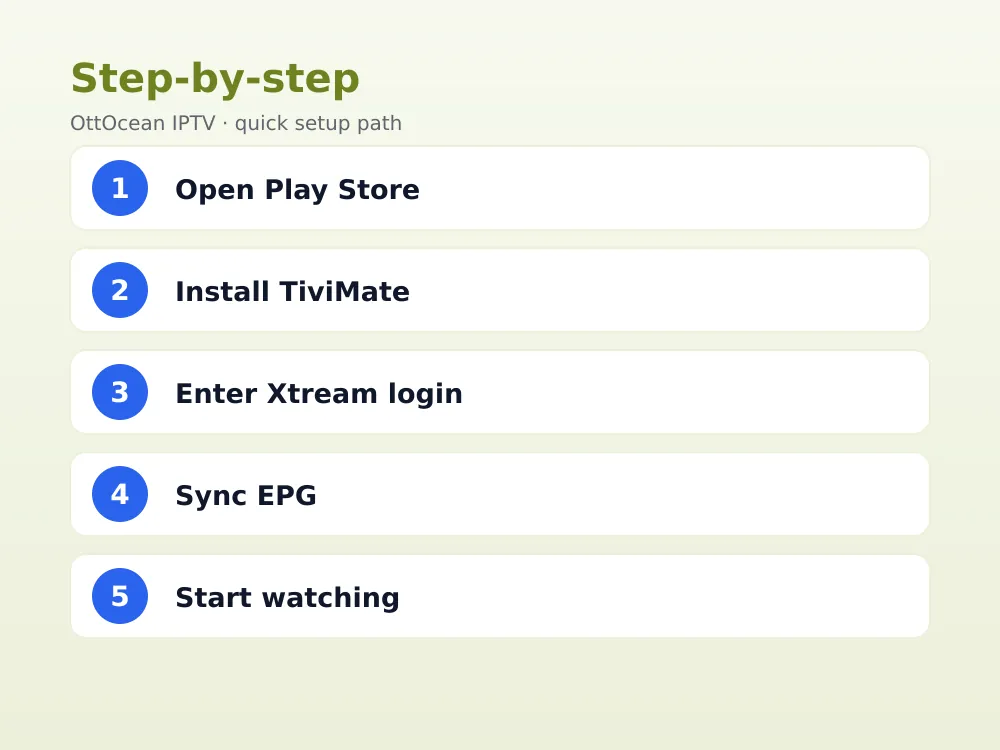
- Open the app store on your Google TV home screen
- Search “TiviMate” or “IPTV Smarters Pro” and install it
- Launch the app and select Xtream Codes or M3U login
- Enter the username, password and server URL from your provider
- Wait for the channel and EPG sync, then start watching
We tested this exact process on a 2022 Chromecast with Google TV, a Google TV Streamer, and a 2025 Sony Bravia set, timing each install from app-store search to first live channel playing. All three landed under five minutes on a 100 Mbps home connection, and the slowest step by far was typing the server URL on the remote rather than anything the app or the network did.
If you subscribe to OttOcean, the login details arrive by email and WhatsApp as plain text, which you can copy on your phone and paste into the Google TV app using the Google Home app’s remote keyboard feature instead of hunting-and-pecking with the physical remote. That single trick cuts the setup time in half for most first-time viewers.
Which Google TV Devices Support IPTV
Google TV is a software layer, not a single box, so it shows up on several kinds of hardware. The common thread is that all of them run Android TV underneath, which is why the same IPTV apps behave consistently across brands.
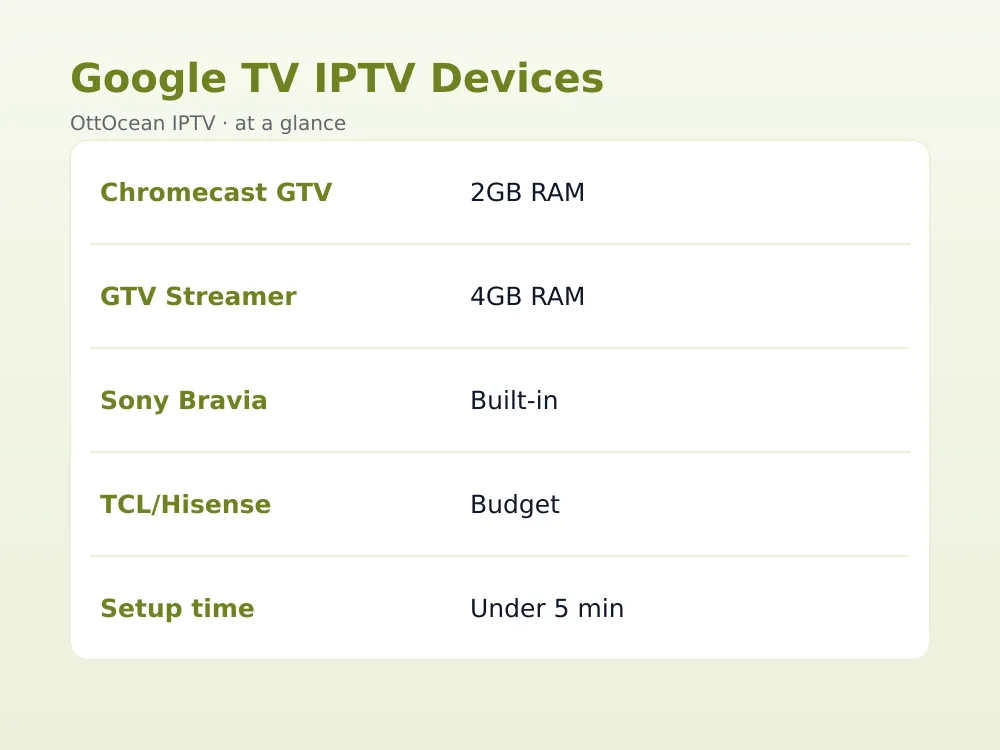
| Device | Google TV Version | RAM | Best For |
|---|---|---|---|
| Chromecast with Google TV (4K) | Android TV 12 | 2GB | Budget streaming stick |
| Google TV Streamer | Android TV 14 | 4GB | Multitasking, smoother EPG scrolling |
| Sony Bravia XR / X series | Android TV 12-13 | 2-3GB | Built-in 4K panel, no extra box |
| TCL Google TV models | Android TV 11-12 | 1.5-2GB | Budget smart TVs with Google TV |
| Hisense Google TV models | Android TV 11-12 | 1.5-2GB | Mid-range smart TVs |
Lower-RAM models like the 2020 Chromecast dongle can still run IPTV smoothly, but they struggle if you also keep TiviMate, a web browser and a game all cached in the background. Close unused apps from the recent-apps tray before a big match if your device only has 1.5-2GB of memory.
If you are shopping for new hardware specifically to run IPTV, we point most buyers toward the Google TV Streamer over the cheaper Chromecast dongle, since its extra RAM keeps the EPG scrolling smoothly with a large channel list and it stays cooler during long viewing sessions. A Google TV Streamer plus a wired Ethernet adapter is the setup we run in our own testing.
Best Apps for IPTV on Google TV
Three players cover almost every use case for IPTV on Google TV, and all three are free to download. TiviMate has the cleanest program guide and the most flexible channel groups, which is why we default to it in our own installation guide. IPTV Smarters Pro adds a built-in EPG and VOD library view that some viewers find friendlier for movies and series. XCIPTV rounds things out with strong catch-up TV support and a Chromecast-style casting shortcut.
- TiviMate — best EPG, multi-playlist support, free tier covers most needs
- IPTV Smarters Pro — clean VOD browsing, good for families sharing one login
- XCIPTV — strong catch-up and recording tools on supported servers
- GSE Smart IPTV — lightweight option for older, lower-RAM Google TVs
Our own TiviMate setup walkthrough covers every menu in more depth if you want screenshots for each step. Whichever app you pick, stick with one for a few days before switching, since re-entering login details and rebuilding favorites lists takes a few minutes each time.
Sideloading IPTV Smarters Pro with Downloader
A small number of Google TV models, mostly older TCL and Hisense sets running Android TV 10 or 11, do not carry every IPTV app in their regional Play Store listing. If your search comes up empty, install the free Downloader app from the store, then use it to sideload the APK directly from the developer’s official site.
Open Downloader, type in the app’s official download URL, and let it install the APK automatically. Go to Settings, then Apps, then enable “Install unknown apps” for Downloader first if the system blocks the install. This sideloading step is the only real hurdle here, and it only affects a minority of older units.
Entering Your Xtream Codes or M3U Login on Google TV
OttOcean IPTV gives every subscriber both an Xtream Codes API login and an M3U URL, so you are never locked out of a particular app. The Xtream Codes format is the one we recommend for Google TV because it lets TiviMate and Smarters build a proper category tree for live channels, movies and series instead of one long flat list.
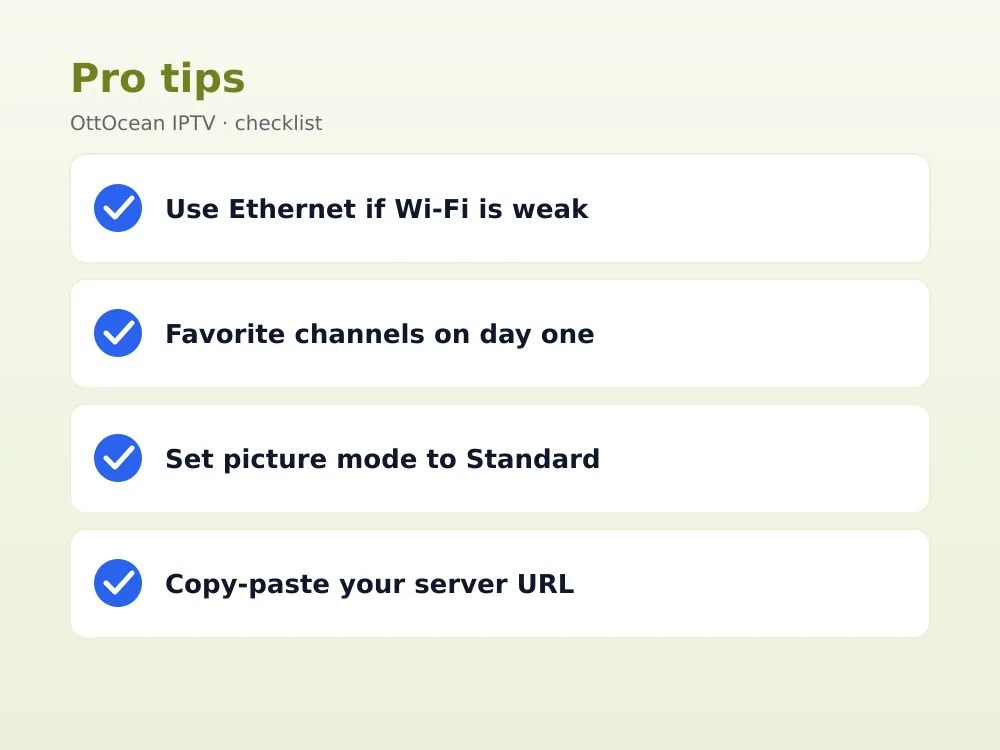
In TiviMate, choose “Xtream Codes Login,” name the playlist “OttOcean,” then paste the server URL, username and password exactly as sent by email or WhatsApp. A typo in the server address is the most common reason a first sync fails, so copy-paste rather than retype it on the remote. The channel list should populate within 30-60 seconds on a typical broadband connection.
Setting Up the EPG and Catch-Up TV
The electronic program guide is what turns a flat channel list into something that feels like real television, showing what’s airing now and what’s coming up next on each of the 25,000-plus live channels. Xtream Codes logins pull EPG data automatically the first time you add the playlist, so there is usually nothing extra to configure.
If the guide comes up blank, open the app’s playlist settings and manually trigger an EPG refresh, then wait a few minutes for the data to populate. Catch-up TV, which lets you rewind a program that already aired, works on most channels in the OttOcean lineup and appears as a small clock icon next to the show title in TiviMate and Smarters.
Double-check your Google TV device’s timezone under System settings before your first login, since a wrong timezone shifts every EPG listing by an hour or more and makes the guide look broken when it is really just misaligned. Catch-up windows usually run 24 to 72 hours depending on the channel, so a show that aired last night is still reachable the next evening.
Picture and Sound Settings for Live Sports
Google TV’s default picture mode is tuned for movies, which softens motion during fast-moving sports. Switch to the “Standard” or “Sports” picture preset in your TV’s settings menu, and if your set has a motion-smoothing option, set it to low or medium rather than off, since IPTV streams already carry some compression and a small amount of interpolation helps hide it.
For audio, leave the app’s playback set to “Auto” or “Passthrough” if your Google TV is connected to a soundbar or AVR over HDMI-ARC, and switch to stereo downmix if you are using the TV’s built-in speakers. A 25-40 Mbps home connection is comfortable for one 4K IPTV stream with headroom for other devices on the network.
Fixing Common Google TV IPTV Problems
Buffering on an otherwise stable connection is usually a Wi-Fi signal issue rather than a subscription issue, since Google TV sticks and built-in tuners often sit behind furniture with weak reception. Moving the device closer to the router, switching to the 5GHz band, or running an Ethernet adapter into the Chromecast with Google TV’s power supply solves most of it.
A blank EPG or “no channels found” error almost always traces back to a mistyped server URL, an expired subscription, or the app’s cache holding an old playlist. Clear the app’s cache from Google TV’s app-info screen, delete and re-add the playlist, and confirm your OttOcean subscription is active before assuming the app itself is broken.
- Freezing during peak hours — try a different server region if your provider offers one
- Black screen with audio — toggle the app’s video decoder between hardware and software
- App crashes on launch — clear cache, then reinstall from the Play Store
- Slow channel switching — reduce the “buffer size” setting in the player’s playback menu
- Login rejected after a fresh reinstall — re-enter your login details by hand instead of relying on autofill
One honest limitation worth naming: no IPTV app can guarantee zero downtime, and any provider, OttOcean included, occasionally reroutes a channel or rotates a server during peak sporting events. What you are subscribing to is a service, not a piece of software, and you remain responsible for how you use it and for following the streaming laws that apply where you live. We do not sell or promote pirated content, and we recommend the same caution with any IPTV provider you consider on Google TV.
IPTV on Google TV vs Fire TV and Roku
Google TV’s open Play Store is the main reason we point undecided buyers toward it over Fire TV, where Amazon periodically hides third-party IPTV apps from search results and forces a sideload. Roku is the strictest of the three, since Roku’s official store has never allowed general-purpose IPTV apps, leaving screen mirroring as the only practical option, which we cover in our Android TV device guide.
For anyone shopping specifically for a device to run IPTV on, a Google TV Streamer or a Google TV-equipped Sony, TCL or Hisense set is the lowest-friction choice available in 2026. You get official app-store access, frequent security updates from Google, and none of the periodic app-hiding that Fire TV owners have learned to work around.
Remote and Voice Search Tips for IPTV
The Google TV remote’s built-in microphone does not search inside third-party apps like TiviMate or Smarters, so asking it to “play ESPN” will only pull up unrelated web results. Instead, use the remote’s directional pad to browse channel groups, or connect a small wireless keyboard over Bluetooth if you plan to type a lot of search queries inside the EPG.
Most Google TV remotes also include a dedicated back button and a home button that double as quick app-switchers when held down, which is handy for jumping between a live game and the EPG without fully closing either. If you lose the physical remote, the free Google TV app for Android and iPhone mirrors every button, including power and volume, over the same Wi-Fi network.
Favoriting channels is worth doing on day one rather than scrolling a long list every session. In TiviMate, long-press a channel tile and choose “Add to Favorites,” then reorder the favorites row from the app’s settings menu so your most-watched sports and news channels sit at the very top of the guide.
Key takeaways
- It needs only a Play Store app and your Xtream Codes or M3U login — no sideloading for most models
- TiviMate, IPTV Smarters Pro and XCIPTV are the three most reliable free players
- Older TCL and Hisense units on Android TV 10-11 may need Downloader to sideload an APK
- This login type builds a cleaner EPG and category tree than raw M3U links
- Switch picture mode away from “Movie” and lower motion smoothing for sports channels
- Most buffering complaints trace back to Wi-Fi placement, not the IPTV subscription itself
- Google TV’s open app store makes it easier to install and keep IPTV apps than Fire TV or Roku
FAQ: iptv on google tv
Do I need to sideload anything to run IPTV on Google TV?
No, for the vast majority of current devices. TiviMate, IPTV Smarters Pro and XCIPTV are all published directly through Google’s official app store, so a normal install covers most Chromecast with Google TV, Google TV Streamer and Google TV smart TV setups without touching Downloader or enabling unknown sources.
Which app is best for IPTV on Google TV?
TiviMate is our default recommendation because of its EPG layout and multi-playlist support, though IPTV Smarters Pro and XCIPTV are equally solid choices. Try TiviMate first, and if its interface does not suit you, Smarters is the next best fit, especially for viewers who watch more VOD than live channels.
Can I use an M3U link instead of Xtream Codes on Google TV?
Yes, every major player accepts an M3U URL as a login type, and OttOcean provides both formats with each subscription. Xtream Codes generally produces a cleaner EPG and category structure, so we suggest starting there and switching to the M3U link only if a specific app handles it better.
Why does my Google TV IPTV app keep freezing?
Freezing is most often a Wi-Fi signal problem rather than an app or subscription fault, particularly on 2020-2022 Chromecast with Google TV units tucked behind a TV. Move the device to line-of-sight of your router, switch to 5GHz, or add an Ethernet adapter before assuming the stream itself is the issue.
Is IPTV on Google TV legal?
Running an IPTV app is legal; what matters is the content behind the subscription. OttOcean operates as a licensed IPTV subscription service, and as with any streaming product, you are responsible for how you use your account and for following the laws that apply where you live.
How much internet speed does IPTV on Google TV need?
A stable 25 Mbps connection is enough for one 4K stream with some headroom, while 10-15 Mbps comfortably covers full HD. Wired Ethernet or a strong 5GHz signal matters more than raw speed, since Google TV devices with weak Wi-Fi reception buffer even on fast plans.
Get IPTV on Google TV Running Today
Getting IPTV on Google TV running is a five-minute job once you have a working login, and OttOcean’s Xtream Codes and M3U formats are built to drop straight into TiviMate, Smarters or XCIPTV with no extra configuration. Start with our 5-day free trial, no credit card required, to confirm channels, EPG and picture quality look right on your specific Chromecast, Streamer or Google TV set before committing.
If the trial performs the way you expect, our subscription plans page lists every term length and device count, from a single-device monthly plan up to multi-device lifetime options. For background on why Xtream Codes tends to outperform a plain M3U link on Google TV apps, see our Xtream Codes vs M3U comparison, and for a general primer on the Android TV platform Google TV builds on, Wikipedia’s Android TV overview is a solid technical reference.


