
Last updated: October 10, 2026
IPTV on Emby turns your existing media server into a full live-TV hub, sitting right next to your movies and shows in the same library interface. Emby treats an IPTV playlist as a “Live TV” tuner source, the same concept it uses for an actual TV antenna, so once it’s configured your channels show up with proper guide data, channel logos, and recording options if you’re on Emby Premiere. Setup takes about ten minutes the first time.
On this page
- What Emby Live TV is and why use it for IPTV
- How to set up IPTV on Emby in 6 easy steps
- Adding your M3U or Xtream Codes tuner in Emby
- Setting up XMLTV for a real program guide
- Channel mapping: matching guide data to your channels
- Emby Premiere, DVR, and recording IPTV on Emby
- Transcoding settings that prevent buffering
- IPTV on Emby on Fire TV, Roku, and Apple TV
- Emby vs Plex vs Jellyfin for IPTV
- Troubleshooting common IPTV on Emby problems
- Key takeaways
- FAQ: IPTV on Emby
- Final thoughts on running IPTV on Emby

What Emby Live TV is and why use it for IPTV
Emby is a media server, not a standalone player — it runs on a computer or NAS in your home and streams your library out to apps on every device you own, transcoding on the fly when a device can’t play the original file directly. Its Live TV feature was originally built for HDHomeRun-style over-the-air tuners, but the underlying system accepts any M3U-format playlist as a valid tuner source, which is exactly what an IPTV subscription provides.
The advantage over a standalone IPTV app is integration: your live channels, recorded shows, and VOD movies all live in one Emby library, browsable from the same apps, with one login and one set of parental controls. The trade-off is setup complexity — Emby Server needs installing and running somewhere, which is more work than downloading a phone app.
Emby Server itself runs on Windows, macOS, Linux, and most NAS platforms including Synology and QNAP through official app-store packages, so you don’t need dedicated server hardware to get started — many households simply run it on the same PC they already use daily, or on a small always-on NAS they already own for file storage.
Docker is another common route, particularly for users already running other self-hosted services, since an official Emby Server container keeps the install isolated from the rest of the system and makes updates a single command rather than a manual download.
How to set up IPTV on Emby in 6 easy steps
These steps assume you already have Emby Server installed and running, either on a home PC, a NAS like Synology or QNAP, or a dedicated always-on machine.
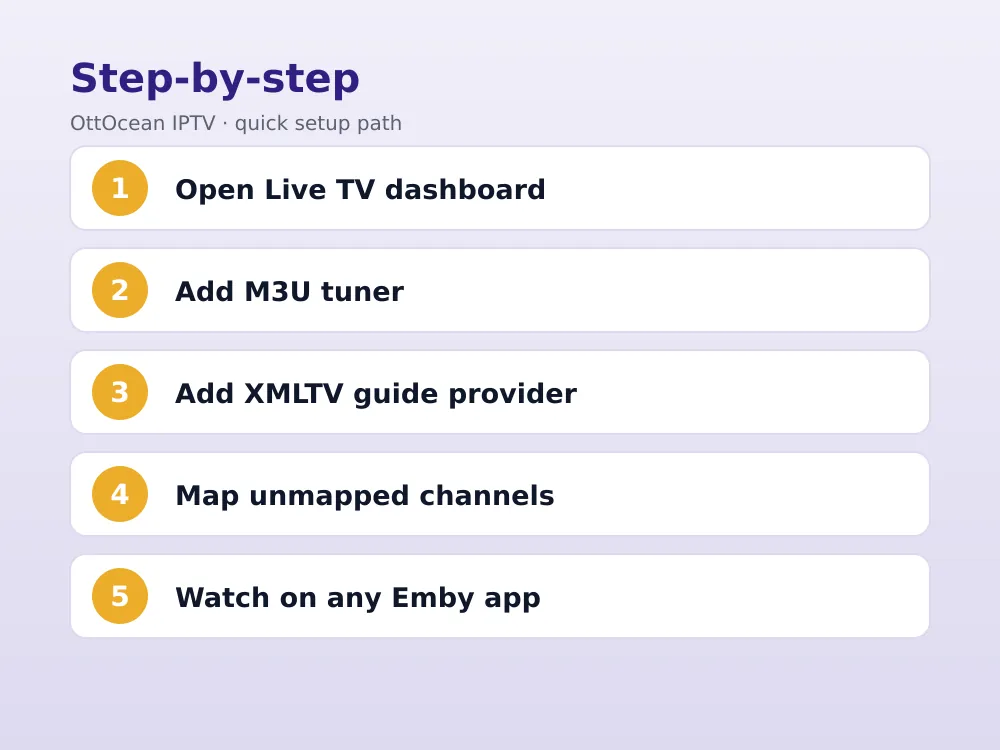
- Open Emby Server’s dashboard in a browser and go to Live TV in the left sidebar.
- Click “Add Tuner” and select M3U as the tuner type.
- Paste your playlist URL — your M3U link or Xtream Codes-generated M3U URL — into the File or URL field and save.
- Click “Add Guide Data Provider” and choose XMLTV, then paste your provider’s XMLTV guide URL.
- Let Emby scan and map channels, matching playlist entries to guide listings automatically where channel names align.
- Open any Emby app — web, mobile, or TV — and your channels now appear under the Live TV section with a full program grid.
If you’re an OttOcean subscriber, both the M3U playlist URL and the guide URL are in your activation email, formatted and ready to paste. New here? The 5-day free trial issues both within minutes, no credit card needed, so you can test this workflow before committing.
Adding your M3U or Xtream Codes tuner in Emby
Emby’s M3U tuner field accepts either a direct URL or an uploaded file, but the URL option is strongly preferred since it refreshes automatically whenever your provider updates the channel list. If you only have raw Xtream Codes credentials, build the playlist URL using the pattern http://server:port/get.php?username=USER&password=PASS&type=m3u_plus&output=ts before pasting it into the tuner field.
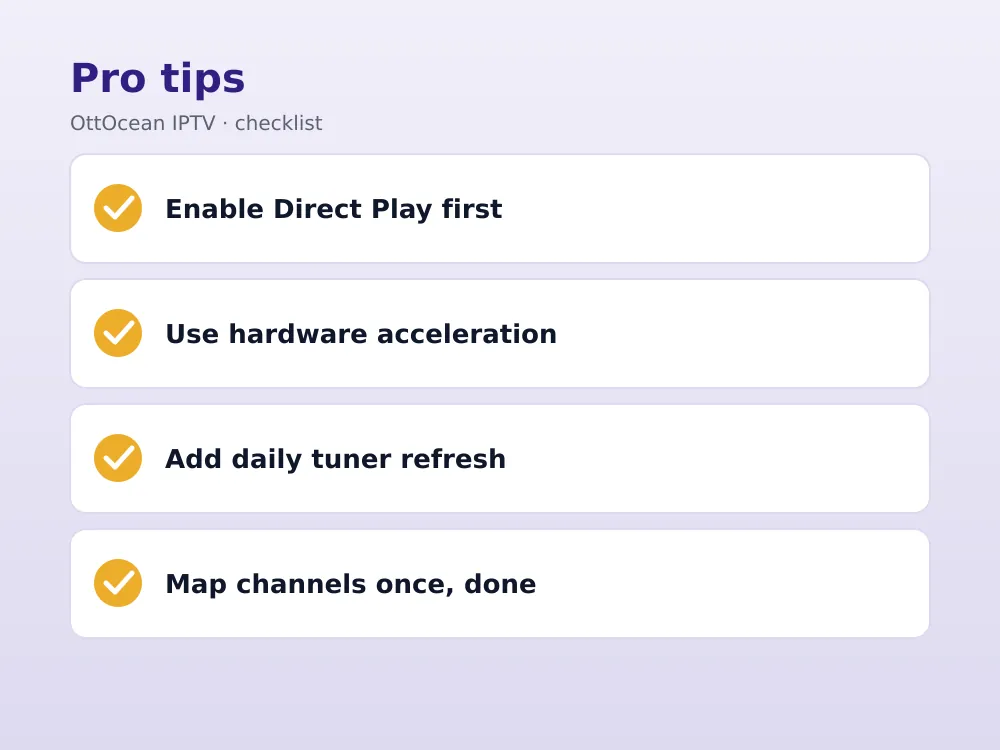
Emby also lets you set a refresh interval for the tuner under its advanced options — we recommend daily refreshes rather than hourly, since a full re-scan of a large channel list briefly interrupts Live TV playback for anyone watching at that moment.
You can add more than one tuner if you subscribe to multiple IPTV services or want to split a very large playlist into smaller, faster-loading groups. Emby merges channels from every active tuner into a single unified guide, so viewers browsing the Live TV section never see which tuner a given channel actually came from.
Setting up XMLTV for a real program guide
This is where Emby genuinely outperforms most standalone IPTV apps: a proper multi-day guide grid with show titles, descriptions, and start/end times, not just a “now playing” label. Add your provider’s XMLTV URL under Live TV → Guide Data Providers, and Emby pulls the full schedule on its own refresh cycle.
If channel names in your guide don’t line up with your playlist automatically, Emby’s mapping tool lets you manually pair a playlist channel with its correct guide entry — useful when a provider names a channel slightly differently between the M3U file and the XMLTV feed. Our EPG setup guide covers XMLTV formatting basics if you’re troubleshooting a guide that won’t populate at all.
How often does the guide data provider update?
Emby refreshes the guide data provider on its own schedule, typically once or twice daily by default, which is configurable under the same Live TV settings screen. Most XMLTV feeds themselves only update a handful of times per day on the provider’s end, so more frequent refreshing on Emby’s side rarely surfaces newer listings any faster.
Channel mapping: matching guide data to your channels
Even with a correctly added XMLTV source, some channels land as “unmapped” after the initial scan — Emby couldn’t confidently match the playlist entry’s name to a guide listing. Go to Live TV → Channels, filter by unmapped, and manually assign the correct guide entry to each one from a dropdown search.
This is usually a one-time cleanup job. Once mapped, Emby remembers the pairing across future guide refreshes unless your provider renames a channel outright, which would require re-mapping just that one entry.
Emby also lets you reorder channels manually and assign them to custom channel numbers, which matters if you’re used to a specific numbering scheme from cable or a previous IPTV app. This step is entirely optional — channels work fine in whatever default order Emby assigns from the playlist without any renumbering.
Emby Premiere, DVR, and recording IPTV on Emby
Emby’s free tier plays live channels with a full guide, but recording requires Emby Premiere, a paid subscription (roughly $5/month, $55/year, or a lifetime option as of 2026) that also enables mobile sync, cloud sync, and a few other extras beyond Live TV. Once active, a record icon appears on the guide grid for any program, plus series-recording rules if you want every new episode captured automatically.
Recordings save as standard video files inside your Emby library, playable and downloadable like any other content. Storage is the real constraint — a single HD recording of a two-hour movie can run 3-6 GB, so plan disk space accordingly if you record regularly.
Series recording rules also support padding — a few extra minutes before and after the scheduled slot — which helps when a live sports broadcast runs long, a common issue with IPTV feeds of games that don’t end on a fixed schedule. Set padding under the series rule’s advanced options rather than the one-off recording screen.
Transcoding settings that prevent buffering
Emby transcodes on the fly when a client device can’t play the incoming stream’s format directly, which costs CPU on the server. For Live TV specifically, go to Dashboard → Playback and check the “Live TV” transcoding options — allowing “Direct Play” whenever possible avoids unnecessary transcoding overhead entirely, since most IPTV streams are already in a widely compatible format.
- Hardware acceleration: under Dashboard → Playback, enable hardware acceleration (QuickSync, NVENC, or VAAPI depending on your server’s CPU/GPU) if transcoding is unavoidable — it’s dramatically lighter than software transcoding.
- Bandwidth limits: set a maximum streaming bitrate per device under each user’s playback settings if remote viewers on slower connections report buffering.
- Server hardware: a low-power NAS can struggle transcoding 4K IPTV streams; a dedicated mini-PC with hardware transcoding support handles it far more comfortably.
Direct Play vs transcoding: what actually happens
Direct Play means Emby sends the incoming IPTV stream straight to your client device unchanged, using almost no server CPU. Transcoding means Emby actively re-encodes the stream on the fly, usually because a client device (an older smart TV app, for instance) can’t decode the source format. Checking Dashboard → Activity while a channel plays tells you instantly which mode is in use.
IPTV on Emby on Fire TV, Roku, and Apple TV
Emby’s client apps are where the “one library everywhere” promise pays off, and IPTV channels appear identically across all of them once the server-side setup above is complete.
- Fire TV / Firestick: official Emby app in the Amazon Appstore, full Live TV support including guide browsing with the remote.
- Roku: official Emby channel available directly in the Roku Channel Store — one of the few IPTV-adjacent workflows that works natively on Roku without screen mirroring.
- Apple TV: native tvOS app with Live TV integrated into the same interface as your movie library.
- Android TV, iOS, and web browsers: full feature parity, including guide grid and recording controls if Premiere is active.
Emby vs Plex vs Jellyfin for IPTV
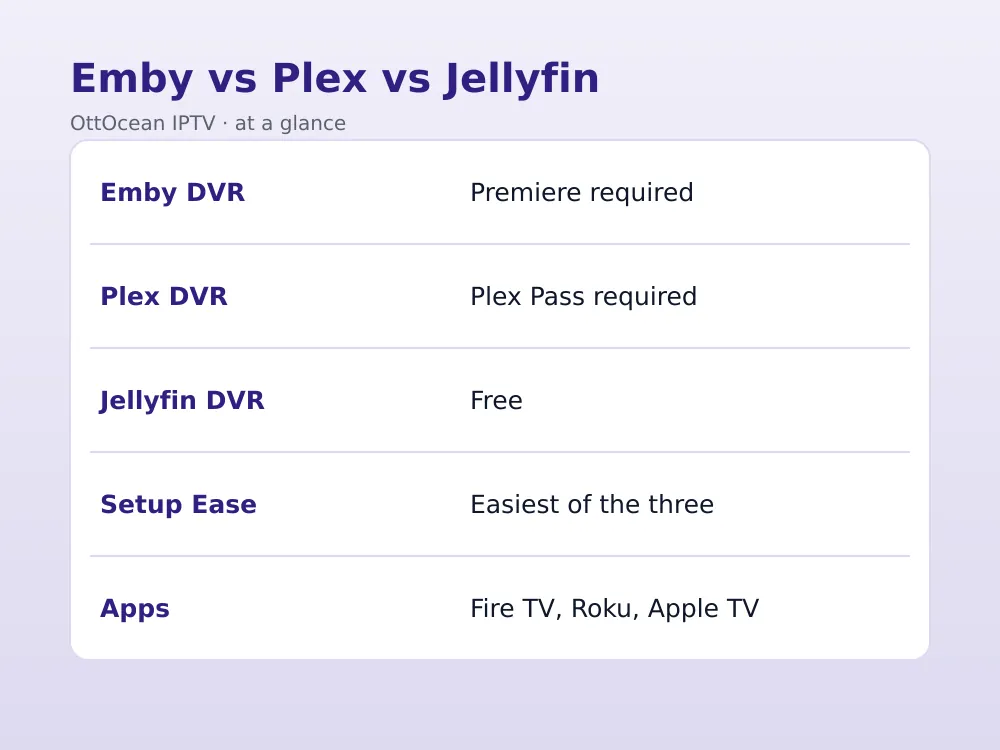
All three major self-hosted media servers now support live-TV tuners and guide data in some form, but the details differ. Plex’s Live TV & DVR requires a Plex Pass subscription for the full feature set and has historically been pickier about playlist formatting. Jellyfin, the open-source fork of Emby, offers the same core M3U/XMLTV workflow completely free, including DVR, but with a smaller, more DIY-feeling community around troubleshooting.
| Server | M3U/XMLTV support | DVR cost | Best for |
|---|---|---|---|
| Emby | Yes, native | Emby Premiere required | Polished apps, easy setup |
| Plex | Yes, native | Plex Pass required | Largest client app ecosystem |
| Jellyfin | Yes, native | Free, no paid tier | Fully free, self-hosted purists |
We generally recommend Emby for households that want the DVR feature without wrestling with self-hosted server quirks — its setup wizard and client apps are the most consistent of the three as of 2026.
Jellyfin is worth a serious look if the subscription cost is the only thing holding you back, since it forked from Emby’s own codebase years ago and still shares much of the same Live TV workflow described above. The compromise is a smaller developer team and less frequent client-app polish compared with Emby’s paid, professionally maintained apps.
Troubleshooting common IPTV on Emby problems
If channels load but the guide stays empty, double-check the XMLTV URL was added under the correct tuner — Emby ties guide data providers to specific tuners, and a guide added to the wrong one won’t populate. If playback stutters only on certain devices, check whether Direct Play is actually being used or whether the server is silently transcoding; the Dashboard’s active streams view shows this in real time.
A tuner that suddenly shows zero channels after working fine usually means the M3U URL changed or expired — re-verify the playlist link in your provider’s account portal or activation email and re-add the tuner if the address changed.
If Live TV works fine in the web dashboard but fails on a specific client app, that’s usually a Direct Play compatibility gap on that particular device. Force transcoding for just that client under its playback profile settings, or update the app itself — older builds of TV apps sometimes lag behind Emby Server’s own codec support.
Key takeaways
- IPTV on Emby uses the Live TV feature’s M3U tuner and XMLTV guide data provider, not a separate plugin.
- Setup takes 6 steps: add a tuner, add a guide feed, let Emby map channels, then watch from any client app.
- Recording requires Emby Premiere; live viewing with a full guide is free.
- Enable Direct Play and hardware acceleration under Dashboard → Playback to avoid unnecessary transcoding load.
- Emby apps on Fire TV, Roku, and Apple TV all support Live TV identically once the server is configured.
- Jellyfin offers the same workflow for free if you don’t need Emby’s polish or don’t want a Premiere subscription.
FAQ: IPTV on Emby
Do I need Emby Premiere just to watch IPTV on Emby?
No. Live viewing with a full program guide works on Emby’s free tier without any subscription. It is only required if you want DVR recording, series-recording rules, or a handful of unrelated extras like cloud sync and mobile downloads — watching live channels alone costs nothing beyond your IPTV subscription itself.
Can I use my Xtream Codes login directly in Emby’s tuner?
Emby’s tuner field wants a single playlist URL, not separate server, username, and password fields typed individually. Build the M3U-format link from your Xtream Codes credentials using the get.php pattern, or use the pre-built URL your provider supplies by email, then paste it directly into the tuner setup screen.
Why are some of my channels unmapped in Emby’s guide?
Emby’s automatic matching relies on channel names lining up between your playlist and the guide-data feed. When naming differs slightly, the channel shows as unmapped. Go to Live TV → Channels and manually assign the correct guide entry from the search dropdown.
Does IPTV on Emby work without a powerful server?
Yes, for Direct Play scenarios where the stream’s format matches what your client device can play natively — this needs minimal CPU and runs fine even on a budget NAS. Transcoding, especially for 4K streams sent to underpowered devices, is where weaker hardware struggles, so hardware acceleration support matters more than raw CPU speed alone.
Can multiple people watch different IPTV channels on Emby at once?
Yes, as long as your IPTV subscription’s device/connection limit allows it and your server has enough transcoding headroom for simultaneous streams. Each Emby user or client counts as one active tuner connection, so a plan limited to one or two devices will still cap concurrent viewers regardless of how Emby itself is configured.
Is running IPTV on Emby legal?
Emby’s Live TV feature and tuner support are legal, general-purpose software features. Legality depends on the content source you connect — a licensed IPTV subscription is legal to use; pirated playlists are not, regardless of which media server displays them. See Wikipedia’s IPTV overview for background on the technology itself.
How is IPTV on Emby different from a dedicated app like TiviMate?
Emby integrates live channels into a broader media library alongside movies and shows, with DVR recording as an option. TiviMate is a dedicated live-TV player with no library management, but a simpler, faster setup that doesn’t require running a server. Our best IPTV player apps guide compares both approaches in more depth.
Final thoughts on running IPTV on Emby
If you already run Emby for your movie and TV library, adding live channels is a natural extension that takes about ten minutes and pays off with DVR recording, real guide data, and consistent apps across every device you own. If you don’t already run a media server, a dedicated IPTV app is faster to set up for live viewing alone and skips the server-hosting step entirely.
Whichever route fits your household, the quality of the underlying playlist still determines how good the picture looks and how reliably channels stay online — the server or app on top is just the interface. Start with OttOcean’s free trial to get a working M3U and XMLTV URL, and compare plans on the subscription page once you’ve confirmed the setup works for your household.


