
Last updated: October 11, 2026
XCIPTV Player is one of the most customizable live-TV apps available for Fire TV and Android, built by OTTRUN and known for letting you swap the underlying video engine, theme the interface, and lock down profiles with a PIN. Where apps like IPTV Smarters Pro keep things simple, XCIPTV Player leans into options — which makes it a favorite with viewers who like tweaking settings until playback is exactly right.
On this page
- What is XCIPTV Player and who makes it
- How to install XCIPTV Player on Fire TV and Android
- Logging in: Xtream Codes and M3U setup in XCIPTV Player
- Switching player engines: ExoPlayer vs VLC vs native
- Setting up EPG and the live TV guide
- Themes and customizing the XCIPTV Player interface
- Parental controls and multi-screen mode
- 7 tips to get more out of XCIPTV Player
- XCIPTV Player vs other apps
- Troubleshooting common XCIPTV Player problems
- Key takeaways
- FAQ: XCIPTV Player
- Final thoughts on XCIPTV Player
What is XCIPTV Player and who makes it
The app is developed by OTTRUN, a company that has focused specifically on IPTV playback apps for several years. Unlike IPTV Smarters Pro’s identical experience across every platform, it leans toward Android-based devices — Fire TV, Android TV, and Android phones and tablets — with a deeper settings menu than most competing apps offer out of the box.
It bundles live channels, movies, and series in a single package rather than splitting them across separate downloads, which is fairly standard for this category of app but still worth confirming before you install, since a small number of IPTV players split VOD and live TV into two separate listings.
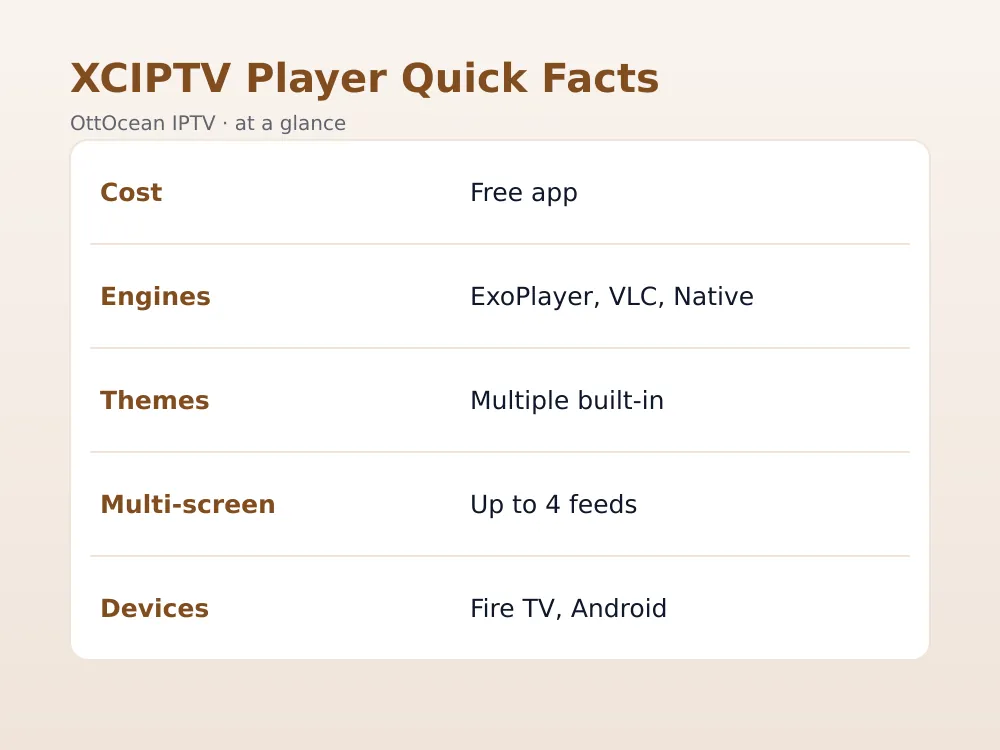
The app itself is free to download and use; you supply your own IPTV subscription’s login details. As of 2026 it remains one of the more actively updated players in its category, with the player-engine switch and theme system as its two most talked-about features among users comparing it to Smarters and TiviMate.
It’s also worth noting that the app has gone through several interface refreshes over the years, so screenshots and tutorials from older years may not match exactly what you see on a fresh install today — the core login flow and settings structure described in this guide are current as of 2026.
How to install XCIPTV Player on Fire TV and Android
Installation differs slightly depending on whether the app is listed in your regional app store.
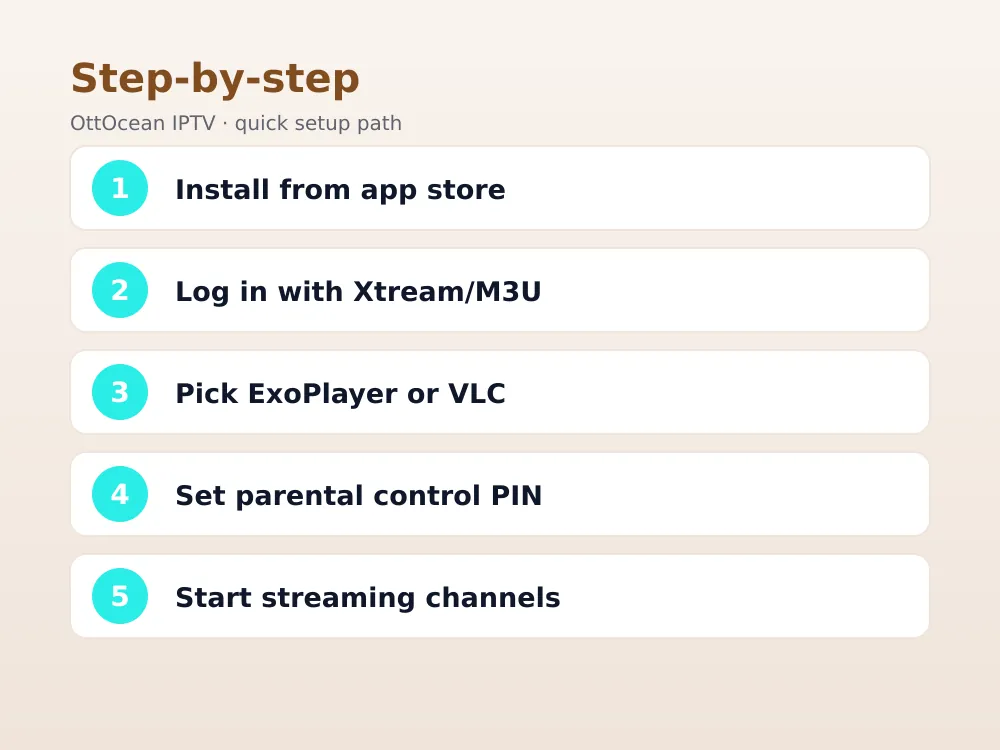
- On Fire TV: search “XCIPTV Player” directly in Amazon’s app store. If it’s not listed in your region, install Downloader from the Appstore first, enable Settings → My Fire TV → Developer Options → Install unknown apps for Downloader, then use Downloader to fetch the APK from OTTRUN’s official site.
- On Android TV or Android phones/tablets: search “XCIPTV Player” in the Play Store and install normally — no sideloading needed in most cases.
- First launch: the app opens to a login screen offering Xtream Codes and M3U options.
If you’re an OttOcean subscriber, your login details are in your activation email. New here? The 5-day free trial gives you working Xtream Codes and M3U credentials within minutes, no credit card required, so you can test the app today.
Firestick owners who prefer a broader comparison before committing to one app should also check our best IPTV for Firestick guide, which benchmarks several players side by side on the same hardware, including buffer counts and channel-change speed.
Note that the app is built primarily for Fire TV and Android devices, with no native Roku or Apple TV listing as of 2026. Roku owners typically fall back to screen mirroring from a phone or laptop, while Apple TV users generally pick a different, Apple-TV-native IPTV app instead of trying to sideload an Android build.
Logging in: Xtream Codes and M3U setup in XCIPTV Player
The app supports both major login formats. For Xtream Codes, enter your server address (including port), username, and password into the three dedicated fields — no URL-building required, unlike some players that only accept a single combined link. For M3U, paste the full playlist URL into the M3U field instead.
After logging in, the app fetches your full channel list, VOD catalog, and series library in one pass. A large playlist with tens of thousands of entries can take a minute or two on the first load; subsequent opens are much faster since it caches the list locally on the device.
You can also add more than one login profile if you subscribe to two IPTV services or want a separate profile for kids with a smaller, pre-filtered channel list. Switch between saved profiles from the login screen without re-entering credentials each time, which saves a step compared with apps that only support a single active account.
Double-check your server address includes the protocol prefix (http:// or https://, matching exactly whatever your provider specified in your activation email or account portal) and the correct port number. A common first-login mistake is pasting the server address without the port, which produces a generic connection error that looks like a credentials problem but is actually a formatting one.
| Login type | Fields needed | Best for |
|---|---|---|
| Xtream Codes | Server, username, password | Most subscription-based providers |
| M3U | Single playlist URL | Providers issuing only a playlist link |
Switching player engines: ExoPlayer vs VLC vs native
This is the app’s signature feature. Under Settings → Playback, you can choose which underlying engine actually decodes and renders video: ExoPlayer (Google’s engine, generally the smoothest on Android hardware decoding), VLC (the built-in LibVLC engine, best codec compatibility for unusual streams), or Native (the device’s own system player).
Our general recommendation: start with ExoPlayer, since it uses hardware decoding most efficiently on Fire TV and Android TV boxes. If specific channels buffer or fail to play with a codec error, switch to VLC for that session — its broader codec support handles edge cases ExoPlayer sometimes misses, at a small cost to CPU efficiency.
The engine setting applies globally by default, but you can override it per-channel in some builds by long-pressing a channel tile and selecting “Play with.” This is handy when one specific channel consistently misbehaves on your default engine while everything else plays fine, since you avoid switching the whole app’s setting just to fix one outlier.
Setting up EPG and the live TV guide
The app pulls EPG data automatically when your Xtream Codes account includes guide information, which is the case with most modern IPTV subscriptions. If you logged in with a bare M3U URL instead, look for an XMLTV URL field under Settings → EPG and paste your provider’s separate guide link there to enable the same grid view.
The guide itself shows a scrollable multi-hour grid with program titles, which you can tap to see a longer description or set a reminder. Compared with some lighter apps, its guide is genuinely close to a cable-box experience once EPG data is connected correctly and refreshing on schedule.
If the guide loads but shows the wrong times, check your device’s timezone setting first — a mismatched timezone between the device and the EPG source is a more common cause than a broken feed, and it’s a one-time fix once you spot it.
Themes and customizing the XCIPTV Player interface
The app ships with several built-in themes changing the channel grid’s layout, color scheme, and information density — some favor large channel logos, others pack more rows on screen at once. Switch between them under Settings → Appearance. This is one of the few IPTV apps that treats visual customization as a real feature rather than an afterthought.
You can also reorder categories, hide ones you don’t use (adult content categories, regional groups you don’t watch), and mark favorites that surface in a dedicated row at the top of the home screen — useful once your channel list grows into the thousands and scrolling becomes tedious.
Parental controls and multi-screen mode
Under Settings → Parental Control, the app lets you set a PIN that locks specific categories — adult content and, if you want, entire genre groups like news or certain sports categories. The PIN prompt appears every time a locked category is opened, making it a genuinely usable child-safety feature rather than a checkbox nobody enables.
Multi-screen mode, found under the Live TV section, splits the display into up to four simultaneous channel feeds — handy during a busy sports weekend when you want to keep an eye on more than one game at once. Performance depends heavily on your device’s hardware; older Fire TV models can struggle to decode four simultaneous streams smoothly, while a Fire TV Cube or a mid-range Android TV box handles it comfortably.
If four feeds at once feels like overkill for your setup, a two-screen layout is usually the sweet spot — noticeably lighter on hardware while still letting you keep tabs on a second game or channel without leaving the one you’re actually watching. Tap any tile in multi-screen view to expand it to full screen and drop the others.
7 tips to get more out of XCIPTV Player
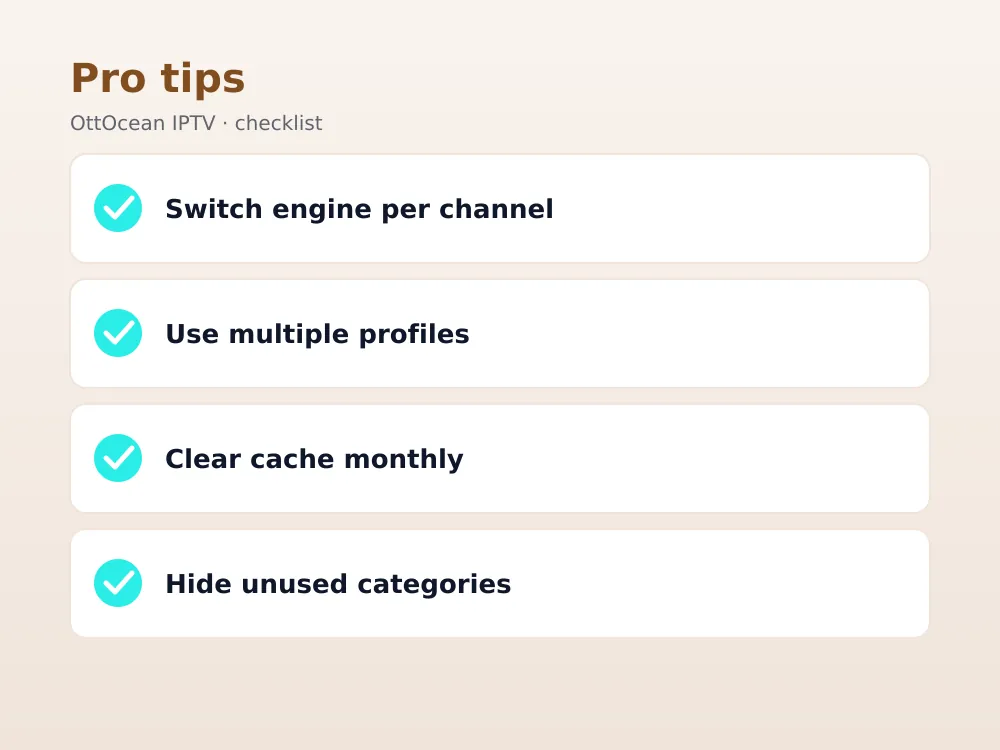
- 1. Switch engines per problem channel rather than globally — some channels genuinely play better on VLC even if ExoPlayer is your default.
- 2. Set up multiple profiles under Settings if different family members want different favorites and parental control levels.
- 3. Enable “Restart on channel change” only if you notice audio/video desync building up over long viewing sessions — it resets the buffer cleanly.
- 4. Use the built-in catch-up feature where your provider supports it, rather than manually rewinding live streams.
- 5. Clear the app cache monthly from your device’s app settings to keep channel-list loading fast as your playlist grows.
- 6. Hide unused VOD/series categories to speed up browsing if you mainly watch live channels.
- 7. Back up your login by writing down your Xtream Codes server, username, and password separately, in case you ever need to reinstall on a new device.
XCIPTV Player vs other apps
Compared with IPTV Smarters Pro, this app trades some simplicity for more control — Smarters gets you watching in fewer taps, while it rewards the extra few minutes spent in its settings menu with a more tailored setup. Compared with TiviMate, the EPG in both is strong, but TiviMate’s guide is generally considered the more polished of the two, while XCIPTV Player pulls ahead on theming and the player-engine switch.
| App | Player engine switch | Themes | Best for |
|---|---|---|---|
| XCIPTV Player | Yes (ExoPlayer/VLC/Native) | Multiple built-in | Tinkerers who want control |
| IPTV Smarters Pro | Limited | Minimal | Fastest, simplest setup |
| TiviMate | Limited | Minimal | Best-in-class EPG |
None of these apps are better or worse in absolute terms — they suit different habits. See our best IPTV player apps guide for a fuller side-by-side comparison across every major option.
One more practical difference: update frequency. OTTRUN pushes updates to the app on a fairly regular cadence, which is worth keeping current since playback fixes and new Android TV compatibility improvements tend to land in point releases rather than major version jumps you’d notice in the app-store listing.
Price is a non-factor in this comparison since all three apps are free downloads — the real cost is always the IPTV subscription behind them, and none of these players lock any of their core playback features behind an in-app purchase as of 2026.
Troubleshooting common XCIPTV Player problems
If channels won’t load after login, double-check your Xtream Codes server address includes the correct port — a missing or wrong port is the most common login failure. If playback stutters, try switching the player engine before assuming your connection is at fault; some channels genuinely perform better on one engine than another regardless of bandwidth.
If the app crashes on launch after an update, clearing the app’s cache and data from your device’s app-management settings usually resolves it, though you’ll need to log back in afterward. Persistent crashes across multiple devices point to a server-side issue with your provider rather than the app itself.
A black screen with audio playing but no picture usually means the current player engine can’t decode that channel’s video codec — switch engines rather than reinstalling the app, since a reinstall won’t change which engine handles a given stream. If EPG data disappears after previously working, re-check that your XMLTV or Xtream Codes guide URL hasn’t expired on the provider’s end.
If the app becomes sluggish navigating a very large channel list, hiding unused categories (tip 6 above) usually restores responsiveness faster than any other single change, since the interface renders fewer entries at once. On genuinely old hardware, closing other background apps before launching also frees up memory the video decoder needs, and restarting the device entirely once every week or two prevents a slow memory-leak buildup that some older Fire TV units show after extended uptime.
Key takeaways
- It is a free Fire TV and Android IPTV app from developer OTTRUN.
- Login supports both Xtream Codes (server/username/password) and raw M3U URLs.
- The standout feature is switching between ExoPlayer, VLC, and Native player engines per your needs.
- Built-in themes and category management make the interface genuinely customizable.
- Parental control PINs and multi-screen mode are both real, usable features, not gimmicks.
- OttOcean’s Xtream Codes and M3U credentials both work directly in the app’s login screen.
FAQ: XCIPTV Player
Is XCIPTV Player free to download?
Yes. The app itself is free on both Amazon’s Appstore and Google’s Play Store. You supply your own IPTV subscription’s login details — the app has no separate subscription fee of its own for basic playback features.
Can I record live TV with XCIPTV Player?
Some builds include a basic recording option tied to local device storage, though support and reliability vary by device and app version, so treat it as a bonus rather than a core feature to plan your setup around. For dependable DVR functionality across your whole library, a server-based option like Emby with Premiere is the more consistent choice.
Which player engine should I use in XCIPTV Player?
Start with ExoPlayer, since it uses hardware decoding most efficiently on Fire TV and Android TV hardware. Switch to VLC for specific channels that stutter or throw codec errors — its broader format support often fixes playback on streams ExoPlayer struggles with.
Does XCIPTV Player support EPG guide data?
Yes, automatically when your Xtream Codes account includes guide data, which most modern IPTV subscriptions do. If you logged in with a plain M3U link, add your provider’s XMLTV URL under Settings → EPG to enable the same guide grid.
Can I set up parental controls in XCIPTV Player?
Yes. Settings → Parental Control lets you set a PIN that locks specific categories, including adult content and any genre group you choose. The PIN prompt appears every time someone tries to open a locked category, making it a functional child-safety feature.
Is using XCIPTV Player legal?
The app itself is legal software with no restrictions on what streams it can open. Legality depends on the IPTV subscription behind it — a licensed service is legal to stream; pirated feeds are not, regardless of which app displays them. See Wikipedia’s overview of IPTV for background on the technology.
Final thoughts on XCIPTV Player
XCIPTV Player earns its following by giving viewers real control most apps hide away — a switchable player engine, genuine theming, and parental controls that actually work. It takes a few extra minutes in the settings menu compared with the simplest apps, and that investment pays off in a setup tuned to your exact hardware and household rather than a one-size-fits-all default configuration.
Whether you end up sticking with the default ExoPlayer engine or switching to VLC for a few stubborn channels, the login credentials behind the app are what actually determine picture quality and channel count. Grab OttOcean’s free trial to get working login details, and compare our full plans on the subscription page once you’ve confirmed the app suits you.


