
Last updated: October 9, 2026
IPTV on VLC works the moment you have a playlist URL, because VLC has played network streams since long before “IPTV” was a common term — it just needs you to feed it the right link. No extra software, no sideloading, no sketchy APK. If you already have VLC installed on your computer, phone, or Android TV box, you’re four steps away from live channels.
On this page
- What VLC needs to play IPTV
- How to play IPTV on VLC in 4 easy steps
- Opening an M3U file vs a network stream URL
- Building the Xtream Codes get.php URL for VLC
- Fixing buffering: network caching settings that matter
- Why VLC has no EPG, and what to do about it
- IPTV on VLC on every platform
- VLC vs dedicated IPTV apps: when to switch
- Troubleshooting common IPTV on VLC problems
- Key takeaways
- FAQ: IPTV on VLC
- Final thoughts on running IPTV on VLC
What VLC needs to play IPTV
VLC is a general-purpose media player, not an IPTV app, so it has no account system, no channel catalog, and no subscription screen. All it needs is a URL pointing to a playlist file — usually ending in .m3u or .m3u8 — that lists every channel’s stream address, name, and logo. Feed it that one link and VLC treats your entire channel lineup as a giant playable playlist, the same way it would treat a folder of music files.
This makes VLC the simplest possible way to sanity-check a subscription: if a playlist URL plays in VLC, the service is delivering streams correctly, and any problems you see in a dedicated app are almost always on the app side, not the server side.
VLC has supported network streaming since its earliest versions in the early 2000s, well before IPTV subscription services existed in their current form. That history is why it handles almost any stream protocol you throw at it — HLS, RTMP, UDP multicast, and the HTTP-based M3U links most IPTV providers use — without needing plugins or codec packs installed separately. It’s maintained by the nonprofit VideoLAN organization, so there’s no vendor lock-in and no risk of the app suddenly going paid.
How to play IPTV on VLC in 4 easy steps
The exact menu wording varies slightly between VLC’s desktop and mobile builds, but the flow is identical everywhere.
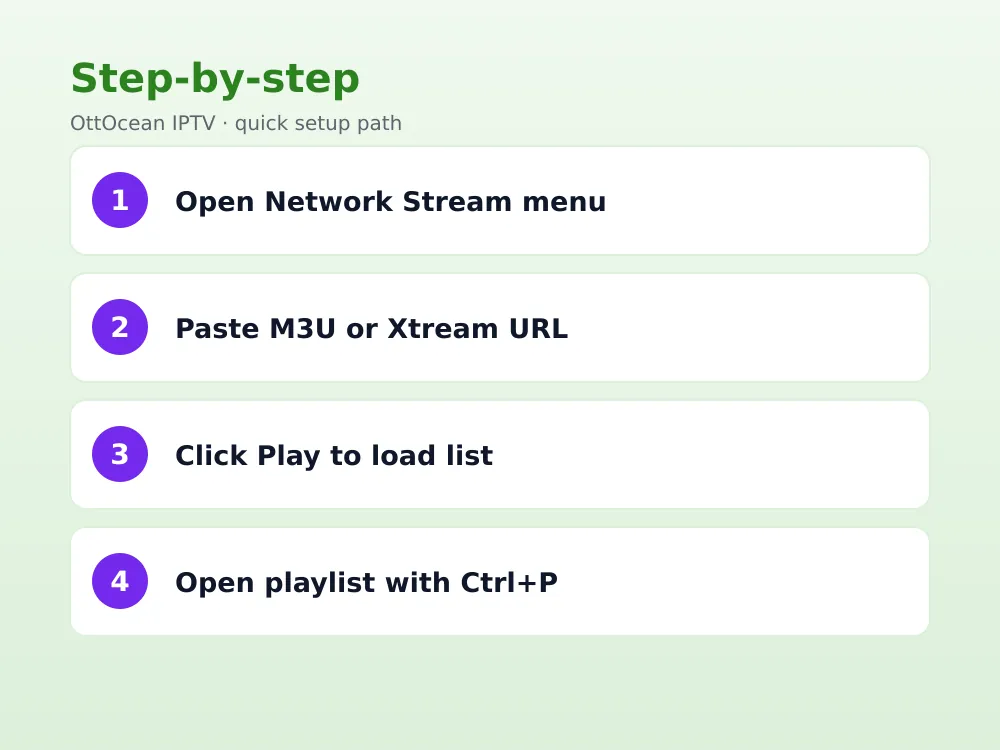
- Open VLC and go to Media → Open Network Stream (desktop) or tap the network/stream icon (mobile).
- Paste your playlist URL — the M3U link or Xtream Codes get.php URL your provider issued.
- Click Play. VLC fetches the playlist and starts the first channel automatically.
- Open the playlist view with Ctrl+P (View → Playlist on Mac) to browse and switch between every channel in the list.
If you’re an OttOcean subscriber, your M3U playlist URL is in the activation email, ready to paste with no editing required. New to the service? The 5-day free trial issues one in minutes with no credit card, so you can run through this exact flow today.
A detail worth knowing: VLC remembers your most recent network stream URLs in a dropdown inside the Open Network Stream dialog, so after the first setup you rarely need to retype the whole address. If you switch providers or refresh your credentials, clear that dropdown history so an old, expired link doesn’t get selected by mistake.
On mobile builds, the exact icon differs by version — recent VLC for Android places a small network/globe icon in the bottom toolbar of the browse screen, while older versions bury it under a “+” menu. If you can’t find it immediately, check the app’s own help screen; the underlying Open Network Stream feature hasn’t changed in years, just its icon placement.
Opening an M3U file vs a network stream URL
VLC actually supports two ways in: a direct network stream URL (what most people use) and a locally saved M3U file opened via Media → Open File. The file route matters if your provider only gives you a downloadable playlist rather than a live URL, or if you want an offline backup of your channel list that doesn’t depend on your provider’s server responding at that exact moment.
The downside of a saved file is that it goes stale — channel lists change, and a file on your desktop from three months ago may be missing new additions. The network stream URL always pulls the current list, so we recommend it as the default and only save a local M3U file as a fallback.
To keep a local copy anyway, paste the playlist URL into a browser instead of VLC and use “Save Page As” to download the raw .m3u file to your computer, then open that file later with Media → Open File. It’s a manual step, but it means you always have a fallback copy if the live URL is briefly unreachable.
Building the Xtream Codes get.php URL for VLC
If your provider gave you Xtream Codes credentials (server, username, password) rather than a ready-made link, VLC needs those converted into a single M3U-format URL. The pattern is: http://server:port/get.php?username=USER&password=PASS&type=m3u_plus&output=ts. Swap in your actual server address, port, username, and password, and paste the whole string into VLC’s Open Network Stream box.
OttOcean builds this URL for you automatically and includes it pre-formatted in your activation email alongside the raw Xtream Codes login, so you never have to assemble it by hand. If you’re testing a different provider, double-check the port number — a wrong port is the single most common reason this URL fails to load in VLC.
Two output parameters matter if you’re building the URL manually. output=ts requests standard MPEG-TS streams, which VLC handles natively without any conversion. Some providers also support output=hls for HTTP Live Streaming segments, which can be gentler on unstable connections since it adapts segment size automatically, though not every server offers both formats for every channel.
If you only have Xtream Codes credentials and no pre-built link, most providers also publish a player_api.php endpoint you can check in a browser first to confirm the login itself is valid before troubleshooting VLC — if the API responds with account details, the credentials are correct and any playback issue is downstream of that.
Fixing buffering: network caching settings that matter
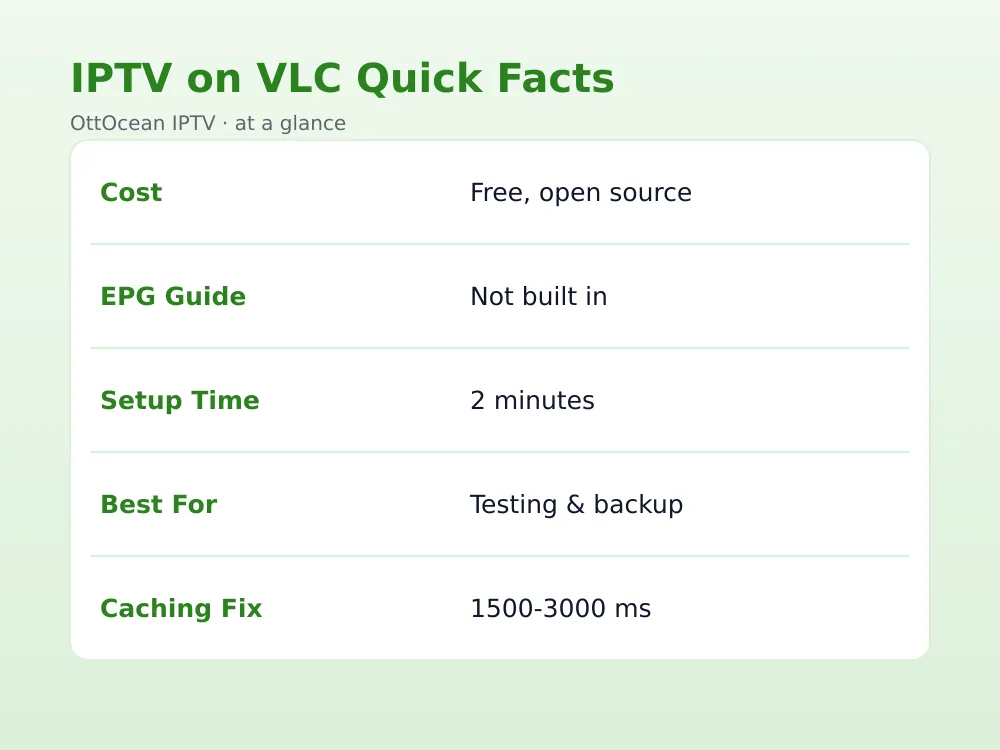
VLC’s default network caching value is tuned for general video streaming, not live IPTV with hundreds of channels and variable bitrates. If channels stutter or freeze for a second when you first open them, raise the caching buffer.
- Windows/Mac/Linux: go to Tools → Preferences → Input/Codecs, switch the “Show settings” radio to All, then under Input/Codecs → Advanced set Network Caching to 1500-3000 ms.
- Android: in VLC’s settings, look for Video → Network caching value and raise it similarly.
- Trade-off: higher caching smooths playback but adds a small delay when switching channels, so don’t set it higher than you need.
A caching value between 1500 and 2000 ms clears up the vast majority of stutter without making channel changes feel sluggish. Only push it toward 3000 ms if you’re on a genuinely unstable connection.
Two other Preferences settings compound with network caching. Under Input/Codecs → Advanced, “Clock jitter” and “Clock synchronization” rarely need changing, but if you’re watching over Wi-Fi with frequent micro-drops, a slightly higher jitter value can smooth playback further. Wired Ethernet connections almost never need adjustments beyond the caching value alone.
How much bandwidth does IPTV on VLC actually use?
VLC doesn’t cap or throttle bandwidth itself — it plays whatever bitrate the stream sends, so your connection speed and the provider’s encoding quality set the ceiling. The table below shows typical requirements by resolution.
| Quality | Typical bitrate | Recommended connection |
|---|---|---|
| SD | 2-4 Mbps | 10 Mbps+ |
| HD (1080p) | 6-10 Mbps | 25 Mbps+ |
| 4K UHD | 20-25 Mbps+ | 50 Mbps+ |
Why VLC has no EPG, and what to do about it
This is the honest limitation of running IPTV on VLC: it has never had a built-in electronic program guide. You get channel names and logos in the playlist view, but no grid showing what’s airing now or in two hours. VLC was designed as a media player, not a TV guide app, and that hasn’t changed.
There’s no clean workaround inside VLC itself — its playlist view is as far as the interface goes. If a program guide matters to you, that’s the clearest sign you’d be better served by a dedicated IPTV app like TiviMate or IPTV Smarters Pro, both of which pull a full XMLTV guide from the same server VLC is already streaming from. Our EPG setup guide walks through getting that guide data into a proper app.
What VLC does give you is decent metadata in the playlist sidebar: channel name, group/category if your provider tags channels that way, and a logo where available. Right-click a channel and choose “Information” to see codec, resolution, and bitrate details for whatever’s currently playing — useful for diagnosing quality issues even though it’s not a substitute for a real guide.
IPTV on VLC on every platform
VLC’s biggest advantage is that it’s genuinely the same app everywhere, so the steps above transfer directly across every device you own.
- Windows and Mac: the full desktop build with Preferences access for caching and codec tweaks.
- Linux: identical feature set, available in nearly every distro’s package manager.
- Android phones, tablets, and Android TV boxes: Play Store app with a TV-remote-friendly interface on the TV build.
- iPhone and iPad: App Store version supports network streams the same way, though Apple’s sandboxing makes local file imports slightly more fiddly.
There’s no official Roku or Amazon Fire TV app in the respective app stores in most regions, so Firestick users typically sideload the Android APK via Downloader, and Roku owners fall back to screen mirroring from a phone or laptop running VLC.
Firestick users who sideload VLC get one genuine advantage over Amazon’s own Fire TV apps: the Preferences menu, including the network caching setting, is fully accessible with a Fire TV remote once you navigate into it, since the underlying app is the same desktop-grade build rather than a stripped-down TV-only version. Our Windows and Mac IPTV guide covers the desktop setup step by step if that’s your primary device.
VLC vs dedicated IPTV apps: when to switch
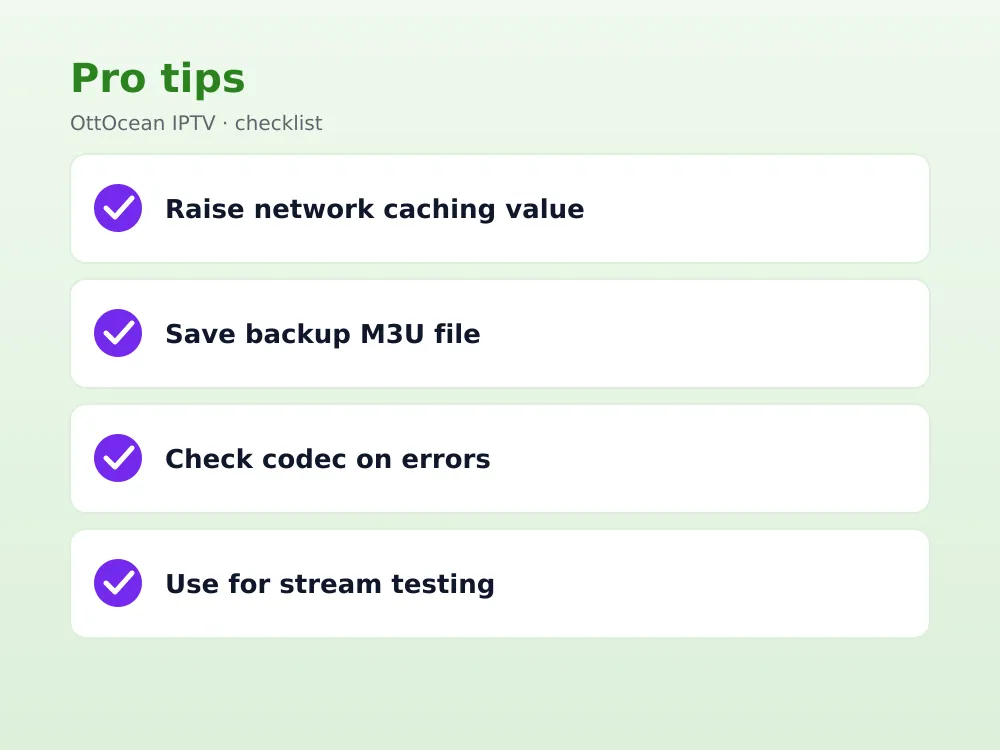
VLC earns its place as the fastest way to verify a stream is working and as a lightweight backup player when your main app misbehaves. What it will never do is match a dedicated app’s day-to-day living-room experience: no EPG, no catch-up/replay buttons, no favorites organized into custom categories, and no recording.
We treat VLC as the diagnostic tool in the toolbox, not the daily driver. If a channel won’t play in your main app, opening the same URL in VLC tells you within seconds whether the problem is the app or the stream itself. For the full daily-use experience, see our best IPTV player apps guide.
There’s one scenario where VLC genuinely stays the better choice long-term: multi-device households running mixed operating systems. A family with a Windows PC, a Mac laptop, and an Android tablet gets identical behavior from VLC on all three, where a dedicated app’s feature set, menu layout, and even available settings can vary noticeably from one platform to the next.
Troubleshooting common IPTV on VLC problems
A blank screen after pressing Play almost always means the URL was copied incompletely — check for a missing character at the very end, especially the port number. If VLC opens the playlist but individual channels fail one by one, the issue is usually server-side rather than VLC’s fault; test the same URL a few minutes later or on a different channel to confirm.
Audio-only playback with no video typically points to a codec VLC can’t decode in that build — updating to the latest VLC version from videolan.org usually adds the missing codec support. If VLC crashes on a specific channel repeatedly, that stream itself may be malformed on the provider’s end rather than anything fixable in VLC’s settings.
If every channel in the playlist fails at once rather than just one, the issue is almost never VLC — check whether your provider’s server is undergoing maintenance, or whether your connection changed (a new router, a VPN that just connected or disconnected, or a firewall update) between the last time it worked and now. Reopening the same playlist URL fresh, rather than replaying from history, rules out a stale cached response.
Key takeaways
- IPTV on VLC needs only a playlist URL — no extra app, account, or sideload required.
- Use Media → Open Network Stream and paste your M3U or Xtream Codes get.php URL.
- Raise Network Caching to 1500-3000 ms in Preferences if channels stutter.
- VLC has no built-in EPG; switch to a dedicated app if a program guide matters to you.
- The same steps work on Windows, Mac, Linux, Android, and iOS without changes.
- OttOcean’s activation email includes a ready-to-paste M3U URL that works directly in VLC.
FAQ: IPTV on VLC
Do I need a paid VLC version for IPTV?
No. VLC is completely free and open source on every platform, including mobile, and always has been since the project’s founding by students at École Centrale Paris. You only pay for the IPTV subscription supplying the playlist — VLC itself never charges anything for streaming network URLs, opening files, or any other feature it offers.
Can I use my Xtream Codes login directly in VLC?
VLC’s Open Network Stream box wants a single URL, not separate server, username, and password fields. Build the get.php-format M3U link from your Xtream Codes credentials, or use the pre-built URL your provider sends by email, then paste that complete string into VLC’s dialog box.
Why does IPTV on VLC buffer more than a dedicated app?
VLC’s default caching setting is tuned conservatively for general video, not live TV with hundreds of channels. Raising Network Caching in Preferences to 1500-3000 milliseconds usually closes the gap and matches the smoothness you’d see in a purpose-built IPTV player on the same connection.
Does VLC show a program guide for IPTV channels?
No. VLC displays only channel names and logos in its playlist view, with no time-based schedule showing what airs next. If you need to see what’s coming up later in the day, a dedicated app that supports XMLTV guide imports is the only real fix available.
Is playing IPTV on VLC legal?
VLC is legal, free software with no restrictions on what streams it can open. Legality depends entirely on the content source: a licensed subscription is legal to stream, while pirated feeds are not, regardless of the player. See VLC’s official site for details on the project itself.
Can I play IPTV on VLC without an internet connection?
Live channels need an active connection since they’re streamed in real time from your provider’s server, encoded and delivered continuously rather than stored anywhere locally. A locally saved M3U file will open in VLC offline, but every channel link inside it still requires internet access to actually play, since the file itself only contains addresses, not video data.
Final thoughts on running IPTV on VLC
VLC is the fastest way to get a channel on screen with zero setup overhead, and it doubles as the best diagnostic tool when something in your main app isn’t working right. Just don’t expect a program guide or the living-room polish of a dedicated player, and remember that raising the network caching value is the single fix that resolves most stutter complaints.
Whichever app you end up using day to day, the playlist behind it is what determines actual stream quality — a stable server matters far more than which player renders the picture. Grab OttOcean’s free trial to get a working playlist URL, and when you’re ready to commit, compare options on the plans page.


