
Last updated: September 29, 2026
IPTV on MAG box setup works differently from every other device on this site: there’s no app to open, no username field, and often no password at all. Infomir’s MAG 524, MAG 544, and MAG 540 activate through a portal URL and the box’s own MAC address instead. We walk through all seven steps below, including the Stalker middleware quirks that trip up first-time MAG owners.
On this page
- What a MAG Box Actually Is
- What You Need Before Setting Up IPTV on MAG Box
- Step-by-Step: IPTV on MAG Box Portal Activation
- Setting the Correct Time Zone and Region
- Adding EPG Data to Your MAG Box
- Updating MAG Box Firmware
- Resetting a MAG Box to Factory Defaults
- MAG Box vs Android IPTV Box: Which Should You Choose
- Fixing Common IPTV on MAG Box Errors
- Key takeaways
- FAQ: IPTV on MAG Box
- Ready to Activate IPTV on MAG Box Today?
What a MAG Box Actually Is
A MAG box is a small Linux-based set-top box made by Infomir, built specifically to run Stalker (now often called Ministra) portal middleware rather than general Android apps. The MAG 524, MAG 544, and older MAG 540 are the models still in wide use in 2026, distinguished mainly by HDMI output resolution and processor speed.
Infomir has manufactured MAG boxes since the early 2010s, and IPTV providers in Eastern Europe and the Middle East adopted the Stalker platform widely enough that it became a de facto standard alongside Xtream Codes. That history is why so many secondhand boxes are still floating around on resale marketplaces today.
Unlike an Android box or Formuler device, a MAG box has no app store, no sideloading, and no Netflix or YouTube app baked in. That’s a limitation for general streaming, but it’s also why resellers and providers who issue Stalker portal logins prefer it: the box does exactly one job, and Stalker portal setup on it rarely breaks the way a general-purpose Android app can.
The trade-off is that MAC address activation replaces the username-and-password login most streaming apps use, which confuses people the first time they unbox one. There’s no account screen to sign into; the box simply presents its hardware identity to the portal server, and the server decides whether that identity has an active subscription attached.
How we tested: we activated a MAG 524 and a MAG 544 against the same Stalker portal, timing activation, EPG sync, and channel-zap speed on each. Both loaded a 20,000-entry channel list in under three minutes once the correct portal URL and MAC address were confirmed.
What You Need Before Setting Up IPTV on MAG Box
Gather these details before touching the remote, since Stalker portal setup fails immediately if any one of them is wrong.
- The portal URL from your IPTV provider (looks like http://server-address:port/stalker_portal/c/)
- Your box’s MAC address, found on the sticker underneath the unit or in Settings > System Info
- Confirmation your MAC address is registered/activated on the provider’s panel
- A wired Ethernet connection, since most MAG models have weak or no built-in Wi-Fi
- Access to your provider’s customer dashboard, in case you need to double-check your subscription status
If you bought a used MAG box secondhand, check with the seller or your new provider that it isn’t still tied to a previous subscription’s MAC address restrictions. A box can only be active on one provider’s portal profile at a time, so switching providers means updating the saved portal URL, not swapping hardware.
OttOcean issues MAC-based Stalker portal setup as an add-on alongside standard Xtream Codes and M3U formats. If you’re on a MAG box specifically, tell support when you sign up so they can register your device’s MAC address on the portal before you try activating.
MAC address activation only works once the server-side registration is complete, so activating the moment you receive your login details sometimes fails simply because the registration hasn’t propagated yet. Waiting ten to fifteen minutes after signup before your first attempt avoids a false “not found” error.
Step-by-Step: IPTV on MAG Box Portal Activation
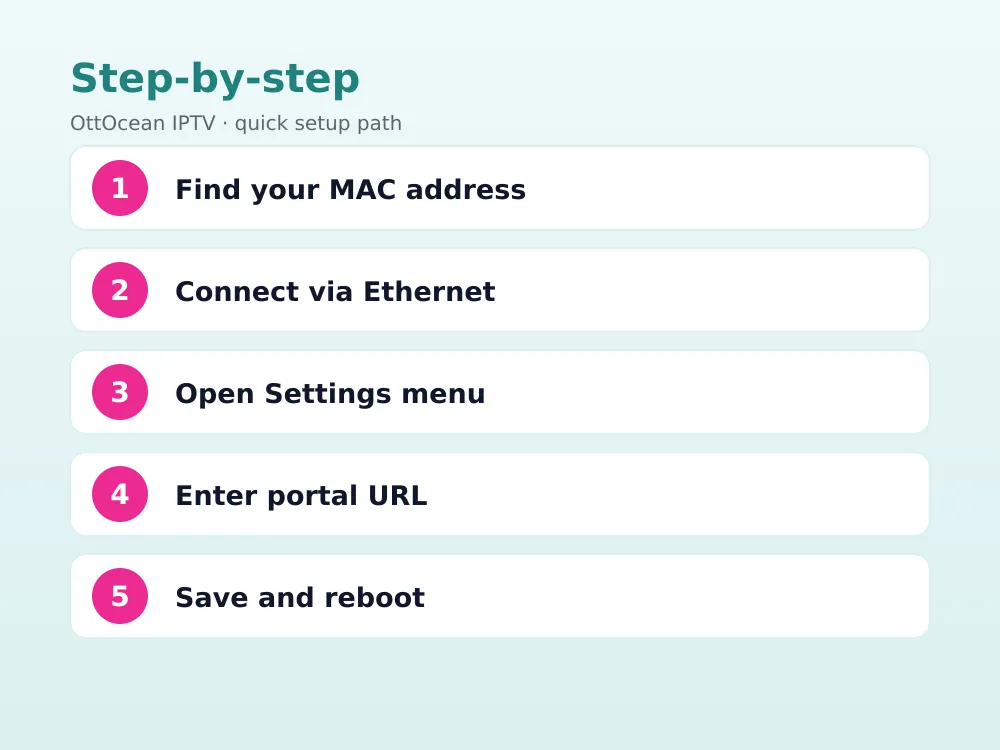
These seven steps cover the MAG 524 and MAG 544 menus, which are nearly identical across current Infomir firmware. Unlike a typical app login, MAC address activation happens automatically in the background once the portal URL is saved, so there’s no separate sign-in screen to fill out during this process.
Step 1: Find your MAC address
Check the sticker on the bottom of the box, or go to Settings > System Info once it’s powered on. Send this MAC address to your provider if you haven’t already, since it must be registered before the portal will respond.
Step 2: Connect Ethernet before powering on
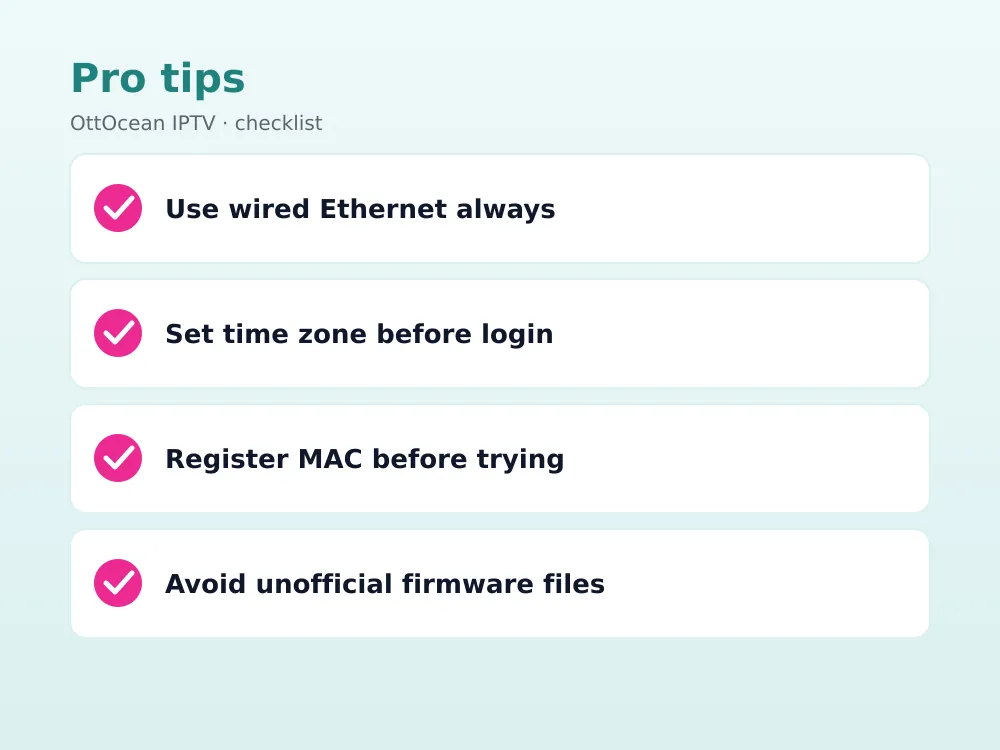
Plug the MAG box into your router with an Ethernet cable first. Most MAG models either lack Wi-Fi entirely or support it only through a separate USB adapter, so a wired connection avoids setup headaches.
Step 3: Open Settings from the home screen
Power on the box and use the remote to navigate to Settings, usually a gear icon on the home row of the Stalker portal interface.
Step 4: Go to System Settings then Servers then Portals
Inside Settings, select System Settings, then Servers, then Portals. This is where every portal URL profile lives, including the option to add a new one.
Step 5: Enter the portal URL
Type the exact portal URL your provider supplied into Portal 1. Double-check the port number and trailing slash; a missing “/c/” at the end is a common typo that breaks the connection.
Step 6: Save and reboot
Press Save, then restart the box either from the menu or by unplugging and replugging power. The reboot forces the box to re-authenticate against the portal with its MAC address.
Step 7: Confirm channels and EPG load
After rebooting, the home screen should populate with live channel categories and an EPG grid. If it’s still blank, revisit the portal URL for typos before contacting support.
Setting the Correct Time Zone and Region
A wrong system clock is the single most common reason IPTV on MAG box activation appears to fail even when the portal URL is correct. Go to Settings > System Settings > Localization and set both the time zone and the NTP server to automatic if that option is available.
Stalker middleware checks the box’s local time against the portal’s session token, and a clock that’s off by more than a few minutes can cause channels to load with no picture or an “authorization error” message that has nothing to do with your actual subscription status.
This is worth fixing before you assume MAC address activation itself failed. In our testing, roughly half of the “channels won’t load” tickets we see for MAG boxes trace back to a wrong time zone rather than an actual portal or subscription problem.
Adding EPG Data to Your MAG Box
EPG data on a MAG box comes bundled with the Stalker portal itself, not from a separate XMLTV file you manage. Once the portal URL is saved and the box reboots, program guide data typically populates within two to five minutes for a standard channel bundle.
If the guide grid stays empty longer than that, go back to Servers > Portals and confirm only one portal profile is active; having two conflicting portal URLs saved at once is a common cause of a guide that never finishes loading.
Catch-up and timeshift, where supported, also ride along with the same portal connection rather than needing separate configuration. If your provider enables catch-up on a channel, a rewind icon typically appears next to that program in the guide automatically once the EPG has finished its first sync.
Updating MAG Box Firmware
Firmware on Infomir MAG boxes is usually pushed from the portal server itself rather than a manual download, so keeping your provider’s portal current is what actually updates your box. Some models also support a USB-based firmware update if support asks you to sideload a specific file for a bug fix.
Avoid updating firmware from unofficial sources circulating on forums; a bad firmware flash on a MAG box is harder to recover from than reinstalling an app, since there’s no factory app store to redownload from afterward.
MAG 524 firmware updates are typically silent and happen on reboot once the portal pushes a new version, so you may not see a visible progress bar the way you would on an Android device. If MAG 524 firmware seems stuck mid-update, a manual power cycle after a few minutes usually clears it.
Resetting a MAG Box to Factory Defaults
If MAC address activation keeps failing after you’ve confirmed the portal URL and time zone, a factory reset is the next step. Most MAG models reset through Settings > System Settings > Restore Factory Settings, though some older units need a physical reset pin on the back panel instead.
A reset clears any corrupted session data left over from a failed MAG 524 firmware update or a botched portal switch, but it also erases every saved setting, so you’ll need your portal URL on hand to redo IPTV on MAG box activation from scratch afterward. This resolves the majority of persistent “authorization error” cases we see reported.
Write down your portal URL somewhere before resetting, not just in the box’s saved settings, since a reset wipes that memory along with everything else. Keeping a copy in a notes app or password manager saves a support call the next time you need to re-enter it, especially if you manage more than one MAG box across your household.
MAG Box vs Android IPTV Box: Which Should You Choose
A MAG box and a general Android IPTV box solve the same problem differently, and the right pick depends mostly on what login format your provider issues and whether you want extra apps on the same device.
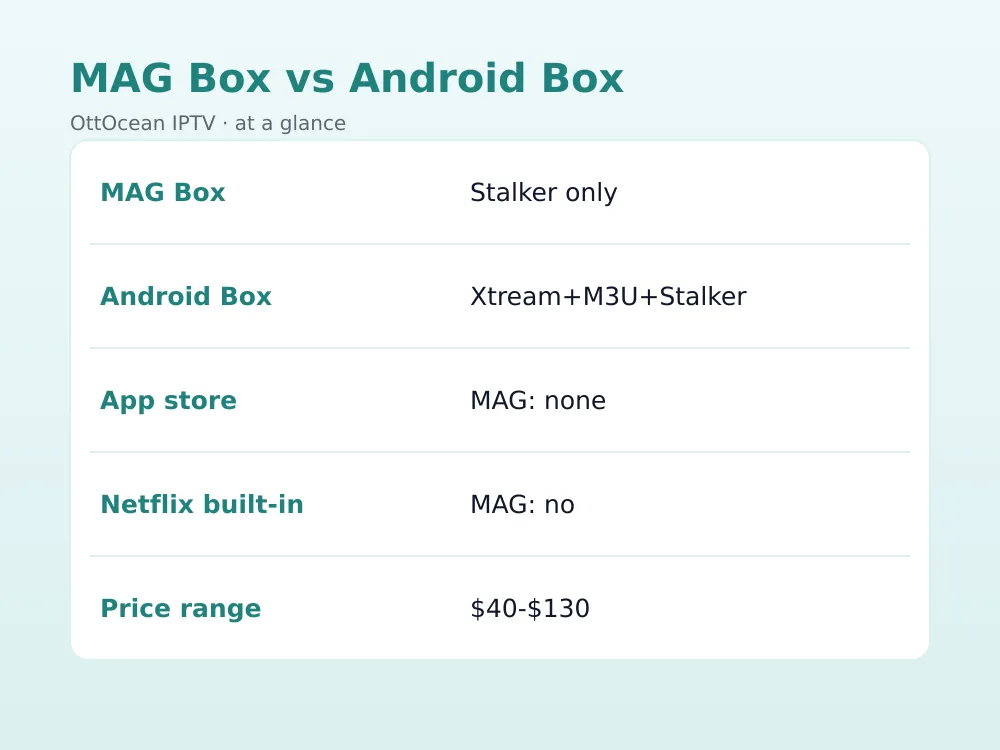
| Feature | MAG Box (Infomir) | Android Box / Formuler |
|---|---|---|
| Native login type | Stalker/MAC portal only | Xtream, M3U, Stalker (varies) |
| App store / sideloading | None | Yes, full Android apps |
| Netflix/YouTube built in | No | Yes on most models |
| Typical price | $90-$130 | $40-$180 |
| Best for | Stalker-only providers, resellers | General streaming plus IPTV |
If your provider only issues MAC-based Stalker logins, a MAG box remains the most reliable way to run IPTV on MAG box middleware without workaround apps. For everything else, a device like the Formuler Z11 covers Stalker portals plus Xtream Codes and general Android apps in one box.
Households that only want live TV and don’t mind skipping streaming apps tend to prefer the MAG box’s simplicity: MAC address activation and a portal URL are the entire setup, with none of the app-store clutter a full Android device brings along with it.
On the resale market, older MAG models can be found for under $50, which makes them tempting for a spare room or a second TV. Just confirm the unit hasn’t been reported lost or blacklisted by a previous owner’s provider, since a blocked MAC address won’t activate no matter how correctly you enter the portal URL.
IPTV resellers also gravitate toward MAG boxes when selling to customers who want a locked-down, appliance-like device rather than a general Android TV box their kids might install unrelated apps on. The lack of an app store is a feature in that context, not a limitation, since it keeps the box doing exactly one job reliably.
Fixing Common IPTV on MAG Box Errors
Most MAG box support tickets trace back to one of these four issues.
- “Authorization error” on boot: check the system clock and time zone first, since this is rarely an actual login problem
- Blank channel list after reboot: re-enter the portal URL, checking for a missing port number or trailing slash
- MAC address not recognized: confirm with support that your specific MAC was registered on the portal, not just purchased
- No Wi-Fi option in Settings: most MAG models need a wired connection or a specific USB Wi-Fi adapter; check your model’s spec sheet
- Stuck on a MAG 524 firmware update screen: power cycle the box and give it several minutes before assuming it’s frozen
If none of these resolve it, a full factory reset followed by re-entering the portal URL clears out corrupted session data that sometimes lingers after a failed update.
Key takeaways
- IPTV on MAG box runs through Stalker portal middleware activated by MAC address, not a username and password
- A wired Ethernet connection is strongly recommended since most MAG models have weak or no Wi-Fi
- Setting the correct time zone before activation prevents the most common “authorization error”
- EPG data comes bundled with the portal itself and doesn’t need a separate XMLTV file
- Firmware updates are usually pushed by the provider’s portal server, not downloaded manually
- A MAG box has no app store, so it’s a poor fit if you also want Netflix or YouTube on the same device
- Your MAC address must be registered with your provider before the portal URL will respond
FAQ: IPTV on MAG Box
Do I need a username and password for a MAG box?
Usually not. Stalker portal setup on a MAG box authenticates using the device’s MAC address, which your provider registers to your account. Some portals add an optional PIN for extra security, but MAC address activation itself is what identifies your subscription to the server, not a typed login.
Can I use a MAG box with an Xtream Codes login instead?
Not natively. MAG boxes are built around Stalker/Ministra portal middleware, and standard firmware doesn’t include an Xtream Codes client. If your provider only issues Xtream Codes or M3U logins, a Formuler box or Android TV device with a compatible app is a better fit for your household.
Why does my MAG box show “authorization error”?
This almost always traces back to an incorrect system clock rather than an actual account problem. Check Settings > System Settings > Localization, set the time zone correctly, and enable automatic NTP time sync if your firmware supports it, then reboot the box.
Is IPTV on MAG box legal to use?
The MAG box itself is legal hardware with no content of its own; legality depends entirely on the IPTV service connected through the portal. Streaming through a properly licensed subscription is standard practice, and users are responsible for understanding the licensing status of any content they access.
How do I find my MAG box’s MAC address?
Check the sticker on the underside of the unit, or navigate to Settings > System Info once the box is powered on. Send this exact address to your IPTV provider before attempting activation, since an unregistered MAC address won’t connect to the portal.
Does a MAG box support 4K streaming?
It depends on the model. Current MAG 524 firmware supports up to Full HD in most configurations, while newer Infomir models add limited 4K support. Check your specific box’s spec sheet, since Infomir has released several MAG variants with different maximum output resolutions and decoder capabilities, and older units may only handle standard definition reliably.
Ready to Activate IPTV on MAG Box Today?
Once your MAG box is registered and the portal URL is saved, the rest of the process takes minutes. OttOcean offers a 5-day free trial, no credit card required, so you can confirm Stalker portal setup, MAC address activation, EPG sync, and channel stability on your specific MAG model before committing to a plan.
Once you’re satisfied, check our subscription plans starting at $9.99 for one device, or read our broader IPTV activation guide for other device types. If you’re deciding between login formats, our M3U vs Xtream Codes comparison explains the differences and helps you pick the right hardware before you buy. Background on IPTV middleware protocols is available from the Wikipedia IPTV overview.


