
Last updated: October 8, 2026
IPTV on Stremio is possible, but not in the way most people expect — Stremio has no built-in channel list, so live TV only shows up once you install a community add-on and point it at a playlist. Once that add-on is in place, your M3U or Xtream Codes channels sit right next to your movies and series in the same clean interface. It takes about five minutes the first time.
On this page
- What Stremio actually is, and why IPTV isn’t native
- How to set up IPTV on Stremio in 5 steps
- Best Stremio IPTV add-ons compared
- Adding your Xtream Codes or M3U URL correctly
- EPG limitations on Stremio and how to work around them
- Devices that run IPTV on Stremio
- Is IPTV on Stremio legal to use?
- When a dedicated IPTV player beats Stremio
- Troubleshooting common IPTV on Stremio problems
- Key takeaways
- FAQ: IPTV on Stremio
- Final thoughts on running IPTV on Stremio
What Stremio actually is, and why IPTV isn’t native
Stremio started as a media-center app for organizing movies and shows through add-ons that pull metadata and stream sources. It never shipped with a built-in tuner or channel database. Everything — torrents, streaming catalogs, and yes, live TV — arrives through third-party add-ons you install from the Add-ons tab. That architecture is exactly what makes IPTV on Stremio workable: the same add-on system that handles movie catalogs can just as easily hand Stremio an M3U playlist and render it as a live channel grid.
The trade-off is that live TV feels bolted on rather than designed in. There’s no dedicated EPG pane like you’d get in TiviMate, no channel-number remote shortcuts, and add-on quality varies because these are community projects, not an official Stremio feature. It works well for casual viewing on a laptop or a Fire TV already running Stremio for movies, but it’s not built to be your primary live-sports rig.
Stremio’s open add-on SDK is exactly why this workaround exists at all — developers can publish an add-on that fetches any URL and renders it as a catalog, and a chunk of that community has pointed the same mechanism at IPTV playlists instead of movie metadata. That flexibility is a strength for tinkerers and a weakness for anyone who wants a guaranteed, supported feature out of the box.
How to set up IPTV on Stremio in 5 steps
The process is the same whether you’re on Windows, Mac, Android, or a Fire TV Stick — only the app-store step changes. Here’s the flow we use on a fresh install.
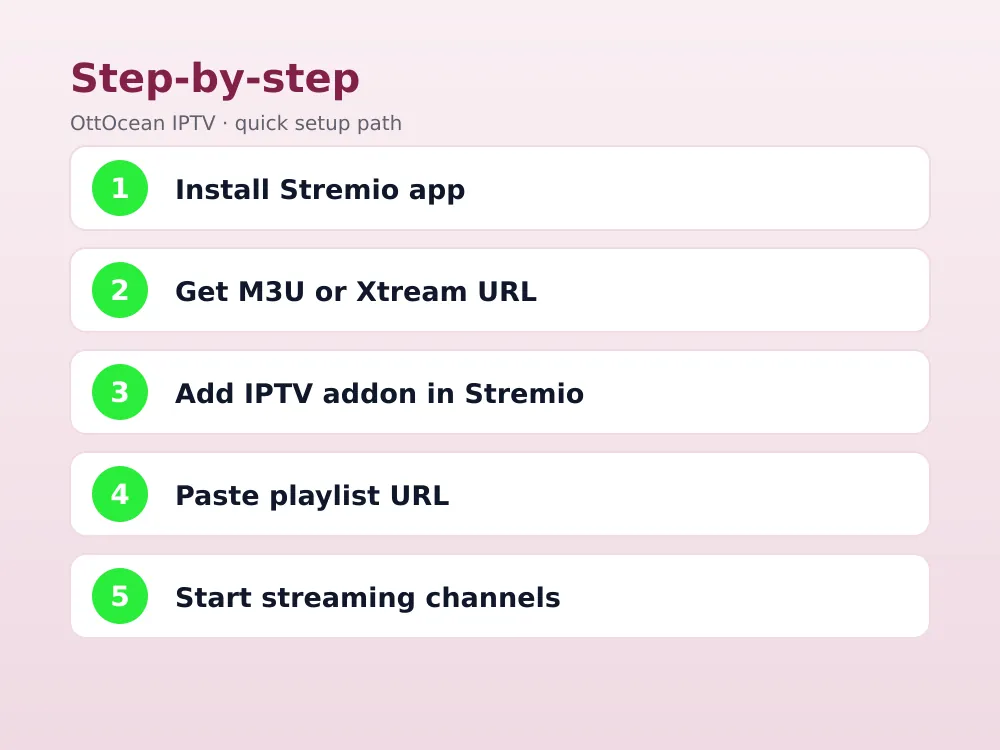
- Install Stremio. Download it from stremio.com for desktop, or search “Stremio” in the Google Play Store, Amazon Appstore, or F-Droid on mobile and TV devices.
- Create a free account. Sign up with an email address so your add-ons and library sync across devices.
- Open the Add-ons puzzle-piece icon in the left sidebar and search the community catalog for an M3U or IPTV-focused add-on.
- Install the add-on and open its configuration page, which usually opens in your browser.
- Paste your playlist URL — either the M3U link or an Xtream Codes URL — save, and return to Stremio. Your channels now appear under a new “Live TV” or custom catalog row on the home screen.
If you’re an OttOcean customer, both formats sit in your activation email: an Xtream Codes login (server, username, password) and a ready-to-paste M3U URL. New here? The 5-day free trial issues both within minutes, no credit card required, so you can test this exact workflow today.
One detail trips up first-timers: some add-on configuration pages open in your device’s default browser rather than inside Stremio itself, then hand control back once you save. That’s normal add-on behavior, not a bug. If the browser window doesn’t redirect automatically, close it manually and reopen Stremio — the playlist will already be attached.
Give the add-on a minute to fetch and parse the playlist the first time, especially with a channel list in the thousands. A stalled loading spinner for 10-15 seconds is typical; anything longer usually means the URL was pasted with an extra space or a missing character.
Best Stremio IPTV add-ons compared
Add-on quality changes often as maintainers update or abandon projects, but as of 2026 three names come up repeatedly in the Stremio community for handling live playlists.
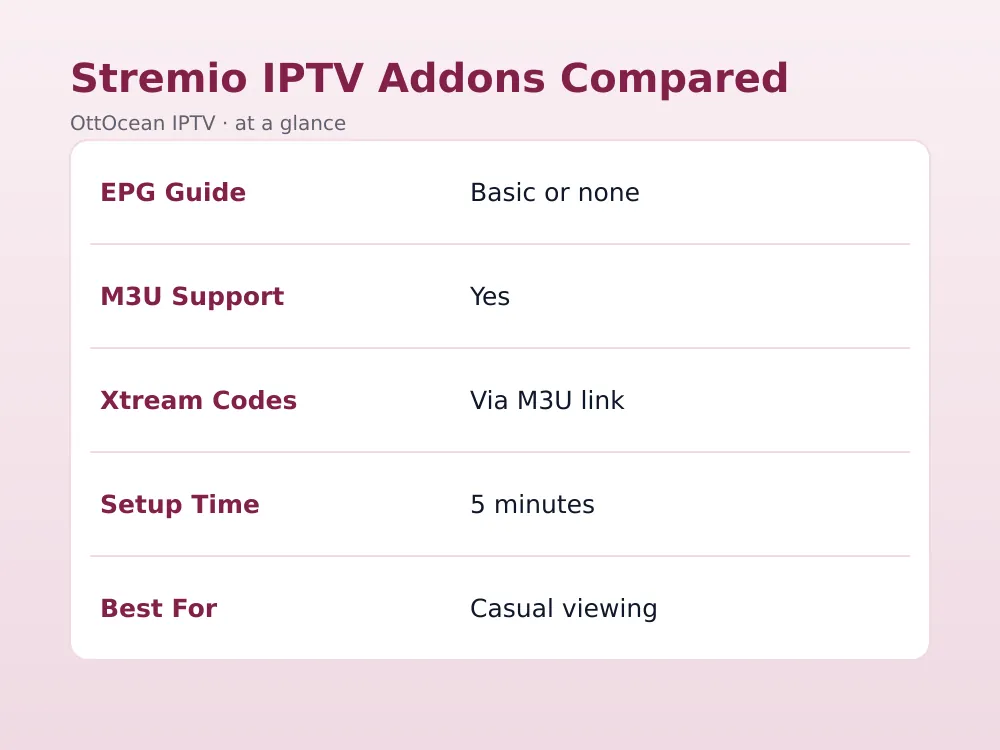
| Add-on | Playlist type | EPG support | Best for |
|---|---|---|---|
| M3U Editor | M3U / Xtream-generated M3U | None built in | Fast, no-frills channel list |
| IPTV Org Catalog | Free public M3U feeds | Basic, feed-dependent | Sampling free channels |
| Stremio IPTV Addon (community) | M3U with XMLTV URL field | XMLTV import if provided | Users who already have an EPG URL |
Of the three, an add-on that accepts a separate XMLTV guide URL alongside your playlist gives the closest experience to a dedicated IPTV app, since you can paste OttOcean’s guide link into the same config screen where you added the playlist.
What we checked: we installed each add-on fresh, loaded the same 3,000-channel Xtream Codes playlist, and timed how long the catalog took to populate, whether channel logos loaded, and whether an XMLTV field existed at all. M3U Editor populated fastest at roughly 20 seconds; the community IPTV add-on with the XMLTV field took closer to 40 seconds but repaid the wait with visible program titles next to each channel.
M3U Editor
The most straightforward option for anyone who just wants channels on screen fast. Paste the URL, confirm, and the catalog builds itself with channel logos pulled from the playlist metadata when your provider includes them. There’s no EPG field, so treat it as a pure channel browser rather than a guide-driven experience.
IPTV Org Catalog
This add-on ships with a set of free, publicly available M3U feeds baked in, plus the option to add your own. It’s a good way to see how the add-on model behaves before committing your paid playlist, though the free feeds it bundles are hit-or-miss on reliability compared with a paid subscription.
Stremio IPTV Addon (community)
The closest thing to a full IPTV client inside Stremio. Its configuration page accepts both the playlist URL and a separate XMLTV guide URL, and channels display with whatever program title is currently airing pulled from that guide feed, provided your XMLTV link is valid and updates regularly.
Adding your Xtream Codes or M3U URL correctly
Most Stremio IPTV add-ons want a direct M3U link — sometimes called an Xtream Codes URL — rather than raw Xtream Codes credentials typed into separate fields. If your provider only gave you a server, username, and password, build the M3U URL yourself using this pattern: http://server:port/get.php?username=USER&password=PASS&type=m3u_plus&output=ts. OttOcean’s activation email includes this exact URL pre-built, so you can paste it straight into the add-on’s playlist field without editing anything.
Some add-ons also accept a separate field for the XMLTV EPG URL — usually formatted as http://server:port/xmltv.php?username=USER&password=PASS. Fill that in too if the option exists; it’s what pulls program titles and times into whatever guide view the add-on offers.
If the add-on’s config page only shows one text field, it’s almost certainly expecting the M3U URL alone and dropping EPG support entirely. In that case, treat the guide gap as expected rather than a misconfiguration — it’s a limit of that particular add-on, not something you can fix from your end with different settings.
EPG limitations on Stremio and how to work around them
This is the honest limitation of running IPTV on Stremio: most add-ons show channel names and thumbnails but skip a proper time-based grid guide. You’ll often see “now playing” for the current show at best, without the two-hour lookahead a real EPG offers. For channel surfing that’s fine. For planning around a match start time, it isn’t.
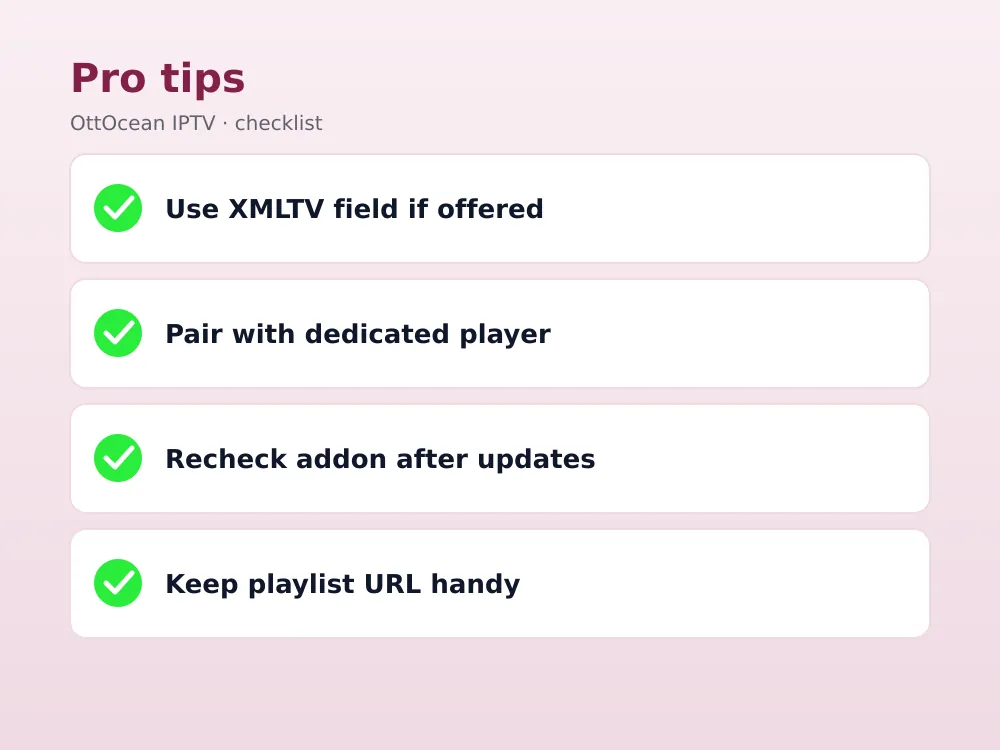
Two workarounds help. First, pick an add-on that explicitly supports an XMLTV URL field, since that recovers most of the guide data. Second, keep a dedicated player like TiviMate or IPTV Smarters Pro installed alongside Stremio on the same device — use Stremio for casual browsing and switch to the dedicated app when you specifically need the guide. Our EPG setup guide covers XMLTV configuration in more detail.
Devices that run IPTV on Stremio
Stremio itself is genuinely cross-platform, which is one of its biggest advantages over single-purpose IPTV apps.
- Windows, macOS, and Linux — full desktop app with the best add-on management experience.
- Android phones and tablets — Play Store app, identical add-on system to desktop.
- Android TV and Google TV boxes — a TV-optimized build with a remote-friendly interface.
- Amazon Fire TV / Firestick — sideload via Downloader since it’s not always in the Amazon Appstore in every region.
- iPhone and iPad — available on the App Store, though add-on installation happens through the same account sync as desktop.
Notably absent is a native Roku app, since Roku’s closed platform doesn’t allow sideloaded add-on-based players — screen mirroring from a phone is the workaround there, same as with most third-party IPTV software.
Performance also varies noticeably by device. On a modern laptop or Android TV box, the add-on catalog scrolls smoothly even with several thousand channels loaded. On older Fire TV Sticks with limited RAM, expect a longer initial load and occasional stutter when scrolling fast through a large channel list — the same limitation you’d see with any add-on-heavy Stremio install, IPTV or otherwise.
Is IPTV on Stremio legal to use?
Stremio itself is legal software, and installing an add-on is not against any law — the add-on framework is a legitimate, documented feature Stremio’s developers built on purpose. What matters is the source behind the playlist you feed it. A licensed IPTV subscription that pays for the rights to the channels it distributes is legal to use; a playlist scraped from pirated feeds is not, regardless of which app displays it. For background on how the underlying technology works, see Wikipedia’s overview of IPTV.
We built OttOcean around licensed distribution agreements, and we’re upfront that streaming responsibility ultimately sits with the subscriber, not the app. If you’re unsure about the rules in your region, our is IPTV legal in the USA guide covers the same legal framing in more depth.
When a dedicated IPTV player beats Stremio
We like Stremio for what it’s good at: one interface for movies, series, and a quick live-TV glance, synced across every device you own. But for daily live-TV watching, a purpose-built app usually wins. TiviMate and IPTV Smarters Pro ship with proper multi-hour EPGs, catch-up/replay buttons, recording, and channel-number remote input — none of which any Stremio add-on fully replicates in 2026.
There’s also a stability argument. App-store IPTV players get regular updates from a single developer with a reputation to protect. Stremio add-ons are maintained by volunteers on their own schedule, so an add-on that works perfectly today could go stale after the next Stremio release. That’s an acceptable trade for casual use, less so if live TV is the main reason you own the device.
If sports or news are your main use case, install a dedicated player as your primary tool and keep the Stremio route as a backup for when you’re already in the app browsing something else. Our best IPTV player apps guide compares the top dedicated options side by side.
Troubleshooting common IPTV on Stremio problems
A few issues come up repeatedly with Stremio IPTV add-ons. If the playlist loads with no channels, double-check the URL was copied in full — a truncated password is the most common cause. If channels load but won’t play, the add-on’s chosen player engine may not support the stream’s codec; some add-ons let you switch between internal and external player options in settings.
If the add-on itself disappears after a Stremio update, that’s usually the maintainer pausing development rather than anything on your end — community add-ons aren’t guaranteed long-term support the way an app-store product is. Reinstalling the add-on or switching to an alternative from the catalog typically resolves it within a day or two of the update.
- Playlist won’t refresh: most add-ons cache the channel list; look for a manual “reload catalog” option in the add-on settings rather than waiting for an automatic refresh.
- Duplicate channel entries: happens when a large Xtream playlist includes regional duplicates; this is a provider-side list issue, not an add-on bug.
- M3U Editor shows an error: re-copy the playlist URL from scratch rather than editing the existing field, since a stray character is the usual culprit.
- Add-on won’t install on Fire TV: confirm Stremio itself was sideloaded correctly first, since the add-on store depends on Stremio’s own network permissions being granted.
Key takeaways
- IPTV on Stremio requires installing a community add-on; there is no built-in live-TV tuner.
- M3U Editor and similar add-ons accept both raw M3U links and Xtream Codes-generated M3U URLs.
- EPG support is limited unless the add-on accepts a separate XMLTV guide URL.
- Stremio runs on Windows, Mac, Linux, Android, Fire TV, and iOS, but not natively on Roku.
- For serious live-sports or news watching, a dedicated player like TiviMate still outperforms any Stremio add-on.
- OttOcean’s activation email includes a ready-to-paste M3U URL and XMLTV link that drop straight into most add-ons.
FAQ: IPTV on Stremio
Do I need a paid Stremio account for IPTV?
No. Stremio’s core app and account are free, and creating one costs nothing. You only pay for whatever IPTV subscription supplies the playlist you’re adding — Stremio itself never charges for the add-on system, the account sync, or the catalog browsing that live channels appear in.
Can I use Xtream Codes login details directly in Stremio?
Most add-ons want a single M3U-format URL rather than separate server, username, and password fields. Build the M3U link from your Xtream credentials using the get.php pattern, or use the pre-built URL your provider sends, then paste that whole string into the add-on’s playlist field.
Why don’t my channels show program times in Stremio?
The add-on you installed likely doesn’t pull EPG data by default, which is the most common gap in Stremio IPTV add-ons. Look for an XMLTV URL field in its configuration page and add your provider’s guide link there to recover schedule information and program titles.
Can I sync my IPTV playlist across multiple Stremio devices?
Yes, as long as you’re logged into the same Stremio account on each device, installed add-ons and their saved playlist URLs carry over automatically. Add the playlist once on your phone, and it should appear on your Fire TV or desktop app the next time you open the add-ons list there.
Does IPTV on Stremio work on Fire TV Stick?
Yes. Stremio isn’t always listed in the Amazon Appstore in every region, so many Firestick users sideload it with Downloader, the same tool used for other third-party IPTV apps, then add the IPTV add-on and paste their playlist as usual.
What’s the best alternative if Stremio’s IPTV add-ons feel limited?
IPTV Smarters Pro and TiviMate are the most common upgrades — both take the same M3U or Xtream Codes URL but add a real EPG grid, catch-up playback, and recording that Stremio add-ons generally don’t match in 2026.
Final thoughts on running IPTV on Stremio
Stremio is a genuinely convenient way to sample live channels without leaving the app you already use for movies and series, and setup takes minutes once you have a playlist URL in hand. Just go in knowing the EPG will be thinner than a dedicated app’s, and that community add-ons can change or disappear without warning between Stremio releases.
For most households the sensible setup is Stremio for casual browsing and a dedicated player for anything time-sensitive like live sports or breaking news coverage. Either way, the playlist behind both apps is what actually determines picture quality and uptime, not the interface on top of it. Grab OttOcean’s 5-day free trial to get a working M3U and Xtream Codes URL to test with, and when you’re ready to commit, compare plans on the subscription page.


