
Last updated: September 20, 2026
Getting IPTV on Xbox is not as simple as installing an app the way you would on a Fire TV Stick or Android TV box — Microsoft’s console ecosystem was never built around dedicated IPTV players. That does not mean it is impossible; it means you need to pick the right workaround for your Series X or Series S.
On this page
- Why IPTV on Xbox Isn’t as Simple as Other Devices
- Method 1: Microsoft Store IPTV Player Apps
- Method 2: Microsoft Edge Browser Web Player
- How to Find Your IPTV Provider’s Web Player URL or M3U Link
- Method 3: Plex or Jellyfin as an IPTV Bridge
- Step-by-Step: Setting Up IPTV on Xbox With a Web Player
- Xbox Series X vs. Series S for IPTV Streaming
- Limitations of IPTV on Xbox You Should Know
- Troubleshooting IPTV on Xbox Playback Issues
- Best Alternative Devices If Xbox Isn’t Cutting It
- Key takeaways
- FAQ: IPTV on Xbox
- Conclusion
Why IPTV on Xbox Isn’t as Simple as Other Devices
Microsoft’s console store has always been curated far more tightly than Amazon’s Fire TV Appstore or Google’s Android TV store. There is no sideloading option for regular users, no Downloader-style tool, and Microsoft has historically kept dedicated live-TV and IPTV apps off the platform, likely to avoid content-rights disputes tied to unlicensed streams.
A few “IPTV Player” branded apps do occasionally surface in the Microsoft Store, but they come and go, vary wildly in quality, and are not maintained with anywhere near the consistency of TiviMate or IPTV Smarters Pro on Fire TV. That gap is exactly why the browser and media-server workarounds below have become the standard approach for getting IPTV on Xbox working reliably.
This has been true since the original Xbox One generation, not a recent policy shift — Microsoft’s console storefronts have consistently prioritized licensed streaming services like Netflix, YouTube TV, and ESPN over generic IPTV clients that could relay unlicensed content. Nothing suggests that changes in the current console generation, so plan around it rather than waiting for an official IPTV on Xbox app to appear.
The silver lining: the Series X and Series S are genuinely powerful hardware, well ahead of most streaming sticks, so once you get a working video path established, playback quality is excellent. For a broader look at player options across every platform, see our best IPTV player apps guide.
It also helps to understand why Microsoft draws this line where it does. Console makers face more direct legal exposure than app-store operators on open platforms, since a curated storefront implies a level of review and endorsement that a sideloadable Android APK does not. That caution is exactly why IPTV on Xbox has always leaned on browser and bridge workarounds rather than a dedicated store app.
Method 1: Microsoft Store IPTV Player Apps
Search “IPTV Player” in the Microsoft Store on your Xbox and you will typically find one or two listings. Quality and reliability vary release to release — some accept an M3U URL or Xtream Codes login directly, others are essentially thin wrappers around a web player.
Install one, open it, and enter the M3U playlist URL or Xtream Codes username/password/server details your provider gave you. If the app crashes on launch or refuses your credentials, do not assume your subscription is broken — try Method 2 before troubleshooting your account, since flaky Store apps are the more common culprit. Read recent reviews before installing, since a Store app that worked well six months ago can decline sharply after a bad update with no ongoing maintenance behind it.
Method 2: Microsoft Edge Browser Web Player
The Xbox ships with a full version of Microsoft Edge, and this is the most consistently reliable path to IPTV on Xbox in 2026. Many IPTV panels and third-party web players (including browser-based Xtream Codes players) run entirely in a standard browser, no app install required.
Open Edge from your Xbox’s app list, navigate to your provider’s web player URL or a general-purpose Xtream Codes web player, and log in with your Xtream Codes credentials. Full-screen the browser window with the controller’s menu options for the closest thing to a native app experience.
The controller works reasonably well for basic navigation, though typing URLs and login details with the on-screen keyboard is tedious — connecting a USB or Bluetooth keyboard to the Xbox for initial setup saves real frustration. Once logged in, most web players remember your session, so you only need the keyboard for that first setup pass.
How to Find Your IPTV Provider’s Web Player URL or M3U Link
Every legitimate IPTV provider sends activation details by email after signup — typically an Xtream Codes server address, username, and password, plus a separate M3U playlist URL as a backup format. If you signed up with OttOcean, that email also links a hosted web player you can open directly in Edge.
If you cannot locate the email, check your spam folder first, then your account dashboard on the provider’s site if one exists. Never search generic “iptv on xbox web player” results and enter your real credentials into an unfamiliar third-party site — stick to your own provider’s official player or a well-known open-source player you configure yourself. Bookmark whichever URL you settle on immediately; retyping a long web player address on a controller every session gets old fast.
Method 3: Plex or Jellyfin as an IPTV Bridge
Both Plex and Jellyfin have official Xbox apps, and both can ingest an IPTV M3U playlist as a “Live TV” source through a tuner-proxy tool like xTeVe or Threadfin running on a home server or PC.
Once configured, your IPTV channels show up inside Plex or Jellyfin’s native live TV guide, right alongside your personal media library, with proper EPG data if your provider supplies it. This is the closest thing to a polished, app-native experience currently available for IPTV on Xbox.
The trade-off is setup complexity — you need a server running xTeVe or Threadfin, correctly mapped channel and EPG data, and Plex or Jellyfin configured to treat it as a live TV tuner. It is a weekend project the first time, not a five-minute install. Once running, though, the server keeps working for every device in the house, not just the Xbox, which makes the upfront effort pay off if you already have a home server for movies or music.
Step-by-Step: Setting Up IPTV on Xbox With a Web Player
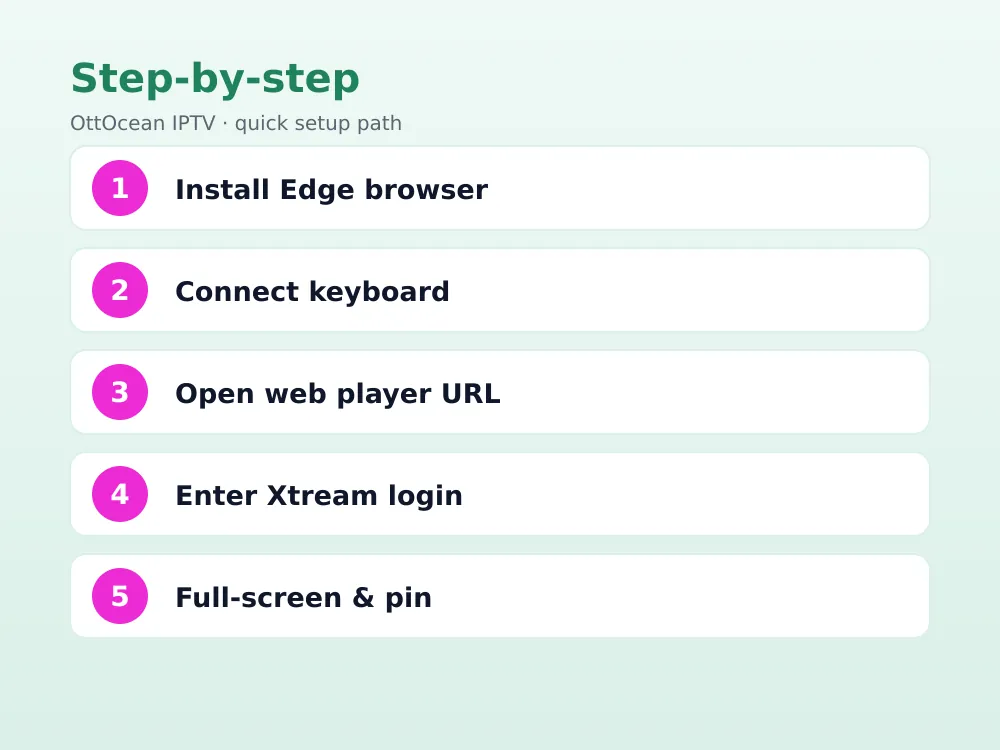
This is the fastest path if you just want IPTV on Xbox working today without building a home media server. Most providers, OttOcean included, format these login details identically regardless of destination device, so the same credentials work whether you are setting up a Firestick, a phone, or a console.
- From the Xbox home screen, open the Microsoft Store and search “Microsoft Edge” if it is not already installed.
- Launch Edge, and if you have not already, connect a USB or Bluetooth keyboard for easier typing.
- Navigate to your IPTV provider’s web player URL, or a reputable general Xtream Codes web player.
- Enter your Xtream Codes server, username, and password exactly as provided in your activation email.
- Select a channel to confirm playback, then use Edge’s full-screen mode for the cleanest viewing experience.
- Pin the page or bookmark it on the Xbox home screen for faster access next time.
If your provider only gave you an M3U URL rather than Xtream Codes login details, our PC and Mac IPTV guide covers compatible web and desktop players that accept M3U links directly.
Xbox Series X vs. Series S for IPTV Streaming
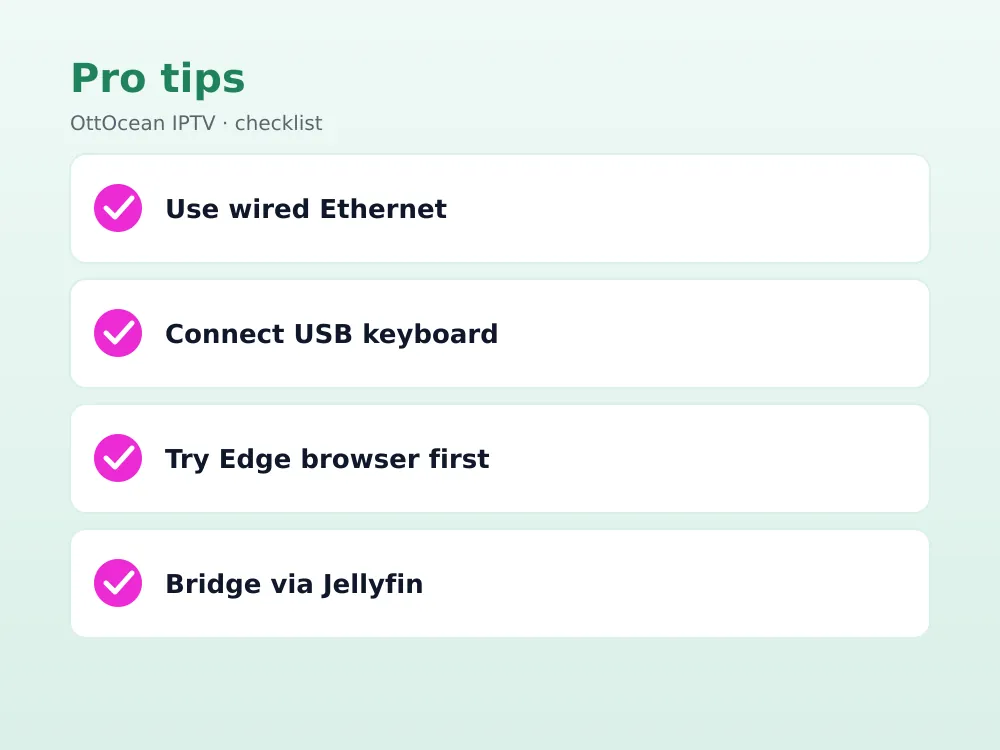
Either Xbox Series X or Series S handles IPTV on Xbox fine for the actual playback workload — video decoding is a minor task compared to what these consoles were built for. The practical differences are storage and output resolution rather than streaming capability.
| Factor | Series X | Series S |
|---|---|---|
| Max output | 4K | 1440p upscaled |
| Storage | 1TB SSD | 512GB SSD |
| Edge browser | Full support | Full support |
| Plex/Jellyfin apps | Supported | Supported |
| Price (2026) | Higher | Lower |
If 4K IPTV channels matter to you specifically, the Series X’s native 4K output has the edge; for standard HD live TV and VOD, the Series S handles IPTV on Xbox just as capably at a lower price point.
Limitations of IPTV on Xbox You Should Know
Be honest with yourself about what you are trading for console convenience. Browser-based playback lacks the polish of a dedicated app — no proper EPG grid in most cases, clunkier channel switching, and no built-in recording unless you route through Plex or Jellyfin’s DVR features. None of this is a dealbreaker for casual viewing, but it is worth knowing upfront rather than being surprised the first time you go looking for a feature IPTV on Xbox simply does not offer through a browser.
Controller navigation inside a web browser is workable but never as smooth as a remote built for a purpose-made app like TiviMate. If you watch IPTV daily and want the best possible experience, a dedicated Fire TV Stick or Android TV box sitting next to your Xbox is still the more comfortable choice for actual channel surfing.
Background resource use is another quiet limitation. Edge on a console is a full browser process, not a stripped-down native player, so it uses more memory and CPU per stream than a dedicated app would. On a Series X or Series S that headroom rarely causes problems on its own, but it is worth knowing if you also run other background downloads or updates while streaming.
Troubleshooting IPTV on Xbox Playback Issues
Most IPTV on Xbox problems trace back to one of a few common causes, regardless of which method you are using. Work through these before assuming your subscription itself is at fault — the console-specific playback path is far more often the source of trouble than the underlying channel feed.
- Stream won’t load in Edge: clear the browser cache under Edge Settings, or try the page in a private/InPrivate window to rule out a stale session.
- Frequent buffering: switch from Wi-Fi to wired Ethernet if possible — console Wi-Fi chipsets are not always the strongest in the house.
- Store app won’t accept your login: double check for extra spaces or autocorrect changes in your Xtream Codes username and password, then fall back to Method 2.
- Jellyfin/Plex shows no channels: confirm your xTeVe or Threadfin tuner is actually reachable from the Plex/Jellyfin server, not just from your own PC.
- Audio plays but video freezes: restart the Edge tab rather than the whole console first — a stuck decoder session inside the browser is a far more common cause than a hardware issue, especially for IPTV on Xbox where Edge carries more overhead than a native player would.
If none of these fixes resolve the issue, test the same stream URL on a phone or laptop to isolate whether the problem is console-specific or affects every device — that single check saves a lot of wasted troubleshooting time.
Best Alternative Devices If Xbox Isn’t Cutting It
None of this means you are stuck. A $50 Fire TV Stick 4K or an Android TV box plugged into a spare HDMI port gives you a proper IPTV app experience in minutes, and most people who try both end up using the Xbox for gaming and a dedicated streamer for IPTV.
- Fire TV Stick 4K: cheapest path to a native IPTV app experience with TiviMate or IPTV Smarters Pro.
- Android TV / Google TV box: similar app support, slightly more open sideloading options.
- Apple TV: polished, works well if you are already in the Apple ecosystem.
None of this makes IPTV on Xbox obsolete, though — if you already own the console and just want a fallback option or occasional viewing without buying more hardware, the browser and bridge methods above work well enough for casual use. Reserve the extra hardware purchase for when live TV becomes a daily habit rather than an occasional check-in.
Key takeaways
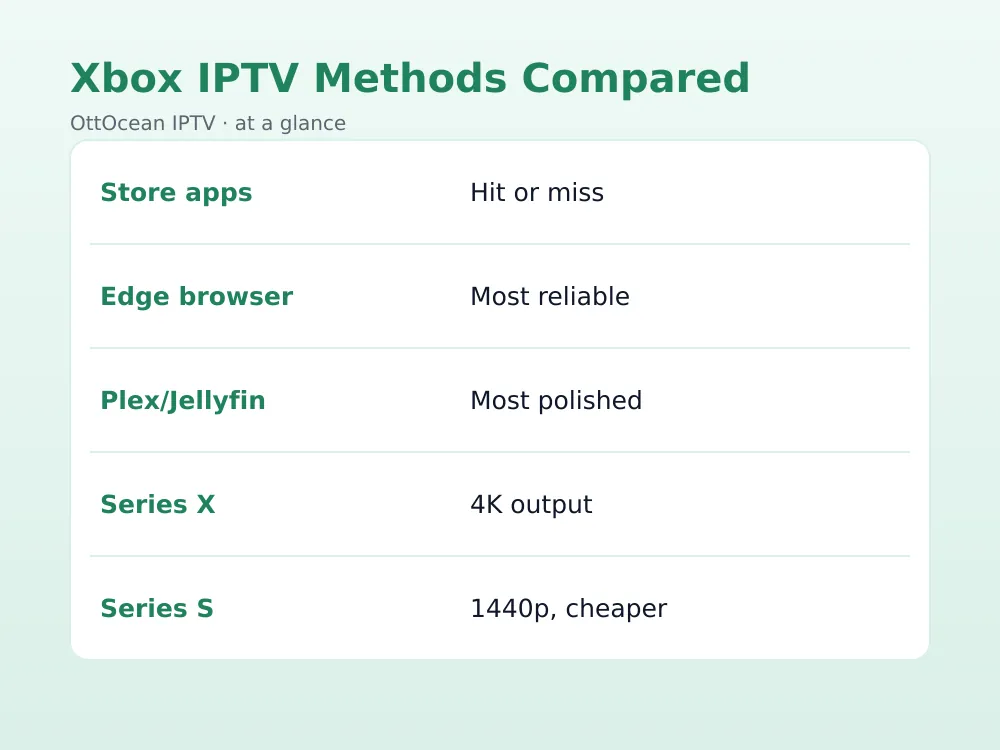
- IPTV on Xbox has no dedicated, reliably maintained app — three workarounds fill the gap instead.
- Microsoft Edge pointed at a web-based IPTV player is currently the most reliable method.
- Plex or Jellyfin with an xTeVe/Threadfin bridge gives the most polished, app-native feel, at the cost of setup complexity.
- Occasional Microsoft Store “IPTV Player” apps exist but vary widely in quality and maintenance.
- A USB or Bluetooth keyboard makes credential entry far less painful on any Xbox method.
- Series X and Series S both handle IPTV on Xbox playback fine; the difference is resolution and storage.
- A cheap dedicated streaming box remains the more comfortable daily-driver option for live TV.
FAQ: IPTV on Xbox
Is there an official IPTV Smarters app for Xbox?
Not a native Xbox Store app as of 2026. IPTV Smarters Xbox users generally rely on the web-based version of Smarters Player Lite through Microsoft Edge, or run the service through a Plex/Jellyfin bridge. Check the Microsoft Store periodically, since store-listed apps do occasionally appear and disappear.
Can I watch live TV on Xbox without a subscription service?
Only if you already have channels to relay — free over-the-air apps and streaming service apps exist on Xbox, but generic “watch live tv Xbox” access without any subscription is not realistic for the thousands of channels an IPTV service provides. You need an active IPTV subscription and one of the three methods above to actually watch.
Does Xbox Series S support 4K IPTV streams?
The Series S outputs at up to 1440p, so it upscales rather than natively displays a true 4K IPTV stream. It handles standard and HD channels identically to the Series X. If native 4K output specifically matters to you, the Series X is the better hardware match.
Controller responsiveness inside Edge is identical across both consoles, since it is governed by the browser and network rather than the GPU. If you are choosing between the two purely for IPTV on Xbox rather than gaming, the Series S is the more sensible buy — you are unlikely to notice the resolution difference watching live channels compared to native 4K gaming content.
Why does my IPTV stream buffer more on Xbox than on my phone?
Usually it is the browser-based playback path rather than the console’s power — Edge on Xbox is a full browser, not a lightweight native player, so it carries more overhead per stream. Wired Ethernet instead of Wi-Fi, and closing other background apps, both noticeably reduce buffering in our testing.
Can I use a VPN with IPTV on Xbox?
Not directly on the console — Xbox has no native VPN client. The common workaround is configuring a VPN on your router so every device on the network, Xbox included, routes through it automatically. That is also the more reliable approach for Plex/Jellyfin server setups anyway.
Is watching IPTV on Xbox legal?
Using your console as a display for a licensed IPTV subscription is no different, legally, than watching on any other device — the legality question is about the service and content, not the hardware showing it. Stick with a legitimate paid subscription and you are in the same position as any cable or satellite subscriber.
Conclusion
IPTV on Xbox takes a bit more setup than it does on a Fire TV Stick, but Edge plus a web player gets most people watching within minutes, and a Plex or Jellyfin bridge delivers a genuinely polished experience if you are willing to spend an afternoon on it. Pick the method that matches how often you actually plan to watch, and do not feel obligated to build a full media server just to check a game score between rounds.
Whichever method you pick, you will need a real subscription behind it. OttOcean’s 5-day free trial gives you Xtream Codes and M3U credentials that work with every method in this guide, no credit card required, and plans start at $9.99 a month.


