
Last updated: September 21, 2026
Getting IPTV on PS5 takes a workaround, because Sony has never shipped a dedicated live-TV or IPTV app for the console, and there is no official way to sideload one. That has not stopped a large community of PS5 owners from watching IPTV on their console anyway, using a handful of proven methods that range from a five-minute browser trick to a proper home media server bridge.
On this page
- Why IPTV on PS5 Has No Native App
- The 4 Ways to Get IPTV on PS5 in 2026
- Method 1: PS5 Web Browser (Media Player Workaround)
- Method 2: Plex App + xTeVe/Threadfin IPTV Bridge
- Method 3: Jellyfin App + IPTV Tuner Bridge
- Method 4: HDMI Passthrough From a Streaming Stick
- Step-by-Step: Setting Up IPTV on PS5 With Plex
- Which Method Should You Actually Use?
- Troubleshooting IPTV on PS5 Issues
- Limitations and Honest Trade-Offs
- Key takeaways
- FAQ: IPTV on PS5
- Conclusion

Why IPTV on PS5 Has No Native App
Sony curates the PlayStation Store tightly, and console makers generally avoid hosting dedicated IPTV clients — apps built specifically to play arbitrary M3U playlists or Xtream Codes logins carry legal risk if used with unlicensed streams, and Sony has no interest in reviewing or supporting that category directly.
That leaves PS5 owners with the same situation Xbox owners face: no official app, but plenty of legitimate workarounds using tools Sony does support, like the console’s web browser and its Plex and Jellyfin apps. None of these require jailbreaking, homebrew, or anything that would void your warranty or risk a system ban.
This mirrors the exact situation on Xbox and other closed console ecosystems — manufacturers with curated storefronts consistently avoid hosting apps built around arbitrary IPTV playlists, regardless of brand. Do not expect an official app to appear in a future PS5 system update; nothing in Sony’s public roadmap suggests that changing, so the workarounds in this guide are likely to remain the standard path to IPTV on PS5 for the foreseeable future.
The PS5’s hardware is more than capable once you get a working video path — it decodes 4K HDR content effortlessly, well beyond what most IPTV streams actually need. For a wider comparison of dedicated player apps across every platform, see our best IPTV player apps guide.
The 4 Ways to Get IPTV on PS5 in 2026
Here is the quick overview before we walk through each method in detail. Every option below has active 2026 documentation and works on current PS5 system software without any unsupported modification.
- Web browser: point the PS5’s browser at a web-based IPTV player. Fastest to set up, no extra hardware.
- Plex bridge: run xTeVe or Threadfin on a home server, feed it into Plex’s Live TV feature, watch through the official Plex app.
- Jellyfin bridge: same concept as Plex, using the free and open-source Jellyfin media server instead.
- HDMI passthrough: plug a Fire TV Stick or Android TV box into a spare HDMI input and switch inputs on your TV.
Which one makes sense for you comes down to how much setup effort you are willing to trade for a more polished final experience — we break down that trade-off later in this guide.
Method 1: PS5 Web Browser (Media Player Workaround)
The PS5 ships with a basic but functional web browser, accessible from the console’s Media or Card menu depending on your system software version. This is the quickest path to IPTV on PS5 for anyone who just wants to test a subscription today.
Open the browser, navigate to your provider’s hosted web player or a general Xtream Codes web player, and log in with your Xtream Codes server, username, and password. Full-screen the video and use the DualSense controller to navigate basic playback controls.
The trade-off is a clunky interface — the PS5 browser was built for light web browsing, not video-heavy IPTV panels, so expect occasional lag navigating menus even though playback itself is usually smooth once a stream starts. For anyone who just wants IPTV on PS5 working right now without extra hardware, this remains the fastest path, even if the interface is rougher than a dedicated app.
Method 2: Plex App + xTeVe/Threadfin IPTV Bridge
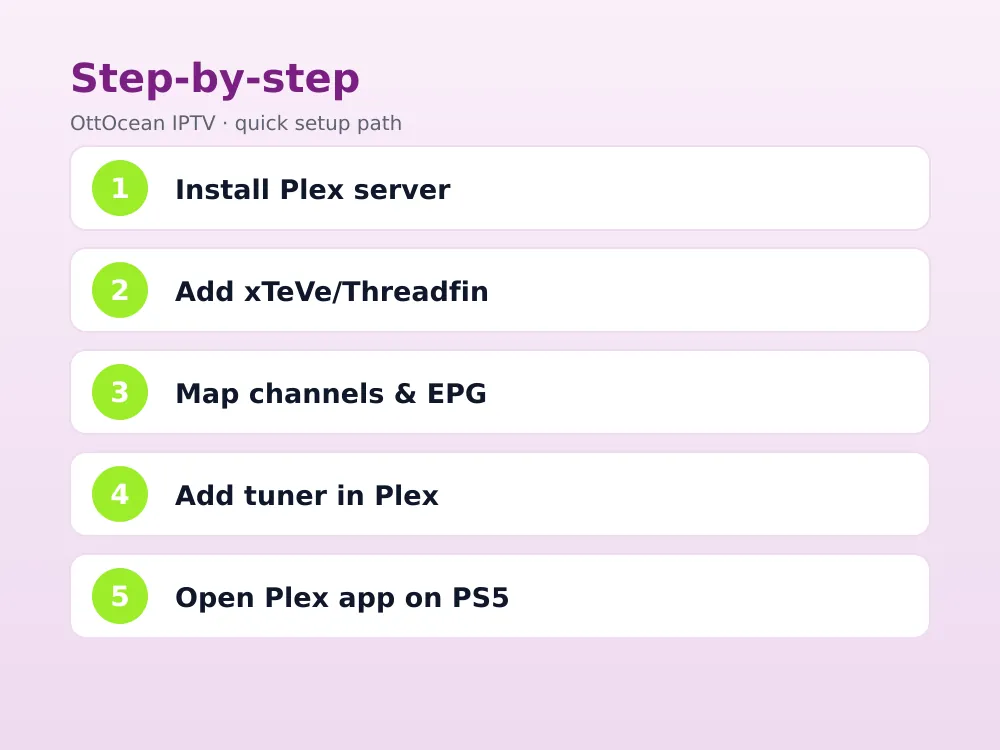
Plex has an official, polished PS5 app, and it supports Live TV as a first-class feature — but only if you feed it a proper tuner source. That is exactly what xTeVe or Threadfin do: both run on a home PC or NAS and translate an IPTV M3U playlist into a format Plex recognizes as a live TV tuner.
Once configured, your IPTV channels appear inside Plex’s native live TV guide on PS5, complete with EPG data if your provider supplies it, sitting right alongside your personal media library. This is widely considered the most “native app” experience currently achievable for IPTV on PS5.
Setup takes real effort the first time — installing xTeVe or Threadfin, mapping channels and EPG data correctly, then pointing Plex at the resulting tuner — but once it works, this Plex-based path to IPTV on PS5 keeps running for every Plex client in the house, not just the console. Because Plex treats the bridge as a real tuner, features like pause and rewind on live channels work exactly as they would with an actual cable box, which is not something the browser method offers.
Method 3: Jellyfin App + IPTV Tuner Bridge
Jellyfin, the free and open-source alternative to Plex, follows the identical pattern and also has an official PS5 app. If you already run Jellyfin for your personal media collection, adding an xTeVe or Threadfin IPTV bridge is usually a smaller incremental step than starting from scratch with Plex.
The main difference between the two comes down to ecosystem and cost — Jellyfin is entirely free and self-hosted with no subscription tiers, while Plex offers optional Plex Pass features. For pure IPTV live TV functionality, the two perform very similarly once the bridge is configured correctly. Jellyfin’s PS5 media player app has closed much of the polish gap with Plex over the past couple of years, making it a genuinely competitive free alternative rather than a compromise pick.
Method 4: HDMI Passthrough From a Streaming Stick
The simplest fix of all skips the PS5 entirely for the actual streaming: plug a Fire TV Stick, Roku, or Android TV box into a second HDMI input on your TV and switch inputs when you want live channels instead of games.
This sacrifices any pretense of a unified PS5 experience but delivers the best IPTV app quality by far — dedicated apps like TiviMate or IPTV Smarters Pro run natively on those devices with proper EPG, recording, and remote support that no browser workaround can match.
Most PS5 owners we talked to who tried the browser or Plex methods first eventually add a $50 streaming stick anyway, simply because the dedicated app experience is that much smoother for daily live TV viewing. This is also the only method here that keeps working identically no matter what system software update Sony ships next, since it does not depend on the PS5 at all for the actual stream.
Step-by-Step: Setting Up IPTV on PS5 With Plex
This is the more involved method, but it delivers the most polished result, so here is the full sequence.
- Install Plex Media Server on a Windows, Mac, Linux, or NAS device that stays powered on.
- Download and install xTeVe or Threadfin on that same machine, and enter your provider’s M3U playlist URL and EPG XMLTV URL if available.
- In xTeVe/Threadfin, map each channel to a logical channel number and confirm the EPG data lines up correctly.
- In Plex Media Server settings, go to Live TV & DVR, add a new tuner, and point it at your xTeVe/Threadfin instance’s local address.
- Let Plex scan and import the channel lineup, then verify a few channels play back correctly from the server itself.
- Install the official Plex app on your PS5 from the PlayStation Store, sign in, and open Live TV to confirm your channels appear.
If you only have an M3U link rather than full Xtream Codes credentials, our M3U playlist setup guide covers exactly which URL format xTeVe and Threadfin expect.
Which Method Should You Actually Use?
Match the method to how often you actually plan to watch. Casual, occasional viewing barely justifies more than the browser method; daily live TV habits justify the weekend spent building a Plex or Jellyfin bridge.
There is no universally “best” answer here — it genuinely depends on whether you already maintain a home server, how often you watch live TV, and how much you value staying inside one device instead of switching HDMI inputs. Most households we spoke with who tried IPTV on PS5 through the browser first eventually settled on either a Plex bridge or a cheap streaming stick once their viewing habits became clear.
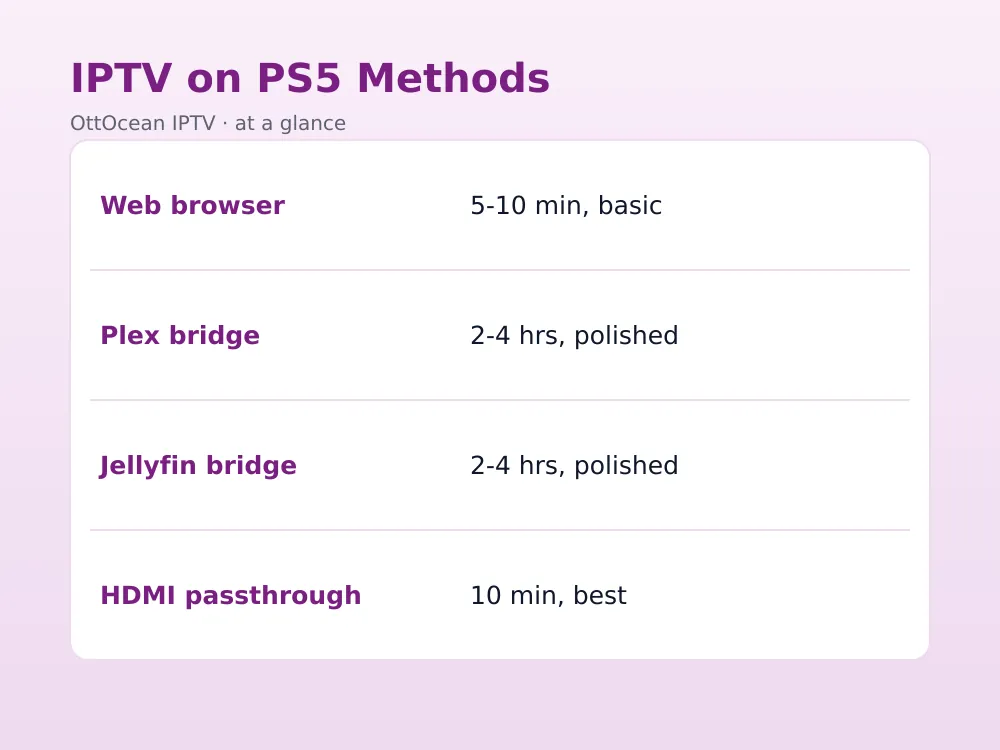
| Method | Setup Time | Experience | Extra Hardware |
|---|---|---|---|
| Web browser | 5-10 minutes | Basic | None |
| Plex bridge | 2-4 hours | Polished | Home server/PC |
| Jellyfin bridge | 2-4 hours | Polished | Home server/PC |
| HDMI passthrough | 10 minutes | Best (native app) | Streaming stick, ~$50 |
If you already run a home server for movies or music, the Plex or Jellyfin bridge is close to free extra effort. If you do not, a cheap streaming stick often ends up being the most time-efficient answer overall.
PS5 vs. PS4 for IPTV Streaming
If you still have a PS4 in the house, know that none of these methods are PS5-exclusive — the PS4’s browser and its own Plex/Jellyfin apps support the identical bridge approach used for IPTV on PS5’s newer sibling.
The PS5 does have real advantages worth mentioning: a noticeably faster browser, quicker app load times, and enough spare decoding headroom that even a poorly optimized web IPTV player rarely causes the console itself to struggle. The PS4’s older hardware can feel sluggish navigating a heavier web-based IPTV panel by comparison.
If you are deciding which console to dedicate to live TV duty in a household with both, the PS5’s snappier browser makes it the more pleasant choice for the web-player method specifically. That said, IPTV on PS5 setup steps translate almost one-to-one to the PS4, so this guide still applies if you only own the older console.
Troubleshooting IPTV on PS5 Issues
Most problems with IPTV on PS5 trace back to the browser or bridge layer rather than your actual subscription. Work through these before assuming your provider account is broken.
- Browser stream won’t load: clear the PS5 browser’s cache and cookies under Settings, then retry the web player URL from scratch.
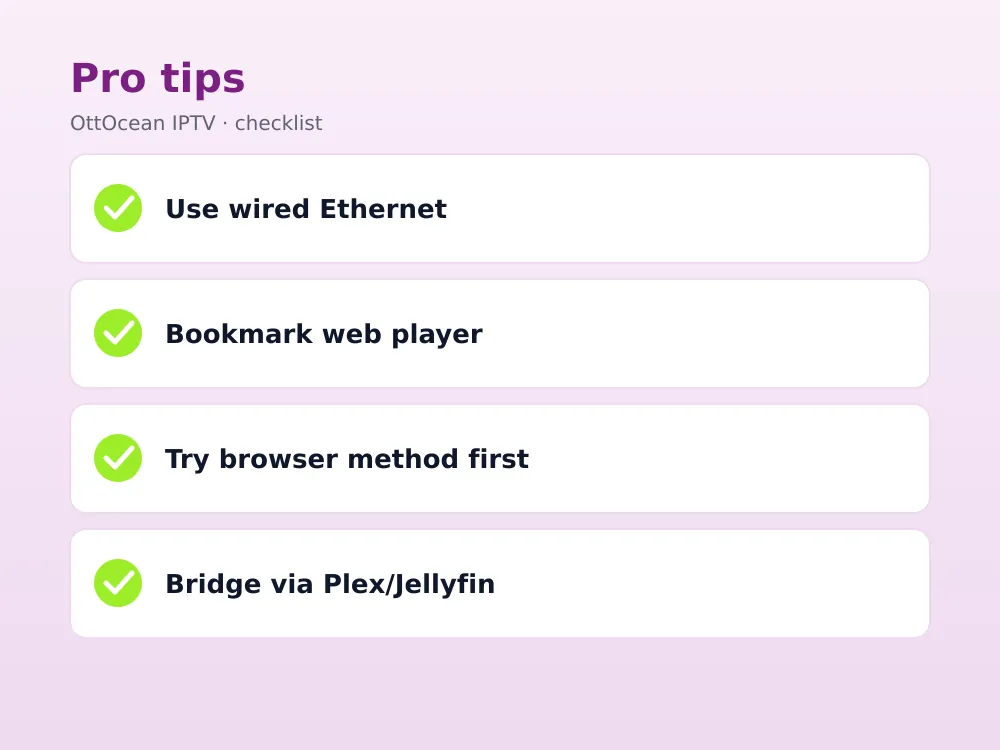
- Frequent buffering on any method: switch from Wi-Fi to a wired Ethernet connection — the PS5’s Wi-Fi is solid for downloads but less forgiving for sustained live video.
- Plex or Jellyfin shows no channels: confirm xTeVe or Threadfin is running and reachable from the same network as your Plex/Jellyfin server, not just from your own laptop.
- Audio plays but picture freezes in the browser: reload the tab rather than restarting the whole console; this is almost always a stuck decoder session, not a hardware fault.
None of these fixes require treating your whole PS5 media player setup as broken — usually one small config error is the culprit. If a channel fails on every method simultaneously, the problem is almost certainly upstream at your provider or your home internet connection, not anything specific to how you watch IPTV PS5 through the console.
Limitations and Honest Trade-Offs
None of these four methods perfectly replicates a dedicated Fire TV or Android TV IPTV app, and it is worth knowing that upfront rather than being disappointed later. The PS5 browser lacks a proper EPG grid and has no DVR functionality of its own.
Plex and Jellyfin bridges solve the EPG and interface problem but add real setup complexity and a dependency on a separate always-on server — if that server goes down, so does your live TV on the PS5. HDMI passthrough solves all of that but means switching TV inputs, which some households find mildly annoying compared to staying inside one device.
These trade-offs are not unique to Sony’s console — every closed platform without a dedicated app ecosystem for live TV, PS5 included, pushes users toward the same handful of browser and media-server workarounds covered here.
Key takeaways
- IPTV on PS5 has no official native app; four legitimate workarounds fill the gap instead.
- The PS5’s built-in web browser is the fastest way to test a subscription, with no extra hardware.
- A Plex or Jellyfin bridge through xTeVe/Threadfin delivers the most polished, app-native experience.
- HDMI passthrough from a $50 streaming stick remains the simplest path to a true dedicated IPTV app.
- None of the four methods require jailbreaking or homebrew software that risks your warranty.
- Match your method to your actual viewing habits — casual use rarely justifies a full media server build.
- A stable home server is required for the Plex/Jellyfin approach to stay reliable long-term.
FAQ: IPTV on PS5
Is there an official IPTV app for PS5?
No. Sony has never shipped a dedicated IPTV client on the PlayStation Store, and there is no supported way to sideload one. The PS5’s web browser, along with its official Plex and Jellyfin apps bridged through a tuner-proxy tool, are the closest legitimate substitutes available as of 2026.
Can Plex act as a PS5 media player for IPTV?
Yes, but only with help. Plex’s Live TV feature needs a tuner source, and xTeVe or Threadfin fills that role by converting your IPTV M3U playlist into a format Plex recognizes. Once configured on a home server, the official Plex PS5 app displays those channels in its native live TV guide.
Does the PS5 support DLNA for IPTV streaming?
The PS5 has limited native DLNA support compared to the PS4, and it is not a reliable path for live IPTV specifically — DLNA was designed for local media file sharing, not live stream relay. Plex or Jellyfin’s dedicated Live TV features are a far more practical route to watch IPTV PS5 setups than relying on generic DLNA.
Why does my IPTV stream lag more in the PS5 browser than on my phone?
The PS5’s browser is a general-purpose tool, not a lightweight native video player, so it carries more overhead per stream than a purpose-built app. Switching to wired Ethernet instead of Wi-Fi, and closing background downloads, both noticeably reduce lag in our testing on the browser method specifically.
Is it legal to watch IPTV on PS5?
Watching IPTV on PS5 as a display for a licensed subscription carries the same legal standing as watching on any other device — legality depends on the service and content, not the hardware showing it. Stick to a legitimate paid subscription and you are in the same position as any cable or satellite customer.
What is the easiest way to get IPTV on PS5 without a home server?
The web browser method is the easiest way to get IPTV on PS5 by far — open the built-in browser, log into a web-based IPTV player with your Xtream Codes credentials, and you are watching within minutes. It lacks the polish of a Plex or Jellyfin bridge, but it requires zero extra hardware or ongoing server maintenance.
Conclusion
IPTV on PS5 is absolutely possible in 2026, just not through an official app. Start with the browser method if you want to test a subscription today, and graduate to a Plex or Jellyfin bridge — or simply plug in a cheap streaming stick — once you know how often you will actually use it. Test with the browser method first since it costs nothing but a few minutes, then decide whether the extra setup is worth it for how much IPTV on PS5 you actually expect to watch.
Whichever method you choose, you will need a working IPTV subscription behind it. OttOcean’s 5-day free trial gives you Xtream Codes and M3U credentials that work with every method above, no credit card required, and plans start at $9.99 a month.


