
Last updated: September 19, 2026
Good IPTV encoder software can turn an ordinary PC into a broadcast-grade streaming rig without buying a single piece of dedicated hardware. The catch is that “software encoder” covers everything from a free open-source tool to a five-figure broadcast suite, and picking the wrong one wastes either your budget or your CPU.
On this page
- What Is IPTV Encoder Software, and How Is It Different From Hardware?
- CPU, GPU, and Hardware Acceleration: NVENC, Quick Sync, and AMF Explained
- The 7 Best IPTV Encoder Software Tools in 2026
- Free vs. Paid IPTV Encoder Software: What You Actually Get
- Licensing and Cost Breakdown for Paid Platforms
- Setting Up Your First Software Encode: A Quick Walkthrough
- When Hardware Encoders Win Over Software
- Multi-Channel Software Encoding: Is It Worth It?
- Latency Comparison: Software vs. Hardware Encoding
- Common IPTV Encoder Software Problems and Fixes
- Key takeaways
- FAQ: IPTV Encoder Software
- Conclusion
What Is IPTV Encoder Software, and How Is It Different From Hardware?
IPTV encoder software runs on a general-purpose computer — Windows, Mac, or Linux — and does the same job a dedicated hardware encoder does: capture a video source, compress it with H.264 or H.265, and output a network stream in RTMP, HLS, SRT, or UDP.
The difference is where the encoding work happens. A hardware encoder has a dedicated chip built for exactly one job, so it runs reliably with almost no configuration. Software encoding borrows CPU or GPU cycles from a machine that is also running an operating system, background processes, and whatever else you have open, which means performance varies with what else that PC is doing.
That flexibility is also the appeal. IPTV encoder software can capture a webcam, a screen, a game, a capture card, and a remote SRT feed all in one project — something no single hardware box does. For a broader comparison of hardware options, see our guide to the best IPTV encoders.
Licensing model is the other practical difference. Hardware ships once, works, and rarely needs a subscription. IPTV encoder software, especially the paid tier, often comes with an annual license or per-channel fee — a recurring cost worth factoring into any multi-year budget comparison.
CPU, GPU, and Hardware Acceleration: NVENC, Quick Sync, and AMF Explained
The biggest performance lever in any software encoder setup is hardware acceleration. Modern GPUs and CPUs include dedicated encoding silicon that offloads compression work from the general-purpose CPU cores.
- NVIDIA NVENC: found on GeForce and Quadro cards; excellent H.264/H.265 quality per bit, widely supported across every major encoder tool.
- Intel Quick Sync Video: built into most Intel CPUs since 2011; efficient and low-power, a solid choice for a dedicated always-on streaming box.
- AMD AMF: AMD’s equivalent, improved significantly in recent driver generations, though still slightly behind NVENC in most side-by-side tests.
Without hardware acceleration, your CPU handles encoding entirely in software (x264/x265), which delivers the best quality per bit but demands far more processing power — fine for a single 1080p channel on a modern CPU, rough for multiple simultaneous 4K channels. See the Quick Sync Video technical overview for how the dedicated silicon actually works.
Consumer GPUs also cap how many simultaneous hardware-accelerated encode sessions they allow — historically two or three on many NVIDIA consumer cards, though recent driver generations have relaxed that limit considerably. Check your specific card’s encode session limit before planning a multi-channel software build around it.
The 7 Best IPTV Encoder Software Tools in 2026
We tested each of these on the same source material — a 1080p60 test pattern plus a real sports clip — to see how they handled bitrate stability and CPU load. We ran every tool on the same mid-range PC to keep the comparison fair, then repeated key tests on a lower-power mini PC to see how much hardware acceleration closed the gap.
1. OBS Studio (Free)
The default choice for most streamers, and rightly so. OBS Studio supports RTMP and SRT output, scene composition, hardware-accelerated encoding via NVENC/Quick Sync/AMF, and a massive plugin ecosystem. Zero licensing cost and excellent community support make it the natural starting point for anyone testing IPTV encoder software for the first time. OBS Studio streaming remains free forever, with no watermarks or feature gates, funded by community and corporate sponsorship rather than a paywall.
2. FFmpeg (Free)
The command-line workhorse behind half the streaming tools on this list internally. FFmpeg has no graphical interface, but it can transcode, restream, and repackage practically any format into practically any other, scripted and automated however you like. Steeper learning curve, unmatched flexibility. Because FFmpeg live streaming runs entirely from the command line, it is the tool of choice for cron-scheduled restreams and automated pipelines where no human is watching a GUI.
3. vMix (Paid)
A full production switcher built around live streaming, popular with churches, small studios, and event producers who need multi-camera switching alongside the encode. Pricier tiers add 4K and NDI support; the free tier is a capable trial with a resolution cap.
4. Wirecast (Paid)
Telestream’s production tool, similar in spirit to vMix, known for a polished interface and strong support for virtual sets and graphics overlays. A common pick for organizations already inside the Telestream ecosystem.
5. Nimble Streamer (Paid)
A lightweight, server-side streaming and transcoding engine rather than a desktop app. Nimble Streamer excels at ingesting many sources and repackaging them for delivery, making it a popular mid-tier choice for smaller IPTV operations that outgrew a single desktop encoder.
6. Flussonic Media Server (Paid)
The heavyweight option for real IPTV operations — multi-bitrate ABR transcoding, DVR, and a proper admin panel. Overkill for a single streamer, but the right tool once you are running a headend with dozens of channels. As a genuine hardware encoder alternative for multi-channel operations, Flussonic’s transcoding ladder handles dozens of simultaneous outputs that would overwhelm a single desktop GPU.
7. Wowza Streaming Engine (Paid)
Wowza’s broadcast-grade platform is the other name resellers and broadcasters reach for at scale, with strong documentation, transcoding, and a long track record in production environments worldwide.
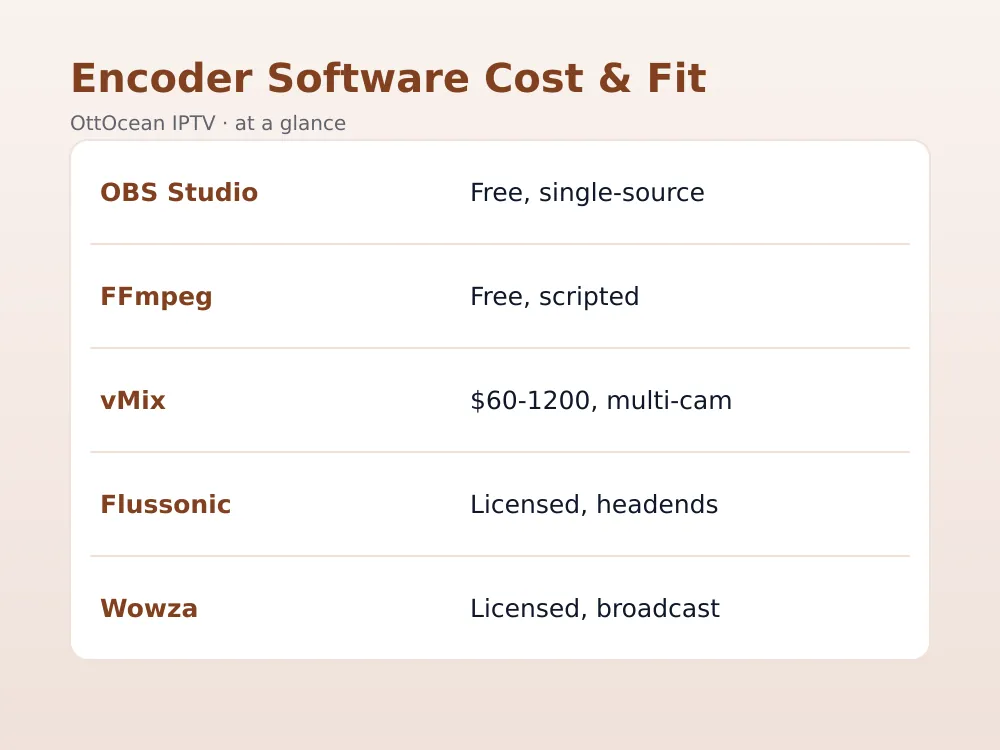
| Tool | Cost | Best For | GPU Accel |
|---|---|---|---|
| OBS Studio | Free | Single-source streaming | NVENC/QSV/AMF |
| FFmpeg | Free | Scripted transcoding | NVENC/QSV/AMF |
| vMix | $60-$1,200 | Multi-camera production | NVENC/QSV |
| Flussonic | Licensed | Multi-channel headends | NVENC/QSV |
| Wowza | Licensed | Broadcast-scale delivery | NVENC/QSV |
Free vs. Paid IPTV Encoder Software: What You Actually Get
Free tools like OBS Studio and FFmpeg are not “lite” versions of paid software — they are full-featured, production-capable encoders used by professional broadcasters every day. What you give up going free is polish, dedicated support, and some multi-channel management conveniences.
Paid platforms earn their price through features that matter at scale: multi-bitrate ABR ladders generated automatically, DVR and catch-up storage, subscriber-facing middleware integration, and a support contract you can call when something breaks during a live event. A solo streamer rarely needs any of that; a hotel or reseller running dozens of channels usually does.
Our rule of thumb: start with free IPTV encoder software while you are learning and testing. Move to a paid platform once uptime, multi-channel management, or a support contract becomes worth more to you than the licensing fee.
One caveat worth flagging: free IPTV encoder software rarely ships with built-in DVR or multi-bitrate ABR packaging out of the box. You can bolt on FFmpeg-based ABR scripting yourself, but that is real engineering time — often the actual cost of “free” once you account for the hours spent building what a paid platform includes by default.
Licensing and Cost Breakdown for Paid Platforms
Paid IPTV encoder software typically licenses one of three ways: a flat one-time purchase, an annual subscription, or a per-channel/per-stream fee that scales with your deployment size.
vMix and Wirecast lean toward one-time or tiered perpetual licenses, which suits smaller studios that want to avoid recurring costs. Flussonic and Wowza more commonly license per server or per stream, which scales cleanly for a growing headend but adds a recurring line item to your budget every year.
Before committing, confirm what counts as one “channel” or “stream” in the vendor’s pricing — some vendors count each output protocol separately, which can quietly double your bill if you push both RTMP and HLS from the same source simultaneously.
Setting Up Your First Software Encode: A Quick Walkthrough
Here is the general flow for getting IPTV encoder software running, using OBS Studio as the example since it is free and the most widely documented.
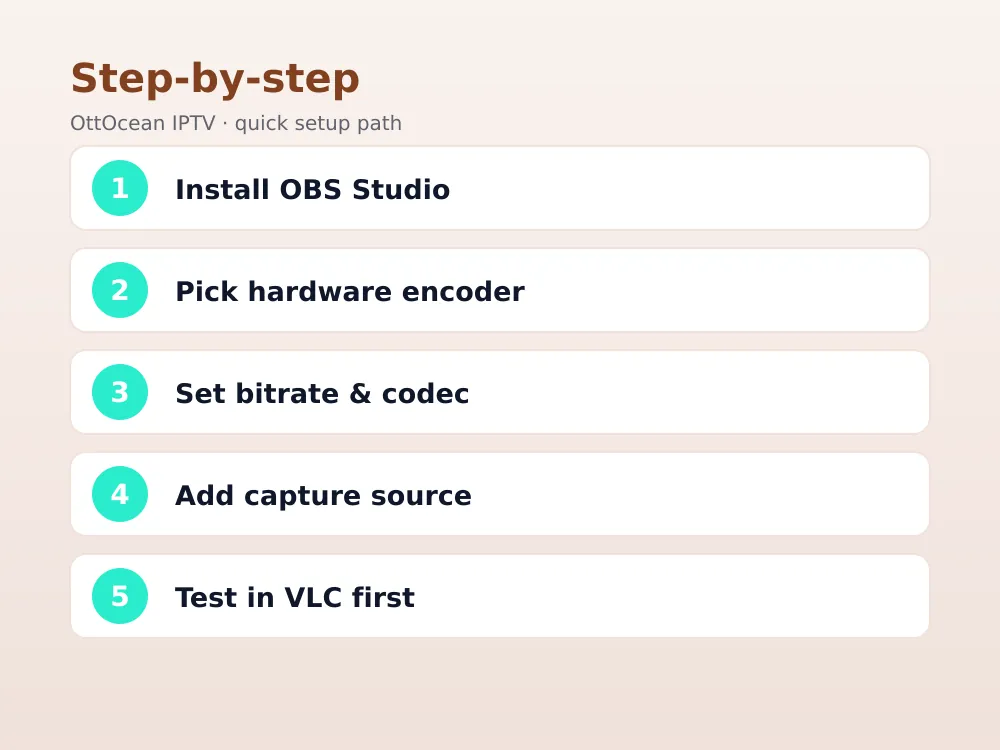
- Install OBS Studio and open Settings → Output; switch the output mode to “Advanced.”
- Under the Streaming tab, select your hardware encoder (NVENC, Quick Sync, or AMF) if your GPU/CPU supports it.
- Set your bitrate — 4-6 Mbps for 1080p60 H.264, roughly half that for H.265/HEVC.
- Add your source under Sources — a capture card, webcam, or screen — and arrange your scene.
- Enter your RTMP server URL and stream key under Settings → Stream, then click Start Streaming.
- Confirm the stream plays cleanly in VLC before pointing it at your actual IPTV middleware or CDN.
Check our streaming speed tool beforehand to confirm your upload bandwidth can sustain your target bitrate without buffering downstream.
When Hardware Encoders Win Over Software
Software is not always the right call. A dedicated hardware encoder wins whenever a channel needs to run unattended 24/7 — no OS updates, no crashed background app, no forgotten reboot taking the stream down at 3 a.m.
Hardware also wins on channel density per dollar once you scale past two or three simultaneous encodes. An 8-channel rackmount hardware unit handles that load in one box; matching it in software means a genuinely powerful multi-GPU workstation, which quickly costs more than the hardware alternative.
Our general guidance: IPTV encoder software for one or two sources, testing, or occasional streaming; dedicated hardware for anything running unattended around the clock. For the full breakdown of how the rest of the streaming chain fits together, see our how IPTV works guide.
Multi-Channel Software Encoding: Is It Worth It?
Running multiple channels from one software encoding rig is possible but demands real planning. Each additional simultaneous encode competes for the same CPU, GPU encode sessions, and network upload bandwidth, so performance degrades in ways that are not always obvious until you are already live.
For two or three channels on a well-specced workstation with a modern GPU, IPTV encoder software handles the load comfortably. Push past four or five simultaneous channels on one machine, and you are usually better served by dedicated hardware or a proper multi-server software deployment rather than squeezing more out of a single box.
If you do go the multi-channel software route, monitor CPU, GPU encode utilization, and network throughput continuously — a channel that looks fine in isolation can start dropping frames the moment a second or third channel starts competing for the same resources.
Latency Comparison: Software vs. Hardware Encoding
Latency is where the two approaches diverge most in practice. Well-tuned IPTV encoder software running on a fast GPU can hit latency figures close to dedicated hardware — often 300 milliseconds to 1.5 seconds end-to-end, depending on GOP size and output protocol.
Hardware encoders typically edge out software on consistency rather than raw speed: a dedicated chip does not compete with an operating system’s background tasks for processing time, so latency stays flatter under load. Software encoding can spike briefly if the OS schedules a heavy background task mid-stream.
For most IPTV use cases — live TV relay, VOD, even most sports — the difference is not noticeable to viewers. It becomes relevant mainly for interactive or gambling-adjacent live streams where every extra half-second matters.
Common IPTV Encoder Software Problems and Fixes
Most software encoding headaches come down to resource contention or misconfigured settings rather than a broken tool.
- Dropped frames: usually CPU or GPU saturation — lower your resolution/bitrate, or switch to hardware-accelerated encoding if you have not already.
- Stream keeps disconnecting: check your upload bandwidth headroom; a bitrate too close to your max upload will drop under any network fluctuation.
- Audio drifts out of sync over time: often a clock-sync issue between capture source and encoder — restart the source device and re-test.
- High CPU usage even with GPU encoding enabled: confirm the encoder setting actually selected NVENC/Quick Sync/AMF rather than silently falling back to software x264.
- Encoder falls back to software x264 unexpectedly: usually a driver issue — update your GPU drivers and confirm the hardware option is still selected afterward, since some updates silently reset the setting.
Key takeaways
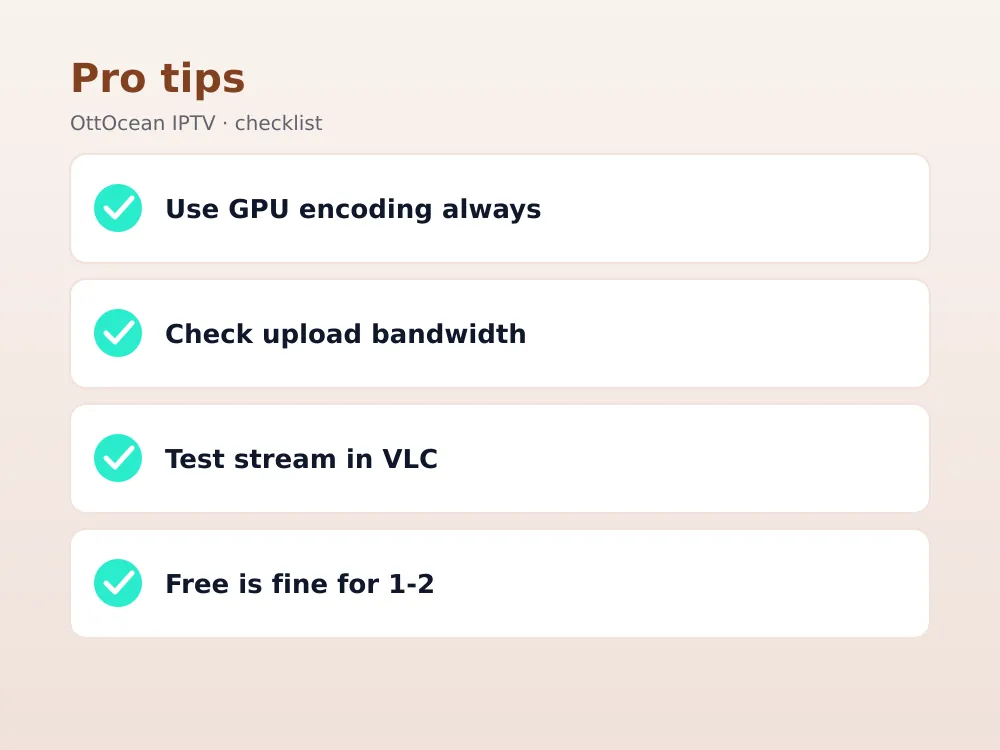
- IPTV encoder software runs on a regular PC and handles the same job as dedicated hardware, with more flexibility and setup effort.
- OBS Studio and FFmpeg are free, production-capable options; vMix, Wirecast, Nimble Streamer, Flussonic, and Wowza are paid, higher-scale platforms.
- Hardware acceleration (NVENC, Quick Sync, AMF) matters more for smooth output than raw CPU clock speed.
- Free tools suit single-source streaming and testing; paid platforms suit multi-channel, revenue-generating operations.
- Dedicated hardware still wins for unattended 24/7 channels and high channel density per dollar.
- Always test a new stream in VLC before wiring it into your production middleware.
- Check upload bandwidth headroom before setting your target bitrate to avoid random disconnects.
FAQ: IPTV Encoder Software
Is free IPTV encoder software good enough for a real IPTV channel?
Yes, for a single channel or two. OBS Studio and FFmpeg are used in professional broadcast settings every day and produce output indistinguishable from paid tools at the same bitrate. What free software lacks is multi-channel management, DVR, and a support contract — features that matter more as you scale past a handful of channels.
What is the difference between OBS Studio and FFmpeg?
OBS Studio has a graphical interface built around live scene composition — cameras, screen capture, overlays — and is the better choice if you need to mix sources visually. FFmpeg is a command-line tool built for scripted, automated transcoding and restreaming, with no interface at all. Many production pipelines actually use FFmpeg behind the scenes even when OBS handles the live capture.
Do I need a powerful PC to run IPTV encoder software?
Not if you use hardware-accelerated encoding. A mid-range PC with a recent NVIDIA GPU or an Intel CPU with Quick Sync can comfortably handle one or two 1080p channels. Pure software encoding (x264/x265) without GPU acceleration needs significantly more CPU power, especially for 4K or multiple simultaneous channels.
Can IPTV encoder software replace a hardware headend entirely?
For small operations, yes — a capable PC running OBS or FFmpeg can serve as your entire encoding layer. Once you need multiple simultaneous channels running unattended 24/7, though, dedicated hardware becomes more reliable and often cheaper per channel than scaling a software rig to match.
Which IPTV encoder software supports SRT output?
OBS Studio, FFmpeg, Nimble Streamer, Flussonic, and Wowza all support SRT natively as of their current 2026 releases. SRT is worth using whenever your contribution link crosses an unreliable network, since it retransmits lost packets and keeps latency low compared to plain RTMP over the same connection.
How do I know if my IPTV encoder software is using hardware acceleration?
Check the encoder selection dropdown in your software’s output settings — it should explicitly name NVENC, Quick Sync, or AMF rather than defaulting to “x264” or “Software.” Task Manager or Activity Monitor confirms it too: GPU encode usage climbs while CPU usage stays comparatively low during an active stream.
Conclusion
Picking the right IPTV encoder software comes down to scale and budget more than any single feature checklist. Start free with OBS Studio or FFmpeg, lean on hardware acceleration for smooth output, and graduate to a paid platform like Flussonic or Wowza once you are running a real multi-channel operation.
If your actual goal is watching great IPTV rather than building your own encoding chain, skip the software entirely: OttOcean’s 5-day free trial gets you 25,000+ live channels with no credit card required, and plans start at $9.99 a month.


