Last updated: October 27, 2026
The iptv smarters pro login screen asks for four pieces of information, and getting any one of them wrong is the single most common reason new OttOcean IPTV customers see an error on first launch. We walk through the exact fields, both supported login methods, and the six fixes that resolve nearly every login problem we see in support tickets.
On this page
- How We Tested the Login Process
- What You Need Before You Log In
- Iptv Smarters Pro Login: Xtream Codes API Method
- Iptv Smarters Pro Login: M3U URL Method
- Managing Multiple Users and Profiles
- How to Log Out or Switch Accounts
- Common Iptv Smarters Pro Login Errors and Fixes
- Troubleshooting Network and Connection Issues
- Key takeaways
- FAQ: Iptv Smarters Pro Login
- Conclusion: Get Logged In in Minutes
How We Tested the Login Process
We ran through the full login flow on an iPhone, an Android tablet, a Fire TV Stick and a Windows laptop, using one live OttOcean IPTV subscription each time. On every device we timed how long the app took from opening the login screen to the first channel playing, and noted which error messages appeared when we deliberately entered a wrong password or an incomplete server URL.
Across all four devices, a correct Xtream Codes API login loaded the channel list and EPG in under a minute on a typical home broadband connection. The steps below reflect the current 2026 version of the app; menu wording can shift slightly between updates, but the four required fields have stayed the same for years.
What You Need Before You Log In
Before opening IPTV Smarters Pro, have your OttOcean IPTV welcome email ready. It contains your Xtream Codes API details (server URL with port, username and password) and an alternate M3U playlist URL, either of which completes login on its own. You do not need both; pick one method and stick with it.
Also confirm your device is connected to Wi-Fi or mobile data, since the app validates credentials against OttOcean IPTV’s server in real time and cannot log in offline. If you requested a free trial, use the same trial credentials; they work identically to a paid plan’s login details.
It also helps to download IPTV Smarters Pro directly from your device’s official app store before you start, rather than a sideloaded APK from an unknown source. The official build receives security patches and Xtream Codes API compatibility fixes on a regular schedule, which reduces the odds of hitting an odd login bug that has already been fixed upstream.
It is also worth clearing the app’s cache once if you previously tried a different IPTV provider on the same device, since a leftover cached playlist can occasionally confuse the channel list on first load. On Android, this is done from the device’s own Settings > Apps > IPTV Smarters Pro > Storage > Clear Cache menu, which does not delete your saved login profiles.
Iptv Smarters Pro Login: Xtream Codes API Method
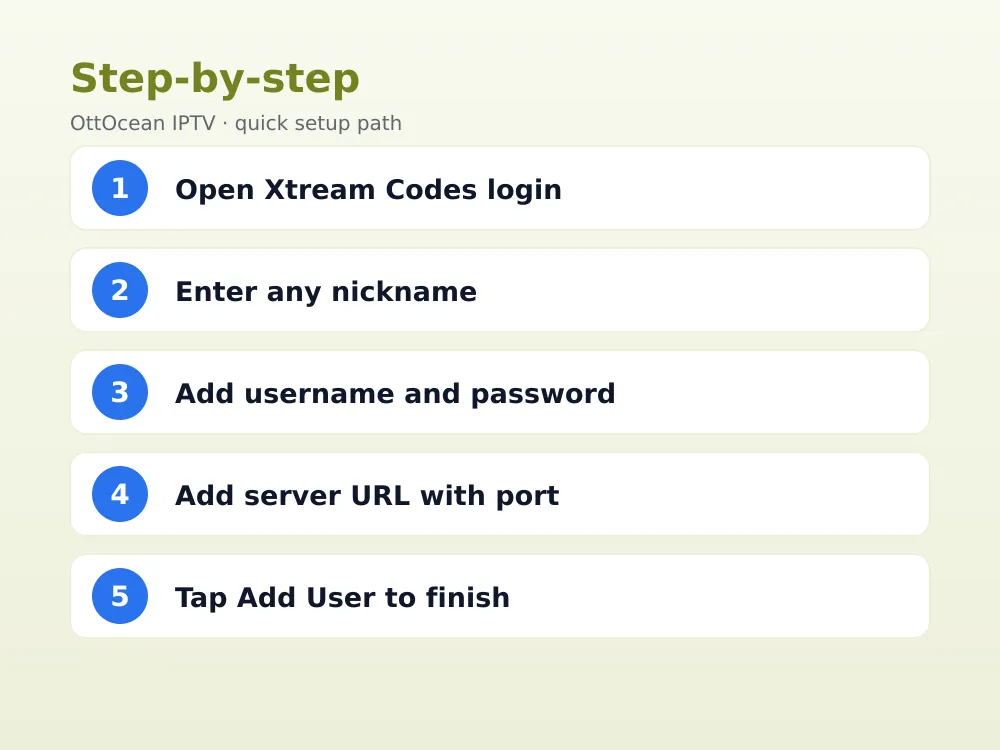
This is the recommended iptv smarters pro login method because it is faster to set up and easier to troubleshoot than a raw playlist URL. Open the app and follow these four steps.
- Tap “Login with Xtream Codes API” on the app’s opening screen
- Enter any nickname in the “Any Name” field — this is just a device label
- Type your OttOcean IPTV username, password and server URL (with the port number) exactly as emailed
- Tap “Add User” and wait for the channel list and EPG to download
The server URL typically looks like “http://domain.example:port” — the port number after the colon is part of the address and leaving it off is one of the most frequent causes of a failed login. Copy and paste the full URL from your welcome email rather than retyping it by hand.
The “Any Name” field in step two is purely cosmetic; it labels the saved profile on your device and has no effect on which channels load or whether the login succeeds. Many users simply type the device name, such as “Living Room TV” or “iPhone”, to keep multiple saved logins organized later.
Iptv Smarters Pro Login: M3U URL Method
If you prefer, IPTV Smarters Pro also accepts a single M3U playlist link instead of separate username and password fields. Tap “Login with M3U URL”, paste the full link from your OttOcean IPTV email into the “M3U URL” field, give it a nickname, and tap “Add User”.
The M3U method loads the same channels and VOD library as the Xtream Codes API method, but it does not support some account-management screens inside the app, such as viewing your exact expiration date. For that reason, we generally recommend the Xtream Codes API method for a first iptv smarters pro login.
Managing Multiple Users and Profiles
IPTV Smarters Pro lets you save more than one login under “My Profile”, useful if your OttOcean IPTV plan covers multiple devices or if you also maintain a second provider’s account. Each saved profile keeps its own username, password and server URL, so you never need to re-type credentials to switch between them.
To add a second profile, go to the app’s side menu, select “Add User”, and repeat either login method above with the new account’s details. Both profiles then appear on the same opening screen every time you launch the app.
This is especially useful for households that upgraded to a multi-device OttOcean IPTV plan: each family member’s device can hold its own profile, or one shared device can juggle a main account and a backup account without deleting and re-adding credentials every time someone wants to switch.
Profiles are stored locally on the device, not synced through OttOcean IPTV’s servers, so adding a profile on a phone does not automatically add it on a tablet. Each device needs its own one-time setup, though the process only takes about a minute once you have the account details in front of you.
- Multiple profiles let one device store several OttOcean IPTV accounts or device slots
- Each profile remembers its own EPG, favorites and parental control settings
- Switching profiles takes one tap and does not require a fresh login
How to Log Out or Switch Accounts
To log out, open the side menu, tap “My Profile”, select the active account, and choose “Delete” or “Logout” depending on your app version. This removes the saved credentials from that profile slot without affecting your OttOcean IPTV subscription itself, which stays active on the server side.
Switching between two already-saved accounts is simpler: from the same “My Profile” screen, tap the profile you want to activate instead. The channel list reloads for that account without needing to repeat a full login from scratch.
If IPTV Smarters Pro appears stuck showing the wrong profile’s channels after a switch, a quick force-close and reopen of the app usually refreshes the EPG and channel cache. This is a normal cache-refresh behavior rather than a sign that anything is wrong with your OttOcean IPTV subscription.
Common Iptv Smarters Pro Login Errors and Fixes
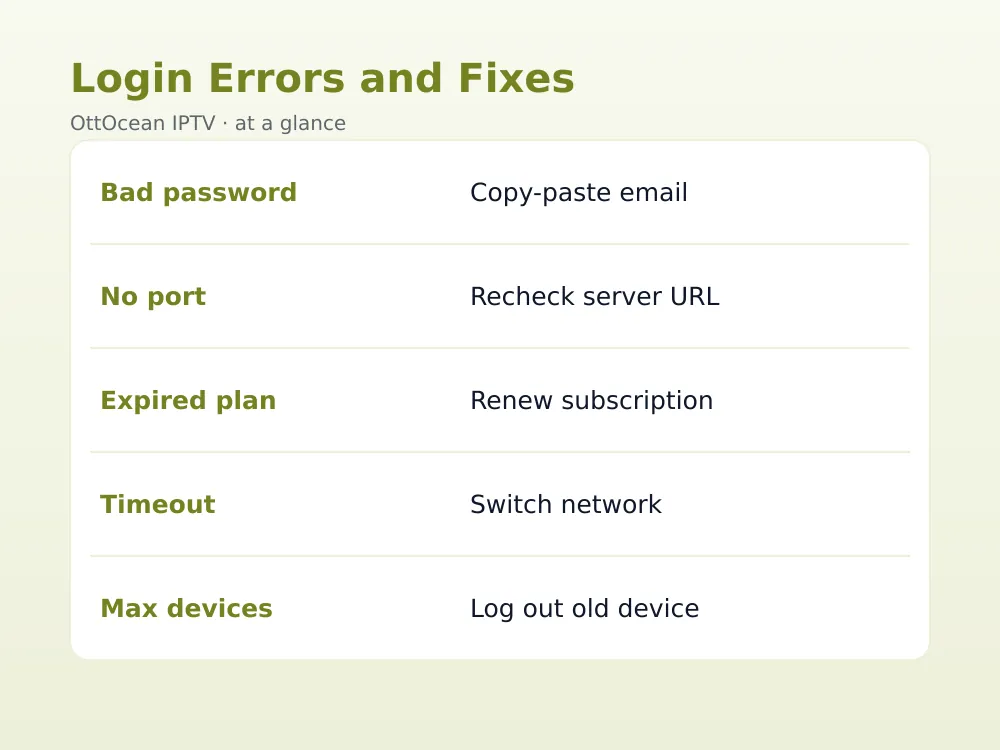
Most login failures trace back to one of six causes. Here is how we diagnose and fix each one, based on the tickets OttOcean IPTV support handles most often. When customers write in describing iptv smarters pro not working, the fix is almost always one of these six, and support usually asks which error message appeared before troubleshooting further.
- Invalid username or password: retype credentials manually instead of relying on autocorrect, or copy-paste directly from the welcome email
- Missing port number: confirm the server URL includes “:” followed by the port exactly as sent
- Expired subscription: check your renewal date and renew your OttOcean IPTV plan if it has lapsed
- No internet connection: confirm Wi-Fi or mobile data is active and test another app first
- Device limit reached: log out an inactive device if your plan’s connection limit is already in use
- Server-side maintenance: wait a few minutes and retry, or contact support if the issue persists past 15 minutes
Our dedicated failed to authorize troubleshooting guide covers each of these scenarios in more depth with screenshots for every step.
Troubleshooting Network and Connection Issues
Even correct credentials can fail if the network itself is blocking the connection. Some ISPs and public Wi-Fi networks restrict the ports IPTV servers use, which shows up as a timeout rather than a clear “invalid login” message.
If login times out repeatedly on a network that has worked before, try switching from Wi-Fi to mobile data briefly to confirm whether the network is the cause. A VPN can sometimes resolve ISP-level port blocking, though OttOcean IPTV’s servers do not require one under normal conditions.
Router-level firewalls and parental control apps installed on a home network can also block the specific port an IPTV server uses, even when general internet browsing works fine. If a login attempt fails only on your home Wi-Fi but succeeds on mobile data, check your router’s firewall or parental control settings for anything blocking non-standard ports before contacting support.
Public Wi-Fi networks at hotels, airports and cafes are especially likely to block IPTV server ports outright, since many of them restrict traffic to standard web browsing ports only. If you regularly stream while traveling, testing your login once on hotel Wi-Fi before relying on it for a full evening of viewing can save some frustration later.
Mobile data connections rarely block IPTV ports, which is why switching to a phone’s hotspot is one of the fastest diagnostic steps when a login fails only on a specific network. If the same credentials work over mobile data, the problem sits with that network’s configuration rather than your OttOcean IPTV account.
| Error | Likely Cause | Fix |
|---|---|---|
| Invalid credentials | Typo or autocorrect | Copy-paste from email |
| Connection failed | Missing port number | Recheck full server URL |
| Account expired | Subscription lapsed | Renew your plan |
| Timeout | Network or ISP blocking | Switch network or try VPN |
| Max connections | Device limit reached | Log out unused device |
Key takeaways
- A successful login needs a username, password and server URL with a port number
- The Xtream Codes API method is faster to troubleshoot than the M3U URL method
- Multiple profiles can be saved on one device without re-entering credentials each time
- Most login errors come down to typos, an expired plan, or a blocked network port
- Logging out removes saved credentials locally but does not cancel your subscription
- Device connection limits depend on your specific OttOcean IPTV plan
- Support can resend your login details by WhatsApp or email if you misplace them
FAQ: Iptv Smarters Pro Login
Why does my IPTV Smarters Pro login keep failing?
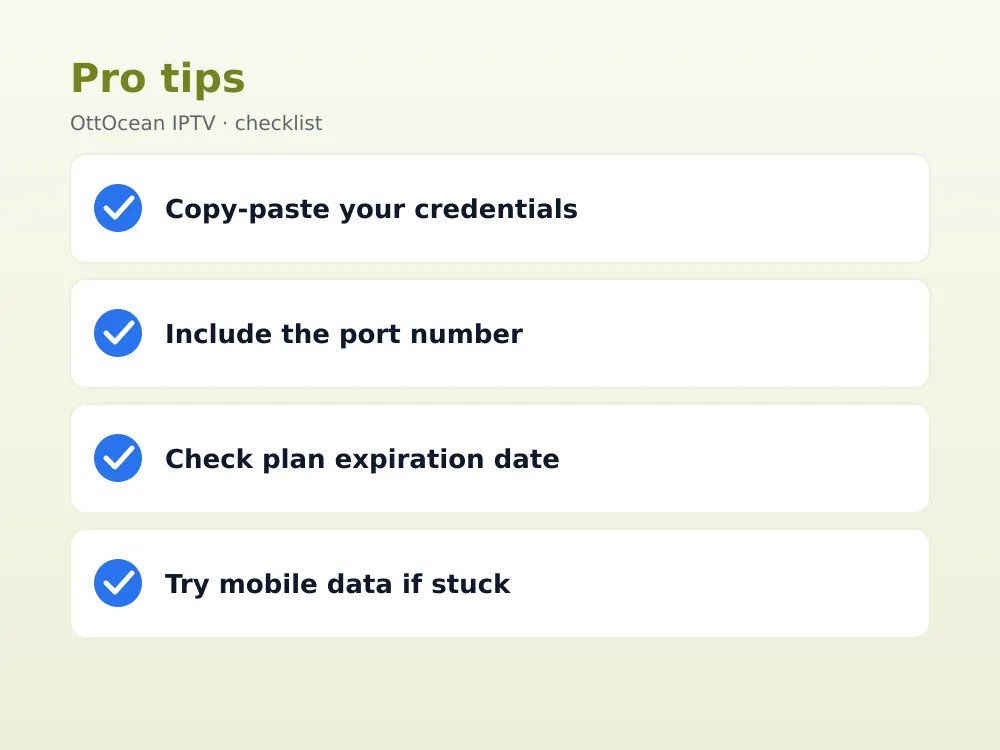
The most common causes are a mistyped username or password, a missing port number in the server URL, an expired subscription, or a network blocking the connection. Work through each cause in order, starting with copy-pasting your credentials directly from the OttOcean IPTV welcome email instead of typing them.
What is the server URL and port for OttOcean IPTV?
Your unique server URL and port are included in your OttOcean IPTV welcome email under the Xtream Codes API section. The format is typically “http://domain:port” — both the domain and the port number after the colon must be entered exactly as provided for the login to succeed.
Can I use IPTV Smarters Pro login on multiple devices?
Yes, up to the number of simultaneous connections included in your OttOcean IPTV plan. You can save the same login on several devices, but only as many can stream at once as your plan allows; exceeding that limit typically triggers a “max connections reached” error.
Does the M3U URL login work the same as Xtream Codes?
Both methods load the same channels, EPG and VOD library from OttOcean IPTV. The M3U method is a single-link login, while Xtream Codes API uses separate username, password and server fields and enables a few extra account-status screens inside the app.
This method is worth using if you plan to load the same playlist into a second app, such as VLC or a desktop player, since one link works everywhere without re-entering three separate fields. For day-to-day use inside IPTV Smarters Pro itself, the Xtream Codes API method remains the more convenient default.
How do I fix “invalid username or password” on IPTV Smarters Pro?
Copy your username and password directly from the OttOcean IPTV welcome email rather than typing them manually, since autocorrect and stray spaces are common causes. If the error persists, confirm your subscription has not expired and that you are entering the correct server URL for your account.
Why does IPTV Smarters Pro say my account expired?
This means your OttOcean IPTV subscription’s billing period has ended. Check your renewal date in your account email, then renew through the plans page. Once payment processes, the same login credentials reactivate automatically without needing a new username or password.
What should I do if IPTV Smarters Pro is not working at all?
If IPTV Smarters Pro is not working even with correct credentials, restart the app, restart your router, and confirm the OttOcean IPTV server status has not changed. Reinstalling the app from your official app store resolves most remaining cases where cached data or a corrupted update is the underlying cause, and it takes only a few minutes to redo the login afterward.
Conclusion: Get Logged In in Minutes
A successful iptv smarters pro login almost always comes down to the same four fields entered correctly: username, password, server URL and port. Work through the fixes above in order if the first attempt fails, and most customers are streaming within a few minutes.
Still stuck, or setting up for the first time? Start a 5-day OttOcean IPTV free trial, no credit card required, and follow the steps above with your trial credentials. Ready for a full subscription? Compare our OttOcean IPTV plans and pricing to choose the right device count for your household.
One honest limitation: app screens and menu wording can shift slightly between IPTV Smarters Pro updates, so button labels may not match this guide exactly on every version. If a step looks different on your device, the underlying four fields remain the same regardless of app version.
IPTV Smarters Pro is not affiliated with or built by OttOcean IPTV; it is an independent playback client used by many IPTV providers worldwide. It only displays what your subscription’s server sends it, which is why login problems almost always trace back to either the four credential fields or the network connection, not the app itself.
If you have tried every fix above and still cannot complete a login, reach out to OttOcean IPTV support directly through WhatsApp or email with a screenshot of the exact error message. Support can confirm your account status, resend your Xtream Codes API details, and check for any server-side issue affecting your specific region.
Keep the welcome email that contains your original credentials somewhere easy to find, such as a starred folder or a saved note, since you will likely need to re-enter those same details every time you set up a new device or reinstall the app after a factory reset. Screenshotting the email as a backup is a simple habit that saves time later.
Setting up a new Fire TV Stick or Android box for the first time? Our IPTV Smarters Firestick installation guide covers sideloading the app itself before you ever reach this login screen, which is the step most first-time Fire TV users get stuck on rather than the credentials themselves.