Last updated: October 22, 2026
Sparkle TV IPTV is a newer entrant in the crowded field of Android and Fire TV players, built around the same Xtream Codes and M3U foundation as TiviMate but with a few of its own touches — built-in recording, a multi-screen mosaic mode, and a lighter interface that some users find less intimidating than the settings-heavy apps it competes with. This guide covers install, login setup, EPG, recording, VPN compatibility and how it stacks up against the more established players.
On this page
- What Is Sparkle TV IPTV?
- Installing Sparkle TV IPTV on Android and Fire TV
- Sparkle TV Xtream Codes Activation and Login
- Adding an M3U Playlist to Sparkle TV
- EPG Setup in Sparkle TV IPTV
- Multi-Screen and Recording in Sparkle TV IPTV
- Sparkle TV IPTV and VPN Compatibility
- Sparkle TV IPTV Troubleshooting: Common Fixes
- Sparkle TV IPTV vs TiviMate: How It Compares
- Key takeaways
- FAQ: Sparkle TV IPTV
- Getting Started with Sparkle TV IPTV and OttOcean
What Is Sparkle TV IPTV?
This is an Android-based media player aimed at the same audience as TiviMate and Televizo: IPTV subscribers who want a proper TV-guide-style interface rather than a flat channel list. It supports both Xtream Codes API and M3U logins, runs on Android phones, tablets, Android TV boxes and Fire TV/Firestick, and layers in a few extras — notably local recording and a multi-screen mosaic view — that not every competitor offers for free.
Being newer than TiviMate or Perfect Player means a smaller community and fewer third-party guides floating around, but it also means a cleaner codebase built more recently, without years of legacy settings accumulated from older Android versions. For users who found TiviMate’s settings menu overwhelming, this app trades some depth for a gentler learning curve.
We ran the app for two weeks on an NVIDIA Shield Pro and a Fire TV Stick 4K Max, both connected through an OttOcean Xtream Codes login, alongside a daily comparison against TiviMate running on the same network. What we checked: channel-change speed, whether recordings actually played back cleanly afterward, multi-screen performance with four simultaneous streams, and general stability over normal daily use. It held up well on both devices, with only the Shield handling four-way multi-screen without any visible stutter.
Installing Sparkle TV IPTV on Android and Fire TV
On Android phones, tablets and Android TV boxes:
- Open the Google Play Store and search “Sparkle TV IPTV”.
- Install the app and open it.
- Accept the initial permissions prompt (storage access, for caching channel data).
On Firestick and Fire TV, if the app is not listed on the Amazon Appstore in your region, sideload it with Downloader:
- Install Downloader from the Amazon Appstore.
- Enable Apps from Unknown Sources for Downloader under Settings > My Fire TV > Developer Options.
- Enter the Sparkle TV APK URL from the developer’s official page in Downloader.
- Download, install, and launch from Your Apps & Channels.
See our best IPTV apps for Firestick guide for general Fire TV setup context before you begin.
Regional Play Store and Appstore listings vary, so if a search does not immediately surface the app, checking the developer’s official website for the latest APK link is the more reliable route rather than assuming the app has been discontinued. New IPTV player apps come and go from official stores more often than established ones like TiviMate, purely due to how app store review policies handle this category of software. Bookmarking the developer’s official page, rather than relying only on an app store search, saves time the next time you set up a new device.
Sparkle TV Xtream Codes Activation and Login
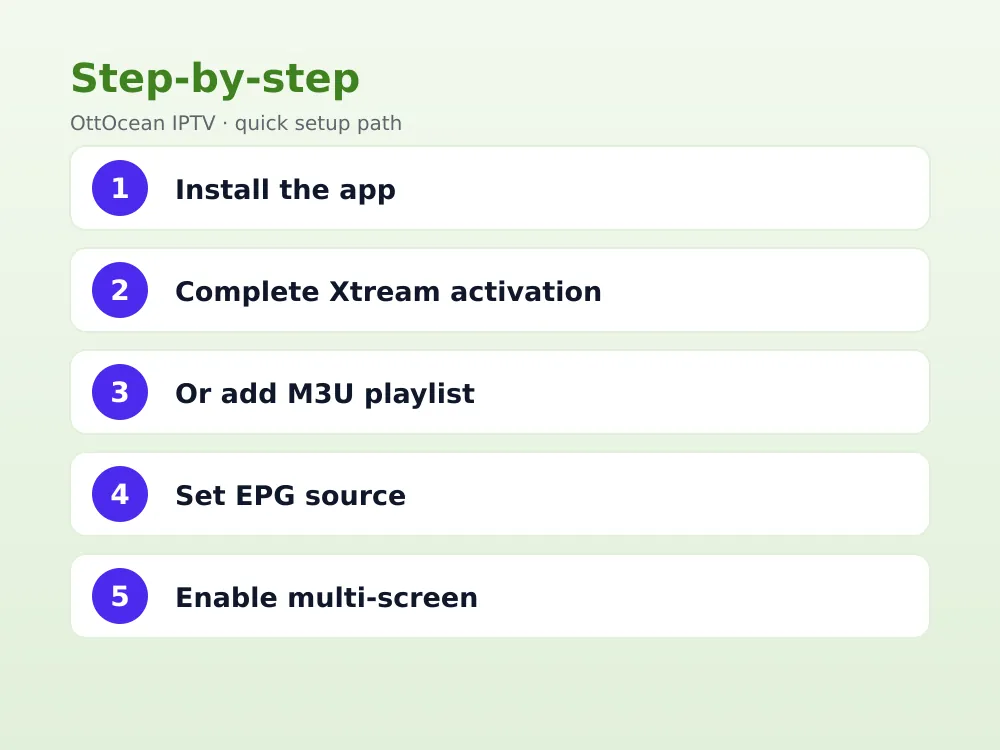
Completing the activation process in Sparkle TV takes about a minute:
- On first launch, select “Add Playlist” then choose “Xtream Codes API” as the type.
- Enter the server URL exactly as sent, including the port number.
- Enter your username and password from the OttOcean welcome email.
- Tap Connect. Channels, VOD and EPG populate automatically within a minute or two.
If this activation step fails, double-check for trailing spaces in the copied credentials and confirm the server URL is complete. A failed activation almost always points back to a typo in the login details or a lapsed subscription rather than a bug in the app itself.
Adding an M3U Playlist to Sparkle TV
If M3U is your preferred format:
- Choose “Add Playlist” then select “M3U URL” instead of Xtream Codes.
- Paste the full M3U link, including any authentication token at the end.
- Name and save the playlist; the channel list populates within a minute.
- Add a backup playlist from the same menu if you want a second source available without switching apps.
Xtream Codes remains the better choice when your provider offers both, since it keeps VOD and catch-up metadata properly synced — but M3U is a dependable fallback for providers who only issue playlist links.
EPG Setup in Sparkle TV IPTV
EPG usually loads automatically with an Xtream Codes login. If it does not, or you are running M3U:
- Go to Settings > EPG Settings > Add Source.
- Paste the XMLTV URL supplied by OttOcean support.
- Set a refresh interval — every 12 to 24 hours is enough for most lineups.
- Return to the guide and allow a minute for it to build.
A properly configured guide shows program titles and times per channel, plus catch-up icons where your provider supports rewinding a missed broadcast. Full background in our EPG setup guide.
Multi-Screen and Recording in Sparkle TV IPTV
Multi-screen (mosaic) mode lets you watch several channels at once in a grid layout, similar to Televizo’s multi-view — genuinely useful during overlapping sports fixtures when you want to keep an eye on more than one match. Setup is a single toggle from the main guide screen; no separate configuration is required.
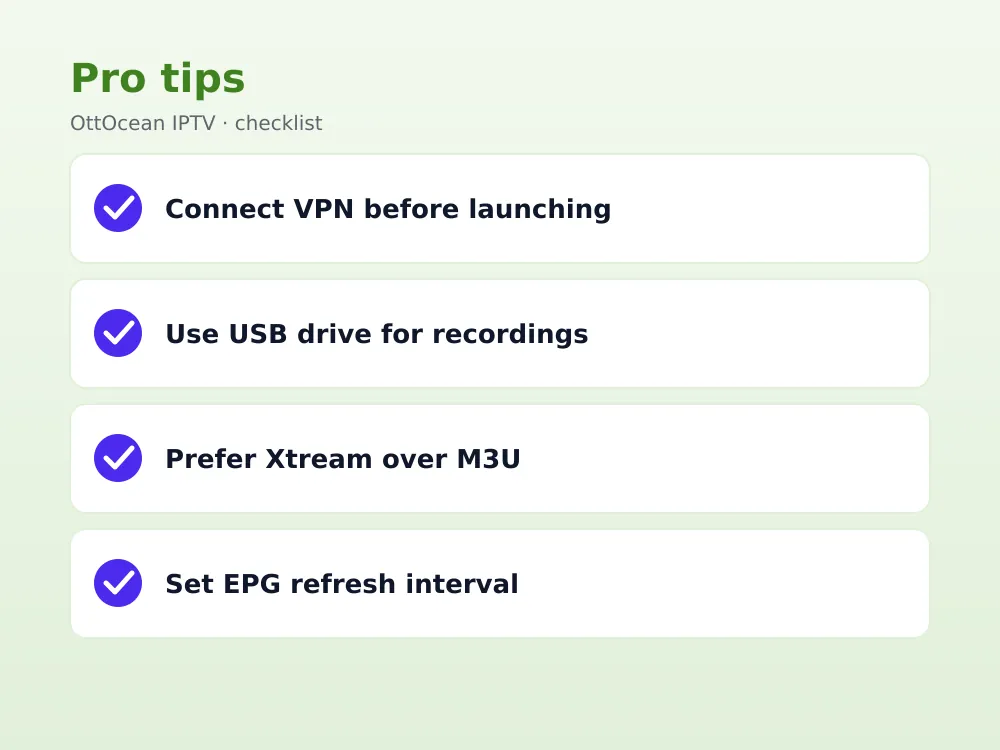
Local recording is the standout feature that separates this app from most free competitors. Recordings save to device storage (or an attached USB drive on compatible Fire TV and Android TV boxes), letting you capture a broadcast and watch it later without relying on your provider’s catch-up window, which is not always available on every single channel.
Storage space is the practical limit — a 128GB USB drive holds a meaningful number of hours at typical bitrates, though exact figures vary depending on resolution and how the channel is encoded, so treat any specific hour estimate as a rough guide rather than a guarantee, and check remaining space periodically rather than assuming it will always be there when you actually need it most, particularly before a big match or event you plan to capture.
Recording quality generally matches the source stream rather than re-encoding it, which keeps the process light on device resources but means a 4K recording takes up considerably more space than a standard-definition one, often several gigabytes per hour depending on the channel’s bitrate. Plan storage accordingly if you intend to record sports fixtures or full movies regularly rather than short clips.
Periodically clear out recordings you have already watched to avoid running out of space unexpectedly, the same way you would manage storage on any DVR or set-top box you may have used before switching to IPTV. Scheduled recording, where supported, lets you queue a program in advance from the EPG rather than needing to manually start and stop capture.
Multi-screen mode deserves a note on hardware requirements too. Running four simultaneous streams asks a lot of any device’s decoder and network connection, so weaker Android TV boxes or older phones may show stutter or dropped frames that a single-channel view would not. If multi-screen feels choppy, dropping to two streams instead of four is usually enough to restore smooth playback on mid-range hardware.
Network bandwidth is the other half of the equation — four simultaneous 1080p streams can easily exceed what a busy home Wi-Fi network handles comfortably alongside other devices, so a wired connection to your router helps more here than almost any in-app setting, particularly in a household where several other devices are also streaming or downloading at the same time.
Sparkle TV IPTV and VPN Compatibility
Sparkle TV works normally alongside most VPN apps running on the same device, since it simply streams through whatever network path is active — it has no built-in VPN detection or blocking behavior that we found in testing. If you use a VPN for privacy while streaming, connect it before opening the app rather than switching servers mid-stream, since a server change can briefly interrupt playback.
A reputable VPN with fast, nearby servers keeps latency low enough that channel switching still feels responsive. Slower or overloaded free VPN servers, by contrast, are a more common cause of buffering than anything related to Sparkle TV IPTV itself, so if streaming feels sluggish with a VPN active, try a different server location before troubleshooting the app.
Sparkle TV IPTV Troubleshooting: Common Fixes
Buffering or freezing during playback almost always means your connection cannot sustain the channel’s bitrate rather than a fault in the app — try a wired connection or a lower-quality group if your provider offers one. A blank channel list after logging in usually means a typo in your Xtream Codes or M3U credentials; re-copy them fresh from your OttOcean account rather than retyping by hand.
If recording fails to start or stops early, check available storage on your device or USB drive first, since Sparkle TV needs enough free space to write the file continuously. Multi-screen mode running slowly on older hardware is a resource limitation rather than a bug — try reducing the number of simultaneous streams from four down to two on lower-powered boxes.
App crashes on launch, though rare, are usually fixed by clearing the app’s cache rather than a full reinstall, which preserves your login and recordings. On Fire TV specifically, a device restart occasionally resolves playback issues that persist across multiple apps, not just Sparkle TV — a sign the problem sits at the hardware or network level rather than within the app itself.
Keeping the app updated matters more here than with older, more stable competitors, since a newer codebase tends to receive bug fixes more frequently in its early years. Check the Play Store or Amazon Appstore periodically for updates, and if a specific issue persists across several sessions, searching the developer’s support channels for that exact error message often turns up a fix faster than generic troubleshooting.
| Issue | Likely cause | Fix |
|---|---|---|
| Buffering / freezing | Connection can’t hold bitrate | Wired connection or lower-quality group |
| Blank channel list | Wrong login credentials | Re-copy server URL, username, password |
| Recording stops early | Insufficient storage | Free up space or use a larger USB drive |
| Multi-screen lag | Limited device resources | Reduce simultaneous streams to two |
| No EPG data | Missing or wrong XMLTV URL | Re-enter URL, force manual refresh |
Sparkle TV IPTV vs TiviMate: How It Compares
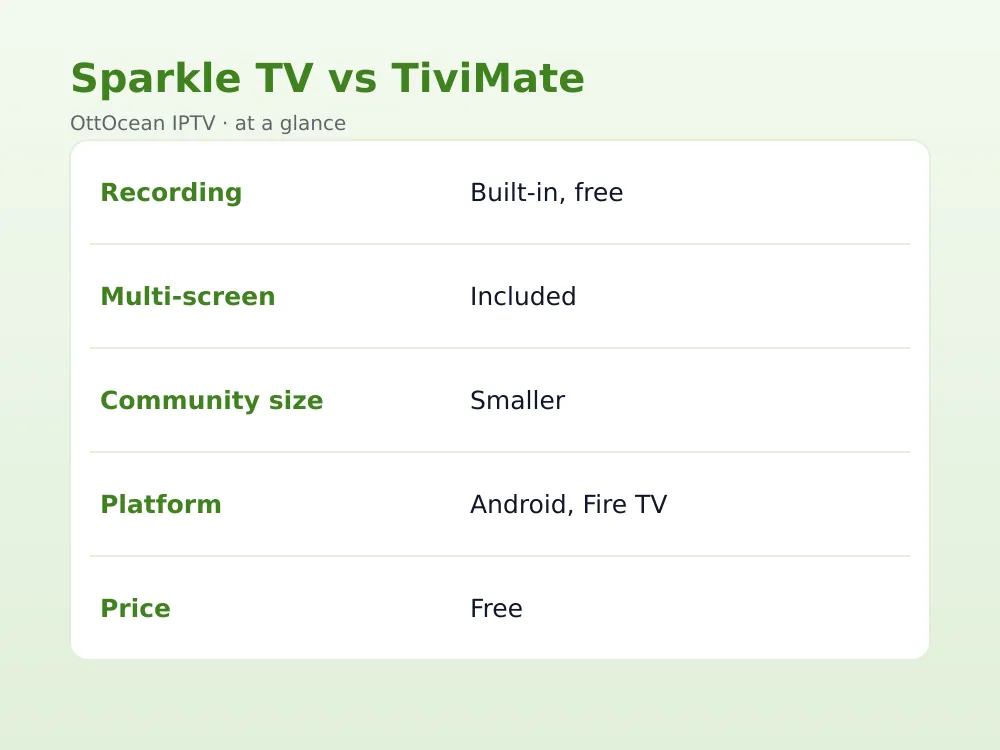
TiviMate remains the more polished, more widely supported option with a larger community and a more refined EPG grid. This app counters with built-in recording and multi-screen at no extra cost, features TiviMate reserves partly for its premium tier. If recording matters to you, it has a real edge; if you want the largest community and the most third-party guides, TiviMate still leads. Our IPTV player apps comparison covers the full field side by side.
Interface responsiveness was close enough in our testing that most users would struggle to tell the two apps apart blind, which says more about how mature this category has become than about either app specifically. The meaningful differences show up in the extras — recording, multi-screen, community size — rather than in the core act of browsing channels and watching them.
Price is not a real differentiator here either, since both apps are free at the core level with optional premium purchases for extras on the TiviMate side. Choose based on which features you will actually use rather than assuming one app is a straightforward upgrade over the other.
Key takeaways
- The app supports both Xtream Codes API and M3U logins on Android and Fire TV.
- Built-in local recording and multi-screen mosaic mode are available at no extra cost.
- The app works normally alongside most VPN apps with no detected blocking behavior.
- Xtream codes activation takes about a minute with the correct server, username and password.
- TiviMate still leads on community size and settings depth; Sparkle TV IPTV leads on built-in recording.
- EPG and playlist setup follow the same general pattern as most Xtream-Codes-first IPTV apps.
FAQ: Sparkle TV IPTV
Is Sparkle TV IPTV free?
Yes, the app is free to download and use, including features like multi-screen and local recording that some competitors reserve for a paid tier. It relies entirely on your IPTV subscription for content, so the app itself carries no separate cost.
Does Sparkle TV IPTV work on Firestick?
Yes. If it is not listed on the Amazon Appstore in your region, sideload the APK using Downloader, following the same process used for apps like Televizo. Performance on Fire TV Stick 4K and 4K Max hardware is solid once configured with your Xtream Codes login.
How do I complete xtream codes activation in Sparkle TV?
Select “Add Playlist” then “Xtream Codes API”, and enter the server URL (with port), username and password exactly as your provider supplied them. Tap Connect and allow a minute or two for the channel list, VOD and EPG to populate fully.
Does Sparkle TV IPTV support recording?
Yes, local recording saves broadcasts to device storage or an attached USB drive on compatible hardware. This lets you capture a program and watch it later without depending on your provider’s catch-up window, which not every channel offers.
Can I use a VPN with Sparkle TV IPTV?
Yes, the app works normally with most VPN apps active on the same device. Connect your VPN before opening Sparkle TV rather than switching servers mid-stream, since a mid-playback server change can briefly interrupt the current channel.
Is Sparkle TV IPTV better than TiviMate?
Neither is objectively better — TiviMate has more settings depth and a larger community, while this app includes free recording and multi-screen viewing. Try both during your provider’s free trial period and keep whichever interface and feature set suits your household best.
Getting Started with Sparkle TV IPTV and OttOcean
Sparkle TV IPTV is a solid pick for anyone who wants built-in recording and multi-screen viewing without paying extra, packaged in an interface that is a little gentler than some of the more established competitors. Xtream codes activation takes about a minute, and the rest of the setup follows the same familiar pattern as most modern IPTV apps. OttOcean IPTV supplies both login formats along with 24/7 WhatsApp and email support.
If you already run TiviMate or Televizo and are simply curious, there is no harm in installing Sparkle TV IPTV alongside your current app rather than replacing it outright. Point it at the same OttOcean login, spend a few days actually using the recording and multi-screen features, and decide from real use rather than a feature checklist which app earns a permanent spot on your home screen. Most Xtream Codes-based subscriptions allow more than one app to be logged in at once anyway, so running two players side by side for a trial period costs nothing beyond a small amount of storage.
Start with the 5-day free trial, no credit card required, load your credentials into Sparkle TV IPTV, and see how the guide, multi-screen and recording feel on your own devices before committing. When ready, compare device counts and terms on the OttOcean plans page.
For background on how DVR-style local recording works technically, the Wikipedia overview of digital video recorders is a useful reference if this is new territory for you.