
Last updated: October 3, 2026
IPTV on Linux works well in 2026, but Linux never got an official app from most IPTV providers, so you have to pick the right third-party player yourself. We tested seven options on Ubuntu 24.04, Fedora 40 and Linux Mint 22 so you can skip the trial and error.
On this page
- What You Need Before Setting Up IPTV on Linux
- Running IPTV on Linux on a Raspberry Pi or Mini PC
- VLC: The Fastest Way to Stream IPTV on Linux
- Kodi with the PVR IPTV Simple Client Add-on
- Hypnotix: Linux Mint’s Native IPTV App
- Jellyfin and Stremio for a Library-Style IPTV on Linux Experience
- IPTVnator and mpv for Power Users
- Using Xtream Codes API for IPTV on Linux
- EPG, Hardware Decoding, and Fixing IPTV on Linux Problems
- Key Takeaways
- FAQ: IPTV on Linux
- Getting Started with IPTV on Linux
What You Need Before Setting Up IPTV on Linux
Before you install anything, get your login details ready. A subscription such as OttOcean IPTV hands you two formats: an Xtream Codes API login (server URL, username, password) and a plain M3U playlist URL. Either works on Linux, but Xtream logins usually pull in EPG data automatically, while M3U links sometimes need a separate EPG XML URL pasted in manually.
You also want a stable connection. IPTV in 4K needs roughly 25 Mbps sustained; HD channels are comfortable at 8-10 Mbps. Wired Ethernet beats Wi-Fi for buffering-free 4K, especially on older laptops with a single-band wireless card. Check your distro is current, since some IPTV apps in the default repos lag a version or two behind upstream. If you also watch on a Windows or Mac machine, the setup steps are nearly identical; see our IPTV for PC guide for the cross-platform version of this walkthrough.
- Xtream Codes API login or M3U playlist URL from your provider
- A wired or 5GHz Wi-Fi connection rated for at least 15-25 Mbps
- Ubuntu, Fedora, Mint, Debian, or another modern distro with Flatpak or Snap enabled
- An EPG XML URL if your provider supplies channel guide data separately
One thing that trips up first-time Linux users: some providers issue a playlist link that expires after a few hours if you open it in a browser first instead of pasting it straight into a linux iptv player. Copy the URL directly from your provider’s member panel and paste it into VLC, Kodi, or whichever app you pick, rather than clicking it in a browser tab. That single habit avoids most “blank channel list” support tickets we see from people new to IPTV on Linux.
Running IPTV on Linux on a Raspberry Pi or Mini PC
You do not need a full desktop tower for IPTV on Linux. A Raspberry Pi 4 or 5 running Raspberry Pi OS handles VLC or a lightweight build of Kodi comfortably for HD channels, and a small mini PC with an Intel N100 chip is enough for smooth 4K playback with hardware decoding enabled. Both cost less than most streaming boxes and give you a full linux iptv player setup instead of a locked-down app store.
The trade-off is that a Raspberry Pi 4 can struggle with heavier HEVC 4K streams without a case fan, since sustained decoding raises the chip’s temperature and triggers thermal throttling. For a dedicated always-on IPTV on Linux box, a fanless mini PC or a Pi 5 with active cooling is the more reliable choice, and either one can sit behind your TV running Kodi in full-screen mode as a makeshift set-top box.
VLC: The Fastest Way to Stream IPTV on Linux
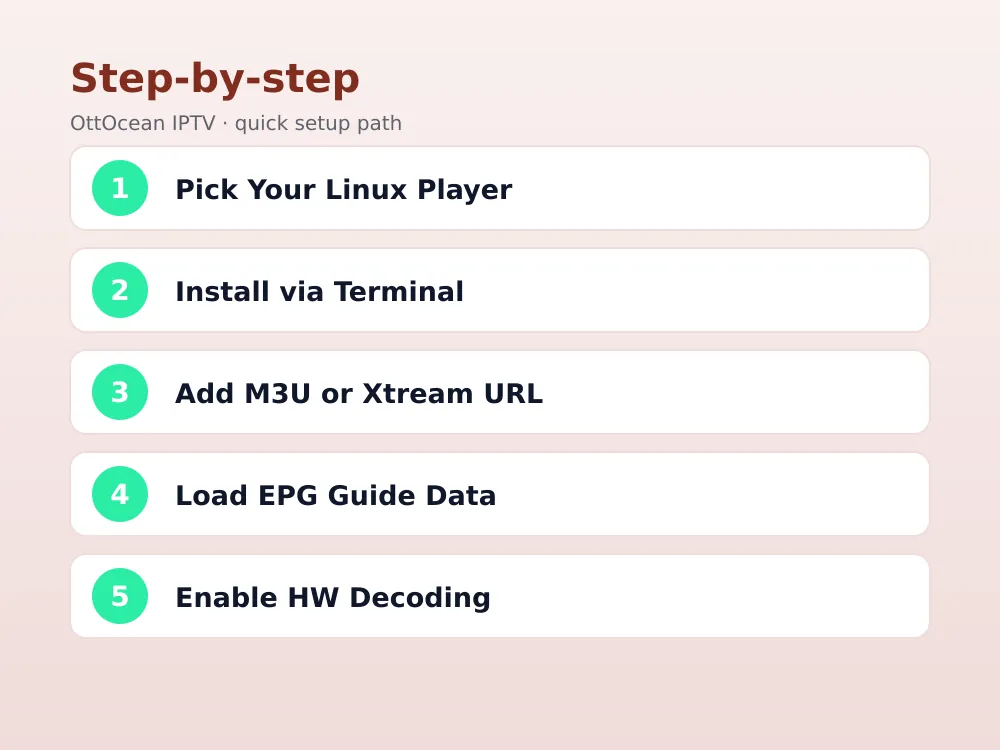
VLC ships in nearly every distro’s repository and needs zero configuration to play a stream. Install it with sudo apt install vlc on Ubuntu/Mint or sudo dnf install vlc on Fedora, then open VLC and go to Media > Open Network Stream. Paste your M3U URL directly, or add #EXTM3U playlists by opening them as a local file if you downloaded one.
VLC’s downside for full-time IPTV on Linux is that it treats your playlist as a flat list rather than organized channel groups, and it has no EPG or catch-up support. It is the right tool for quickly testing whether a stream works, or for watching a single channel without installing a dedicated app. For daily viewing across hundreds of channels, move to Kodi or a purpose-built IPTV app instead.
Loading an Xtream Codes M3U Link in VLC
Your Xtream Codes panel generates an M3U URL in this pattern: http://server:port/get.php?username=USER&password=PASS&type=m3u_plus&output=ts. Paste that full string into VLC’s network stream box and hit Play. The first load can take 10-20 seconds while VLC indexes the playlist, so do not assume it has frozen.
Kodi with the PVR IPTV Simple Client Add-on
Kodi is the closest thing to a real set-top box experience on desktop Linux. Install it from Flathub with flatpak install flathub tv.kodi.Kodi, or via your distro’s package manager. Once installed, go to Settings > Add-ons > My Add-ons > PVR Clients, enable “PVR IPTV Simple Client,” then configure it with either your M3U URL or the Xtream Codes API path.
The add-on supports a separate EPG XML URL field, so paste your provider’s guide link there to get a proper channel grid with show times. Kodi also groups channels by category automatically when the M3U tags include group titles, which most Xtream-generated playlists do. Restart Kodi after saving, then open the TV section from the home screen.
Give the first load a couple of minutes if your provider offers a large channel count in the thousands. Kodi has to parse the entire playlist and match it against the EPG feed before the guide grid populates correctly. Closing the app early during that process can leave a partial channel list that needs a manual refresh from the add-on’s settings menu afterward.
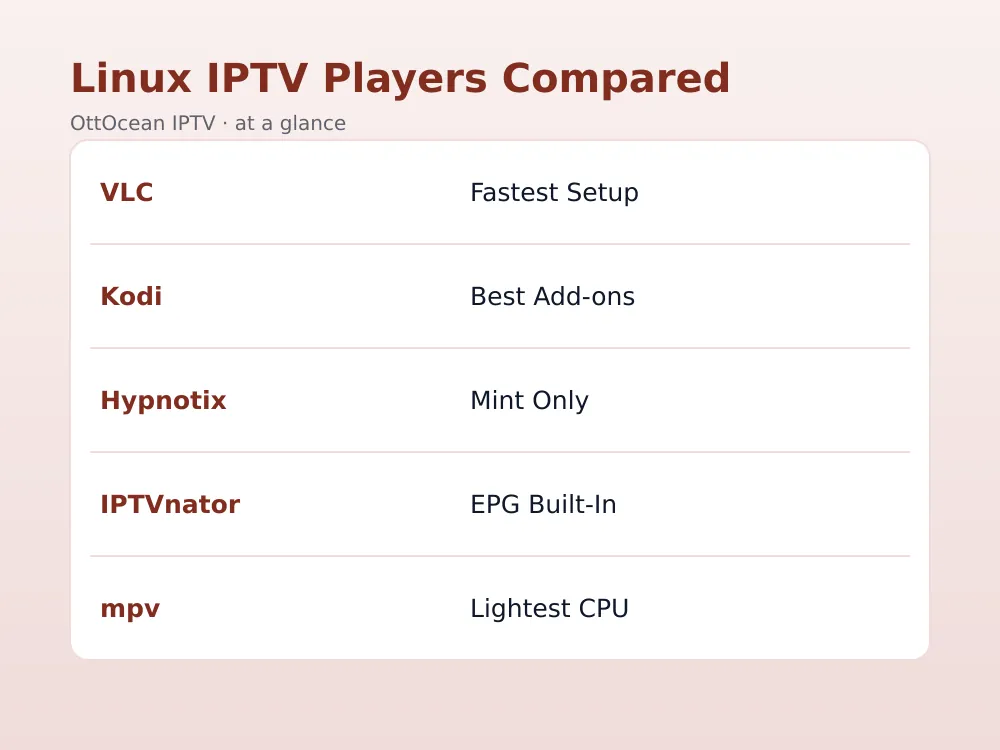
| Player | Best For | EPG Support | Setup Difficulty |
|---|---|---|---|
| VLC | Quick stream tests | None | Easiest |
| Kodi | Full channel guide | Yes, via add-on | Moderate |
| Hypnotix | Linux Mint users | Built in | Easiest |
| IPTVnator | Multiple playlists | Yes | Easy |
| mpv | Low-resource hardware | None | Advanced |
Hypnotix: Linux Mint’s Native IPTV App
Hypnotix comes pre-installed on Linux Mint 20.2 and later, which makes it the simplest option if that is your distro. Open it from the menu, go to Settings, and add a custom playlist by pasting your M3U URL and, separately, your EPG XML link. Hypnotix organizes channels into a sidebar by group and includes a built-in program guide once the EPG loads.
On Ubuntu or Fedora, Hypnotix is installable via Flatpak, though it was built with Mint’s design language in mind so a few menu labels reference Mint-specific defaults. It handles Xtream Codes playlists fine since Xtream just outputs standard M3U with grouped entries. Performance is light, which matters on older laptops repurposed as a media box.
Jellyfin and Stremio for a Library-Style IPTV on Linux Experience
Jellyfin is normally known as a self-hosted media server, but its Live TV plugin accepts an M3U tuner source and an XMLTV guide URL, letting you browse live channels inside the same interface as your movie library. This suits anyone who already runs Jellyfin on a home server and wants IPTV on Linux folded into one dashboard instead of a separate app.
Stremio, available as a native Linux binary or Flatpak, supports M3U playlists through community add-ons rather than a built-in field, so it takes a bit more setup than Jellyfin. Both are heavier than VLC or mpv and make more sense if you already use them for on-demand content and want live channels bolted on rather than as your primary player.
IPTVnator and mpv for Power Users
IPTVnator is a dedicated open-source IPTV desktop app built specifically for M3U and Xtream Codes playlists, available as an AppImage, Flatpak, or Snap. It supports multiple saved playlists, EPG overlays, favorites, and a clean grid view, which makes it one of the more polished options for IPTV on Linux without Kodi’s broader home-theater overhead.
mpv is the command-line route for anyone comfortable with a terminal. Run mpv "http://server:port/get.php?username=USER&password=PASS&type=m3u_plus" and mpv plays the stream directly using far less RAM and CPU than VLC or Kodi. There is no built-in channel browser, so most users pair mpv with a playlist manager like mpv-mpris or a simple shell script that lists channel names and launches mpv with the matching URL.
- IPTVnator: AppImage/Flatpak/Snap, built-in EPG, multiple playlist profiles
- mpv: lowest CPU and RAM use, terminal-based, no native channel browser
- Jellyfin: best if you already self-host a media library
- Stremio: add-on based M3U support, heavier interface
Using Xtream Codes API for IPTV on Linux
Xtream Codes is the login format most premium services, including OttOcean IPTV, hand out alongside the plain M3U link. On Linux, Xtream logins work in two ways: as a direct M3U URL pasted into VLC, Kodi, or Hypnotix, or through a dedicated Xtream-aware web player if your chosen app supports the panel format natively.
The practical advantage of Xtream over a bare M3U file is that most Xtream panels refresh channel lists and EPG data server-side, so you rarely need to re-download a playlist after the provider updates channels. If a channel disappears or renumbers, reloading the same Xtream URL in your player usually fixes it without asking support for a new link.
Web-Based Xtream Players in a Browser
If you would rather avoid installing anything, several browser-based Xtream Codes players run entirely client-side and accept your server, username, and password fields directly. These work in Firefox or Chrome on any Linux distro since nothing is installed locally, though playback quality depends more on your browser’s hardware acceleration settings than on a native app.
EPG, Hardware Decoding, and Fixing IPTV on Linux Problems
Electronic Program Guide data turns a bare channel list into something you can actually browse by show and time. Kodi, Hypnotix, IPTVnator, and Jellyfin all accept a separate XMLTV guide URL if your Xtream login does not push EPG automatically. Paste that URL into the app’s EPG settings field and give it a minute to index; large guides covering thousands of channels can take longer on the first load.
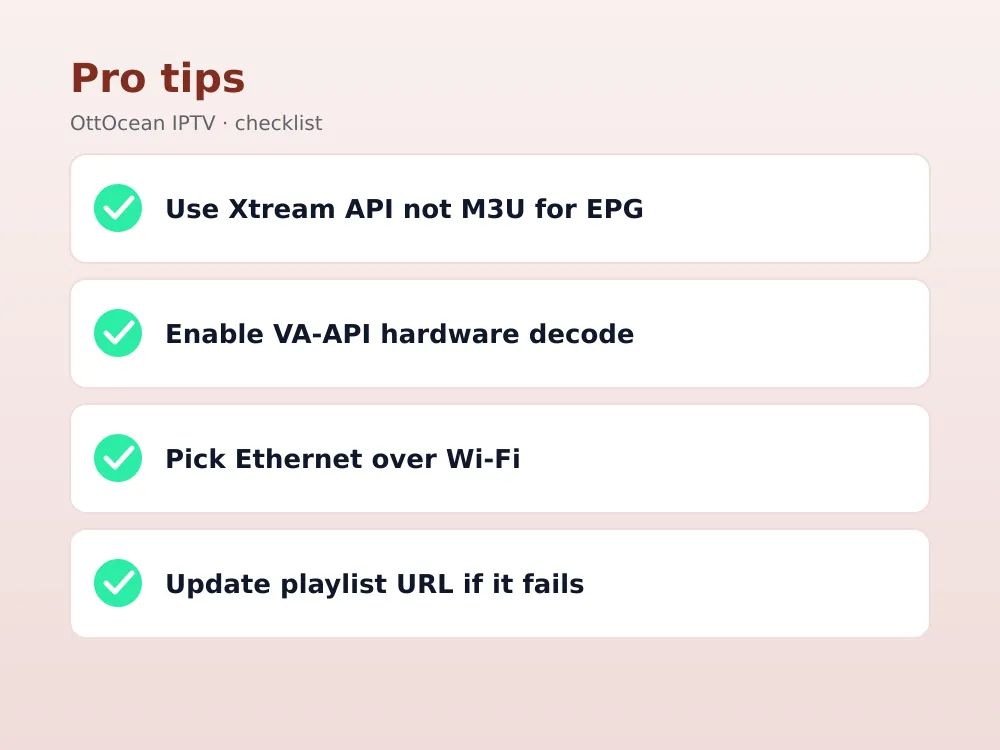
Hardware decoding matters more on Linux than on Windows because software decoding of H.264 or HEVC streams can pin a CPU core at 100 percent on older hardware. Enable VA-API in VLC’s Input/Codecs settings, or check that Kodi’s Player settings has “Allow hardware acceleration” turned on. On Intel and AMD integrated graphics this alone usually fixes stuttering 4K playback.
Common problems and fixes: a blank channel list almost always means the M3U or Xtream URL was pasted with a trailing space or line break, so retype it manually. Constant buffering points to Wi-Fi rather than the provider, so test over Ethernet before assuming the service is down. If VLC or Kodi crashes on a specific channel, that stream’s codec may be unsupported until you install the ubuntu-restricted-extras or ffmpeg package for broader codec coverage.
If your kodi iptv addon shows channels but every stream times out, double-check the Xtream Codes server address does not still have “http://” typed twice, a common copy-paste mistake from provider panels. And if IPTV on Linux worked yesterday but every channel fails today, the playlist URL itself may have rotated; log back into your provider’s member area and pull a fresh M3U or Xtream link before contacting support.
Key Takeaways
- VLC is the fastest way to test a stream but has no EPG or channel grouping
- Kodi with PVR IPTV Simple Client gives you the fullest set-top-box style experience
- Linux Mint users already have Hypnotix installed and ready to configure
- IPTVnator is the most polished dedicated linux iptv player for M3U and Xtream logins
- mpv uses the least CPU and RAM if you are comfortable with a terminal command
- Xtream Codes API logins refresh channels and EPG more reliably than static M3U files
- Wired Ethernet and hardware decoding fix most buffering and stutter issues
FAQ: IPTV on Linux
Is there an official IPTV app for Linux?
No major IPTV provider ships an official native Linux app as of 2026. Instead, you load your M3U playlist or Xtream Codes login into a general-purpose player such as VLC, Kodi, Hypnotix, or IPTVnator, all of which run natively on Ubuntu, Fedora, Mint, and Debian-based distros.
Which linux iptv player is easiest for beginners?
VLC is the simplest since it is preinstalled or one command away on almost every distro and needs no configuration beyond pasting your playlist URL. For a fuller experience with a channel guide, Hypnotix on Linux Mint or IPTVnator on any distro are close runners-up with minimal setup.
Can I use my Xtream Codes login instead of an M3U file on Linux?
Yes. Every player covered here accepts an Xtream Codes API login directly, or you can convert it into an M3U URL using the standard get.php pattern your provider supplies. Xtream logins generally keep EPG and channel lists more current than a downloaded static M3U file.
Why does my IPTV on Linux setup keep buffering?
Buffering is usually a bandwidth or Wi-Fi issue rather than a Linux-specific bug. Switch to Ethernet, confirm your connection meets 8-10 Mbps for HD or 25 Mbps for 4K, and enable hardware decoding in your player’s settings to rule out a CPU bottleneck on older machines.
Does kodi iptv addon setup work the same on every distro?
Yes, the PVR IPTV Simple Client add-on behaves identically across Ubuntu, Fedora, Mint, and Debian since Kodi itself is the same codebase everywhere. Install Kodi through Flatpak for the most current version regardless of distro, since some default repositories lag behind Kodi’s official releases.
Do I need an EPG XML URL for m3u playlist linux setups?
Only if your provider’s M3U link does not already embed guide data. Most Xtream Codes-based services, including OttOcean IPTV, offer a separate EPG XML URL you paste into your player’s guide settings field to get show times and descriptions for every channel.
Can a Raspberry Pi handle IPTV on Linux full time?
Yes for HD content, and a Pi 5 with active cooling manages most 4K streams too. A Raspberry Pi 4 without a fan can thermal-throttle during long HEVC 4K sessions, so for a dedicated always-on box we recommend either a cooled Pi 5 or a small fanless mini PC running your chosen linux iptv player.
Getting Started with IPTV on Linux
IPTV on Linux comes down to picking one player and giving it your playlist details once. VLC gets you watching in under a minute, Kodi and Hypnotix add a proper guide, and IPTVnator or mpv round things out for power users who want more control or a lighter footprint. Whichever app you choose, the Xtream Codes API login or M3U URL is the only piece that actually matters, and any subscription that hands you both formats will work across every tool in this guide.
We would start most people on VLC to confirm the service works, then move to Kodi or IPTVnator once you know you want to stick with it long-term as your main linux iptv player. Running IPTV on Linux on a Raspberry Pi, mini PC, or full desktop all use the identical m3u playlist linux steps covered above, so the hardware you already own is almost certainly enough.
If you do not have a working login yet, OttOcean IPTV offers a 5-day free trial with no credit card required, so you can test Xtream Codes and M3U playback on your own Linux machine before committing. Full plan pricing and multi-device options are on the IPTV subscription plans page, and step-by-step device guides are on the M3U playlist setup guide if you also run IPTV on a phone or Windows machine alongside your Linux box. For background on the underlying technology, the Wikipedia entry on IPTV and the official Kodi PVR documentation are useful references while you configure EPG settings.


