
Last updated: October 1, 2026
IPTV on Plex isn’t as direct as adding a playlist to TiviMate, because Plex Live TV only recognizes actual tuner hardware, not a raw M3U link. The workaround is a small piece of free software called xTeVe or Threadfin that pretends to be a network tuner Plex already understands. We cover all five steps below, along with the Plex Pass requirements and channel limits nobody mentions until you hit them.
On this page
- Why Plex Needs a Tuner Emulator for IPTV
- What You Need Before Setting Up IPTV on Plex
- Hardware Requirements for Running xTeVe or Threadfin
- Step-by-Step: 5 Steps to Get IPTV on Plex Working
- Mapping Guide Data Correctly in xTeVe
- Plex Pass Requirements for DVR and Remote Access
- DVR Storage and Recording Considerations
- Channel Limits and Performance Considerations
- xTeVe vs Threadfin: Which Should You Use
- Fixing Common IPTV on Plex Errors
- Key takeaways
- FAQ: IPTV on Plex
- Ready to Get IPTV on Plex Set Up?

Why Plex Needs a Tuner Emulator for IPTV
Plex’s Live TV & DVR feature was built around physical tuner hardware, specifically Silicondust’s HDHomeRun line, which broadcasts channels over your local network in a format Plex already knows how to discover automatically. Plex has no native option to paste in an M3U URL directly.
Plex introduced Live TV & DVR years ago as a way to compete with cable DVR boxes for over-the-air antenna users, and the underlying tuner-discovery mechanism hasn’t fundamentally changed since. That’s actually good news for IPTV users, since the workaround built on top of it has had years to mature and stabilize.
xTeVe and Threadfin solve this by running as small local servers that convert your IPTV playlist into that same HDHomeRun-style network broadcast. Plex sees what looks like a real tuner on your network, scans it, and treats your IPTV channels exactly like an over-the-air antenna feed.
This approach isn’t unique to Plex; the same trick works for other DVR software built around HDHomeRun compatibility. But since Plex is the most popular home media server by a wide margin, xTeVe and Threadfin have both been refined specifically around smooth Plex integration over the past several years.
How we tested: we ran xTeVe on a small home server alongside Plex Media Server, feeding it an Xtream Codes-derived M3U playlist and matching XMLTV data. Once the virtual tuner was detected, mapping roughly 150 channels to guide data took under ten minutes.
What You Need Before Setting Up IPTV on Plex
Gather these pieces before starting, since xTeVe and Plex both need specific inputs to connect correctly.
- An M3U playlist URL from your IPTV provider
- An XMLTV guide URL, matched to the same channel lineup as your playlist
- A device on your home network to run xTeVe or Threadfin, such as a PC, NAS, or small server
- Plex Media Server already installed, with Live TV & DVR available in your region
OttOcean provides an M3U playlist URL and a matching XMLTV link at signup, both of which plug directly into xTeVe’s settings without extra formatting or conversion on your end.
Hardware Requirements for Running xTeVe or Threadfin
Neither xTeVe nor Threadfin needs powerful hardware; both run comfortably on a Raspberry Pi, an old laptop, a NAS with Docker support, or the same machine hosting your Plex Media Server itself. The heavier lifting happens on the Plex side during transcoding, not inside the emulator.
If you’re running Plex on a NAS from Synology or QNAP, both xTeVe and Threadfin have community Docker images that install in a few minutes without needing a separate dedicated device. Keeping everything on one box also simplifies network discovery, since Plex and the emulator share the same local address.
Docker containers also make updates simpler over time, since pulling a new image version doesn’t disturb your saved playlist or mapping configuration as long as you’ve mounted the config folder correctly outside the container. This is worth setting up correctly the first time rather than troubleshooting a wiped config later.
For heavier households running multiple simultaneous live streams plus transcoding, a quad-core CPU with at least 8GB of RAM on the Plex server side handles the load more comfortably than older dual-core hardware, which can bottleneck during peak evening viewing.
Power consumption is worth a mention if you’re running the emulator 24/7 on dedicated hardware rather than a machine you’d already leave on. A Raspberry Pi draws only a few watts continuously, which makes it a practical always-on choice compared to leaving a full desktop PC running around the clock.
Noise is a secondary consideration for the same reason: fanless single-board computers stay silent under the light load xTeVe and Threadfin place on them, which matters if the device ends up living permanently in a living room media cabinet rather than a closet or basement rack out of earshot.
Step-by-Step: 5 Steps to Get IPTV on Plex Working
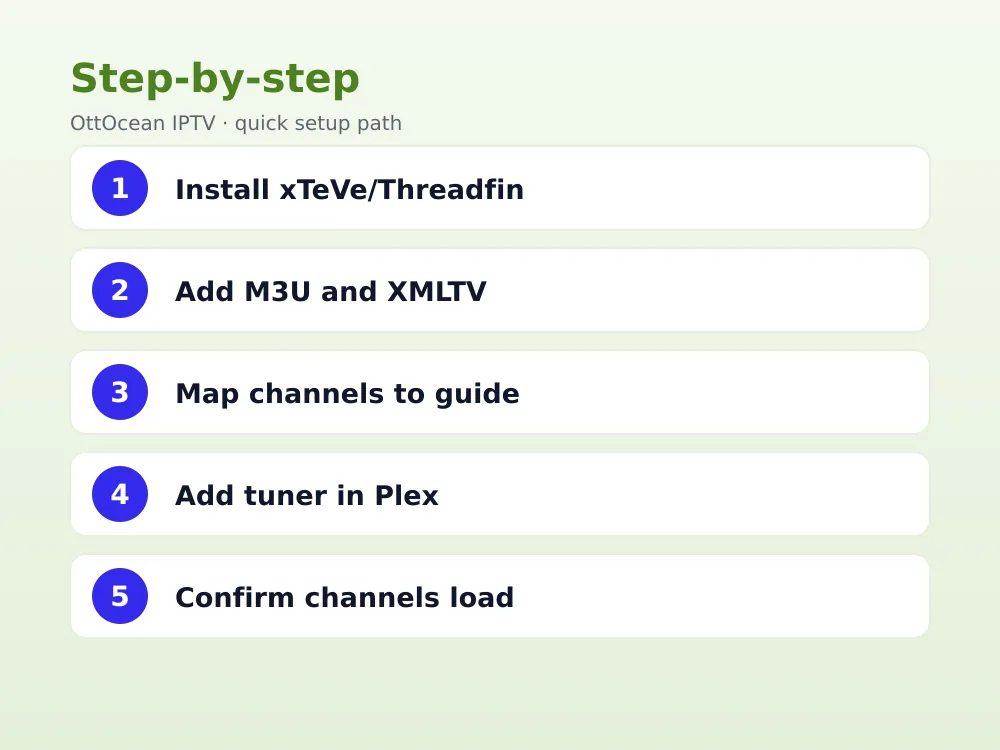
Step 1: Install xTeVe or Threadfin
Download xTeVe (or its more actively maintained fork, Threadfin) and install it on a machine that stays on the same network as your Plex server. Both offer a simple, clean web interface for configuration, reachable through a browser on port 34400 by default for xTeVe.
Step 2: Add your M3U playlist and guide data
Open the xTeVe web interface, go to Playlist, and paste your M3U URL. Then go to XMLTV and paste your guide URL. Save both, and xTeVe pulls the full channel and program list.
Step 3: Configure the virtual tuner and map channels
Under Mapping, match each playlist channel to its correct XMLTV guide entry, and set a channel count limit matching your actual subscription. Save the configuration to generate the emulated tuner.
Step 4: Add the tuner in Plex
In Plex, go to Settings > Live TV & DVR > Set Up Plex Tuner. Plex should automatically discover the xTeVe emulator on your network; select it and let Plex scan the channel list.
Step 5: Confirm channels and guide data appear
Once the scan finishes, open Live TV from Plex’s home screen. Channels should appear with program titles and times pulled from your XMLTV source, ready to browse like any other Plex library.
Mapping Guide Data Correctly in xTeVe
Channel mapping is the step most people get wrong on their first attempt. Each playlist entry needs to match an XMLTV channel ID exactly, or Plex’s guide grid shows blank titles next to a channel that technically streams fine.
xTeVe’s mapping screen lets you search and manually assign the correct guide entry to each playlist channel if the automatic match misses one. This is common when a provider’s channel naming doesn’t precisely match the XMLTV source’s internal ID scheme.
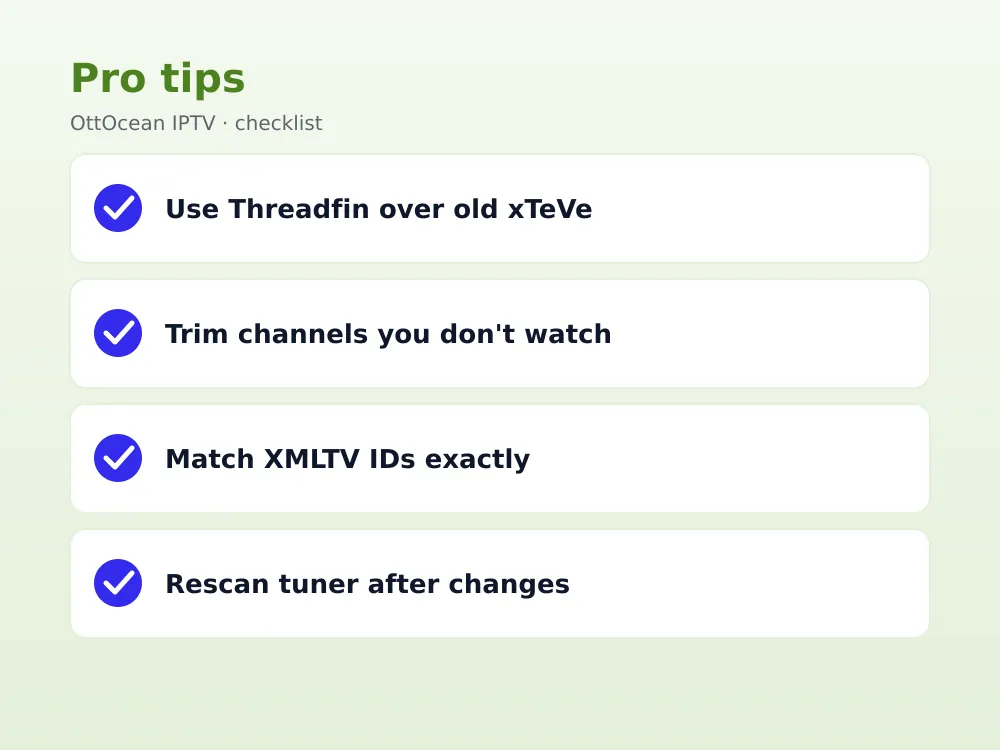
Save your mapping after every change, since xTeVe doesn’t apply updates to Plex until you rescan the tuner from Plex’s Live TV settings. A quick rescan after remapping refreshes guide data without needing to redo the full setup.
Channel numbers matter too, not just names. If your provider’s numbering doesn’t match what your household is used to from a previous cable box, xTeVe lets you manually reorder or renumber channels during mapping so the final lineup in Plex feels familiar rather than arbitrary.
Plex Pass Requirements for DVR and Remote Access
Watching live channels through xTeVe doesn’t strictly require Plex Pass, but recording (DVR) does. If you want to schedule recordings of live IPTV channels the way you would with a real antenna tuner, an active Plex Pass subscription is required to enable that feature.
Plex Pass also affects hardware-accelerated transcoding, which matters if you’re streaming to a device or app that can’t play the incoming stream format natively and Plex needs to convert it on the fly. Without hardware transcoding, a modest server CPU can struggle with multiple simultaneous live streams.
DVR Storage and Recording Considerations
If you do subscribe for DVR features, recordings need somewhere to live. Plex saves them to a folder on your server’s storage, and live sports or long movies at 1080p can consume several gigabytes per recording, so a dedicated drive with real headroom matters more than it does for casual live viewing.
Scheduled recordings also depend on accurate XMLTV timing data, since Plex starts and stops based on the guide’s listed start and end times. A guide source with sloppy or delayed updates can cause a recording to cut off the last few minutes of a program that ran long.
Some households build in a few extra minutes of padding on either end of a scheduled recording specifically to guard against this, especially for live sports where broadcasts routinely run past their scheduled end time. Plex’s recording settings allow a small buffer to be added per recording rule.
Channel Limits and Performance Considerations
Plex has historically capped the number of channels its Live TV guide displays cleanly, and very large lineups (several hundred-plus channels) can slow down guide rendering or hit soft limits depending on your Plex Media Server version. As of 2026, keeping your mapped lineup to the channels you actually watch avoids this entirely.
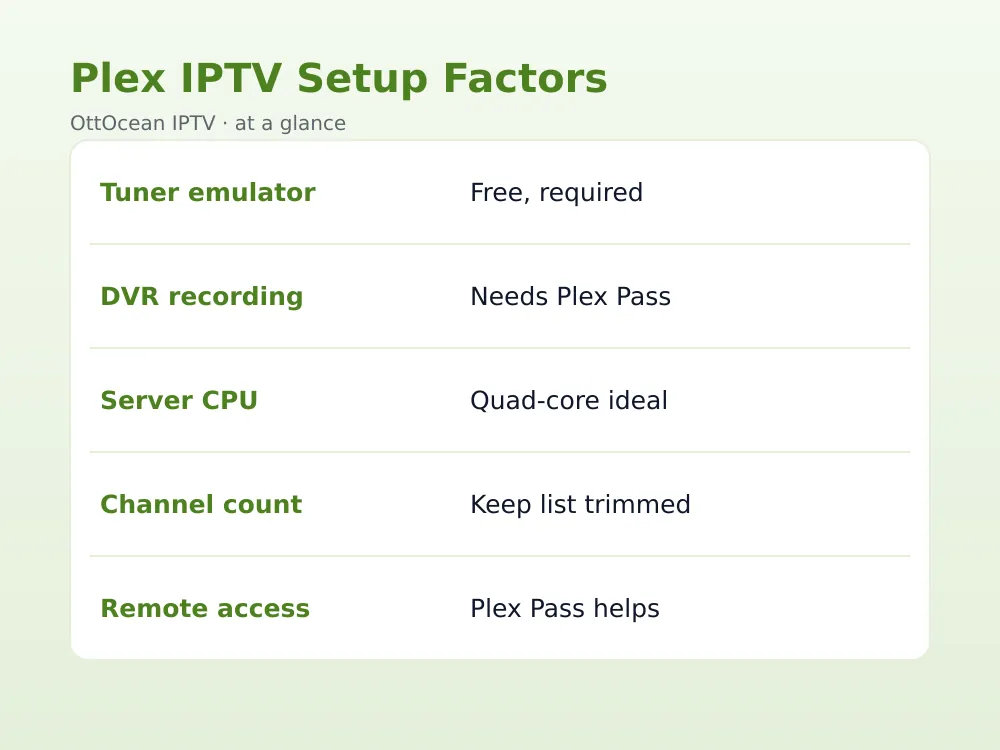
| Setup Factor | Typical Requirement | Why It Matters |
|---|---|---|
| Tuner emulator | xTeVe or Threadfin, free | Required; Plex won’t accept raw M3U |
| DVR recording | Plex Pass subscription | Live watching is free, recording isn’t |
| Server CPU | Modern quad-core minimum | Handles transcoding multiple streams |
| Channel count | Keep to watched channels | Large lineups slow guide rendering |
Trimming your mapped channel list in xTeVe to your actual favorites, rather than importing every channel in a large bundle, keeps both the emulator and Plex’s guide noticeably snappier during everyday use.
You can always add more channels back later; xTeVe’s filtering doesn’t delete anything from your original playlist, it just controls what gets presented to Plex as the virtual tuner’s lineup. Adjusting the filtered list takes a few minutes and only needs a tuner rescan afterward, with no need to redo the initial installation steps.
xTeVe vs Threadfin: Which Should You Use
Threadfin started as a fork of xTeVe after the original project’s development slowed, and it’s picked up more active maintenance and bug fixes since. Both handle the core job identically: converting an M3U and XMLTV source into a Plex-compatible virtual tuner.
If you’re starting fresh in 2026, Threadfin is generally the safer pick due to more recent updates, though xTeVe still works fine and plenty of existing setups run it without issues. Migrating between the two later isn’t difficult since the configuration concepts are nearly identical.
Both projects are community-maintained rather than official Plex products, so neither comes with dedicated customer support from Plex itself. Community forums and GitHub issue trackers for each project are usually the fastest place to find answers to setup problems specific to your network configuration.
Because neither tool is officially sanctioned by Plex, features can occasionally lag behind Plex Media Server changes until the community catches up with a patch. This is rare in practice, but it’s worth keeping an eye on release notes if you rely heavily on live TV every day.
That said, the core functionality both tools provide, translating a playlist into a discoverable virtual tuner, has remained stable for years despite Plex’s own interface changing several times. It’s a solid, dependable foundation to build a whole household live TV setup on even without official vendor backing or a paid support contract.
Fixing Common IPTV on Plex Errors
Most problems with IPTV on Plex trace back to one of these four issues.
- Plex doesn’t detect the tuner: confirm xTeVe and Plex are on the same network/subnet, and check firewall rules aren’t blocking discovery
- Guide shows blank titles: revisit channel mapping in xTeVe and manually match any channels the automatic mapper missed
- Streams buffer or fail to load: check your playlist URL is still valid and your subscription hasn’t expired
- DVR recording option is grayed out: confirm your Plex Pass subscription is active and linked to the correct Plex account
- Tuner disappears after a router restart: some routers assign a new local IP to the emulator device; a static IP or DHCP reservation prevents this
Network discovery issues are the most persistent category of problem, since Plex’s tuner detection relies on multicast traffic that some routers and VLANs block by default. If discovery keeps failing, temporarily disabling AP or client isolation on your router settings often resolves it.
Keep Plex Media Server itself updated too; occasional version updates have changed how the Live TV section handles third-party tuners, and running a very old server version alongside a freshly updated xTeVe or Threadfin build is a less common but real source of compatibility hiccups.
Key takeaways
- IPTV on Plex requires a tuner emulator like xTeVe or Threadfin since Plex won’t accept a raw M3U link directly
- Live channel watching is free; DVR recording needs an active Plex Pass subscription
- Channel mapping in xTeVe must match XMLTV IDs correctly or the guide shows blank program titles
- Trimming your channel lineup to what you actually watch keeps guide performance snappy
- Threadfin is a more actively maintained fork of xTeVe, worth choosing for new 2026 setups
- A modern quad-core server handles multiple simultaneous transcoded streams more reliably
- Rescanning the tuner in Plex is required after any remapping change in xTeVe
FAQ: IPTV on Plex
Can I add an M3U playlist directly to Plex?
No. Plex’s Live TV & DVR feature only recognizes actual tuner hardware or a compatible network tuner emulator like xTeVe or Threadfin. There’s no built-in field to paste a raw M3U URL, which is why the emulator step is required for IPTV on Plex to work at all.
Do I need Plex Pass to watch IPTV on Plex?
Not for basic live viewing. Plex Pass is required specifically for DVR recording and some hardware transcoding features. If you only want to watch live channels without scheduling recordings, a free Plex account paired with xTeVe or Threadfin is enough.
Why does my Plex guide show no program data?
This usually means your XMLTV channel IDs don’t match your playlist’s channel mapping in xTeVe. Open the Mapping screen, manually match any unmatched channels, save, and rescan the tuner from Plex’s Live TV settings to refresh the guide.
Is IPTV on Plex legal?
Plex itself is legal media server software with no built-in content. Legality depends entirely on the IPTV service whose playlist you feed into xTeVe or Threadfin. Streaming from a properly licensed subscription service is standard practice, and users are responsible for the content they choose to access.
How many IPTV channels can Plex handle?
Plex doesn’t publish a hard official cap, but very large lineups of several hundred channels can slow guide rendering on some Plex Media Server versions. Mapping only the channels you actually watch, rather than an entire bundle, keeps performance smooth as of 2026.
Can I access IPTV on Plex remotely, away from home?
Yes, through Plex’s normal remote access feature, provided your server is configured for it and your connection can handle the transcoding load. Remote streaming quality depends on your home upload speed and whether Plex needs to transcode the stream for the receiving device on the other end.
Ready to Get IPTV on Plex Set Up?
The xTeVe and Threadfin setup is free, but you need a reliable playlist behind it. OttOcean offers a 5-day free trial, no credit card required, so you can confirm your M3U and XMLTV links work correctly with Plex before subscribing to anything.
Once confirmed, our subscription plans start at $9.99 for one device, with multi-device options if Plex is one of several apps your household uses. For more setup detail, see our M3U playlist setup guide and EPG setup guide, or browse our full list of IPTV player apps if Plex isn’t the right fit. Official Plex Live TV documentation is available from Plex’s support site.


